TOOL HUNTER

Summary: This guide provides a complete walkthrough on how to make a Spotify Blend playlist, a feature that merges your music taste with friends. You’ll learn the steps for desktop and mobile, how to invite others, and even how to save your shared tunes offline. We also cover how to delete a blend if you need to.
Music is always better when shared. If you’ve ever wanted to combine your favorite tracks with a friend’s discoveries into one perfect playlist, Spotify has a fantastic feature just for you. It’s called a Blend playlist, and it’s a super fun way to connect over music. Let’s dive into everything you need to know about how to make a blend on Spotify.
Table of Contents
- What Exactly Is a Spotify Blend Playlist?
- How to Make a Blend Playlist on Spotify: Step-by-Step
- How to Invite More Friends to Your Existing Spotify Blend
- Managing Your Blends: How to Leave or Delete a Spotify Blend Playlist
- Beyond the Blend: How to Share Spotify Music Without Restrictions
- Final Thoughts on Creating Your Perfect Mix
What Exactly Is a Spotify Blend Playlist?
Ever find a song and immediately think, “My friend would love this”? Spotify’s Blend feature makes that sharing instinct a built-in part of the app. Essentially, a Spotify Blend playlist is a collaborative, automatically generated playlist that combines the listening preferences of two or more people. Using its smart algorithms, Spotify analyzes what you and your friends play and creates a unique mix that updates regularly.

Think of it as a musical meeting point. It’s not just a static list; it’s a living playlist that changes as your tastes evolve. You can create blends with up to 10 people, making it perfect for small friend groups, roommates, or family. It’s more than just sharing songs; it’s about discovering new artists and genres through the people you care about, which is a core part of learning how to make Spotify blend experiences social.
How to Make a Blend Playlist on Spotify: Step-by-Step
The process of creating a blend is straightforward, but it varies slightly depending on whether you’re using a computer or your phone. Here’s a detailed breakdown for both.
How to Make a Blend on Spotify Using Your Computer (PC or Mac)
If you’re on a desktop or laptop, you have two main ways to start the process. The first is the most direct.
Method 1: Search for “Blend”
- Open the Spotify app on your desktop or go to the Spotify Web Player in your browser.
- Click on the Search tab (the magnifying glass icon) in the left sidebar.
- In the search bar, type “Blend” and hit enter.
- In the search results, you should see a tile labeled “Create a Blend”. Click on it.

- Spotify will generate a new blend playlist just for you. To add friends, click the “Invite” button. This will create a shareable link that you can send via message, email, or any other app.

Sometimes the search function might be finicky. If you can’t find the “Create a Blend” option by searching, don’t worry. There’s a reliable backup method.
Method 2: Use the “Made For You” Section
- Launch Spotify on your computer.
- Go to the Search page.
- Look for the “Made For You” category. Click to explore it.
- Inside, you’ll find a section called “Made For Us”. This is where all your blend playlists live. Click on “Create a Blend” here to start a new one.

Once created, share the link with anyone you want to join your musical collaboration.
How to Make a Blend Playlist on the Spotify Mobile App
Creating a blend on Spotify from your phone is just as easy and is probably the way most people will do it.
Primary Method:
- Open the Spotify app on your iPhone or Android device.
- Tap the Search icon at the bottom of the screen.
- Type “Blend” into the search bar.
- Under the “Made For Us” header in the results, tap “Create a Blend”.

- The app will prepare your new blend. Tap “Invite” to generate and share a link with your chosen friends.

Alternative Mobile Method:You can also navigate directly to the dedicated section.
- Tap Search in the app.
- Select the “Made For You” tab at the top of the screen.
- Scroll until you see “Made For Us” and tap “Create a Blend.”
The result is the same—a fresh playlist waiting for your friends’ contributions.
A Special Feature: How to Make a Spotify Blend with an Artist
Here’s a cool twist: you can also create a Spotify blend that mixes your personal taste with the music of a select few artists. It’s like getting a playlist co-signed by a musician you admire.
- In the Spotify app (this works well on mobile), go to Search and look up “Blend”.
- Scroll through the results. You’ll see profiles for artists who have enabled this feature.
- Tap on an artist’s name or their special blend tile.

- A unique blend playlist will be generated combining your top plays with songs from that artist. You can preview the mix by tapping the overlapping circles icon.

If you enjoy the blend, simply hit the Heart icon to save it to your library. This is a fantastic way to make a blend on Spotify that feels personal and exciting.
How to Invite More Friends to Your Existing Spotify Blend
So you’ve started a blend with one friend, but now you want to include more people. The process for expanding your Spotify mix playlist with friends is simple. Anyone in the blend can invite others, making it a truly collaborative effort.
- Open the Blend playlist you want to add people to.
- Tap or click the three-dot menu (usually near the playlist title or play button).
- From the menu, select “Add Members.”
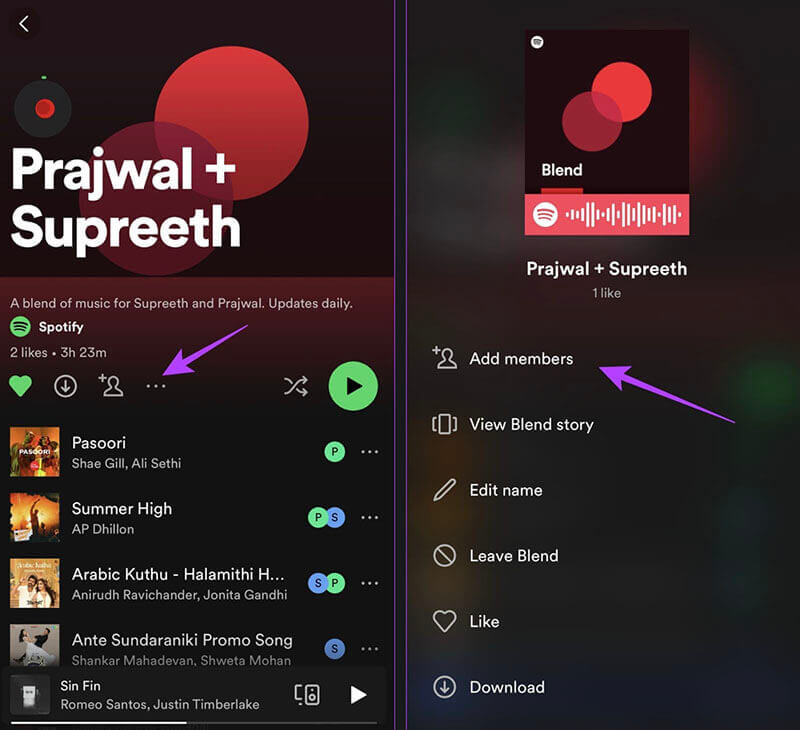
- You’ll see an option to “Invite More.” Tap it.
- Spotify will provide a shareable link. Send this link through any messaging app, social media, or email to your friends.

Once your friend accepts the invite and joins, the blend’s algorithm will update to include their listening history, refreshing the song selection for everyone. This is the key to building a great Spotify mix playlist with friends—the more diverse the input, the more interesting the output.
Managing Your Blends: How to Leave or Delete a Spotify Blend Playlist
Maybe a blend has run its course, or you just want to clean up your library. Luckily, removing yourself from a blend is a quick process. When you leave a blend, it disappears from your playlist library, but it will remain active for the other members.
- Go to the Blend playlist you wish to exit.
- Click or tap the three-dot menu.
- Look for and select the option that says “Leave Blend” or “Edit Blend.”
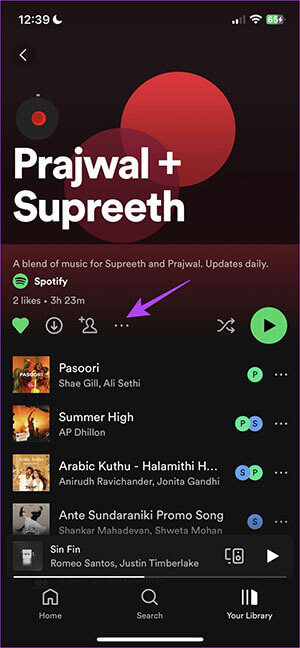
- Confirm your choice when prompted. The playlist will be removed from your side.

Remember, if you change your mind later, you’ll need someone in the blend to send you a new invite link to rejoin. Knowing how to create blend Spotify lists also means knowing how to manage them when needed.
Beyond the Blend: How to Share Spotify Music Without Restrictions
The Blend feature is awesome for discovery, but it has some limitations. Everyone needs a Spotify account, you need an internet connection to listen, and free users will hear ads. What if you want to share a song directly with a friend who uses Apple Music? Or keep a perfect mix for a road trip where you might not have service?
The solution is to download your favorite songs or even your curated blend playlists as standard audio files. This way, you can listen offline, share them with anyone, and play them on any device. To do this, you need a tool that can convert Spotify streams into common formats like MP3.
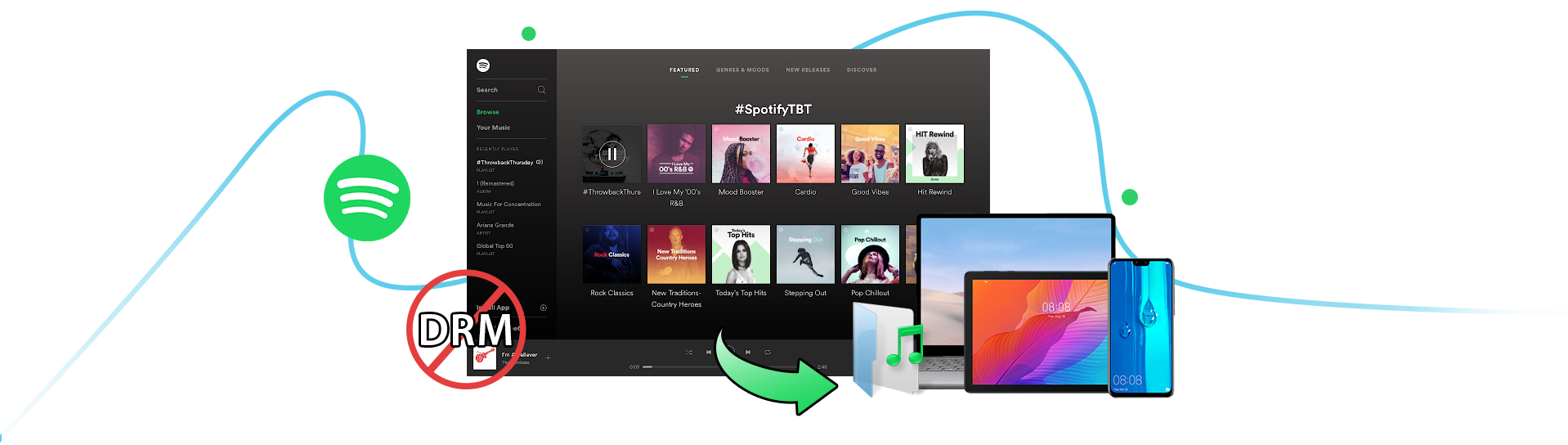
One such tool that handles this task is Leawo Prof. DRM. It’s a software designed to remove DRM (Digital Rights Management) protection and convert audio from various services, including Spotify, into DRM-free files while preserving quality and metadata like artist and album info.
Here’s a general overview of how such a process might work to save your Spotify blend playlist music:
Step 1: Access the ConverterAfter launching the software, you would navigate to its Spotify conversion module.

Step 2: Add Your MusicYou can add songs by dragging and dropping them from the Spotify app into the converter’s window or by using an “Add Files” button. You can import individual tracks or entire playlists.

Step 3: Adjust SettingsBefore converting, you can usually customize the output format (like MP3 or AAC), bit rate, and other audio parameters to suit your needs.

Step 4: Choose Save LocationSet a folder on your computer where the converted music files will be saved.

Step 5: Start the ConversionFinally, click a convert or start button. The software will process the songs, removing the DRM and saving them as regular audio files you can use anywhere.

This method gives you permanent access to the music you love, allowing you to create blend Spotify experiences that are truly portable and shareable beyond the app’s ecosystem.
Try Leawo Prof. DRM Spotify Converter right now! Remove DRM from Spotify music and convert it to MP3, AAC, M4A, WMA, and more formats with lossless quality for offline playback on any device.
Get the Windows version | Get the Mac version | Use the time-limited promotional campaign
Final Thoughts on Creating Your Perfect Mix
Learning how to make a Spotify blend playlist opens up a new, social dimension to your music listening. It’s a fun, easy, and constantly evolving way to connect with friends and discover new music together. Whether you’re blending with one best friend or a whole group, the feature makes musical collaboration effortless.
Remember, if you ever want to take those shared tunes on the go without limits, converting them to universal audio files is a powerful option. So go ahead, start exploring how to make a blend on Spotify today—your next favorite song might be waiting in a friend’s playlist.
Some images in this article are sourced from the internet.