TOOL HUNTER

Summary: This comprehensive guide explains several effective methods to download video in Messenger, covering everything from the built-in app feature to powerful third-party software. Whether you need to save a personal clip or a shared Facebook video, you’ll find a suitable solution here to download video from Facebook Messenger securely and efficiently.
Ever received a hilarious or important video in a Facebook Messenger chat that you just had to save? You’re not alone. Figuring out how to download a video from Facebook Messenger can be confusing because the process differs for personal videos versus shared public links. This guide will walk you through all the possible ways, from the simplest in-app method to more advanced tools for tricky situations.
Table of Contents
How to Download Video in Messenger Directly Using the App
The easiest way to download video in Messenger is often right within the app itself, but it has a key limitation. This direct download function primarily works for personal videos. These are videos that someone recorded directly with their phone’s camera and sent within the chat. For these, the process is straightforward.
If you want to download a video from Facebook Messenger that was sent personally, follow these steps on your mobile device:
- Open the Facebook Messenger app on your iPhone or Android phone.
- Navigate to the specific conversation containing the video you wish to save.
- Locate and tap on the video message to open it in a larger view.
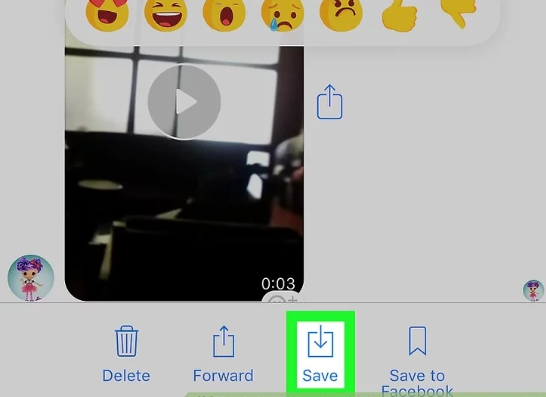
- On iPhone, tap and hold the video until a menu pops up, then select “Save.” On an Android device, the button might say “Save video.”
- The video will then be saved directly to your phone’s camera roll or gallery.
This method is incredibly simple and requires no extra software. However, its major drawback is that it usually doesn’t work for shared videos. These are videos that originated from a public Facebook post or another website and were then linked in the chat. For those, and for situations where you want to save videos to your computer, you’ll need to explore other solutions. Let’s look at some reliable tools for those scenarios.
Using Leawo Video Downloader for Facebook Messenger Video Download
When the in-app method fails, especially for shared videos, a dedicated downloader program is the most reliable path. Among the many options, Leawo Video Downloader stands out as a powerful tool for this task. It’s a desktop application designed to handle videos from over a thousand sites, including Facebook.
Why choose a tool like this? It can often grab videos in higher qualities, manage multiple downloads, and save directly to your computer’s hard drive. Here’s how you can use it for your Facebook Messenger video download:
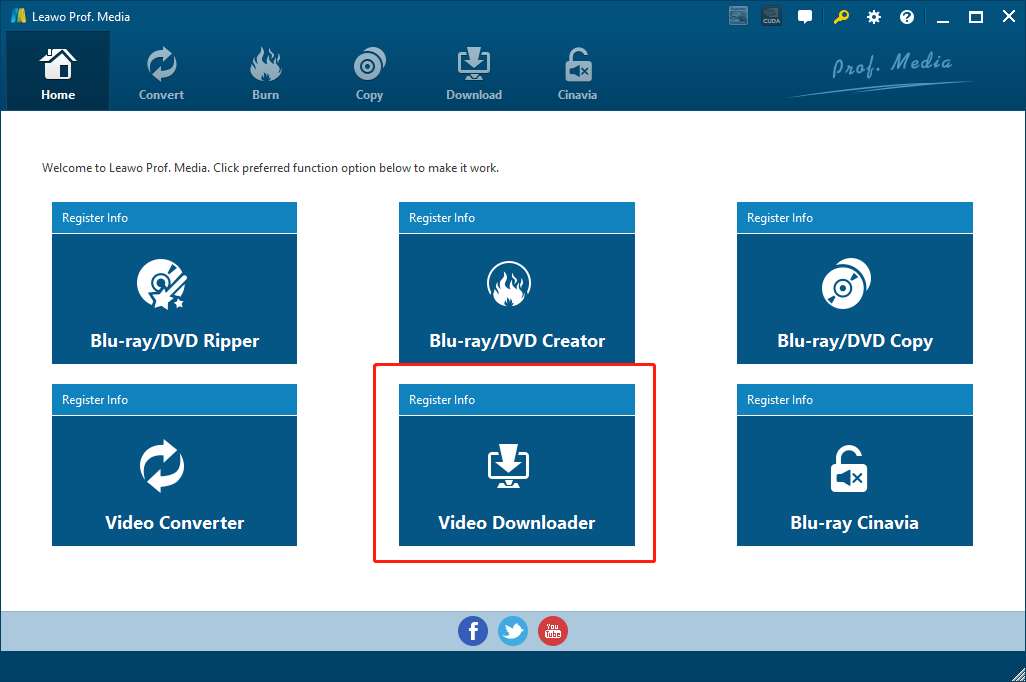
Step 1: Download and install the correct version (Windows or Mac) of Leawo Video Downloader on your computer. Launch the program and enter its video downloader module.
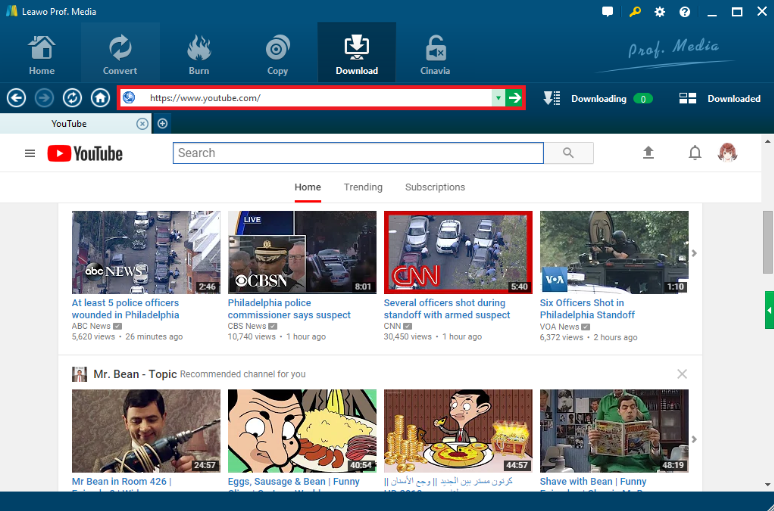
Step 2: Go to Facebook in your web browser, find the shared video in your Messenger chat, and copy its URL from the address bar. Paste this link into the address box within Leawo Video Downloader and press Enter to analyze it.
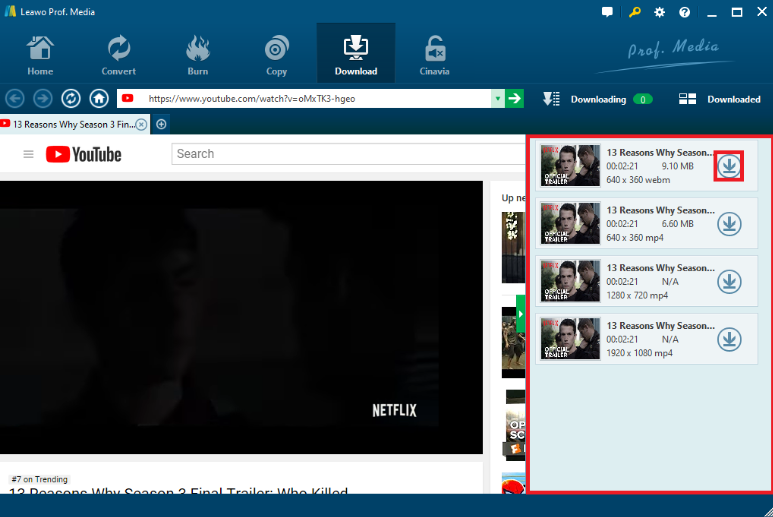
Step 3: The software will load the video page. Click the green triangle button to reveal a list of available video quality and format options. Select your preferred version.
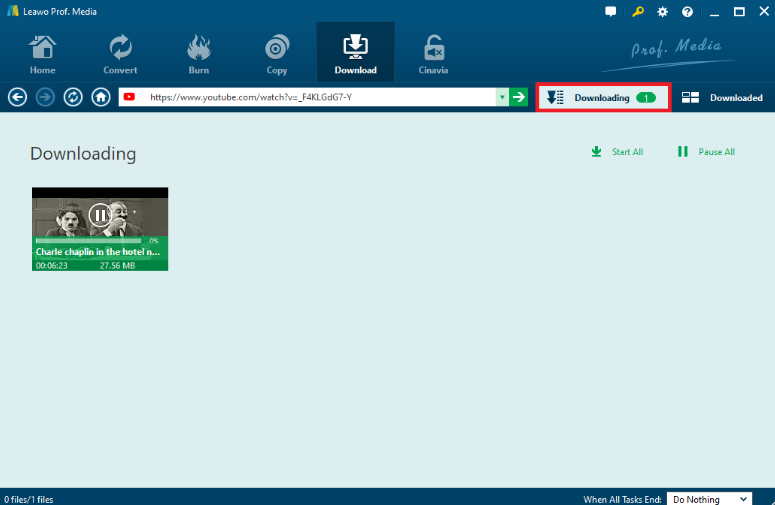
Step 4: Initiate the download. You can monitor the progress within the program’s interface and find your completed files in the “Downloaded” section.
This method provides a lot of control and is excellent for batch downloading or ensuring you get the best possible quality from a shared link. It transforms a potentially tricky Facebook Messenger video download into a few simple clicks.
Try Leawo CleverGet Video Downloader right now! Download up to 8K videos, Shorts videos, playlists, channels, music videos, movies, TV shows, and even live videos from YouTube, TikTok, Instagram, Facebook, Pinterest and 1000+ other websites.
Get the Windows version | Get the Mac version | Use the time-limited promotional campaign
How to Download Video from Facebook Messenger with CleverGet
Another robust desktop software option is CleverGet Video Downloader. It functions similarly, specializing in grabbing video streams from social media and streaming sites with a high success rate. It’s particularly noted for handling live streams and complex video delivery methods. If you’re looking for an alternative Messenger video downloader, here’s the process with CleverGet:
Step 1: As before, start by finding the video in your Facebook Messenger chat on the web version. Copy the full URL of the video page.
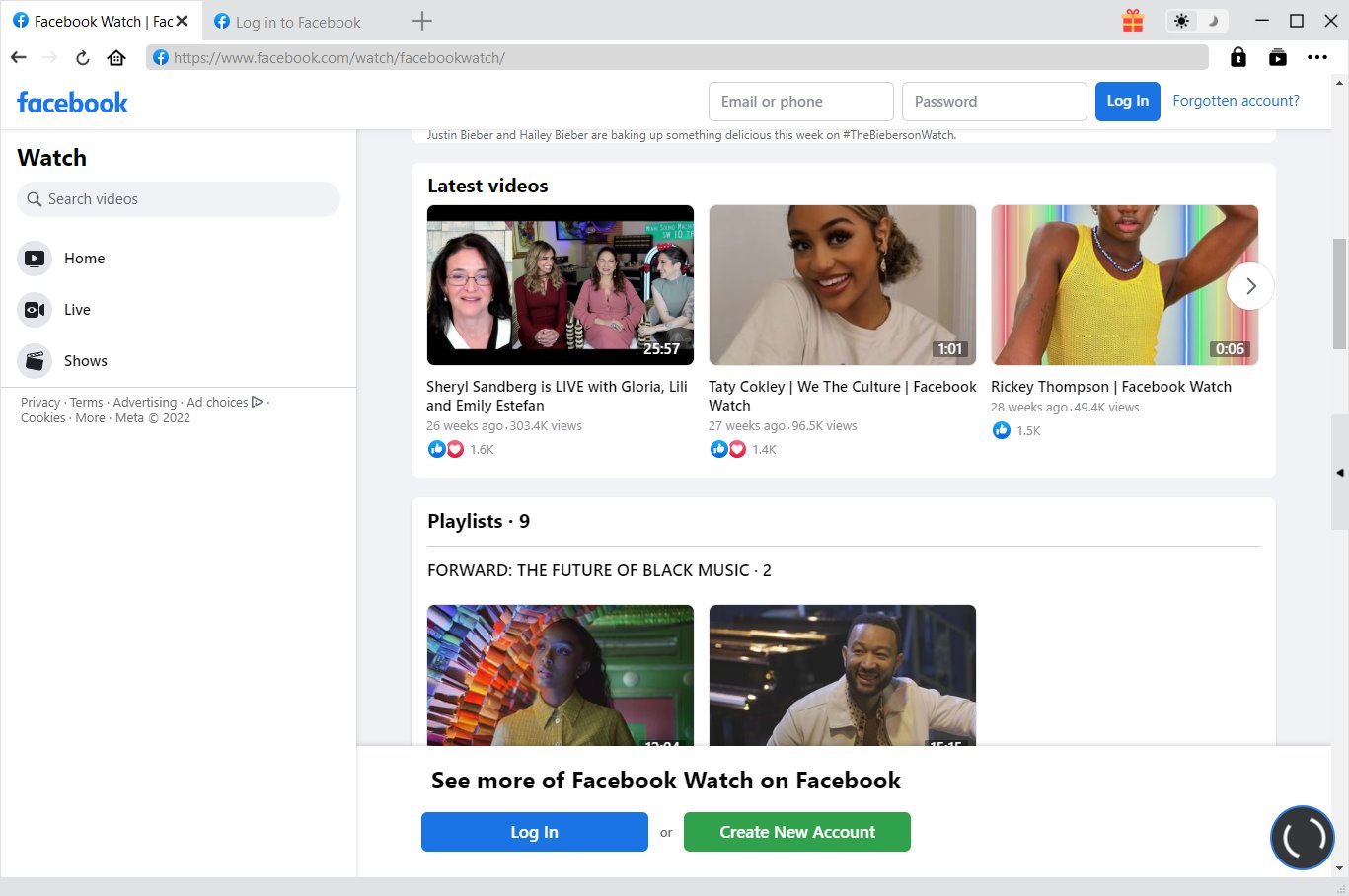
Step 2: Open the CleverGet application and paste the copied link into its built-in browser’s address bar. The page will load inside the program.

Step 3: CleverGet will analyze the page and present a list of available video and audio streams. You can choose based on resolution (like 720p or 1080p) and file format.

Step 4: After selecting your desired version, click the download button. The file will be saved to your specified folder, completing your download video from Facebook Messenger task.

Both Leawo and CleverGet offer a professional-grade solution, ideal for users who frequently need to save online content. They take the guesswork out of figuring out how to download a video from Facebook Messenger when it’s not a simple personal clip.
The Browser Extension Method: Video DownloadHelper
If you prefer not to install dedicated software, a browser extension can be a great middle ground. Video DownloadHelper is a popular add-on for browsers like Chrome and Firefox. It works by detecting video elements on a webpage, making it a handy tool for a quick Facebook Messenger video download.
The main advantage is convenience; it lives right in your browser. The potential downside is that it may not always capture the highest possible quality or work on every single video player due to website protections. Here’s how to use it:
Step 1: Install the Video DownloadHelper extension from the official Chrome Web Store or Firefox Add-ons site.
Step 2: Navigate to the Facebook page containing the video from your Messenger chat. Make sure the video is playing or has loaded.
Step 3: The Video DownloadHelper icon in your browser’s toolbar should become active (often animating). Click on it, and it will show a list of detectable media on the current page, including the video.
Step 4: Select the video file you want from the list and choose to download it. The file will download through your browser.
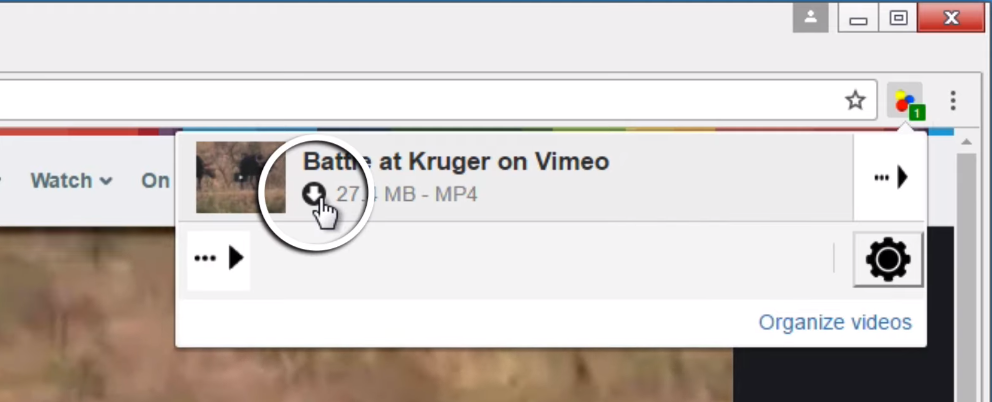
This method is perfect for occasional use. It’s a lightweight solution that answers the question of how to download video in Messenger without leaving your browser window.
Online Downloader Tools: Using FLVTO for Messenger Videos
For users who want absolutely no software installation, online video downloader websites are an option. FLVTO is one such service that allows you to paste a video URL and download it, sometimes with format conversion options. This can be useful if you need the video in a specific format like MP4.
Keep in mind that using online services means uploading the video URL (not the file itself) to a third-party server. Always be cautious and use reputable sites. Here’s a typical workflow for using an online Messenger video downloader like FLVTO:
Step 1: Go to the FLVTO website using your browser.
Step 2: Copy the URL of the Facebook Messenger video you want to save and paste it into the conversion box on the FLVTO site.
Step 3: Many such sites offer format options. Choose your desired output format (e.g., MP4) from a dropdown menu if available.
Step 4: Click the convert or download button. The site will process the link and then provide a download button for you to save the file to your computer.
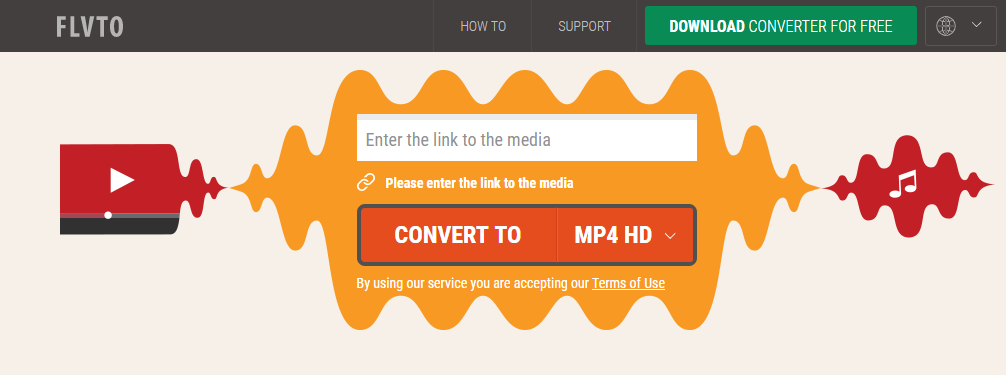
This method is universally accessible since it only requires a web browser. However, download speeds and success rates can vary, and some sites may have file size limits or intrusive ads.
Choosing the Right Method for You
So, which method should you use to download video from Facebook Messenger? It really depends on your needs:
- For personal videos on your phone: Use the built-in save function in the Messenger app. It’s the simplest.
- For shared videos or higher quality on a computer: Use a desktop downloader like Leawo or CleverGet. They are the most reliable and feature-rich.
- For quick, occasional downloads from your computer: Try a browser extension like Video DownloadHelper.
- If you cannot install anything: An online downloader site is your last resort.
Remember, always respect copyright and privacy. Only download videos that you have permission to save, such as those sent by friends and family or your own content.
With the methods outlined above, you should now be able to handle almost any situation that requires you to download a video from Facebook Messenger. No more watching great clips disappear into the chat history!
Some images are sourced from the internet.