TOOL HUNTER

Summary: Ever wondered how to leave a voicemail on iPhone without the phone actually ringing? This guide covers everything you need to know. We’ll explain the different methods for various iOS versions and even show you what to do if you accidentally delete an important message. Learning how to just leave a voicemail on iPhone can be a real game-changer for discreet communication.
Sometimes, you really need to get a message across, but you don’t want to interrupt someone with a full-blown phone call. Maybe it’s late, they’re in a meeting, or you just want to avoid an awkward live conversation. Texting lacks your tone of voice, and an email feels too formal. That’s where knowing how to send a voicemail without calling on iPhone comes in super handy. It’s like sending a personal audio note directly to their mailbox. This article will walk you through the entire process, whether your iPhone is brand new or a few years old.

How to Leave a Voicemail without Calling on iPhone with Older iOS
If your iPhone is running a version of iOS older than 9.2, you might notice the feature to how to leave a voicemail on iPhone without calling isn’t built right in. Don’t worry, there’s a clever workaround using a free service called Slydial. It’s a neat trick that connects you straight to someone’s voicemail, bypassing the ring entirely. It’s perfect for those times when you want to leave a message without the potential disturbance of a call.
The process is pretty straightforward. First, you’ll need to get the Slydial app from the App Store. Once it’s installed, open it up. You can sign up for a free account—no credit card required for the basic service. The free version does include ads, but it gets the job done. If you find yourself using it a lot, a premium upgrade removes ads and adds cool features like dialing by contact name.
Here’s the simple step-by-step to how to just leave a voicemail on iPhone using Slydial:
- Launch the Slydial app on your iPhone.
- Log into your account or sign up for a new one.
- Either pick a contact from your phone’s address book or manually type in the phone number of the person you want to reach.
- Tap to call. Instead of ringing their phone, Slydial will connect you directly to their carrier’s voicemail system. Record your message when prompted, and you’re done!
One important thing to remember: Slydial currently only works for calls placed from a U.S. phone number to another U.S. mobile number. It’s a handy tool for domestic messages when you need to how to send a voicemail without calling on iPhone discreetly.
How to Leave a Voicemail without Calling on iPhone with iOS 9.2 or Newer
Got a newer iPhone? You’re in luck! Apple built this functionality right into the Phone app starting with iOS 9.2. This is the most direct method to how to leave a voicemail on iPhone without calling. Before you can send a voicemail, you need to make sure your own voicemail is set up. It’s a quick one-time process.
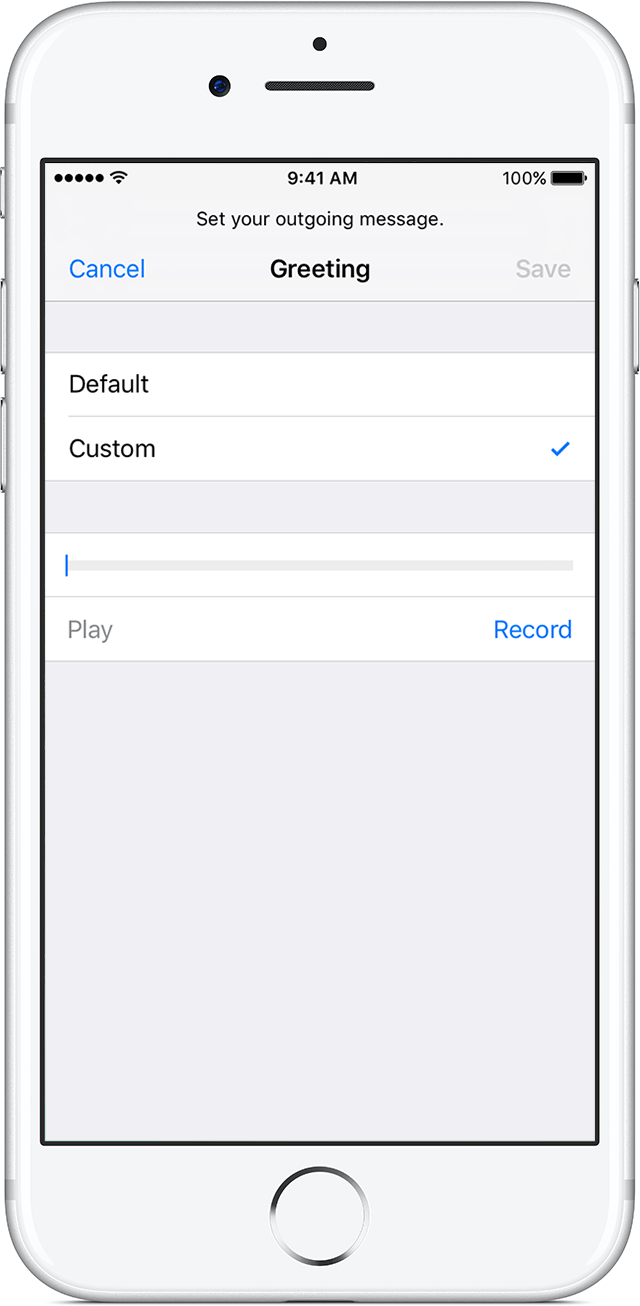
Setting Up Your iPhone VoicemailHead to your Phone app and tap the ‘Voicemail’ tab at the bottom right. If you haven’t set it up before, you’ll see a ‘Set Up Now’ button. Tap it, and you’ll be guided to create a secure password (your carrier decides the length). You’ll enter it twice to confirm. Next, you can choose to record a custom greeting. Tap ‘Custom’, then ‘Record’, speak your greeting, hit ‘Stop’, and ‘Save’. Now your voicemail is active and ready.
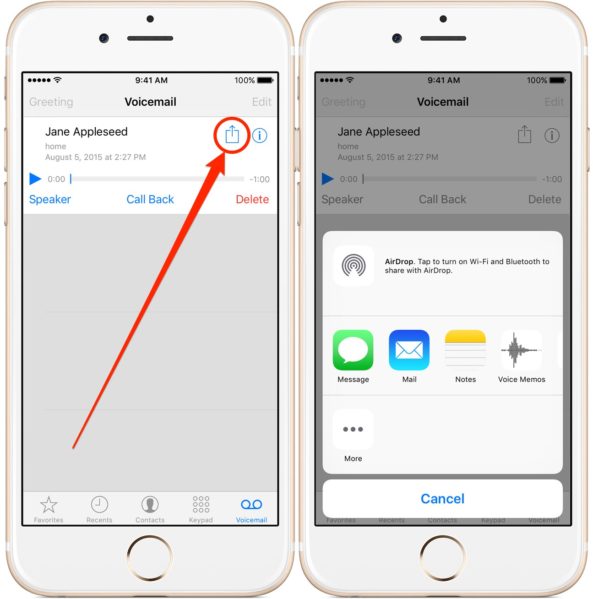
The Steps to Leave a Voicemail Without the CallNow for the main event: learning exactly how to leave a voicemail on iPhone without calling using the native iOS feature.
- Open the Phone app and go to the Voicemail tab. Here you’ll see all your saved and recent messages.
- Find a voicemail you’ve previously saved or recorded. This will be the audio file you send. Tap on it to select it.
- Look for the Share icon (the square with an arrow pointing up) in the top-right corner and tap it.
- A share menu will appear. You can choose to send the voicemail via Messages, Mail, or save it to Notes. Pick your preferred method.
- Address it to your recipient and hit the Send button.
And that’s it! You’ve successfully figured out how to send a voicemail without calling on iPhone. The person will receive your message as an audio file (usually in .m4a format) attached to a text or email. Their phone won’t ring, and they can listen to it at their convenience. It’s a seamless way to how to just leave a voicemail on iPhone for someone without any interruption.
What If You Delete a Voicemail by Mistake?
Whether it’s a regular voicemail from a caller or a voice memo you recorded yourself, accidentally deleting it can be a panic moment. The good news is, on the iPhone, deleted voicemails aren’t immediately erased forever. They go to a ‘Deleted Messages’ folder within the Voicemail section, much like a trash can.
To recover a recently deleted voicemail:
- Open the Phone app and go to Voicemail.
- Scroll all the way to the very bottom of the list.
- If you have any deleted items, you’ll see a ‘Deleted Messages’ option. Tap it.
- You’ll see a list of messages you’ve removed. Tap on the one you want back.
- Tap the ‘Undelete’ button to restore it to your main voicemail inbox.
This method works as long as the voicemail is still in the trash. Different carriers may keep deleted messages for 24 to 48 hours before permanently erasing them. Also, if you sync your phone with iTunes or iCloud after deleting the message, it might be cleared from the trash. So, act fast!
But what if the voicemail is gone from the Deleted folder? Or what if you need to recover an old voice memo that was deleted weeks ago? All hope is not lost. This is where dedicated data recovery software can be a lifesaver. These tools can deeply scan your iPhone’s storage (or your iTunes/iCloud backups) to find traces of deleted audio files that the standard interface no longer shows.

Using professional recovery software typically involves connecting your iPhone to a computer, running a scan, and previewing the files it finds—including those marked as deleted. You can then select the specific voicemails or memos you want to restore and save them back to your device or computer. It’s a more powerful solution for serious data loss situations, especially when learning how to leave a voicemail on iPhone leads to an accidental deletion of something important.
Try Leawo iOS Data Recovery right now! 100% Recover Deleted or Lost Data from iTunes, iCloud and iOS Devices (iPhone, iPad, and iPod) Safely and Accurately!
Get the Windows version | Get the Mac version | Use the time-limited promotional campaign


Putting It All Together
So, there you have it—multiple ways to master the art of leaving a voice message without initiating a call. For older iPhones, third-party apps like Slydial provide a clever bridge. For anyone with a relatively modern device (iOS 9.2+), the feature is built-in and incredibly easy to use once your voicemail is set up. Remember, the key to how to leave a voicemail on iPhone without calling is either using a bypass service or utilizing the share function on a pre-recorded audio file in your Voicemail tab.
This skill is more useful than you might think. It allows for thoughtful, tone-rich communication on your own terms, without demanding immediate attention from the other person. Whether it’s a birthday wish, a detailed instruction, or a sensitive message, now you know how to send a voicemail without calling on iPhone. And if you ever slip up and delete something, you also know the first steps to try and get it back. Just remember, with data recovery, time is always of the essence.
Some images used are for illustrative purposes and sourced from the internet.