TOOL HUNTER

Summary: Knowing how to change emergency contact on iPhone is a crucial safety skill for every user. This guide walks you through the entire process of editing your Medical ID details in the Health app, ensuring your vital information is always up-to-date. We’ll also cover making emergency calls and what to do if you accidentally lose contact information.
Your iPhone is more than just a communication device; it can be a lifeline in a critical situation. Having your In Case of Emergency (ICE) information readily accessible, even from the lock screen, can provide first responders with vital details about allergies, medical conditions, and who to call. But life changes—relationships evolve, phone numbers update, and you need to know exactly how to edit emergency contacts on iPhone to keep that information current. Let’s dive into the complete process.
How to Change Emergency Contact on iPhone in the Health App
The central hub for all your emergency information on the iPhone is the Medical ID, located within the Health app. This is where you go to change emergency contact on iPhone or update any other medical details. The process is straightforward and designed to be done quickly.
First, locate and open the Health app on your iPhone. It’s a white app with a red heart icon and comes pre-installed on all iPhones running iOS 8 and later. Once you’re in the Health app, look at the bottom right corner of the screen and tap on the Medical ID tab. This is your gateway to managing your emergency details.
If you haven’t set up a Medical ID before, you’ll see an option to Create Medical ID. If you already have one, you’ll need to tap Edit in the top right corner to make changes. This is the first step to edit emergency contacts iPhone users need to access.
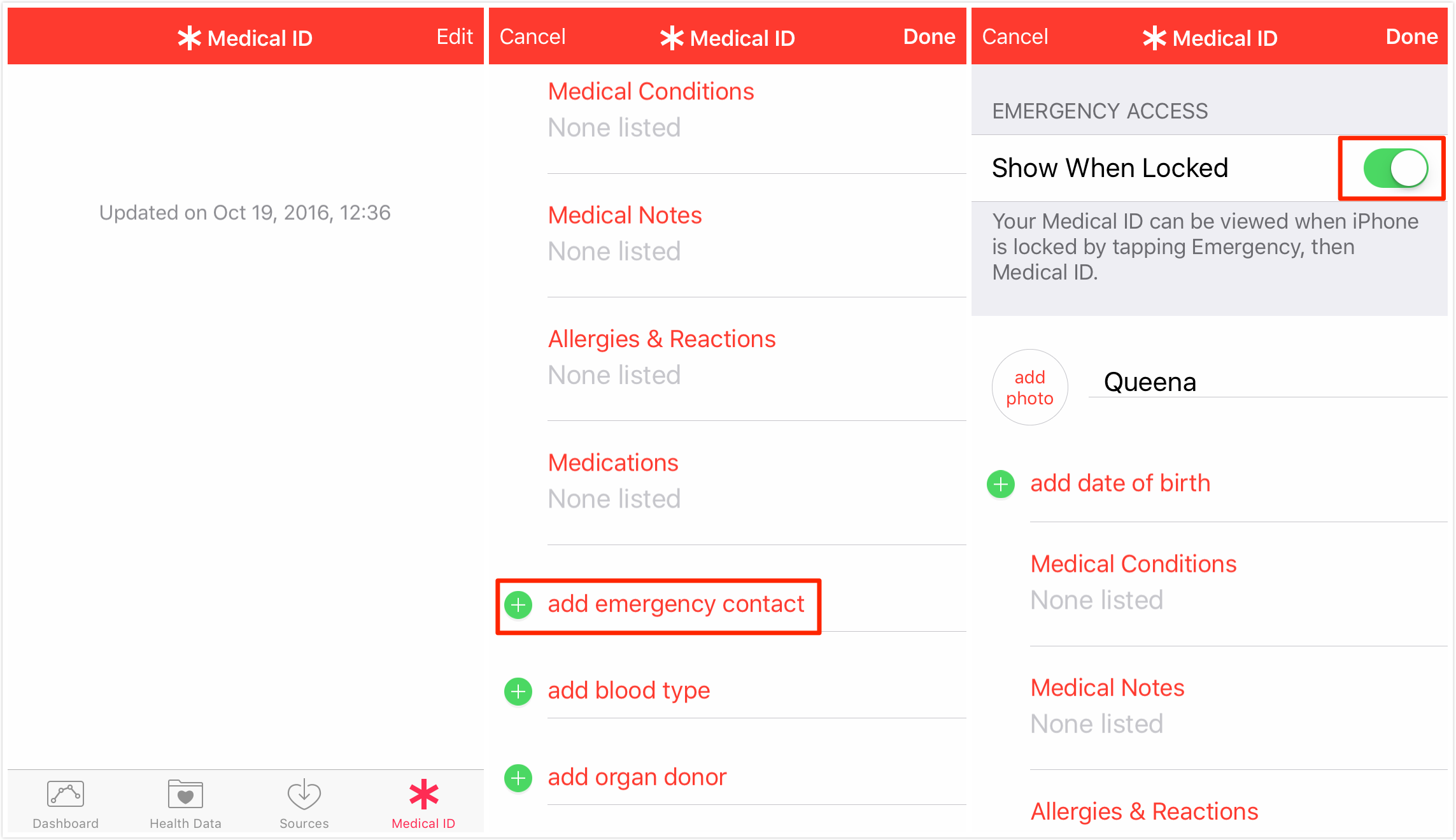
A critical setting to enable is Show When Locked. As you scroll through the edit screen, you’ll find this option. Make sure it’s toggled ON (green). This allows your Medical ID, including your emergency contacts, to be viewed from your iPhone’s lock screen without needing your passcode. It’s the feature that makes this tool so valuable in a real emergency.
Now, fill in or update any relevant personal information, such as your birth date, medical conditions, allergies, medications, and blood type. The more accurate this information is, the better. When you’re ready to adjust your contacts, scroll down to the Emergency Contacts section.
Here, you’ll see a list of any contacts you’ve already added. To add a new one, tap the green plus (+) button next to Add Emergency Contact. Your iPhone’s contact list will appear. Select the person you wish to designate. You’ll then be prompted to define their relationship to you (e.g., mother, spouse, friend). Tap Done to add them.
To remove or change an existing contact, simply tap the red minus (–) sign next to their name in edit mode and confirm deletion. You can then add a new contact following the steps above. Once all your edits are complete, don’t forget to tap Done in the top right corner to save all changes to your Medical ID. You have now successfully learned how to change emergency contacts on iPhone.
Important Notes:
- The person you list must already be saved in your iPhone’s Contacts app with a phone number.
- You can add multiple emergency contacts.
- If you ever want to remove your Medical ID entirely, scroll to the very bottom of the Edit screen and you will find the Delete Medical ID option.
What If You Lose Your Contacts? A Vital Recovery Skill
Thinking about how to edit emergency contacts iPhone relies on having those contacts in your phonebook. It’s a scary thought: what if the very contact you need in an emergency gets accidentally deleted from your iPhone? Whether it’s from a mistaken tap, a software glitch, or restoring from a backup that didn’t include them, losing contacts can feel like a nightmare, especially when you’re trying to update your safety information.
Therefore, knowing how to retrieve lost data is almost as important as knowing how to set it up. While iTunes and iCloud offer backup solutions, they may not always have the specific, recent version of your contacts you need. In such cases, using a dedicated data recovery tool can be a lifesaver. These tools can scan your iPhone’s storage for traces of deleted information that hasn’t been overwritten.
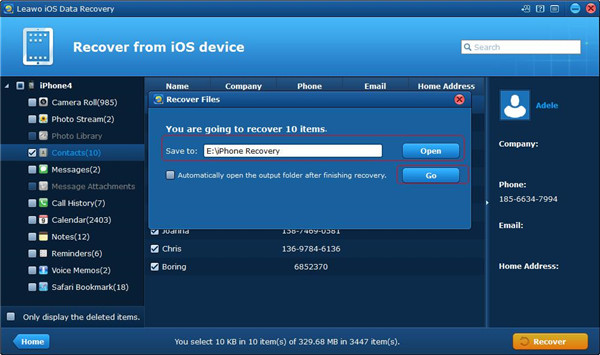
The general process involves connecting your iPhone to a computer, running the recovery software, and allowing it to perform a deep scan. After the scan, the software will typically present a list of recoverable data, including contacts. You can then preview the found contacts, select the ones you want back, and choose to recover them directly to your iPhone or save them to your computer.
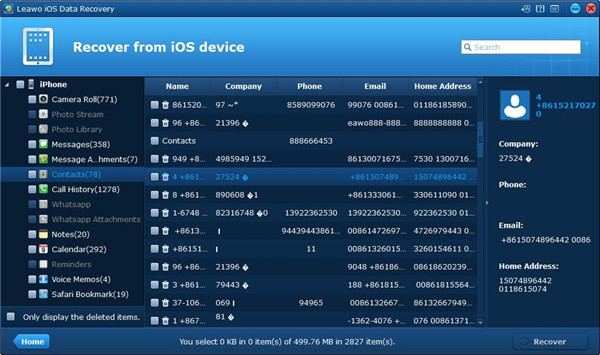
It’s a straightforward process: select the “Contacts” category after the scan, check the boxes next to the names and numbers you wish to restore, and hit the recover button. You’ll usually be asked to choose a location on your computer to save the data temporarily.
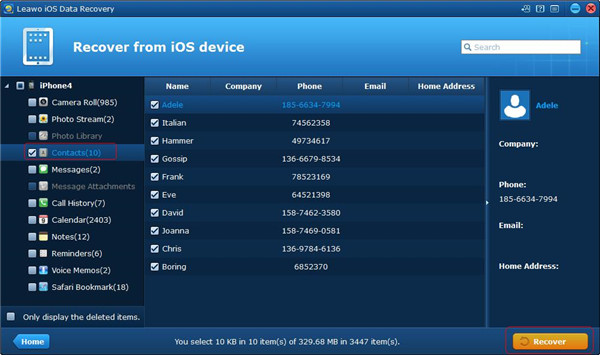
Finally, you confirm the recovery path, and the software restores your selected contacts. Having this skill ensures that the process to change emergency contact on iPhone is never hindered by missing information.
Try Leawo iOS Data Recovery right now! 100% Recover Deleted or Lost Data from iTunes, iCloud and iOS Devices (iPhone, iPad, and iPod) Safely and Accurately!
Get the Windows version | Get the Mac version | Use the time-limited promotional campaign

How to Make an Emergency Call from a Locked iPhone
Your updated Medical ID is crucial for information, but sometimes you need immediate voice help. Your iPhone is designed for this. You can make an emergency call without unlocking the device, which is a feature everyone should know.
Here’s how it works: On an iPhone with a Home button, press it once to wake the screen to the passcode view. In the bottom left corner, you’ll see Emergency. Tap it. This will bring up a keypad specifically for dialing emergency services. For newer iPhones without a Home button, the process is similar: wake the screen, then look for the Emergency option on the lock screen.
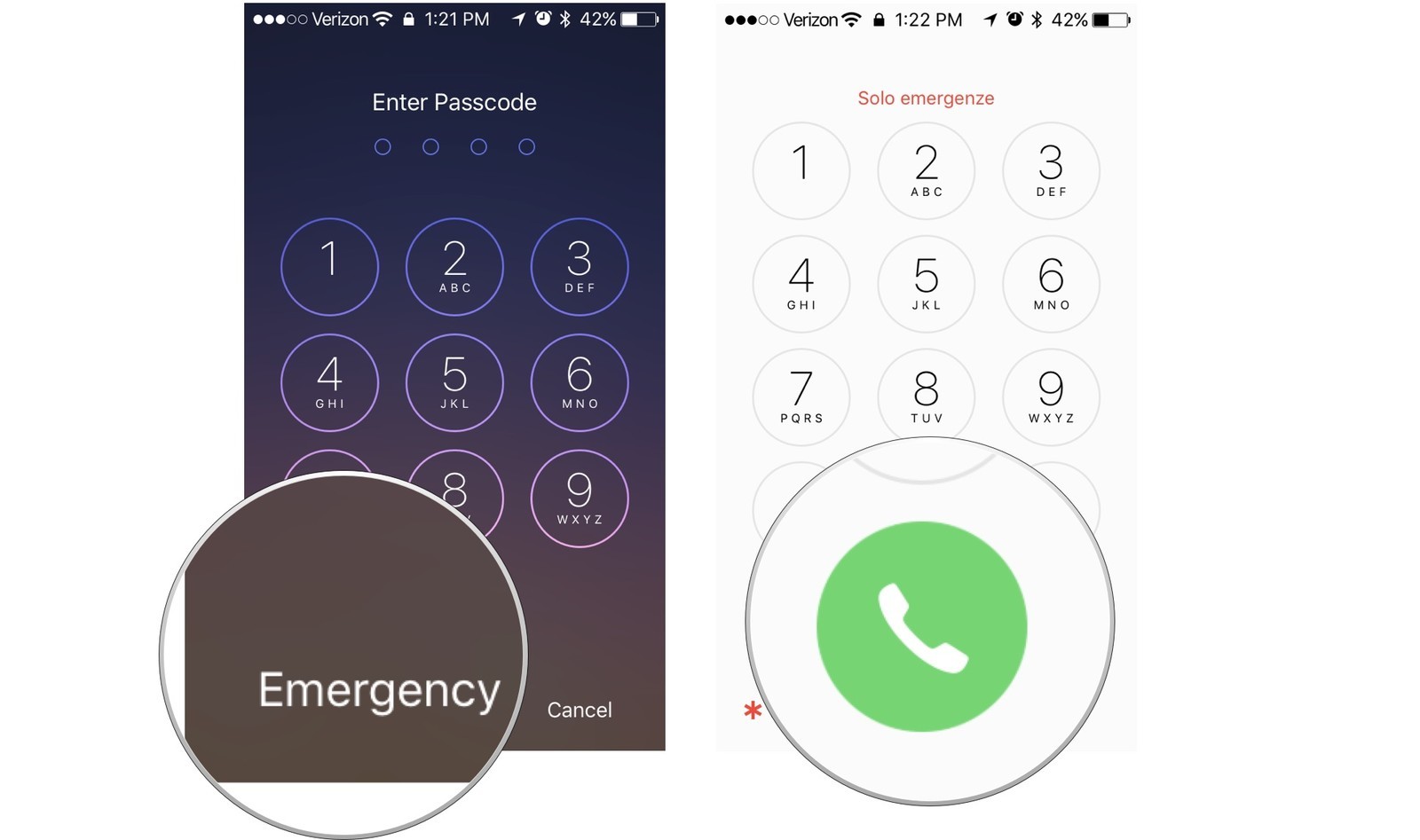
Simply dial the emergency number for your region—like 911, 112, or 999—and tap the call button. The call will go through immediately. It’s important to remember that this keypad is strictly for calling official emergency service numbers. You cannot use it to call a personal contact, even an emergency one; that’s what your Medical ID list is for. This feature works regardless of whether you have cellular service or a SIM card installed, as it will attempt to use any available network.
Additional Safety Feature: Organ Donor Registration
While you’re in the Health app learning how to edit emergency contacts iPhone, you might notice another significant feature: organ donor registration. Apple has integrated a way to officially register your decision to be an organ donor directly from your iPhone, a choice that can have a profound impact.
To find it, go back to your Medical ID in the Health app and enter Edit mode. Scroll all the way down past the emergency contacts section. You should see a section labeled Organ Donation. Here, you can tap Sign Up with Donate Life to begin the registration process.
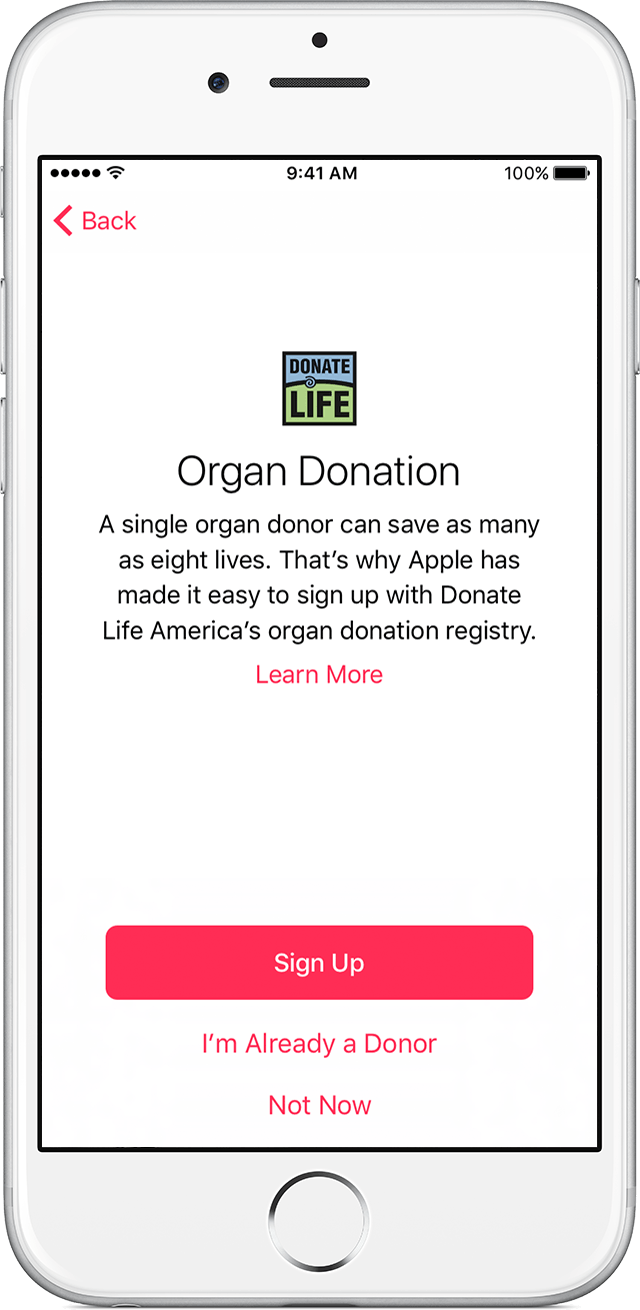
You’ll be guided through a short form within the app to provide necessary details. After reviewing your information, you can finalize your registration. Once completed, your donor status can also be displayed on your Medical ID, providing clear instructions in the event of a tragedy. It’s a powerful way to use your device for a greater good, and it sits right alongside your emergency contact information.
Final Thoughts on Managing Your iPhone’s Emergency Settings
Taking the time to understand how to change emergency contacts on iPhone is an act of responsibility for yourself and your loved ones. It’s not a one-time task. Make it a habit to review your Medical ID every six months or after any major life event, like a change in phone number, medication, or medical diagnosis.
Furthermore, always maintain a recent backup of your iPhone. Whether you use iCloud or your computer, a backup ensures that if you ever upgrade to a new iPhone, lose your device, or need to restore it, all your settings—including your meticulously configured emergency contacts—will be transferred over seamlessly. You won’t have to start from scratch and relearn how to edit emergency contacts iPhone on your new device.
Try Leawo iTransfer right now! 100% Safe and Reliable on Transferring Photos/Music/Contacts/SMS… between iOS Devices, iTunes, and Computer.
Get the Windows version | Get the Mac version | Use the time-limited promotional campaign

Your iPhone is a powerful tool for safety. By setting up and regularly updating your Medical ID, you’re ensuring that in a moment of need, help has a direct line to the people who matter most and the information that can make a critical difference.
Some images are sourced from the internet.