TOOL HUNTER

Ever wondered if you can capture those funny Snapchat moments without the sender finding out? Many Snapchat users have asked this exact question. The platform’s notification system is designed to alert people when you screenshot or record their content, but there are actually ways around this.
People want to know does Snapchat know if you screen record because they’d like to save memorable snaps without causing awkward conversations. Whether it’s a hilarious filter from a friend or important information someone shared, there are legitimate reasons you might want to keep a Snapchat story longer than its 24-hour lifespan.
The good news is that several methods exist for screen recording on Snapchat without triggering notifications. From simple phone settings adjustments to specialized apps, we’ll explore the most effective techniques that actually work.
Table of Contents
- Does Screen Recording Notify Snapchat?
- How Can You Screen Record on Snapchat Using Built-in Phone Features?
- What Third-Party Screen Recording Apps Work with Snapchat?
- Advanced Techniques: Using Mirroring Software for Snapchat Recording
- Editing and Enhancing Your Recorded Snapchat Content
- Adding Voiceovers to Your Snapchat Recordings
- Legal and Ethical Considerations for Snapchat Recording
- Troubleshooting Common Snapchat Recording Issues
- Best Practices for Managing Recorded Snapchat Content
- Future of Snapchat Recording and Detection
- Conclusion
Does Screen Recording Notify Snapchat?
This is the million-dollar question for many Snapchat users. The short answer is yes, Snapchat typically detects and notifies users about screen recordings through its screenshot detection system. However, the platform’s ability to detect recordings isn’t foolproof, and there are specific circumstances where you can screen record without triggering alerts.
Snapchat’s notification system works by monitoring when someone captures content through unofficial means. When you use your phone’s built-in screen recording function while viewing a snap, the app usually detects this activity and sends a notification to the original poster. This privacy feature is part of what makes Snapchat unique compared to other social platforms.
But here’s where it gets interesting – the detection isn’t always perfect. Factors like your phone’s operating system, Snapchat version, and recording method can affect whether the notification gets sent. Some users have found that quick screen recordings sometimes slip through undetected, though this isn’t reliable.
The real question many have is does Snapchat know if you screen record using third-party apps or alternative methods? The answer varies depending on the specific tool you’re using, which brings us to our next section.
How Can You Screen Record on Snapchat Using Built-in Phone Features?
If you’re looking to screen record Snapchat content without downloading additional apps, your phone’s native features might offer a solution. Both iOS and Android devices have built-in screen recording capabilities that can sometimes work around Snapchat’s detection system when used strategically.
For iPhone users, the control center screen recording function can be effective if you follow specific steps. First, enable airplane mode and disconnect from Wi-Fi to prevent immediate notification delivery. Open the Snapchat story you want to record, then swipe to access control center and start recording. After capturing the content, force close Snapchat before reconnecting to the internet. This method doesn’t always work perfectly, but many users report success with it.
Android users can employ a similar approach using their device’s built-in screen recorder. The process varies slightly between manufacturers, but the general principle remains – disconnect from the internet, record quickly, and force close the app before reconnecting. Some Android devices even have gaming modes with screen recording features that might bypass detection.
It’s worth noting that these methods aren’t guaranteed, and Snapchat frequently updates its detection algorithms. The effectiveness might depend on your specific device model, operating system version, and how quickly you complete the recording process.
What Third-Party Screen Recording Apps Work with Snapchat?
When built-in phone features don’t do the trick, many users turn to specialized screen recording applications. These tools often provide more reliable results and additional features that can help avoid detection.
AZ Screen Recorder is a popular choice among Android users wondering how can you screen record on Snapchat discreetly. This app creates a floating widget that lets you start recording with a single tap. Many users report that recordings made through AZ Screen Recorder don’t trigger Snapchat notifications, though results can vary. The app also offers editing features and doesn’t impose time limits on recordings.
For those seeking a dedicated Snapchat recorder, modified versions of the app like Snapchat++ (formerly Phantom) offer built-in stealth recording features. These third-party versions include options to disable screenshot notifications and record content directly within the modified app. However, using modified apps violates Snapchat’s terms of service and could result in account suspension.
When choosing a screen recording app for Snapchat, look for these important features:
- No root or jailbreak requirements
- High-quality recording capabilities
- Stealth mode or discreet notification options
- Easy-to-use interface
- Regular updates to maintain functionality
Remember that using third-party apps always carries some risk, both in terms of account security and detection. Snapchat continuously works to identify and block unauthorized recording methods.
Advanced Techniques: Using Mirroring Software for Snapchat Recording
Another effective approach for recording Snapchat content involves using screen mirroring software. This method works by projecting your phone’s display to a computer, where you can record without triggering Snapchat’s detection systems.
iMyFone MirrorTo provides an excellent solution for this approach. This powerful tool lets you mirror and control your mobile device directly from your computer, creating new opportunities for discreet Snapchat recording.
iMyFone MirrorTo.Mirror and control your iPhone/iPad/Android on your PC to type, click, swipe, and scroll. Get 1080P screen recording and screenshots. Stream content from phone to YouTube, Twitch, Discord, Zoom, etc. Customizable keyboard mappings for moving, jumping, and shooting. Transfer files conveniently between Android and PC.
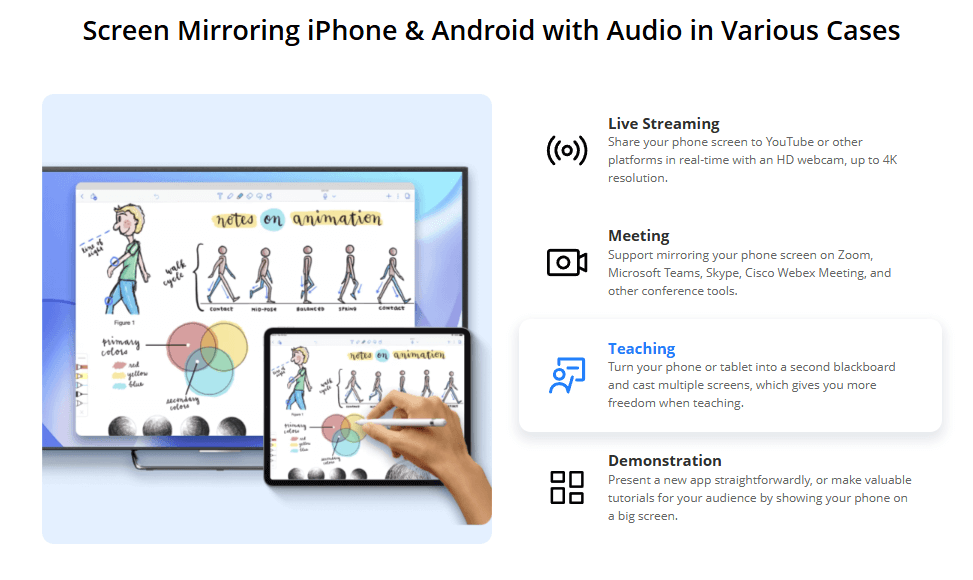
The process is straightforward: install the software on your computer, connect your phone, and use the computer’s recording features to capture whatever appears on your screen. Since the recording happens on the computer rather than the phone, Snapchat’s detection systems typically don’t recognize the activity.
This method effectively answers the question does screen recording notify Snapchat when using external tools. The platform’s detection focuses on phone-level activities, so computer-based recording generally flies under the radar. Many users find this the most reliable method for capturing Snapchat stories and messages without detection.
Beyond recording, mirroring software offers additional benefits like easier typing through your computer keyboard, better organization of saved content, and the ability to stream Snapchat content to other platforms if desired.
Editing and Enhancing Your Recorded Snapchat Content
Once you’ve successfully recorded Snapchat content, you might want to edit or enhance it before sharing or saving. This is where having a good video editor becomes essential. The right editing tools can help you trim unwanted sections, improve audio quality, add effects, or combine multiple recordings.
iMyFone Filme stands out as an excellent choice for editing recorded Snapchat videos. This user-friendly video editor provides all the tools you need to polish your content without requiring advanced editing skills. Whether you’re working with screen recordings from your phone or content captured through mirroring software, Filme makes the editing process straightforward.
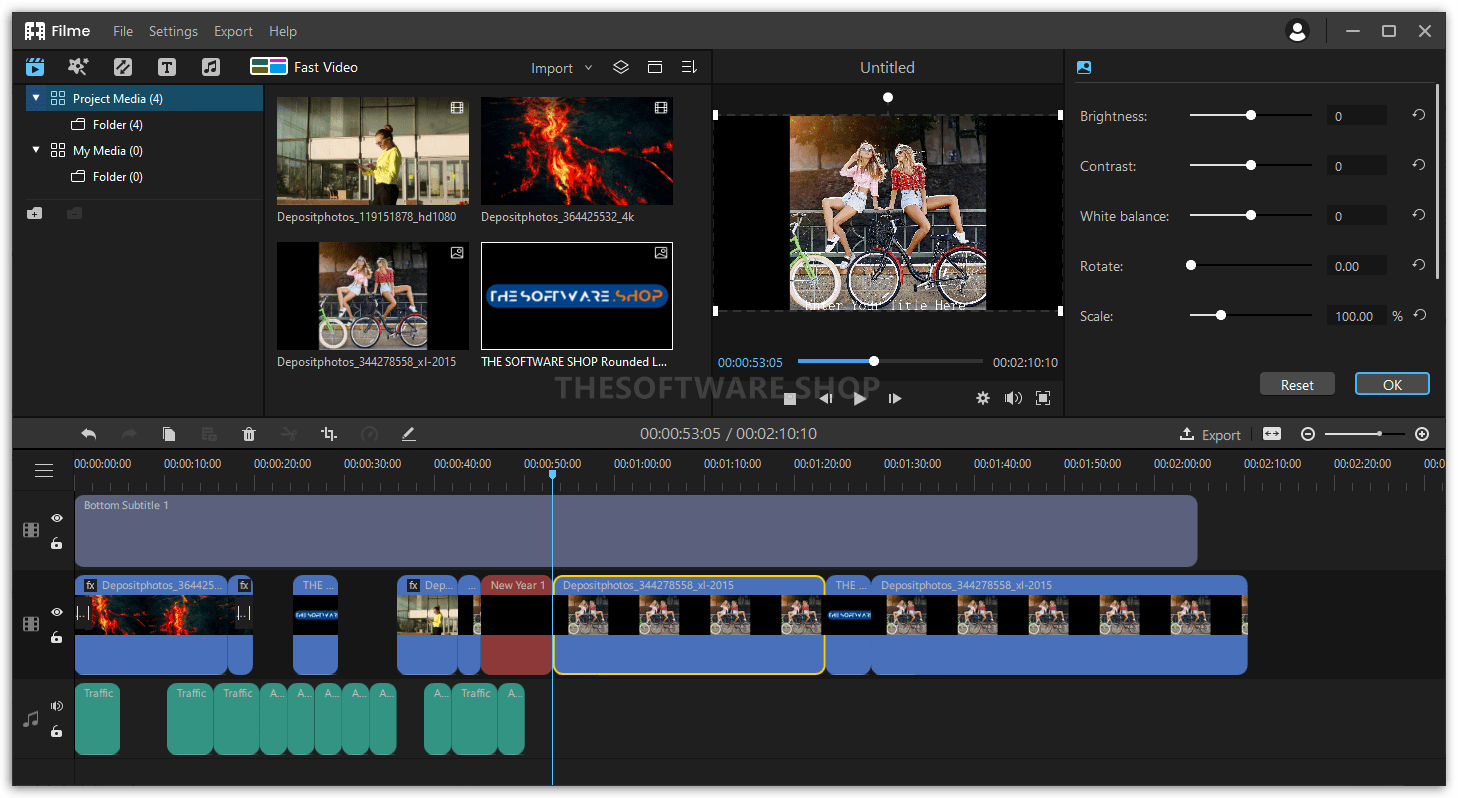
The software’s intuitive interface means you don’t need to be a professional editor to create great-looking videos. Basic functions like trimming, cutting, and merging clips are easily accessible, while more advanced features like transitions, filters, and text overlays let you add creative touches to your recordings.
One of Filme’s standout features is its extensive library of royalty-free music and sound effects. This is perfect for adding background music to your Snapchat recordings or covering up any audio issues that might have occurred during the recording process. The software also offers a variety of templates and preset designs that can help you create more polished content quickly.
For those concerned about file size or quality, Filme provides multiple export options to balance quality and storage requirements. You can choose different resolution settings depending on where you plan to share the content, ensuring optimal viewing experience whether it’s for personal archives or social media sharing.
Adding Voiceovers to Your Snapchat Recordings
Sometimes you might want to add commentary or narration to your recorded Snapchat content. This is where a good voice recording tool comes in handy. Whether you’re creating reaction videos, explanatory content, or just want to add personal notes, clear audio can significantly enhance your recordings.
iMyFone VoxBox offers comprehensive voice recording and text-to-speech capabilities that work perfectly with Snapchat content. This versatile tool lets you record high-quality voiceovers or generate synthetic voices for your videos, providing multiple options for audio enhancement.

The software supports multiple languages and offers a wide range of voice options, from natural-sounding text-to-speech voices to celebrity voice impressions and character voices. This variety makes it easy to find the perfect audio style for your specific project, whether you’re creating humorous content or more serious recordings.
VoxBox’s editing features allow you to fine-tune your audio recordings by adjusting speed, pitch, and tone. You can also trim audio clips, remove background noise, and merge multiple recordings to create seamless voiceovers that match your Snapchat content perfectly.
The ability to generate voice audio from text is particularly useful if you prefer not to record your own voice or need consistent narration across multiple videos. This feature can save time while still producing professional-sounding results that enhance your recorded Snapchat stories.
Legal and Ethical Considerations for Snapchat Recording
Before you start recording Snapchat content, it’s crucial to understand the legal and ethical implications. While the technical methods might work, respecting others’ privacy and following platform rules should always be your priority.
Snapchat’s terms of service explicitly prohibit unauthorized recording of content, and violating these terms could result in account suspension or permanent banning. More importantly, recording someone’s content without permission raises ethical concerns about privacy and consent, even if the technical capability exists.
In many jurisdictions, recording private communications without consent may violate wiretapping laws or privacy regulations. While Snapchat stories might be considered more public than private messages, the legal status can vary depending on your location and how the content is shared.
It’s always best practice to:
- Ask for permission before recording or sharing someone’s content
- Respect when people don’t want their content recorded
- Use recorded content responsibly and never for harassment or bullying
- Delete recordings if the original poster requests it
- Consider the context and your relationship with the content creator
Remember that just because you can technically record something doesn’t mean you should. The trust and relationships you have with your Snapchat contacts are more valuable than any single piece of content you might want to save.
Troubleshooting Common Snapchat Recording Issues
Even with the right tools and methods, you might encounter issues when trying to record Snapchat content. Understanding common problems and their solutions can help you achieve better results.
One frequent issue is poor video quality in recordings. This can happen if your phone’s storage is nearly full, forcing lower quality captures. Ensure you have adequate storage space and consider recording in shorter segments if quality problems persist. Using a dedicated screen recording app for Snapchat often provides better quality than built-in phone features.
Another common problem is audio synchronization issues, where the sound doesn’t match the video properly. This can often be fixed during the editing process using tools like iMyFone Filme, which allows you to adjust audio timing manually. Recording in a quiet environment can also help minimize audio problems.
If your recordings are still triggering Snapchat notifications, try these troubleshooting steps:
- Ensure you’re completely disconnected from Wi-Fi and cellular data
- Close all other running applications before recording
- Use the most recent version of your recording software
- Try recording at different times of day (server load might affect detection)
- Test with your own content first to verify the method works
Some users find that certain times of day or specific network conditions affect whether Snapchat detects their recording attempts. Keeping your recording apps updated is also important, as Snapchat frequently updates its detection methods.
iMyFone MirrorTo.Mirror and control your iPhone/iPad/Android on your PC to type, click, swipe, and scroll. Get 1080P screen recording and screenshots. Stream content from phone to YouTube, Twitch, Discord, Zoom, etc. Customizable keyboard mappings for moving, jumping, and shooting. Transfer files conveniently between Android and PC.
Best Practices for Managing Recorded Snapchat Content
Once you’ve successfully recorded Snapchat content, proper organization and management become important. Developing good habits for handling your recordings will make them more useful and help avoid clutter or confusion.
Create a consistent naming system for your recorded files, including dates and the sender’s name (if appropriate). This makes it much easier to find specific content later. Consider creating separate folders for different types of content or different time periods to keep everything organized.
Be mindful of storage space, especially if you record frequently. Screen recordings can consume significant storage, so regularly review your saved content and delete anything you no longer need. Cloud storage services can provide additional space while keeping your content accessible across devices.
If you plan to share recorded content beyond your personal archives, consider these guidelines:
- Always credit the original creator when appropriate
- Respect any visible watermarks or attribution in the content
- Be selective about what you share publicly
- Consider the context and potential impact of sharing
- Obtain permission when possible, especially for content featuring other people
Developing a consistent workflow for recording, editing, and organizing Snapchat content will save you time and ensure you can always find what you’re looking for when you need it.
Future of Snapchat Recording and Detection
As technology evolves, so do the methods for both recording content and detecting those recordings. Understanding the likely direction of this cat-and-mouse game can help you make informed decisions about your recording approaches.
Snapchat continues to invest in better detection systems, employing advanced algorithms and machine learning to identify unauthorized recording activities. Future updates may make some current methods obsolete, requiring users to adapt their approaches regularly.
At the same time, recording technology is also advancing. New screen recording apps for Snapchat emerge regularly, often with improved stealth features and better compatibility with different devices and operating systems. The ongoing competition between detection and recording methods ensures that new solutions will continue to appear.
We may see more official features from Snapchat that allow limited saving or exporting of content with the creator’s permission. Some social platforms are moving toward built-in options for preserving content that respect privacy while giving users more control over their own creations.
Regardless of how the technology develops, the fundamental questions will remain: does Snapchat know if you screen record, and how can you screen record on Snapchat when you have legitimate reasons to save content? The answers will continue to evolve, but the desire to preserve meaningful digital moments will persist.
Conclusion
Screen recording on Snapchat without detection is possible through various methods, each with its own advantages and considerations. From simple phone setting adjustments to specialized software like iMyFone MirrorTo, users have multiple options for preserving Snapchat content that’s important to them.
The most reliable approaches typically involve mirroring software or dedicated recording applications rather than built-in phone features. These tools provide better consistency and additional functionality that can enhance both the recording process and the final results.
However, it’s crucial to balance technical capability with ethical responsibility. While we’ve explored how screen recording apps for Snapchat work and methods to avoid detection, respecting others’ privacy and following platform rules should always guide your decisions about recording content.
The landscape of Snapchat recording continues to evolve as both detection and recording technologies advance. Staying informed about current methods while maintaining respect for other users will ensure you can preserve important content while being a responsible member of the Snapchat community.
Some images in this article are sourced from iMyFone products.