TOOL HUNTER

Summary: This comprehensive guide will show you exactly how to save videos from Facebook to iPhone. We cover the most effective methods, from using powerful desktop software to free online tools, and finally, how to get those downloaded videos onto your iPhone for offline viewing. Whether you want to save videos from Facebook to your iPhone for travel or personal archives, we have the steps for you.
Ever stumbled upon an amazing recipe tutorial, a hilarious clip, or an important how-to video on Facebook and wished you could keep it on your phone? You’re not alone. Figuring out how to download videos on iPhone from Facebook isn’t always straightforward, as the platform doesn’t offer a direct ‘save to device’ button. This guide breaks down the entire process into simple, actionable parts, helping you save videos from Facebook to iPhone with ease.
Part 1: Using a Dedicated Video Downloader on Your Computer
If you search for how to save videos from Facebook to iPhone, you’ll find countless suggestions, many pointing to online websites. While some online tools work, they often come with limitations like ads, required registrations, or uncertain video quality. For a reliable, high-quality solution, using a dedicated desktop downloader is often the best first step. These tools let you grab the video file on your PC or Mac, which you can then move to your iPhone.
One highly recommended software is CleverGet Video Downloader. It’s a powerful application that supports over 1000 sites, including Facebook, and can download videos in resolutions up to 8K. It’s known for its fast download speeds and user-friendly interface.
Here’s a step-by-step guide on how to download videos on iPhone from Facebook using this method:
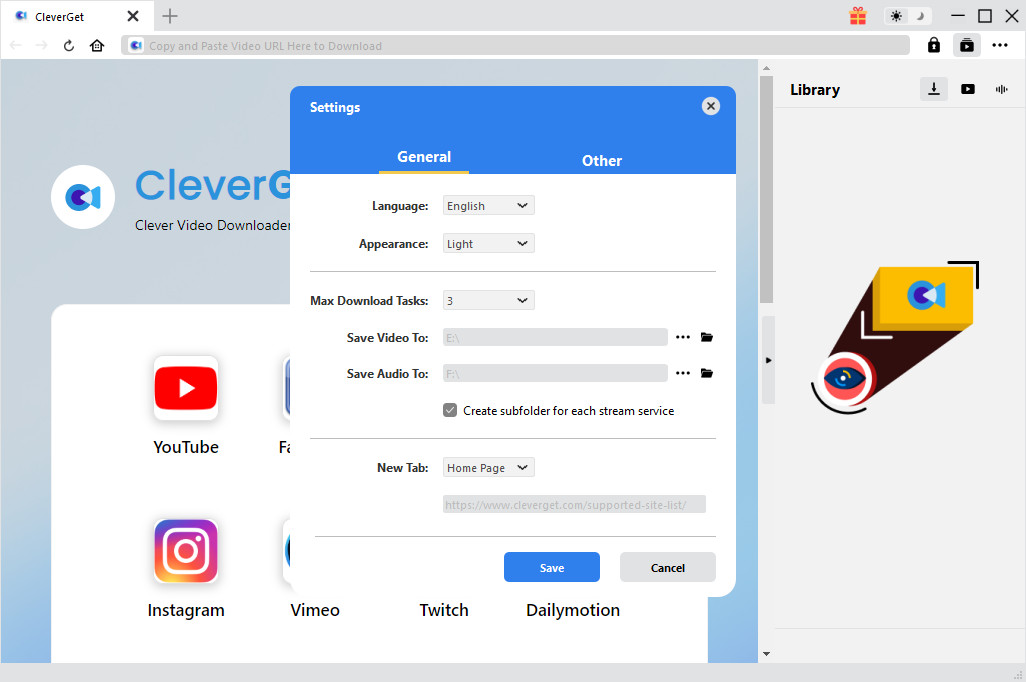
Step 1: Configure the Software Settings
After installing the downloader, launch it and navigate to the settings menu, usually found by clicking a gear or three-dot icon. Here, you should set the default download folder to a location on your computer with sufficient storage space. You can also configure preferences like the maximum number of simultaneous downloads.
Step 2: Locate Your Facebook Video
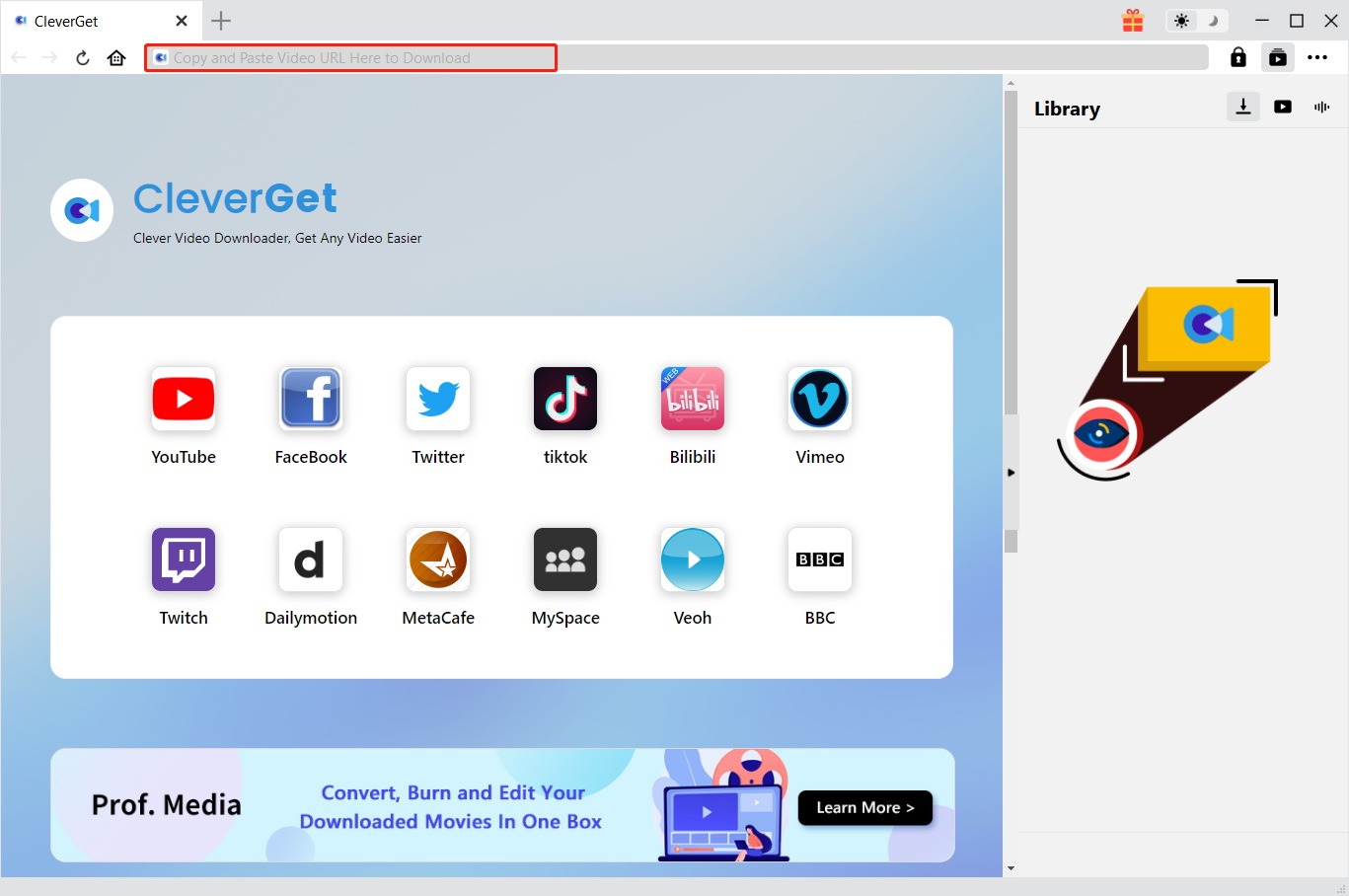
You can either use the built-in browser within the software to go directly to Facebook.com, log in, and find your video, or you can simply copy the URL of the Facebook video from your regular web browser and paste it into the downloader’s address bar. The software will automatically analyze the page for downloadable content.
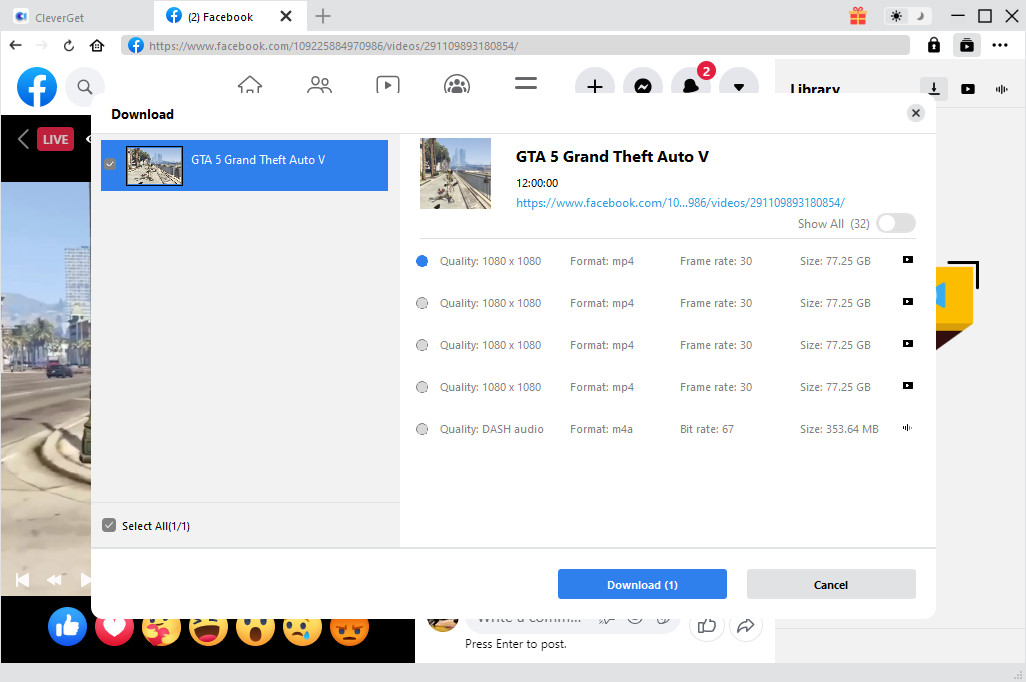
Step 3: Choose Quality and Download
Once parsing is complete, a window will pop up listing all available video and audio streams. You can select your preferred version based on resolution (like HD or SD) and file size. Click the download button, and the software will start saving the video file to your specified computer folder.
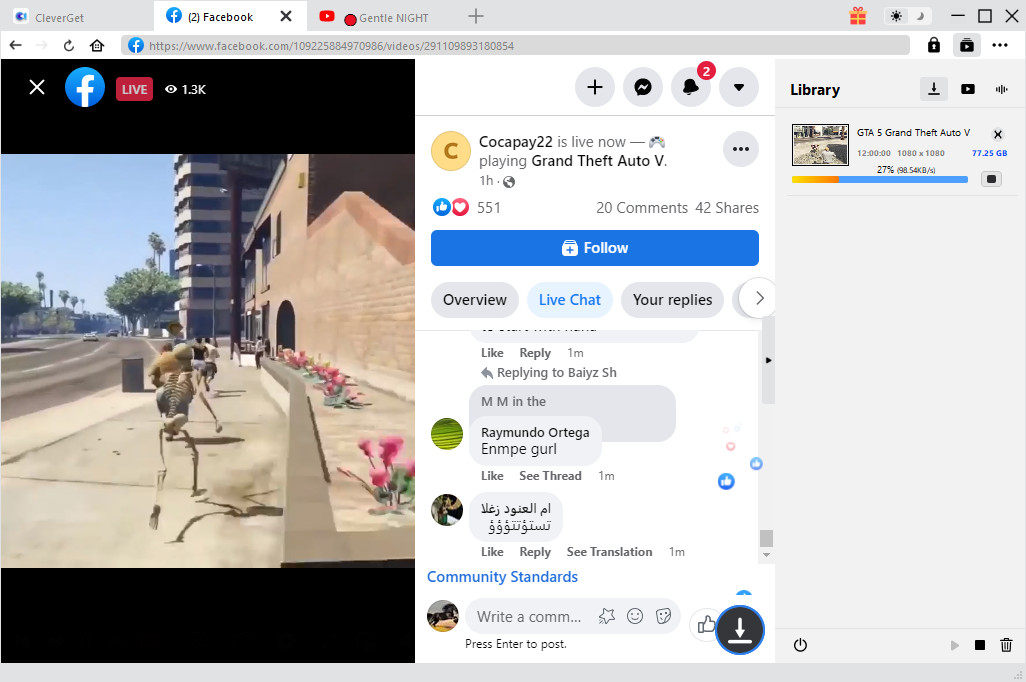
Step 4: Monitor Your Download
You can track the progress of your download in the software’s library or download manager section. This area allows you to pause, resume, or manage your download queue. Once finished, the video will be ready on your computer for the next step: transferring it to your iPhone.
Try Leawo CleverGet Video Downloader right now! Download up to 8K videos, Shorts videos, playlists, channels, music videos, movies, TV shows, and even live videos from YouTube, TikTok, Instagram, Facebook, Pinterest and 1000+ other websites.
Get the Windows version | Get the Mac version | Use the time-limited promotional campaign
Part 2: How to Save Facebook Videos with a Browser Extension
For users who prefer not to install standalone software, a browser extension can be a convenient middle ground. If you primarily use Google Chrome, extensions like “