TOOL HUNTER

Ever wondered how to completely transform your voice on Snapchat? Whether you want to sound like a chipmunk, a giant, or even your favorite celebrity, learning how to change voice on Snapchat opens up a world of creative possibilities. The platform’s voice-changing features have become incredibly popular, but many users don’t realize just how many options are available.
Table of Contents
- Understanding Snapchat Voice Changing Features
- How to Change Your Voice on Snapchat Using Built-in Filters
- Platform-Specific Guide: How to Change Voice on Snap for Different Devices
- Adjusting Voice Speed on Snapchat
- Advanced Solutions: Third-Party Snapchat Voice Changers
- Popular Snapchat Voice Changer Lenses and Filters
- Troubleshooting Common Voice Changer Issues
- Creative Applications for Snapchat Voice Modification
- Future Developments in
Understanding Snapchat Voice Changing Features
Snapchat’s voice modification tools have evolved significantly over the years. What started as simple pitch adjustments has grown into a comprehensive suite of audio effects that can dramatically alter how you sound in your snaps. The beauty of these features is that they’re built directly into the app, meaning you don’t need any additional software to start experimenting with different vocal effects.
The platform offers two main approaches to voice modification. You can either use the dedicated voice filters that specifically target your audio, or you can employ speed modifiers that affect both your video and audio simultaneously. Both methods are incredibly user-friendly and can be applied with just a few taps.
Many people don’t realize that Snapchat actually stores a history of your used filters and lenses, making it easy to reapply your favorite voice effects. This is particularly handy when you find a voice modifier that perfectly matches your creative vision for a series of snaps.
How to Change Your Voice on Snapchat Using Built-in Filters
The most straightforward method for voice modification involves using Snapchat’s native voice filters. These are specifically designed to alter your vocal characteristics without affecting your video content. The process is remarkably simple and works equally well for both new and experienced Snapchat users.
To begin changing your voice, first launch the Snapchat application and ensure you’re on the camera screen. You’ll want to use the front-facing camera for most voice filter applications, though the rear camera works just as well. Position your face within the frame, making sure you’re clearly visible.

Next, press and hold your finger on your face until you see a white grid pattern appear. This activates Snapchat’s lens detection system. While you can select visual filters from the carousel to the right of the capture button, for pure voice modification, you might prefer to record without any visual filters initially.
Now comes the actual recording. Press and hold the circular capture button while speaking normally. You’ll notice a red line gradually filling the circle around the button, indicating your recording progress. It’s important to actually speak during this process, as the voice filters need audio input to work their magic.
Once you’ve finished recording, release the capture button. You’ll now see various editing options appear along the bottom of your screen. For first-time users, Snapchat typically displays a prompt saying “Tap to Try Voice Filters!” If you don’t see this message, simply tap the speaker icon to access the voice modification options.

A selection of available voice filters will pop up above the speaker icon. You can tap through these to preview how each one affects your recorded audio. The changes happen in real-time, allowing you to quickly cycle through different effects until you find the perfect match for your snap.
After selecting your preferred voice filter, you can proceed with sharing your creation. Tap the blue send icon to distribute your voice-modified snap to friends or add it to your story. The entire process takes mere seconds, yet dramatically transforms your audio content.

Platform-Specific Guide: How to Change Voice on Snap for Different Devices
Interestingly, the process for how to change voice on Snapchat varies slightly between iOS and Android devices. This has caused some confusion among users who switch between platforms or follow tutorials created for different operating systems.
For Android users, the process typically follows the traditional method described above. The speaker icon remains accessible on the editing screen, providing direct access to voice filters after recording your snap. This consistent experience makes it easy for Android users to reliably access voice modification features.
However, iOS users have encountered changes in recent updates. Many have reported that the speaker icon now only controls audio muting and unmuting, rather than providing access to voice filters. This doesn’t mean voice changing capabilities have been removed entirely from iOS devices—they’ve just been relocated within the interface.
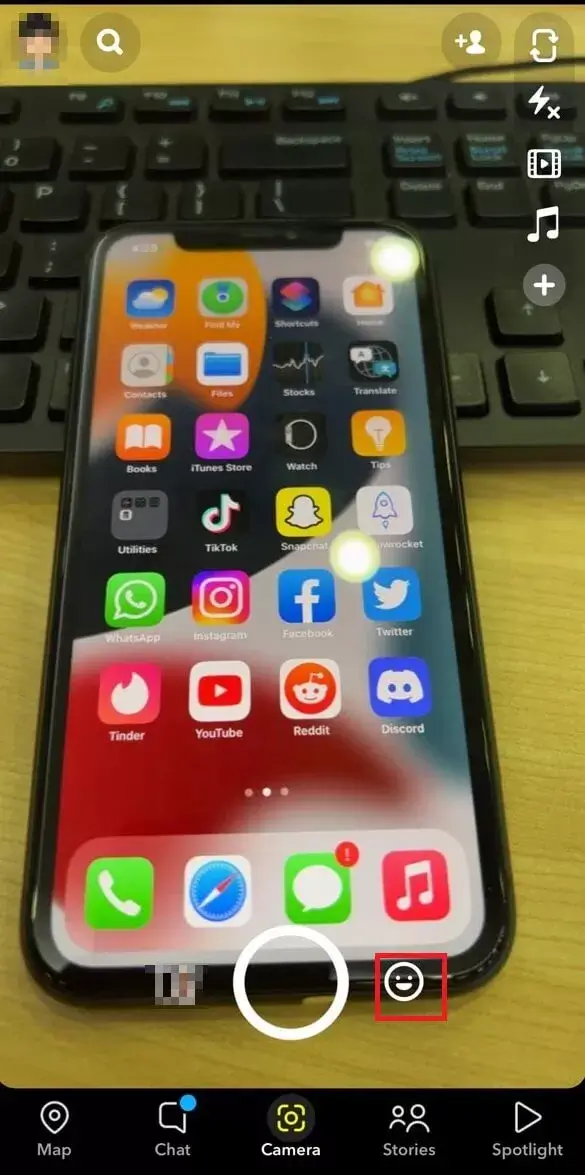
If you’re using an iPhone and wondering how to change your voice on Snapchat, here’s the updated method. After launching Snapchat, tap the smiley face icon located to the right of the capture button. This opens Snapchat’s extensive lens collection.
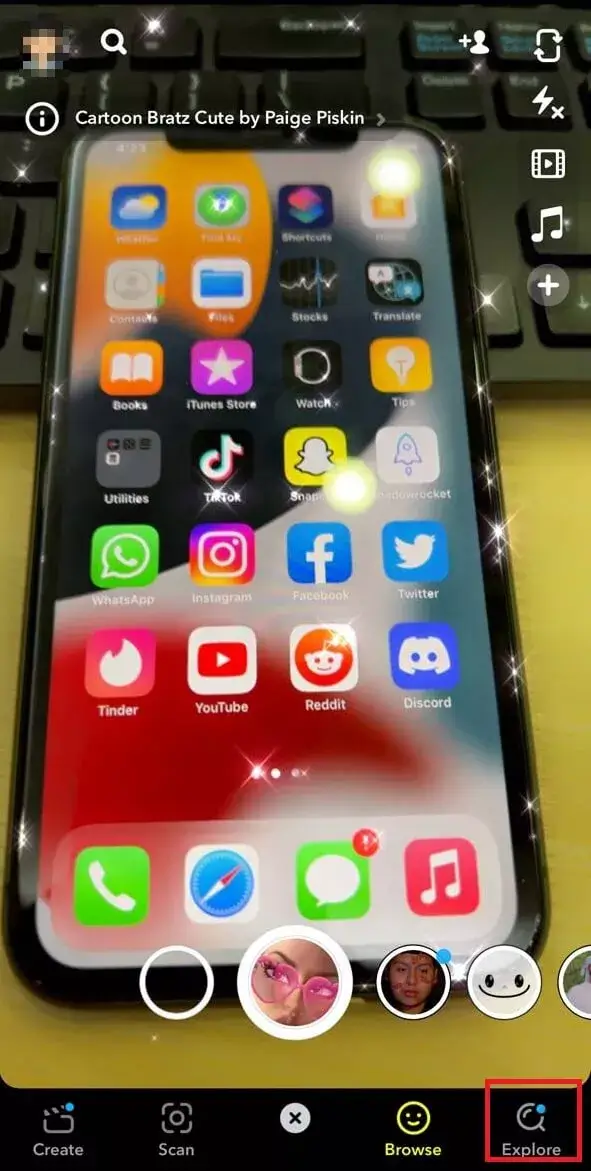
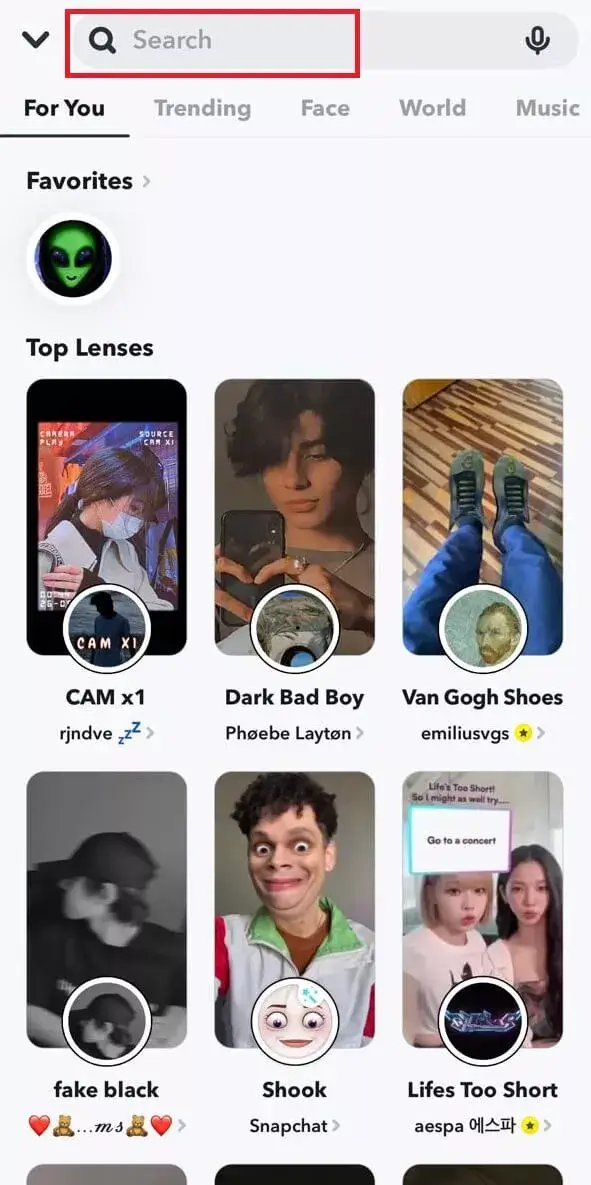
Rather than selecting from the initially visible lenses, tap the “Explore” option. This transports you to Snapchat’s lens discovery section, where you can search for specific effects. In the search bar, type “Voice Changer” to see all available voice-modifying lenses.
The search results will display numerous lenses specifically designed for voice alteration. These lenses combine visual effects with audio modification, creating a packaged experience. You’ll find options ranging from subtle pitch adjustments to completely transformative vocal effects.
Select your preferred voice-changing lens, then record your snap as usual. The voice modification will be applied in real-time during recording, unlike the post-recording application method available to Android users. This approach does mean you’re committing to both the visual and audio effects simultaneously.
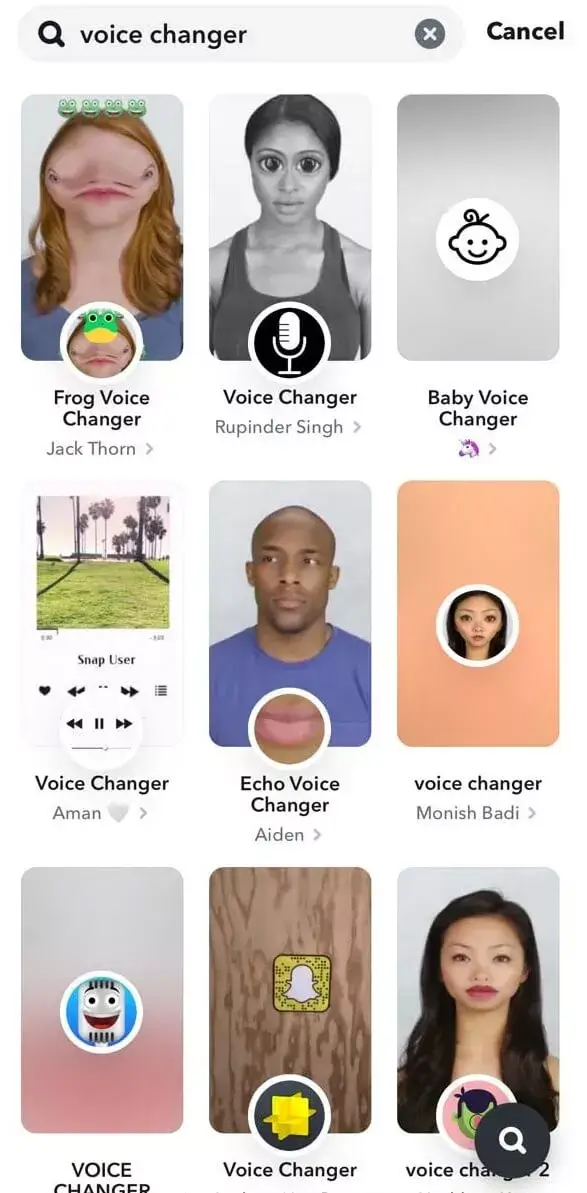
The main limitation of this iOS workaround is that voice modification is tied to specific lenses. If you want to change your voice without altering your appearance, you’ll need to explore third-party solutions, which we’ll discuss later in this guide.
Adjusting Voice Speed on Snapchat
Beyond simple voice filters, Snapchat offers another powerful audio manipulation tool: speed adjustment. This feature lets you make your voice faster, slower, or even reverse it entirely. The speed modification affects both your video and audio simultaneously, creating some truly entertaining results.
To access these speed effects, start by recording a snap normally. Press and hold the capture button while speaking clearly. Once you’ve finished recording, instead of tapping the speaker icon, swipe left or right on your screen to browse through available filters.
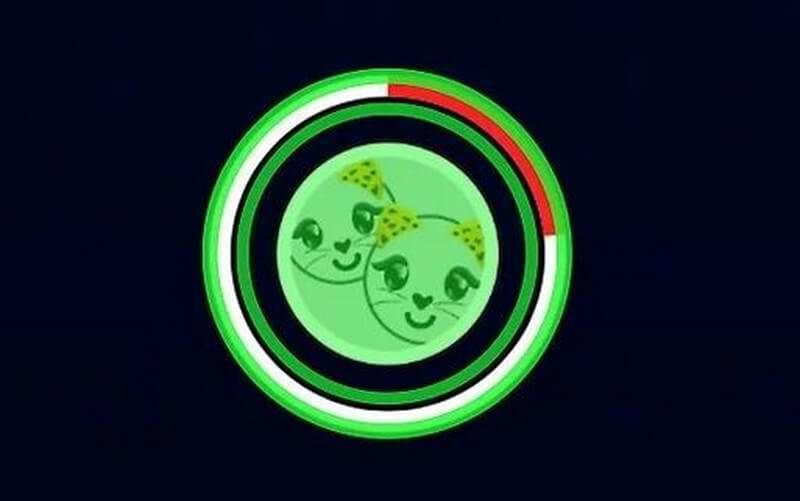
You’ll encounter several speed-related filters during your swiping. The Rabbit filter accelerates both your video and audio, creating a chipmunk-like effect. The Snail filter does the opposite, slowing everything down for a deep, drawn-out vocal quality. The Rewind filter is particularly interesting—it plays your snap backward, including your voice.

When you land on a speed filter that interests you, the snap will automatically playback with the effect applied. This gives you an immediate sense of how the speed adjustment affects your voice. If you’re not satisfied with the result, simply continue swiping to explore other options.
After applying your chosen speed effect, you can further customize your snap with text, stickers, drawings, or other embellishments. These additional edits can enhance the overall impact of your voice-modified creation.

Finally, when you’re completely satisfied with your speed-modified snap, tap the blue send icon to share it with your intended audience. The combination of visual and audio speed changes often creates surprisingly humorous results that are perfect for lighthearted content.
Advanced Solutions: Third-Party Snapchat Voice Changers
While Snapchat’s built-in voice modification tools are impressive, they do have limitations. This is where third-party voice changers come into play, offering enhanced control, more effects, and greater flexibility. These tools can be particularly valuable for content creators who want to maintain consistent voice characteristics across multiple platforms.
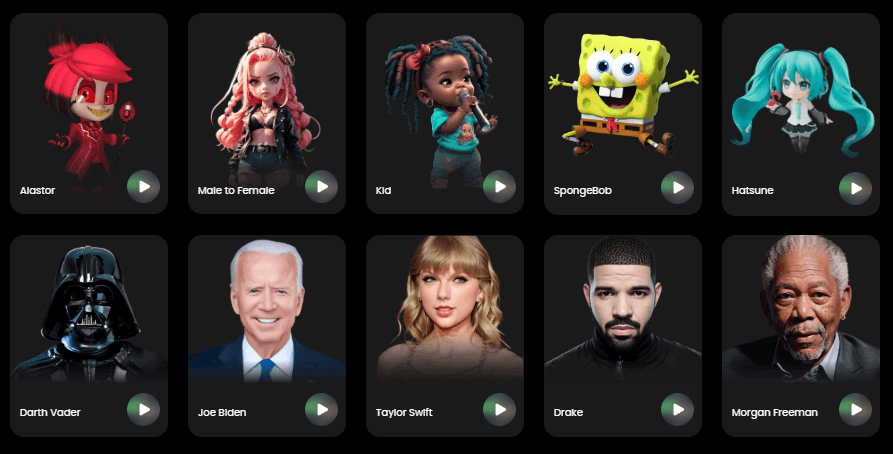
iMyFone MagicMic.Best Real Time AI Voice Changer.MagicMic is a professional real-time AI voice changer that changes your voice while communicating online. It’s easy to use, has extremely low latency, features high quality AI voices and is compatible with all systems. Discover 500+ AI voices and 100K+ meme soundboards with MagicMic today!
Check More Details | Download Now! | Check All Deals
One of the most powerful third-party options is MagicMic, a sophisticated voice modification tool that works seamlessly with Snapchat. This software provides real-time voice changing capabilities that far exceed what’s possible with Snapchat’s native features.
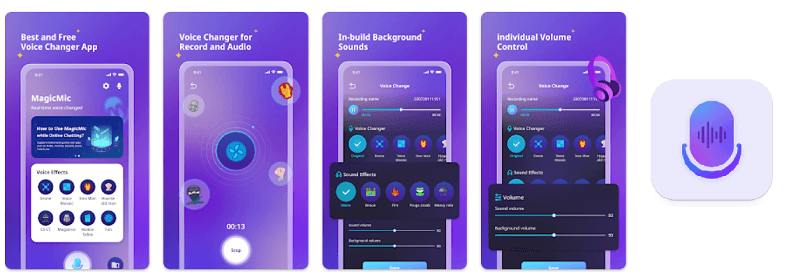
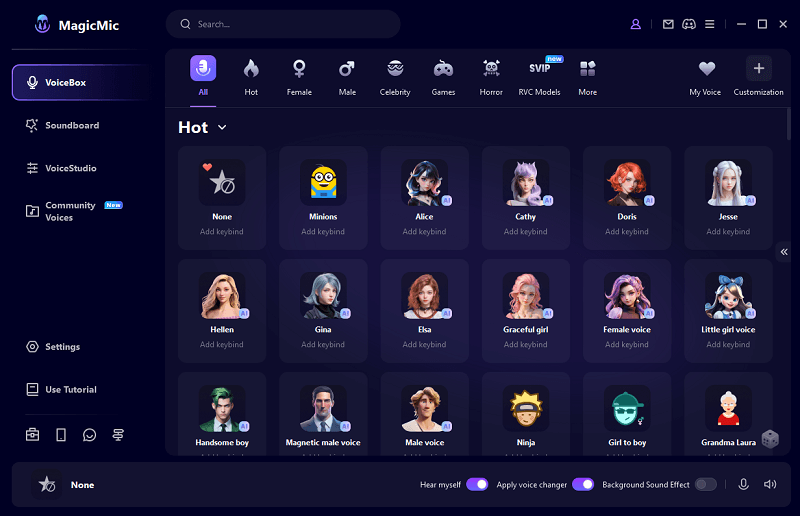
MagicMic stands out for its extensive voice effect library, offering over 300 distinct voice filters. These range from simple pitch adjustments to complex character voices and celebrity impressions. The software also includes an enormous soundboard collection with hundreds of audio memes and sound effects that can be triggered during your Snapchat recordings.
The process for using MagicMic with Snapchat is straightforward. After installing the software on your computer, connect your headphones with a built-in microphone. The software needs to recognize your audio input device to function properly.
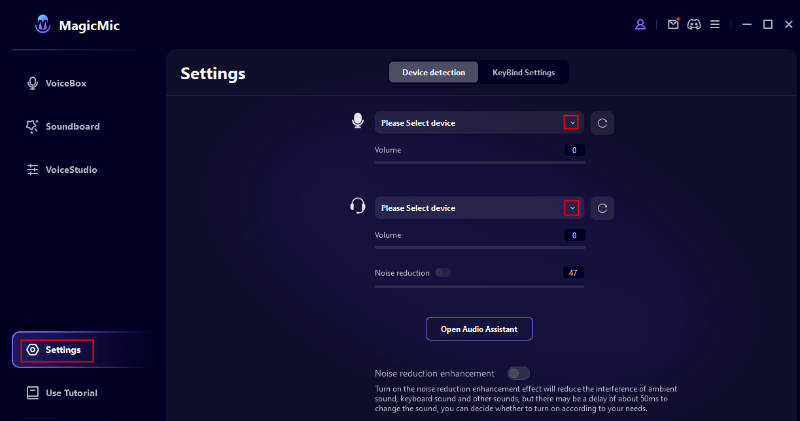
Once configured, you can select your desired voice effect before starting your Snapchat recording. The voice modification happens in real-time, meaning your voice will already be transformed when Snapchat captures it. This approach bypasses any platform-specific limitations and ensures consistent results across different devices.
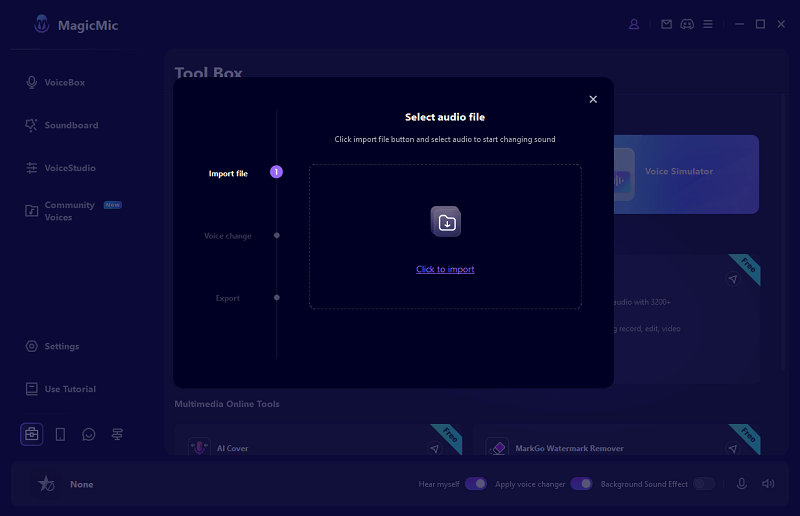
For pre-recorded content, MagicMic offers post-processing capabilities. You can extract audio from existing Snapchat videos and apply voice effects retrospectively. This is perfect for refining content before reposting or for creating more polished snaps.
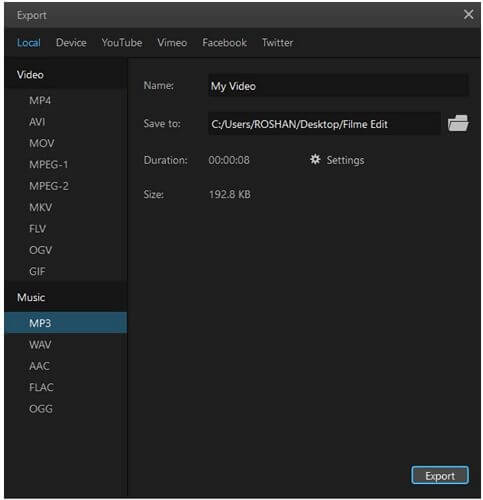
Another excellent third-party option is iMyFone Filme, which functions as both a video editor and voice modification tool. While it doesn’t offer real-time voice changing for live Snapchat recordings, it provides extensive post-production capabilities for perfecting your snaps before sharing.
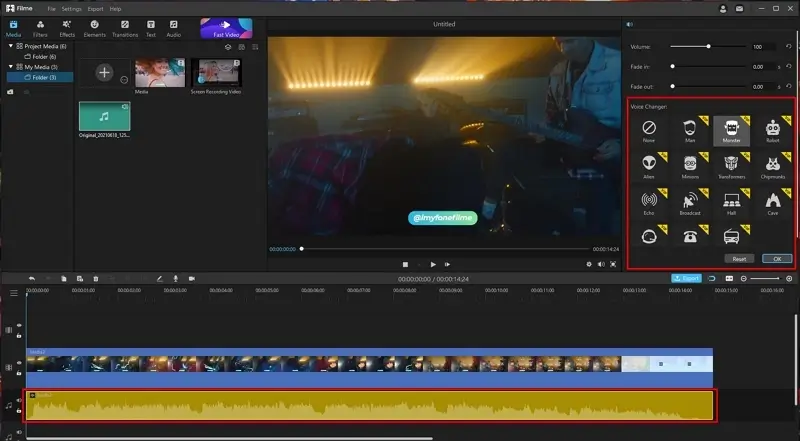
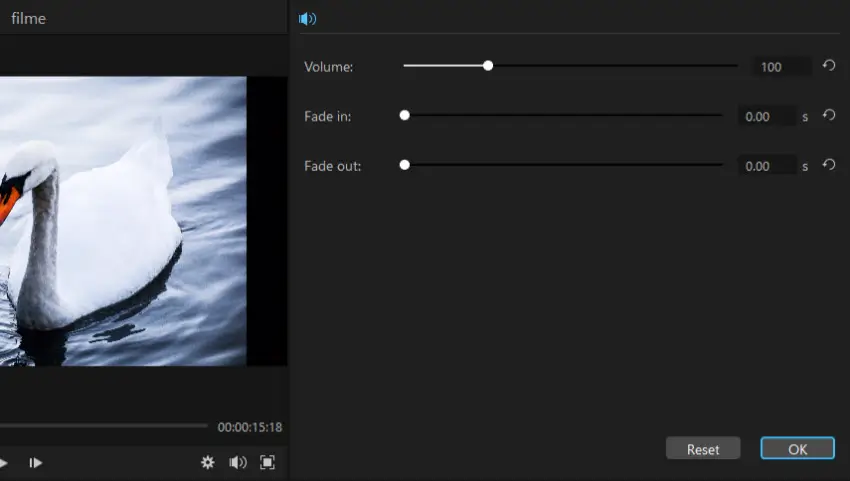
Filme allows you to import Snapchat recordings and apply voice filters with precision control. The software includes audio editing features like fade effects, volume normalization, and multiple voice layers. This level of control is particularly valuable for creators who want their snaps to stand out with professional-quality audio.
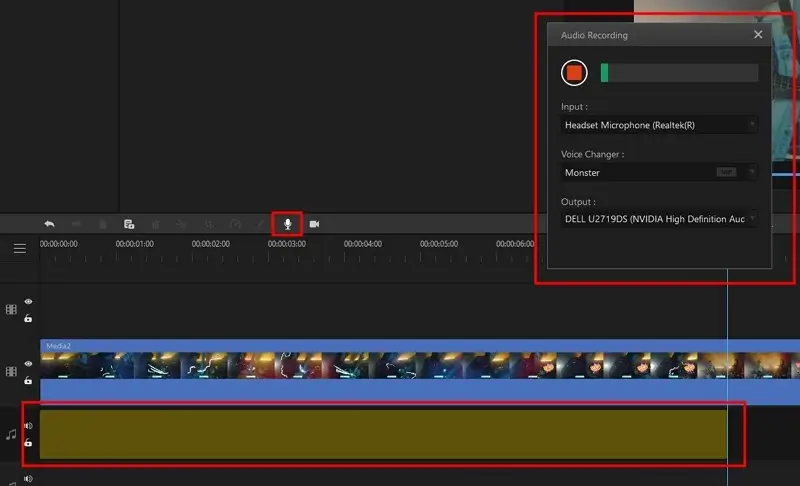
The software also supports live voice recording with effects applied in real-time. While this requires a slightly more complex setup than MagicMic, it offers similar functionality for users who prefer Filme’s interface and feature set.
Both MagicMic and Filme represent the cutting edge of consumer-grade voice modification technology. They effectively eliminate the limitations imposed by Snapchat’s built-in tools while maintaining ease of use that’s appropriate for casual creators and professional content producers alike.
Popular Snapchat Voice Changer Lenses and Filters
Snapchat’s lens library includes countless voice-modifying options, but some have achieved particular popularity due to their effectiveness and entertainment value. Understanding these standout filters can help you quickly locate compelling voice effects for your own content.
The Go Corona filter emerged during the pandemic and remains a favorite for its unique combination of visual and audio transformation. This lens turns users into animated coronavirus particles with corresponding voice effects that are both humorous and strangely appropriate. It demonstrates how voice modification can enhance thematic content.

The Teddy with Stars filter offers a completely different aesthetic, transforming users into adorable teddy bears with matching vocal effects. The voice modification leans toward cute and squeaky, perfectly complementing the visual transformation. This filter is particularly popular for creating heartwarming content or playful messages to friends.

For users interested in subtle enhancement rather than complete transformation, the Cute Face and Glasses filter provides gentle voice modification alongside minimal visual changes. The filter slightly elevates vocal pitch while adding cute facial features, creating an overall effect that’s enhancing rather than transformative.

Seasonal filters like the Possessed Pumpkin offer holiday-appropriate voice effects that are perfect for thematic content. This particular filter creates a spooky vocal effect that matches its Halloween-inspired visual design. Such filters demonstrate how voice modification can strengthen seasonal content.

Finally, the Crazy Voice filter lives up to its name by applying extreme vocal distortion alongside dramatic visual changes. This filter is ideal for users seeking maximum impact from their voice modification efforts. The resulting content is guaranteed to stand out in anyone’s Snapchat feed.

Troubleshooting Common Voice Changer Issues
Even with Snapchat’s generally reliable performance, users occasionally encounter issues with voice modification features. Understanding common problems and their solutions can save considerable frustration when you’re trying to create voice-modified content.
One frequent issue involves voice filters not appearing where expected. This is particularly common after Snapchat updates, which sometimes rearrange interface elements. If you can’t locate the voice modification options, ensure your app is updated to the latest version. Developers frequently adjust feature placement to improve user experience.
For iOS users specifically, the disappearance of the traditional voice filter access method has caused confusion. Remember that on iPhones, voice modification is now primarily available through specific lenses rather than standalone audio effects. Searching for “voice changer” in the lens explorer should reveal numerous options.
Another common problem involves voice effects not applying correctly to recordings. This often occurs when users don’t speak during the recording process. Voice filters require audio input to function—if you record a silent video, there’s nothing for the effects to modify. Always ensure you’re providing clear vocal input when using voice filters.
Performance issues can also affect voice modification, particularly on older devices. If voice filters are causing lag or crashes, try closing other applications to free up system resources. Restarting your device can also resolve temporary performance problems affecting Snapchat’s functionality.
Cache accumulation represents another potential source of voice changer issues. Over time, Snapchat stores temporary data that can occasionally become corrupted, affecting feature performance. Clearing the app’s cache through your device settings often resolves mysterious functionality problems.
iMyFone MagicMic.Best Real Time AI Voice Changer.MagicMic is a professional real-time AI voice changer that changes your voice while communicating online. It’s easy to use, has extremely low latency, features high quality AI voices and is compatible with all systems. Discover 500+ AI voices and 100K+ meme soundboards with MagicMic today!
Check More Details | Download Now! | Check All Deals
Compatibility problems represent another category of voice changer issues. Not all devices support every Snapchat feature equally. If you’re using an older smartphone, certain voice effects might not function correctly or might be completely unavailable. Checking Snapchat’s official compatibility requirements can help determine if your device limitations are causing the problem.
When built-in voice features persistently malfunction, third-party solutions like MagicMic offer a reliable alternative. These tools operate independently of Snapchat’s native functionality, bypassing any platform-specific bugs or limitations you might be encountering.
Creative Applications for Snapchat Voice Modification
Beyond simple entertainment, voice modification on Snapchat serves numerous creative and practical purposes. Understanding these applications can inspire more innovative use of the platform’s audio features.
Content creators frequently use voice modification to maintain privacy while still producing engaging video content. By altering their voice characteristics, they can share thoughts and experiences without revealing their actual voice. This approach is particularly valuable for creators discussing sensitive topics or operating within professional contexts.
Voice modification also enables character development within Snapchat stories. By applying consistent voice effects to specific characters or personas, creators can build recognizable audio identities that enhance storytelling. This technique adds production value to narrative content without requiring sophisticated editing software.
Educational content benefits from voice modification through increased engagement. Teachers and tutors can use voice effects to emphasize key points or make learning materials more entertaining. The novelty of modified voices often helps maintain viewer attention, particularly with younger audiences.
Language learning represents another innovative application of Snapchat voice changers. By recording vocabulary or phrases with different voice effects, learners can create more memorable study materials. The unusual audio characteristics make the content more distinctive and easier to recall during practice sessions.
Accessibility considerations also come into play with voice modification. Individuals with speech impairments or vocal conditions can use voice filters to achieve their desired vocal quality. This application demonstrates how entertainment-focused features can serve important practical functions.
Business accounts have discovered creative marketing applications for voice modification. By applying brand-appropriate voice effects to promotional content, companies can strengthen their audio identity and create more memorable advertising. This approach works particularly well for brands targeting younger demographics who appreciate playful content.
The voice memo Snapchat function combined with voice modification enables users to create distinctive audio messages. Whether sending quick updates to friends or leaving comments on stories, modified voice memos stand out from standard audio messages. This application demonstrates how voice effects can enhance even Snapchat’s most basic communication features.