TOOL HUNTER

If you’ve ever found yourself wondering how to import videos from iPhone to PC, you’re definitely not alone! Lots of people run into this, especially when their phone storage gets full or they want to edit videos on a bigger screen. The good news is, it’s actually pretty simple once you know the different ways to do it. In this guide, I’ll walk you through five easy methods so you can choose the one that works best for you. Whether you prefer using a cool video editor like CapCut, some handy transfer software, iCloud, or just your computer’s built-in tools, there’s an option for everyone. Let’s jump right in!
Table of Contents
- Why should you transfer videos from your iPhone to your PC?
- How to put videos from iPhone to PC: comparing your options
- How to import videos from iPhone to PC using CapCut
- How to put videos from iPhone to PC using data transfer software
- How to upload video from iPhone to PC with iCloud Photos
- How to transfer videos from iPhone to PC using iCloud Drive
- How to import videos from iPhone to PC with the Windows Photos app
- Extra tips for a smooth video transfer from iPhone to PC
- Wrapping up
- Frequently Asked Questions
Why should you transfer videos from your iPhone to your PC?
You might be asking—why even bother moving videos from your iPhone to your computer? Well, there are a bunch of good reasons! iPhones take amazing videos, but those video files can be huge and eat up your storage super fast. By moving them over to your PC, you free up space for more photos, apps, and fun stuff. Plus, it’s way easier to organize and edit your videos on a computer. And let’s be honest—watching your vacation clips or family moments on a bigger screen is just more fun!
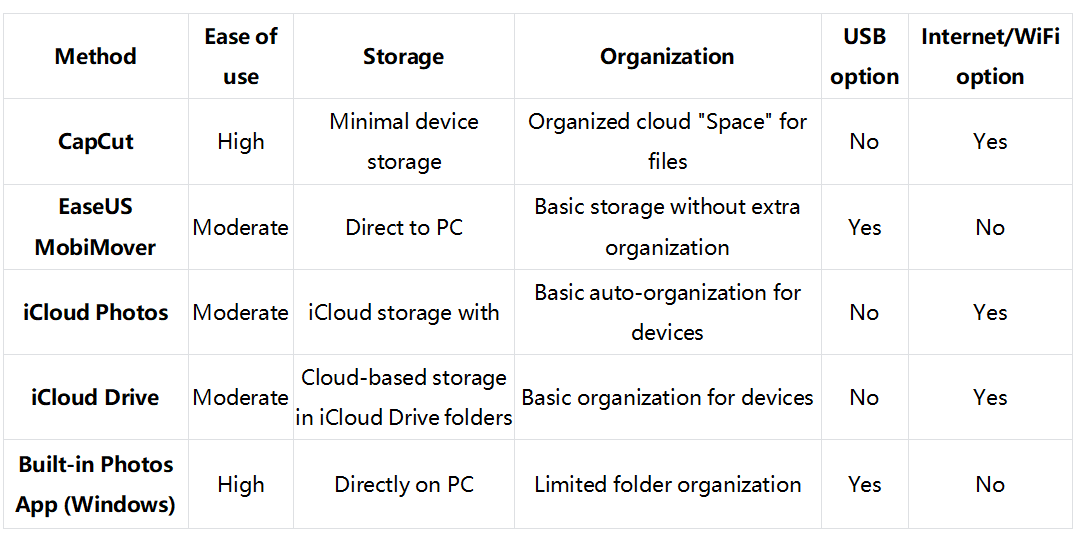
How to put videos from iPhone to PC: comparing your options
There are actually several ways how to put videos from iPhone to PC, and each has its own pros and cons. Some methods are faster, some are easier, and some don’t even need cables. To help you pick what’s best for you, here’s a quick comparison:
How to import videos from iPhone to PC using CapCut
If you’re looking for a simple and efficient way how to import videos from iPhone to PC, CapCut is a fantastic choice. Not only is it a powerful video editor, but it also lets you move files between your devices smoothly. This is especially handy if you plan on editing your videos after transferring them. And yes—you can even use it to figure out how to transfer CapCut projects from phone to PC without any trouble.
Step-by-step: transferring videos using CapCut
First things first, download CapCut on both your iPhone and your computer. Don’t worry, it’s completely free! Once it’s installed, just follow these steps.
Add videos to CapCut on your iPhoneOpen up the CapCut app on your iPhone and log in—you can use your TikTok, Facebook, or Google account. Start a new project, then pick the videos you want to move from your camera roll.
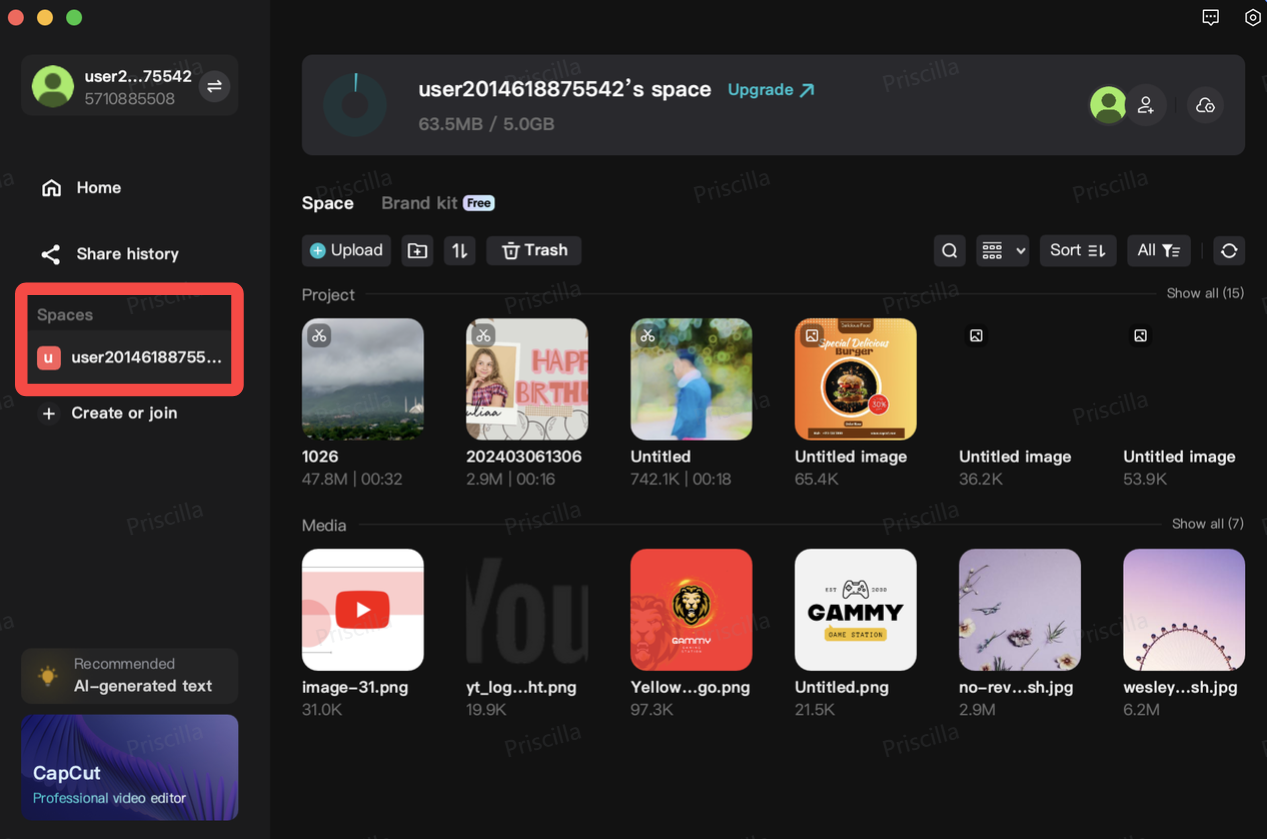
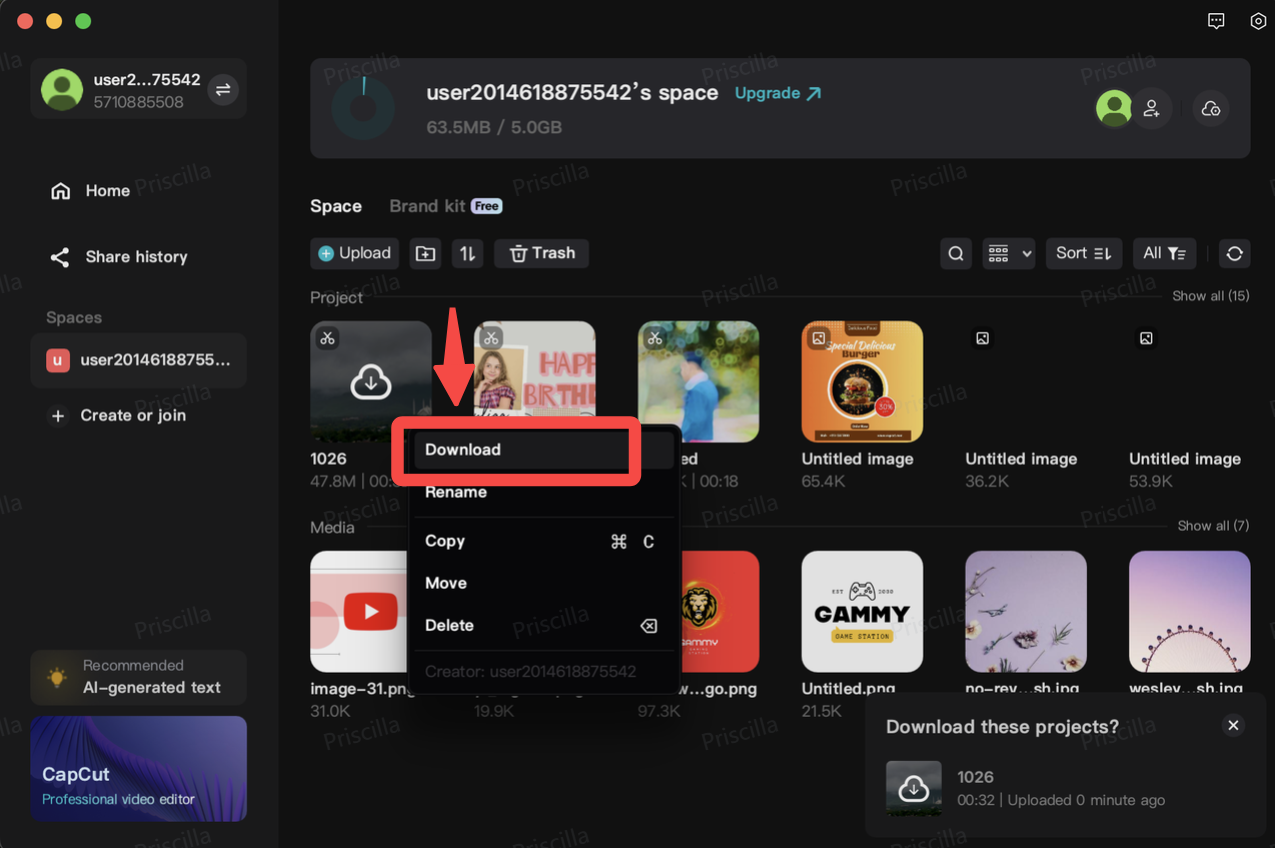
Send videos to CapCut’s cloud spaceAfter you’ve imported your videos, tap the three-dot menu next to the clip you want to transfer. Choose “Upload to space.” This saves your video to CapCut’s cloud storage (yep, it’s called “Space”). It’s a super easy way how to upload video from iPhone to PC without any cables.

- Grab your videos on your PCNow open CapCut on your computer and make sure you’re logged into the same account. Head over to the “Space” section—you’ll see your video waiting there. Click the three-dot menu next to it and hit “Download” to save it straight to your computer. And that’s it! You’ve just learned how to import videos from iPhone to PC with CapCut.
What else can you do with CapCut on your computer?
CapCut isn’t just for moving videos around. Once your videos are on your PC, you can use all of CapCut’s editing features to make them look awesome. Trim out boring parts, add music or filters, throw in some text—you name it. It’s also perfect if you want to learn how to sync CapCut phone to PC and keep all your projects up to date across devices.
CapCut — Your all-in-one video & photo editing powerhouse! Experience AI auto-editing, realistic effects, a huge template library, and AI audio transformation. Easily create professional masterpieces and social media viral hits. Available on Desktop, Web, and Mobile App.

How to put videos from iPhone to PC using data transfer software
Another solid method for how to put videos from iPhone to PC is by using data transfer software. Plenty of apps can help with this, but one popular choice is EaseUS MobiMover. It’s built to help you quickly shift files between your iPhone and computer. This option is great if you have a bunch of videos to move and want to do it directly, without needing the internet.
How to use EaseUS MobiMover to transfer your videos
Here’s how to get your videos from your iPhone over to your PC using MobiMover.
Plug your iPhone into your PCUse a USB cable to connect your iPhone to your computer. If a pop-up appears on your phone asking if you trust this computer, make sure to tap “Trust.” Then open up EaseUS MobiMover on your PC.
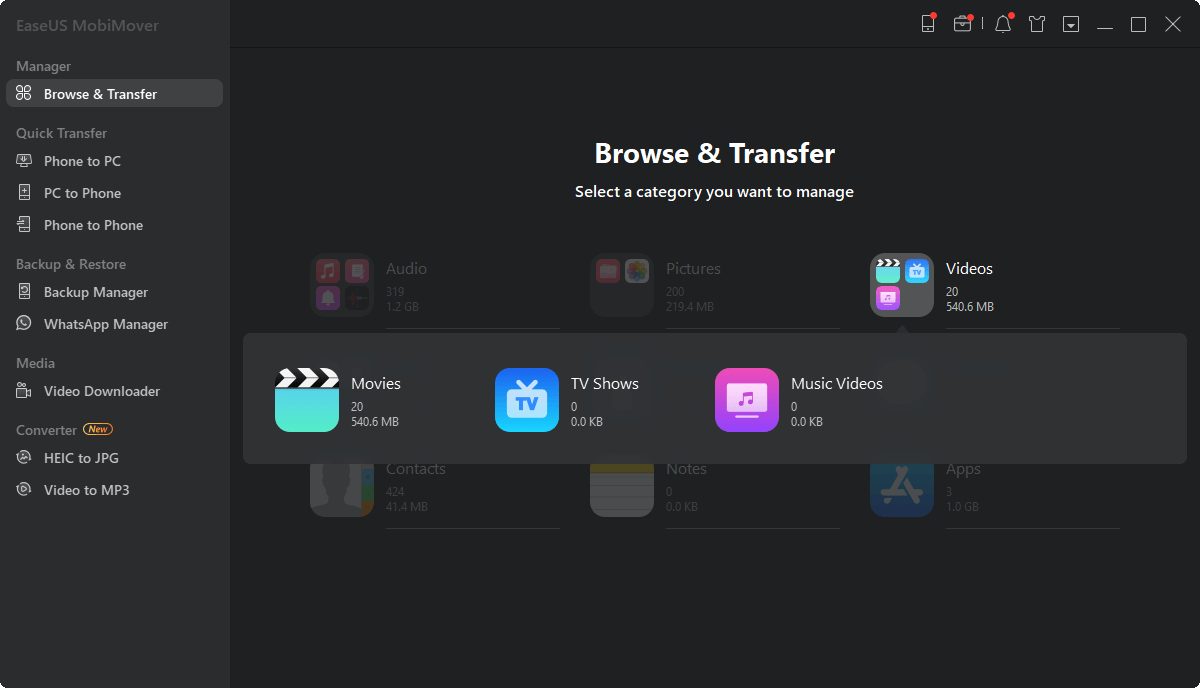
Pick which videos to moveIn MobiMover, click on “Browse & Transfer” and then choose “Videos.” You’ll see a list of all the videos stored on your iPhone. Just select the ones you want to transfer over.
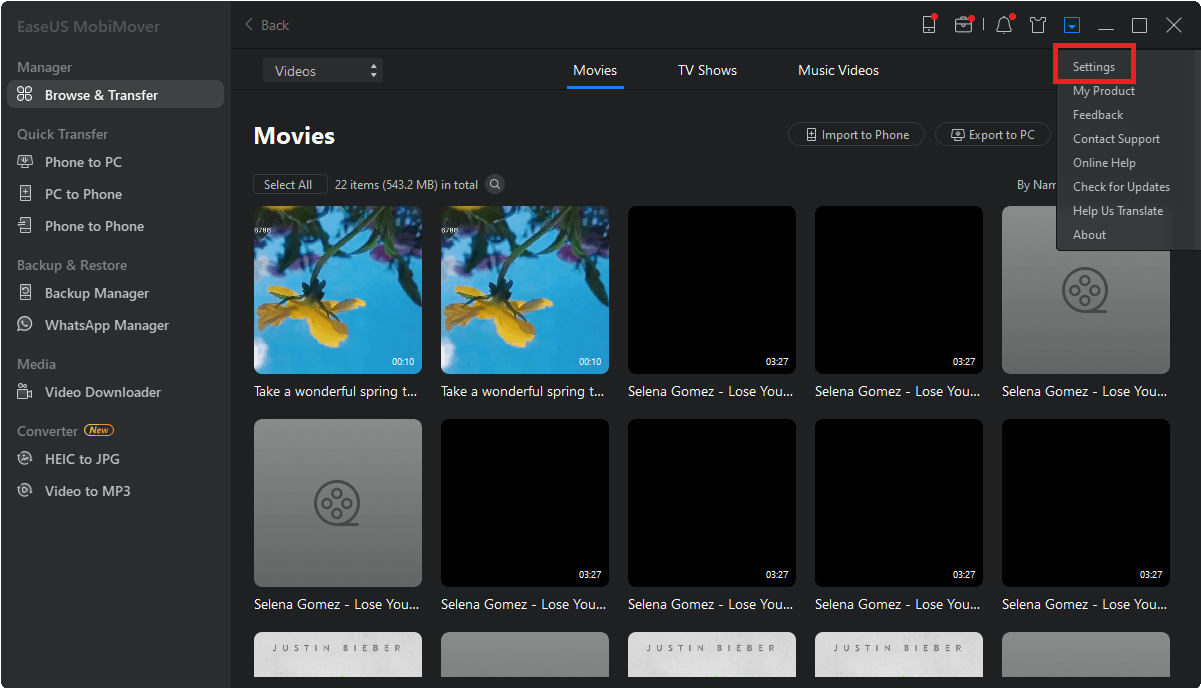
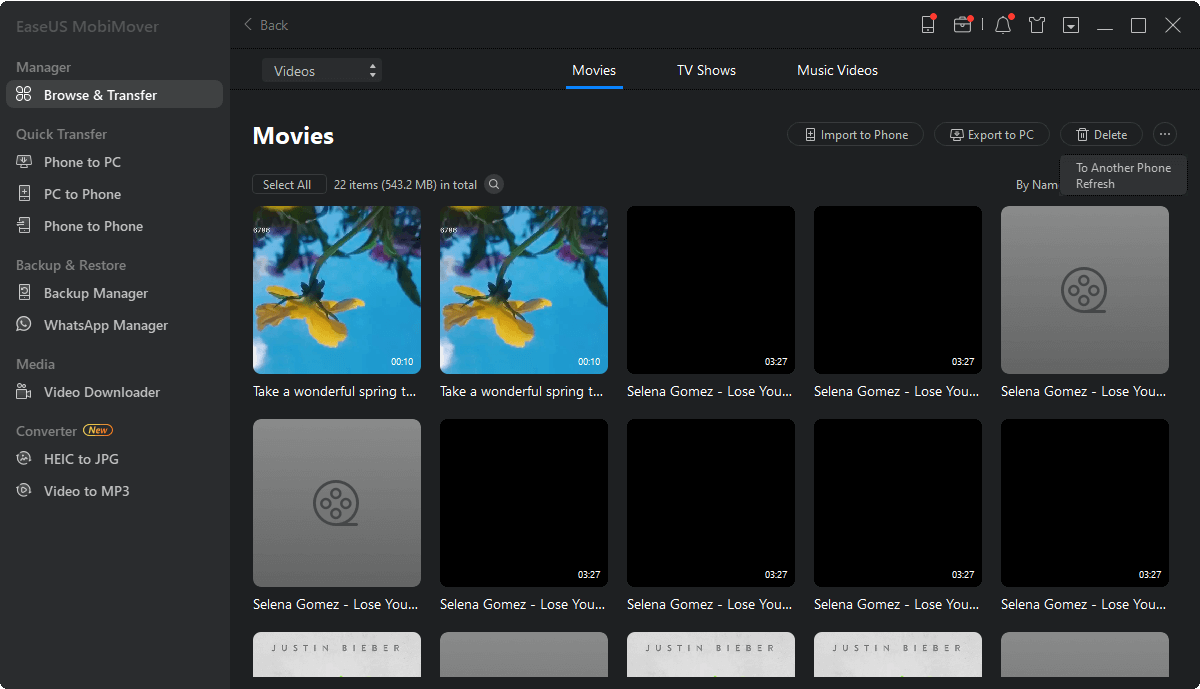
- Choose where to save your videosBy default, MobiMover will save your videos to the desktop. If you want them somewhere else, go into “Settings” and pick a different folder. Then click “Export to PC” and let the transfer begin!
This way is super straightforward and doesn’t need an internet connection, which is perfect if you’re in a rush or your Wi-Fi is being slow.
How to upload video from iPhone to PC with iCloud Photos
If you like doing things wirelessly, iCloud Photos is a really convenient way how to upload video from iPhone to PC. iCloud automatically syncs your photos and videos across all your Apple devices, including your computer. That means you can get to your videos on your PC without ever plugging in a cable.
Steps to transfer videos using iCloud Photos
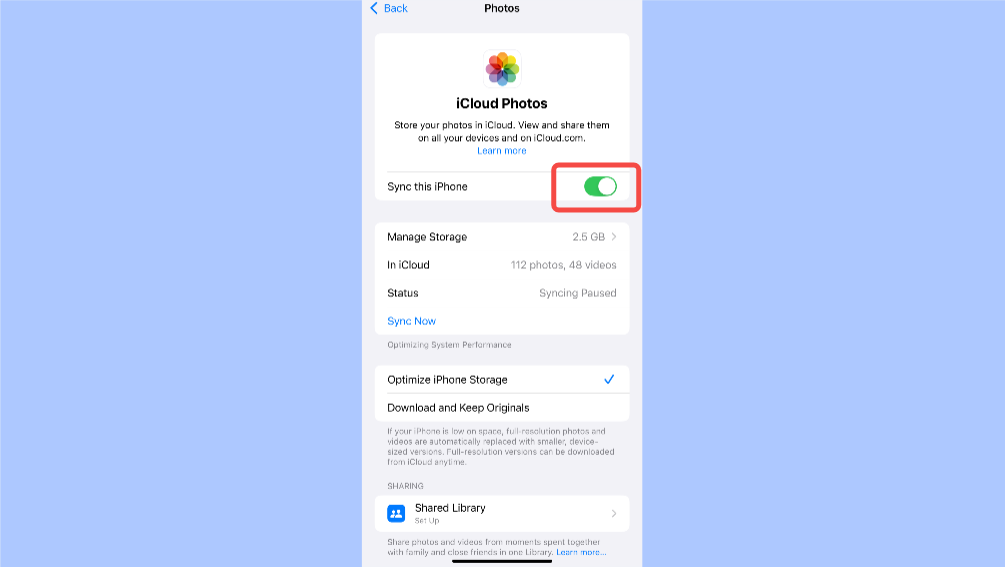
- Turn on iCloud Photos on your iPhoneGo into your iPhone’s Settings, tap your name at the top, then go to iCloud > Photos. Switch on “Sync this iPhone.” Make sure you’re connected to Wi-Fi and have enough iCloud storage space.
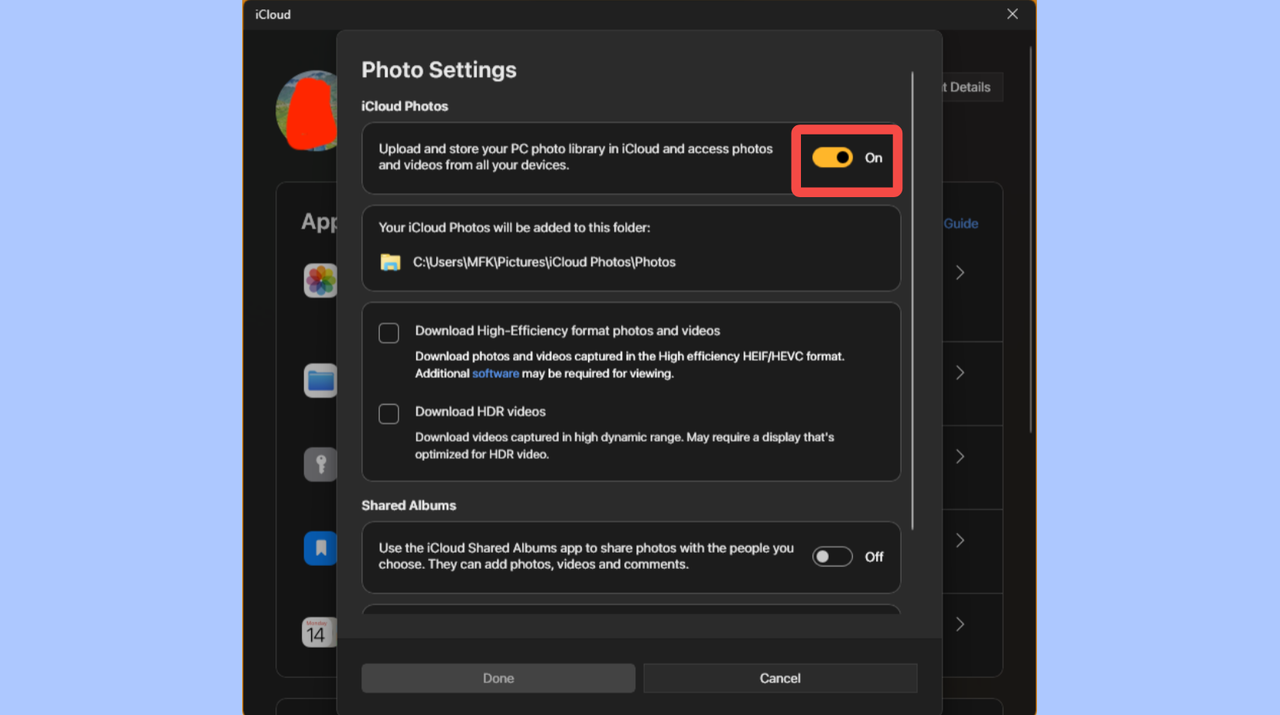
Set up iCloud on your PCDownload and install iCloud for Windows on your computer. Log in using the same Apple ID that you use on your iPhone. Open iCloud, then turn on the “Photos” option. This will start syncing your iCloud Photos to your PC.
Find your videos on your computerOnce everything’s synced, you can find your videos in the “iCloud Photos” folder on your PC. From there, you can copy them to any other folder you like. It’s a simple and effective way how to import videos from iPhone to PC without installing extra apps.

How to transfer videos from iPhone to PC using iCloud Drive
iCloud Drive is another wireless option that’s super useful for how to transfer videos from iPhone to PC. Think of it like a personal cloud folder where you can save pretty much any kind of file, including videos. This is especially handy for larger video files that might take up too much space in your iCloud Photos.
How to move videos with iCloud Drive
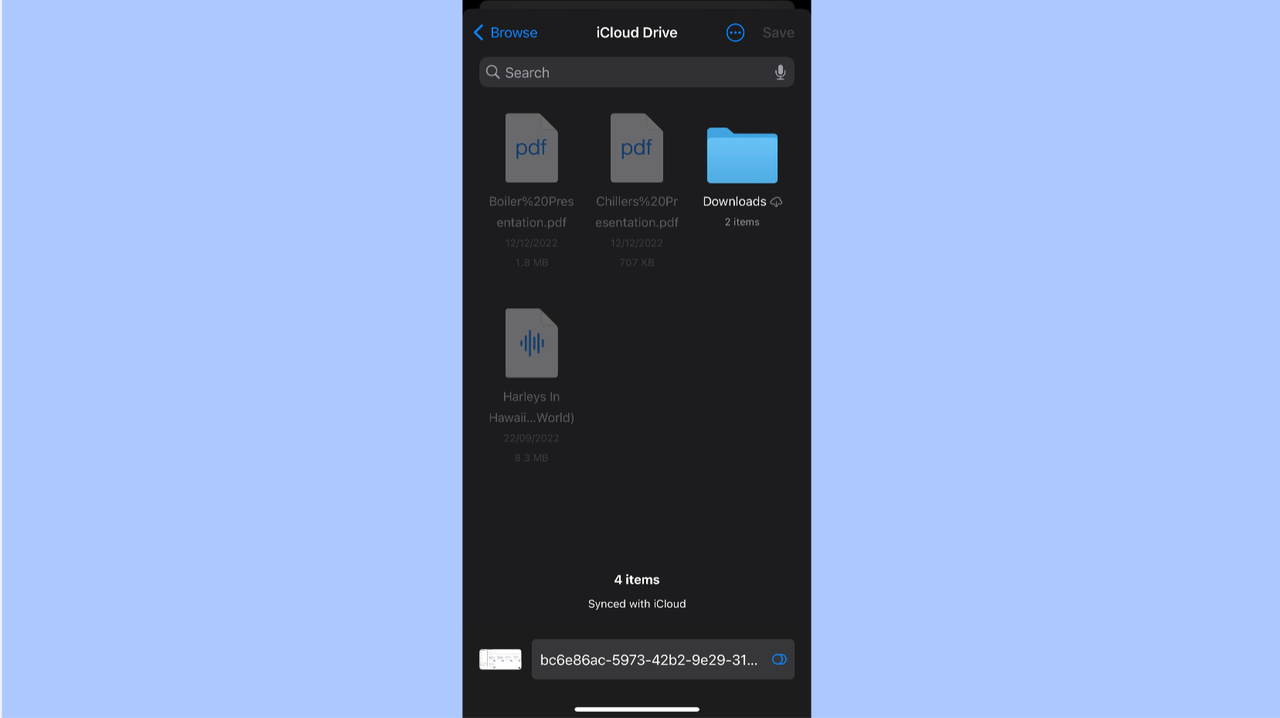
- Save your video to iCloud Drive on your iPhoneFind the video you want to move in your Photos app. Tap the share icon, then choose “Save to Files.” Select iCloud Drive and pick which folder you want to save it in.
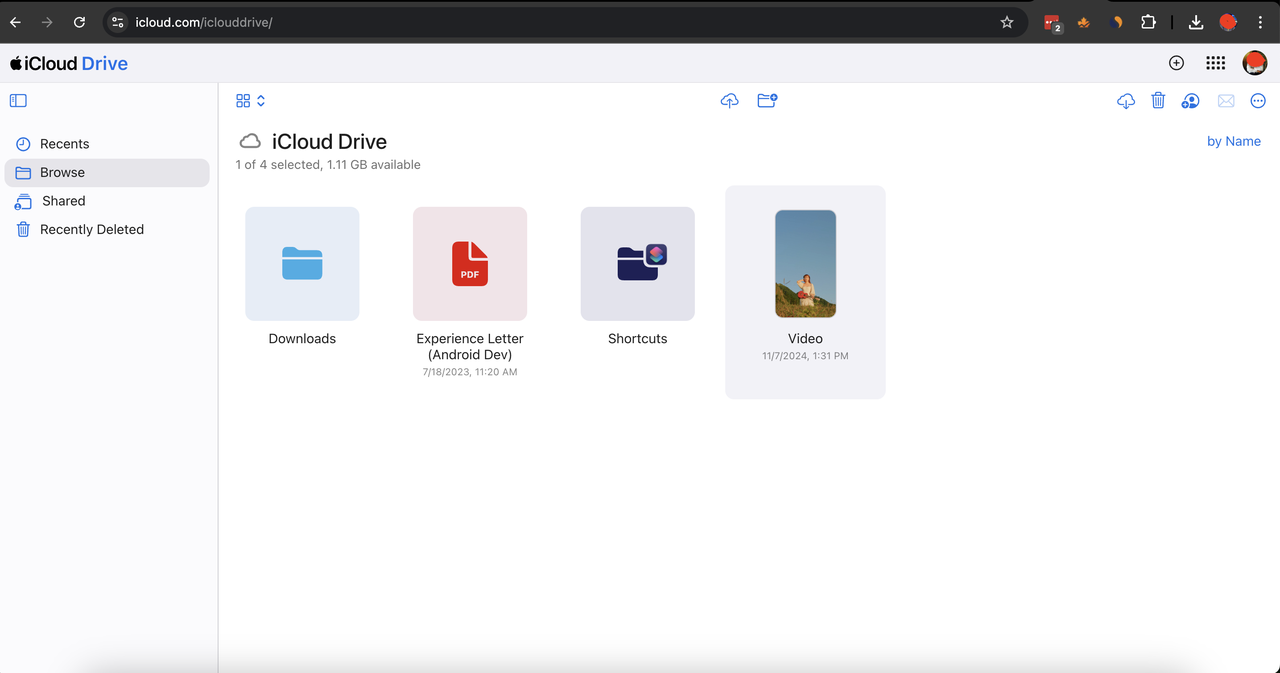
- Open iCloud Drive on your PCOn your computer, go to the iCloud website and sign in with your Apple ID. Click on “iCloud Drive” and find the folder where you saved your video.
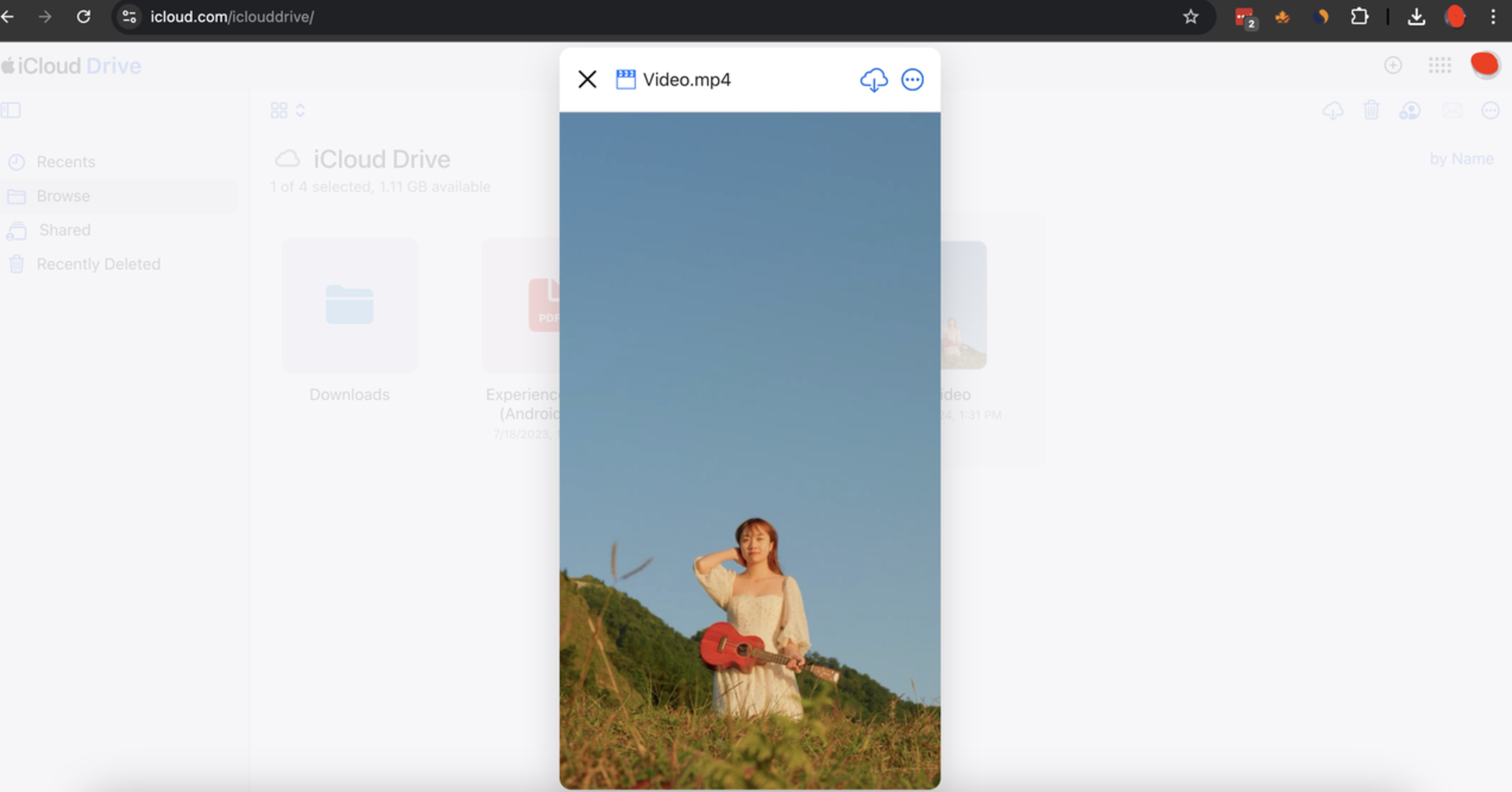
- Download the video to your computerSelect the video and click the download button to save it directly to your PC. This method is perfect when you need to how to put videos from iPhone to PC, especially if they’re large files.
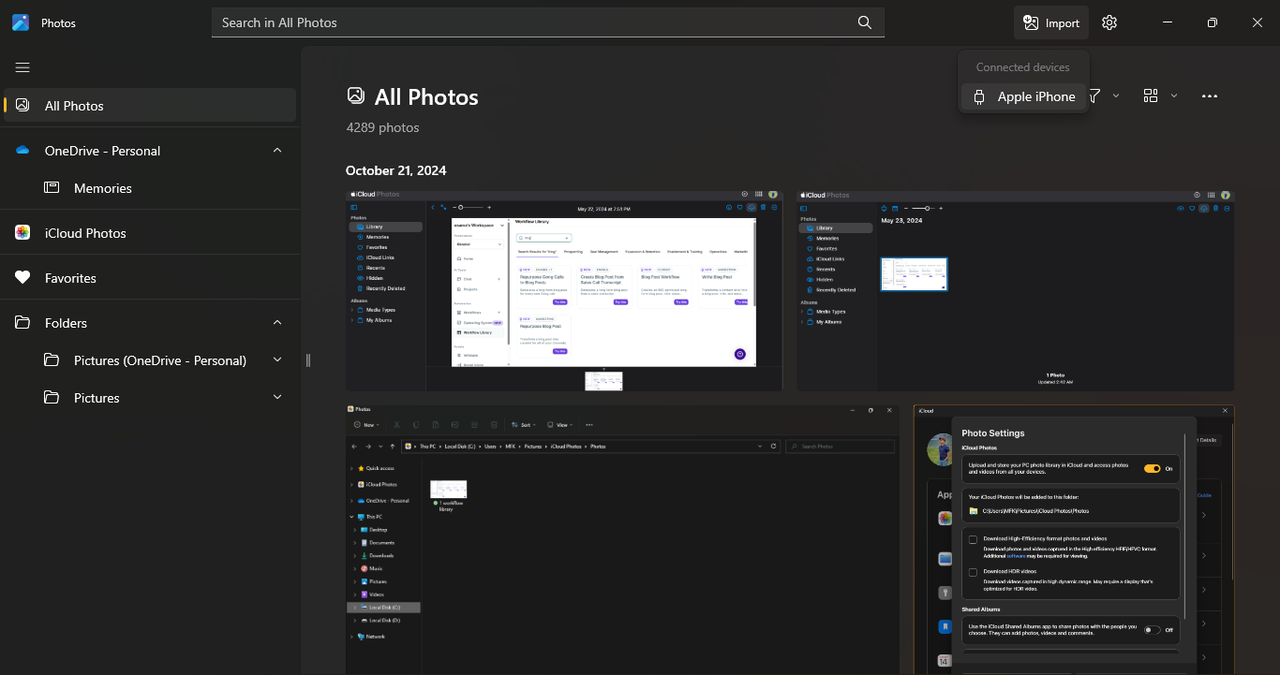
How to import videos from iPhone to PC with the Windows Photos app
If you want a no-fuss method that doesn’t need any extra apps, the built-in Windows Photos app has got you covered. This is a direct way how to import videos from iPhone to PC using just a USB cable.
Steps to use the Windows Photos app
Connect your iPhone to your PCUse a USB cable to connect your iPhone to your computer. Unlock your phone and if it asks, tap “Trust” to allow the connection.
Open the Photos app on your PCClick on the Start menu and type “Photos” in the search bar. Open the Photos app from the results.
- Import your videosInside the Photos app, click the “Import” button and select your iPhone. Choose which videos you want to transfer and decide where to save them on your computer. Hit “Import” and you’re all set! This is a reliable method for how to upload video from iPhone to PC without any extra software or accounts.
Extra tips for a smooth video transfer from iPhone to PC
Now that you know how to import videos from iPhone to PC, here are a few extra tips to make sure everything goes smoothly:
- Always check that your computer has enough storage space before you start transferring—video files can be pretty big!
- After moving your videos, take a minute to organize them into folders by date, event, or whatever makes sense to you. It’ll save you time later.
- Play a video or two after transferring to make sure they look good and there are no issues.
- Remember to back up your videos somewhere safe, like an external hard drive or a second cloud service. You never know when you might need it!
CapCut — Your all-in-one video & photo editing powerhouse! Experience AI auto-editing, realistic effects, a huge template library, and AI audio transformation. Easily create professional masterpieces and social media viral hits. Available on Desktop, Web, and Mobile App.
Wrapping up
Moving videos from your iPhone to your computer doesn’t have to be confusing or stressful. Whether you choose CapCut, a data transfer tool like EaseUS MobiMover, iCloud, or the Windows Photos app, there’s a method that’ll work perfectly for you. Now you know how to import videos from iPhone to PC five different ways! And if you’re into editing, learning how to transfer CapCut projects from phone to PC or how to sync CapCut phone to PC can make your life even easier. So go for it—free up space on your iPhone and keep all your video memories safe and sound on your computer.
Frequently Asked Questions
What if my video won’t play on my PC because of the format?Sometimes videos from iPhones are in a format like HEVC that not all computers can play. If that happens, you can convert the video to a more common format like MP4. CapCut can help with that—just import the video and export it in a different format.
How do I make sure my videos don’t lose quality when I transfer them?To keep your videos looking sharp, use a transfer method that doesn’t compress the files too much. Using a USB cable or a reliable cloud service usually does the trick. Also, if you’re using an app like CapCut, always pick the high-quality export options.
Is it quicker to transfer videos with a cable or over Wi-Fi?Usually, using a USB cable is faster, especially for big video files. But if you don’t have a cable around, Wi-Fi methods like iCloud or CapCut’s cloud storage still work great—it might just take a little longer.
Some images courtesy of CapCut.