TOOL HUNTER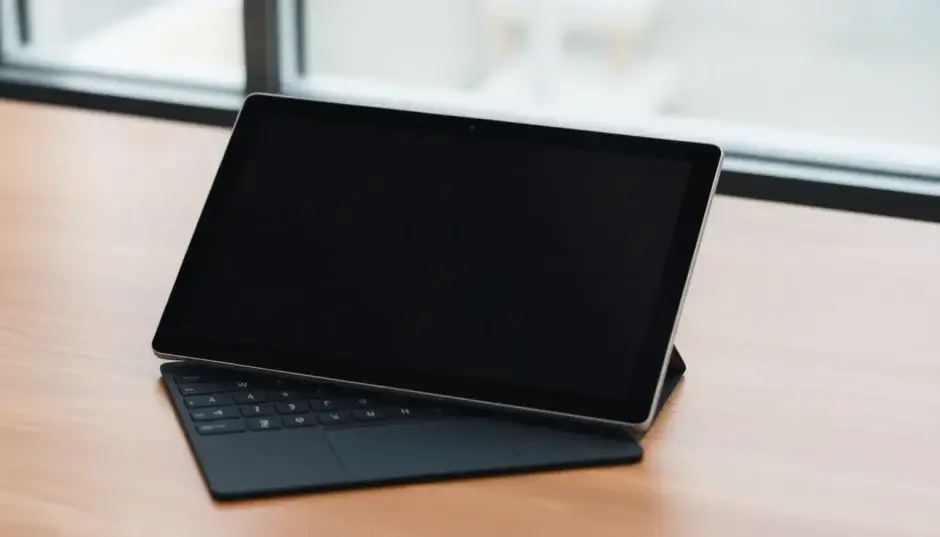

Summary: This comprehensive guide explains several effective methods to take a screenshot on Surface Pro 8 and other Surface models, including using the Print Screen key, the built-in Snipping Tool, and specialized software for capturing video frames. Whether you have a type cover or use your device as a tablet, you’ll find a suitable solution here. Mastering the surface print screen function is easier than you think.
Capturing what’s on your screen is a fundamental task, whether for work, sharing information, or saving a memorable moment from a video. If you’re a proud owner of a Microsoft Surface device, like the sleek Surface Pro 8 or a versatile Surface Laptop, you might wonder about the best way to screenshot on Surface laptop and tablet models. The process isn’t always as obvious as on a traditional laptop, especially when the device is in tablet mode without a keyboard attached. Don’t worry, though—this guide will walk you through every method, from the simplest keyboard shortcuts to more advanced tools, ensuring you can take a screenshot on Surface Pro effortlessly in any situation.
Mastering the Print Screen Function on Your Surface
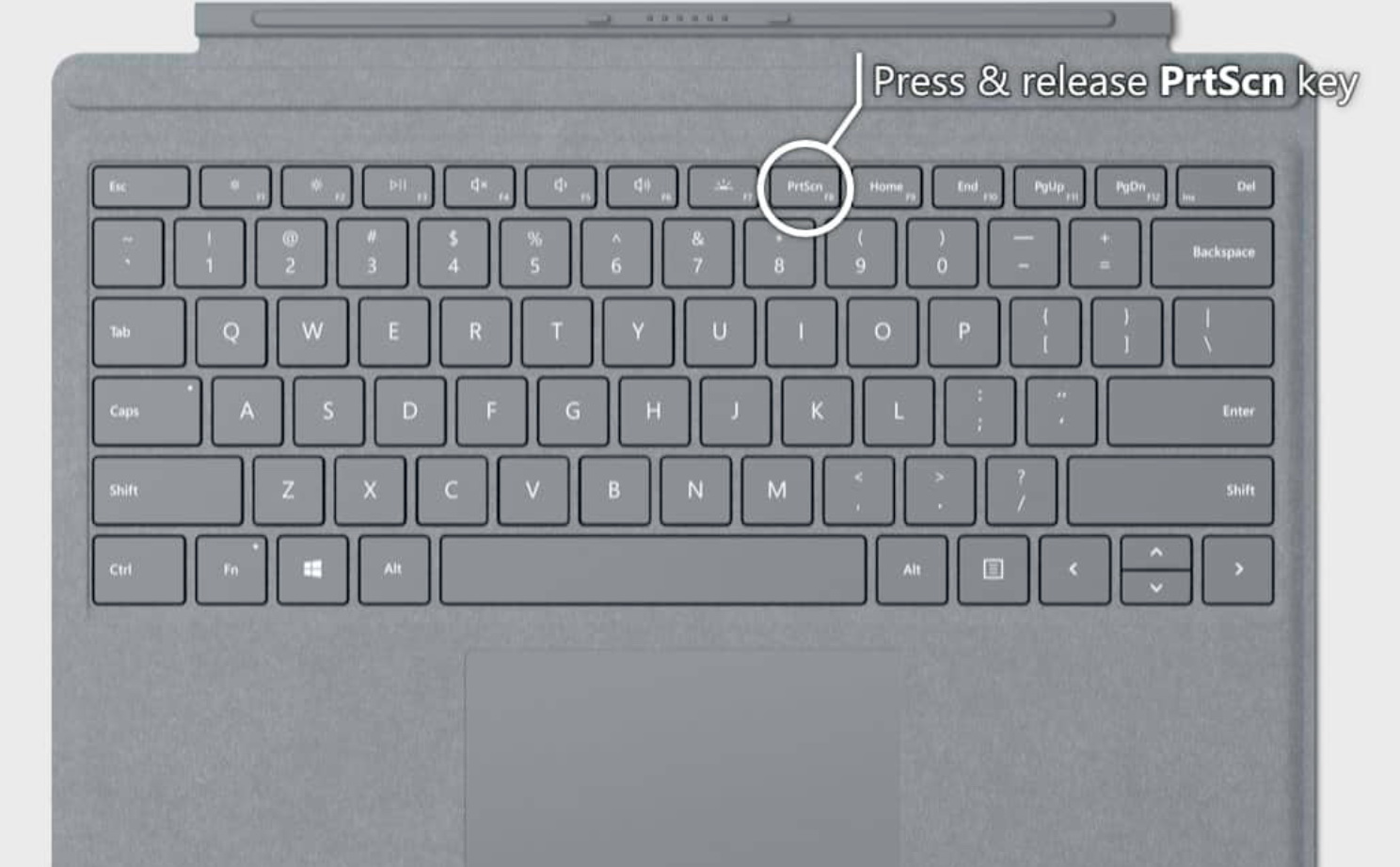
For many users, the most intuitive way to capture the screen is by using a dedicated key. If you have a Surface Type Cover or any other keyboard attached to your Surface Pro, you can use the classic PrtScn (Print Screen) button. This method is quick, universal across Windows devices, and requires no extra software. Let’s break down the two primary ways to use the surface print screen key.
Capturing Your Entire Screen
This is the most basic form of screenshot. It takes a picture of everything currently displayed on your Surface’s monitor.
Step 1: Simply locate and press the PrtScn key on your keyboard. On some Surface keyboards, you might need to press the Fn key simultaneously if the Print Screen function is a secondary feature on another key.
Step 2: The screenshot is now copied to your clipboard. It hasn’t been saved as a file yet. To use it, open an application like Microsoft Paint, Word, an email, or even a social media post box, and paste (Ctrl+V) the image. You can then edit or save it from within that program.
Capturing Only the Active Window
Sometimes, you only need a picture of one specific program window, not your entire desktop cluttered with other apps. This is where a handy modifier key comes in.
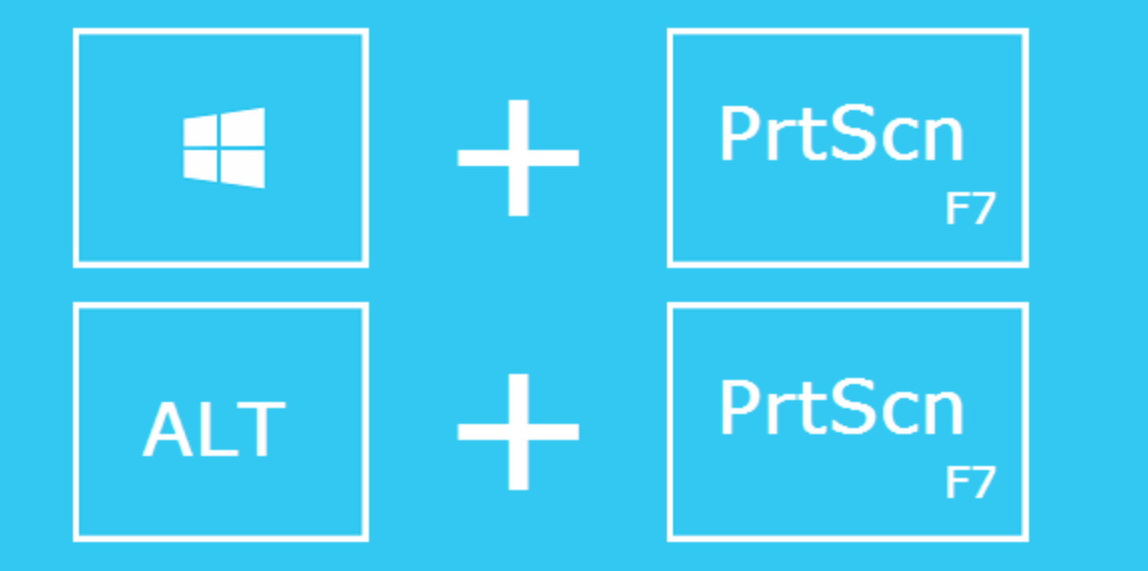
Step 1: First, click on the window you want to capture to make it the ‘active’ window (it will be in the foreground). Then, press and hold the Alt key, and while holding it, press the PrtScn key.
Step 2: Just like before, the screenshot of that single window is now on your clipboard. Paste it into your preferred application to save or share it. This method is perfect for creating clean tutorials or reporting software issues.
Using the print screen surface method with a keyboard is undoubtedly the fastest route for those who frequently need to capture their screen. It becomes second nature after just a few tries.
Using the Snipping Tool for Flexible Screenshots
What if you’re using your Surface Pro as a pure tablet, without a keyboard? Or what if you need more control over the shape and area of your screenshot? This is where Windows’ built-in Snipping Tool becomes your best friend. It’s a versatile program that’s perfect for taking a screenshot on Surface laptop and tablet models when you need precision.
Finding the Snipping Tool is straightforward. You can either click the Start button and scroll through your app list until you find it under ‘Windows Accessories,’ or simply type “Snipping Tool” into the search bar next to the Start menu. For even faster access, consider pinning it to your taskbar after the first use.
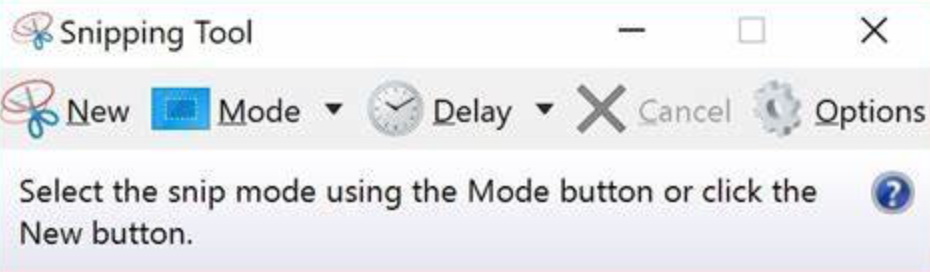
Once opened, click ‘New’ to start a snip. You’ll have several options:
- Rectangular Snip: Click and drag to capture a rectangular area of any size.
- Free-form Snip: Draw any shape with your mouse or finger, and the area inside will be captured.
- Window Snip: Click on any open window to capture it entirely.
- Full-screen Snip: Instantly captures your entire display.
After taking a snip, the image opens in the Snipping Tool editor. Here, you can use the pen or highlighter tools to annotate directly on the screenshot before saving it. You can save the file in various formats like PNG, JPEG, or GIF. The flexibility of the Snipping Tool makes it an indispensable tool for anyone who needs to take a screenshot on Surface Pro for presentations, documentation, or collaborative work.
Capturing Screenshots from Videos on Your Surface
The methods above work great for static screens, but what about capturing a perfect frame from a movie, online video, or personal video file? Pressing print screen surface during video playback often results in a black or distorted image. For this specific task, you need a media player with a built-in screenshot function. One such option is a dedicated media player utility that can handle this seamlessly.
The process generally involves using a player that can snap high-quality frames without compromising the video’s resolution. Here’s a generalized approach using such a tool:
Step 1: Install a Compatible Media PlayerEnsure you have a media player installed on your Surface Pro that supports screenshot capture during playback. Look for one that mentions snapshot or screenshot functionality in its features.
Step 2: Load Your Video FileOpen the media player and use its ‘Open File’ function to load the video from which you want to capture a frame.

Step 3: Configure Playback Settings (Optional)Before capturing, you might want to adjust settings for the best result. This can include selecting audio tracks, subtitles, or video quality settings to ensure the frame you capture looks exactly as intended.
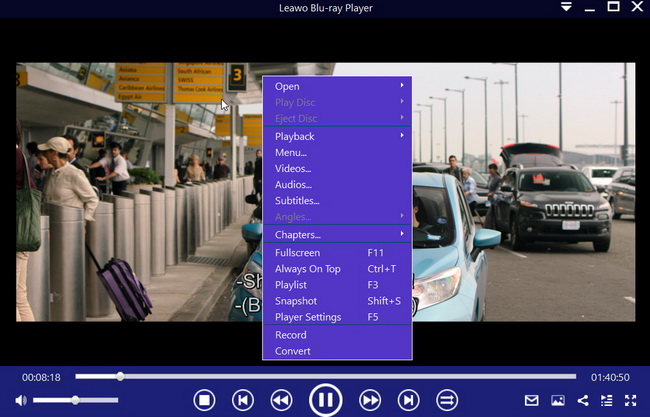
Step 4: Capture the ScreenshotPlay the video and pause at the exact moment you wish to capture. In the player’s control menu or right-click context menu, look for a ‘Snapshot,’ ‘Capture,’ or similar button. Click it to save the current video frame as an image file (usually JPG or PNG). Some players also offer a keyboard shortcut, like Ctrl+S or a custom key.

This method is essential for students, content creators, or anyone who needs to grab still images from video content on their Surface Pro 8 or other models. It provides a clean, high-quality capture that standard screen capture methods cannot.
Try Leawo Blu-ray Player right now! 100% Free 4K UHD Blu-ray/DVD/4K HD Video Player in the World!
Get the Windows version | Get the Mac version | Use the time-limited promotional campaign

Additional Tips and Shortcuts for Surface Screenshots
Beyond the primary methods, there are a few more tricks to enhance your screenshot game on a Surface device.
- Windows Key + Print Screen: This is a fantastic shortcut available on Windows 10 and 11. Pressing the Windows logo key + PrtScn together will instantly capture your entire screen and automatically save it as a PNG file in your ‘Pictures > Screenshots’ folder. You won’t need to paste it anywhere; it’s done in one step.
- Fn + Spacebar (On Some Surfaces): On certain older Surface models, there was a shortcut Fn + Spacebar that would take a screenshot and save it directly. While not universal across all models, it’s worth checking your specific device’s documentation.
- Using the Surface Pen: If you have a Surface Pen, you can configure one of its button clicks to launch the Snipping Tool or another screen capture utility. This allows for incredibly quick access, ideal for note-taking and sketching over screenshots.
- Third-Party Applications: The Microsoft Store and the web offer numerous third-party screenshot tools with advanced features like scrolling captures, instant editing, and cloud uploads. Explore these if the built-in options don’t meet all your needs for taking a screenshot on Surface laptop.
Choosing the Right Method for You
So, which method should you use to take a screenshot on Surface Pro?
- For Speed with a Keyboard: Use the PrtScn or Alt + PrtScn shortcuts. They are unbeatable for quick, simple captures.
- For Precision without a Keyboard: The Snipping Tool is your go-to. Its flexibility in selecting screen areas is perfect for tablet mode.
- For Automatic Saving: Use Windows Key + PrtScn to save a full-screen shot directly to your files without extra steps.
- For Video Frames: Rely on a media player with snapshot functionality to get perfect, clear stills from any video.
Learning how to screenshot on Surface laptop and tablet devices unlocks a lot of potential. Whether you’re compiling a work report, saving a recipe, sharing an error message with tech support, or grabbing a still from your favorite film, these techniques will help you do it efficiently. The key is to practice a few of them until they become muscle memory. The Surface’s versatility is one of its greatest strengths, and that extends to its multiple, capable methods for screen capture. Don’t be afraid to mix and match these tools based on your task at hand.
Try Leawo Screen Recorder right now! Record all activities on your computer screen as HD screencast, webcam video, system and microphone audio, and capture screenshots effortlessly, perfect for tutorials, online classes, presentations, gameplay, and meetings.
Get the Windows version | Get the Mac version | Use the time-limited promotional campaign

Some images are sourced from the internet.