TOOL HUNTER

Ever tried to send a video on Snapchat only to find it gets all pixelated and weird? You’re definitely not alone. Lots of people struggle with this, especially when they’re trying to share longer moments. The good news is there are actually some pretty simple ways to figure out how to send Snapchat video content without it turning into a blurry mess. Whether you recorded it directly in the app or have it saved in your photos, we’ve got you covered.
Table of Contents
Understanding Snapchat Video Limits
Before we dive into the methods, it’s super helpful to know what you’re working with. A lot of folks ask, “how long is one Snapchat video?” or “how long is a Snapchat video supposed to be?” Well, if you’re recording directly within the app, holding down the record button lets you capture a continuous clip. But here’s the catch: Snapchat’s system is designed to break longer recordings into smaller segments for your story.
This leads to another common question: “how long is one snap video?” When you’re sending to friends directly, a single video snap can be up to 10 seconds. For stories, the app will automatically split anything longer into a series of 10-second clips. So if you record for 45 seconds, you’ll end up with four and a half clips in a row. It’s Snapchat’s way of keeping things digestible.
The other big thing to keep in mind is file size. Snapchat works best with videos that are under 2.5MB. If your file is bigger than that, you might run into upload issues or notice a serious drop in quality. This is why learning the proper way how to send a video on Snapchat is so important – it ensures your memories look as good as they did when you recorded them.
How to Send Long Videos on Snapchat
Alright, let’s get into the actual steps. There are two main ways to get your video onto Snapchat, and both are pretty straightforward once you know what you’re doing.
Recording Directly in the Snapchat App
This is the method most people try first when they want to know how to send Snapchat video content. It’s great for spontaneous moments.
First things first, make sure your app is updated. Snapchat is always rolling out new features and bug fixes, so having the latest version from the Apple App Store or Google Play Store is key. An outdated app might not support the newer video processing methods.
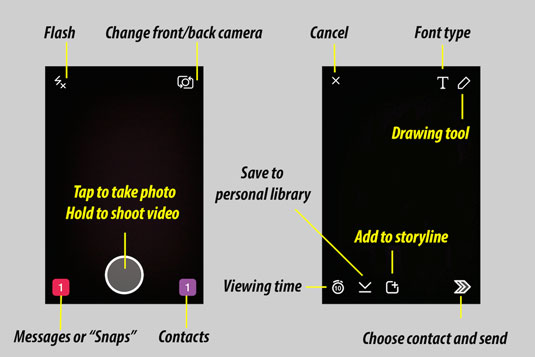
Once you’re updated, open the app and get to the camera screen. You’ll see the big circular button at the bottom – that’s your record button. To start capturing, just press and hold it. Don’t let go when you hit the 10-second mark if you want a longer video. Keep holding it down! The app will keep recording.
After you’re finished, you’ll be taken to a preview screen. Here’s where the magic happens – you’ll see that your longer recording has been automatically split into those 10-second segments we talked about. This is Snapchat’s way of handling content that answers the question “how long is one snap video?” – it breaks it into manageable pieces.
Now for the fun part! You can tap on each segment to add text, draw on it, throw in some stickers, or place emojis. This is your chance to get creative and make your video stand out. When you’re happy with how everything looks, just hit that blue arrow button in the bottom right corner to share it with your friends or add it to your story.
So there’s no need to record a bunch of separate 10-second videos anymore. The app does the heavy lifting for you, making it much easier to share longer moments.
Uploading from Your Camera Roll or Gallery
Maybe you already have the perfect video saved in your phone’s gallery. That’s totally fine – you can still share it on Snapchat! This method is perfect for when you’ve captured something with your phone’s native camera app and want to share it later.
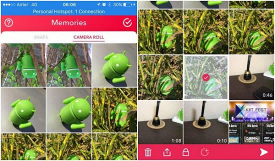
Start by opening Snapchat and getting to the camera screen. From there, swipe upward or tap the small circle below the record button. This will open your Memories section.
On the Memories screen, you’ll see a few different options. Look for “Camera Roll” or “Gallery” – this is where your phone’s saved photos and videos live. Tap on that, and you’ll be able to browse through all your media.
Find the video you want to share and select it. The app will bring it into the editor, where you can trim it if needed, add captions, draw on it, or include any of Snapchat’s fun filters and effects. This is especially useful if you’re wondering how to send a video on Snapchat that you filmed outside the app.
Once you’ve added your personal touch, that same blue share button will be waiting for you in the corner. Tap it, choose who you want to send it to, and you’re all set!
Common Questions About Sending Videos on Snapchat
Let’s tackle some of the most frequent questions people have when they’re trying to figure out how to send Snapchat video content.
Can you send videos longer than one minute on Snapchat?
This is probably the most common question people have about Snapchat videos. The straightforward answer is no – there’s a 60-second limit for a single continuous recording within the app. But don’t let that discourage you! If you record for a full minute, the app will automatically split it into six 10-second segments that play one after another. So while technically each segment answers “how long is one snap video?” with “10 seconds,” they’ll play back-to-back creating a longer narrative.
How do you send a whole video on Snapchat?
When people ask this, they’re usually wondering about sending a complete, uninterrupted video. As we’ve covered, you have two options: record directly in the app or import from your camera roll. The key thing to remember is that regardless of which method you use, Snapchat will process the video according to its limits. So if you’re trying to figure out how to send a video on Snapchat that feels like a “whole” video, just know that it might be split into parts, but the entire thing will still be viewable.
Why won’t my video upload to Snapchat?
If you’re having trouble getting your video onto Snapchat, the most likely culprit is file size. Remember that 2.5MB limit we mentioned? If your video file is larger than that, the app might struggle to upload it. Other potential issues include slow internet connection, app glitches, or an outdated version of Snapchat. If you’re consistently having problems, try compressing your video file first or making sure you’re on a stable Wi-Fi connection.
Can you upload to Snapchat from your gallery?
Absolutely! As we walked through in the methods section, uploading from your gallery or camera roll is one of the two main ways to get content onto Snapchat. This is super handy for videos you’ve edited outside the app or moments you captured with your phone’s native camera. The process is simple: just access your Memories, select Camera Roll, choose your video, edit if you want, and share. It’s a crucial part of understanding how to send Snapchat video content that wasn’t born in the app itself.
Making Your Snapchat Videos Stand Out
Now that you know the technical aspects of how to send a video on Snapchat, let’s talk about making your content more engaging. After all, what’s the point of knowing how to send Snapchat video if no one watches it?
Snapchat offers a bunch of built-in tools to make your videos pop. Filters can completely change the mood and look of your video – from color adjustments to location-based overlays. Lenses add animated elements that can transform your face or environment. Don’t forget about text and drawing tools either – sometimes a simple caption or arrow can make your video much clearer and more entertaining.
If you’re creating a story with multiple video segments, think about how they flow together. You might want to add a “continue watching” prompt or use consistent filters across segments to create a cohesive look. The editing screen between recording and sharing is your playground – experiment with different combinations to find what works for your style.
Remember that how long is a Snapchat video isn’t just about seconds – it’s about keeping your audience engaged throughout. Even if you’re using the full 60 seconds, try to keep the content dynamic. Change angles if you can, show different perspectives, or break it up with text cards. Thinking about the viewer’s experience will make your videos more successful, regardless of their length.
Taking Your Snapchat Videos to the Next Level
While Snapchat’s built-in tools are great for quick edits, sometimes you want a bit more creative control before you even get to the app. This is where external editing apps can really enhance your content.
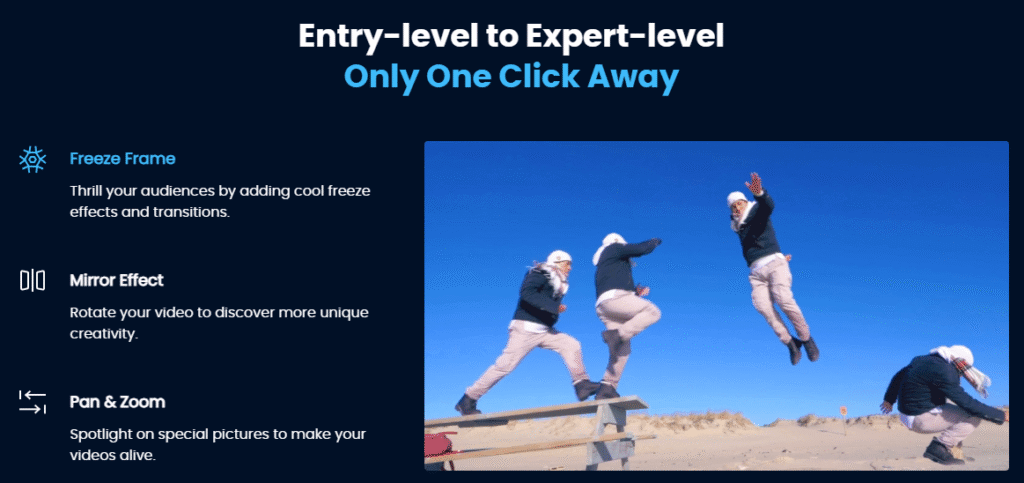
Filme – Best Video Editor for Beginners.Explore Your Creativity, Limitless
Check More Details | Download Now! | Check All Deals
Using a video editor before uploading to Snapchat gives you way more flexibility. You can trim your clips precisely, combine multiple shots, add custom text and graphics, adjust colors, and even include your own music. This pre-production work can transform a simple clip into something truly memorable.
When you’re editing outside of Snapchat, keep the platform’s limitations in mind. Remember that the answer to “how long is one Snapchat video” in terms of direct sending is still 10 seconds, and for stories, it will be split into 10-second segments. So you might want to structure your edited video with these natural break points in mind.
Also, be mindful of file size and format. While you have more control in a dedicated editor, you’ll still need to export a version that plays nicely with Snapchat’s requirements. Most editors have presets for social media that can help with this.
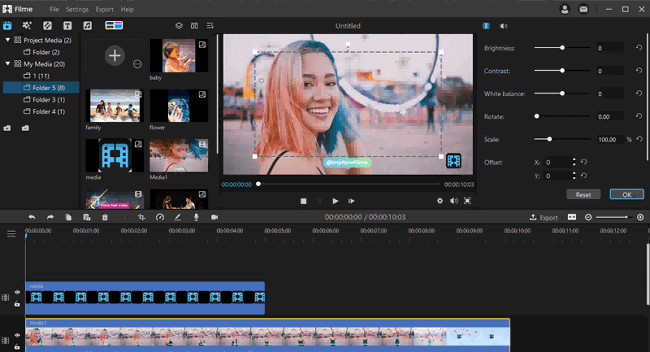
Learning how to send Snapchat video content that’s been pre-edited follows the same process as any other video from your camera roll. Edit and save to your phone, then use the upload method we discussed earlier. The difference will be in the polished, professional look of your final product.
Troubleshooting Common Video Issues
Even when you know exactly how to send a video on Snapchat, sometimes things don’t go as planned. Here are solutions to some common problems.
If your video quality looks terrible after uploading, the issue might be compression. Snapchat compresses videos to save bandwidth and storage space, which can sometimes result in pixelation or color shifts. To minimize this, make sure you’re starting with the highest quality video possible and that your lighting was good when you recorded. Well-lit videos tend to compress better than dark, grainy ones.
For videos that won’t upload at all, check the obvious first: internet connection, app updates, and phone storage space. If all those are fine, try restarting the app or your phone. Sometimes a simple reset clears up temporary glitches.
If you’re having trouble with videos from your camera roll, make sure they’re in a compatible format. Snapchat works best with MP4 files using H.264 video encoding, which is pretty standard for phones these days, but if you’re using video from other sources, the format might be an issue.
Another sneaky problem can be the video’s dimensions. While Snapchat can handle various aspect ratios, videos that are extremely wide or tall might get cropped oddly. The safest bet is to use the same 9:16 vertical aspect ratio that Snapchat’s camera uses natively.
When you’re figuring out how to send Snapchat video content consistently without issues, it often comes down to preparation and understanding the platform’s preferences. The more your source material aligns with what Snapchat expects, the smoother the process will be.
Creative Ideas for Your Snapchat Videos
Knowing how to send a video on Snapchat is one thing – knowing what to send is another! Here are some ideas to spark your creativity now that you’ve mastered the technical side.
Tutorials and how-tos are perfect for Snapchat’s format. Since you now understand how long is a Snapchat video and how the segmentation works, you can plan a step-by-step tutorial across multiple clips. Each 10-second segment can cover one step in the process, making complex tasks easy to follow.
Behind-the-scenes content always performs well. Whether you’re at work, preparing for an event, or just going about your day, giving people a peek behind the curtain creates connection. The casual, in-the-moment nature of Snapchat makes it ideal for this type of content.
Mini-documentaries about your interests or community can be compelling. With the 60-second total limit for stories, you have to be concise, but that constraint can actually make your storytelling tighter and more focused. Plan your segments to have a beginning, middle, and end.
Q&A sessions are another great use of video on Snapchat. You can ask for questions via text or voice message, then respond with video answers. This creates a nice back-and-forth with your audience and makes them feel involved in your content.
Remember that how long is one snap video doesn’t have to limit your creativity – it can enhance it. The time constraint forces you to get to the point and keep things engaging. Some of the most creative Snapchat content comes from users who’ve embraced rather than fought against the platform’s unique characteristics.
Wrapping Up
Figuring out how to send Snapchat video content without losing quality might seem tricky at first, but once you understand the platform’s rules and tools, it becomes second nature. Whether you’re recording directly in the app or uploading from your camera roll, the key is working with Snapchat’s systems rather than against them.
Remember the basics: keep an eye on length (how long is one Snapchat video? 10 seconds for direct sends, automatically segmented for stories), mind the file size (under 2.5MB is ideal), and don’t be afraid to use Snapchat’s creative tools to make your videos more engaging.
Filme – Best Video Editor for Beginners.Explore Your Creativity, Limitless
Check More Details | Download Now! | Check All Deals
If you want to take your videos beyond Snapchat’s built-in capabilities, consider editing them first in a dedicated video editor. This extra step can dramatically improve the production value and make your content stand out in a crowded feed.
At the end of the day, knowing how to send a video on Snapchat effectively is about more than just technical knowledge – it’s about understanding what makes content work on this specific platform. The ephemeral nature, the vertical format, the quick cuts – these aren’t limitations so much as creative challenges.
So go ahead, record those longer moments, edit them to perfection, and share them with confidence. However long is a Snapchat video in your case, you now have the knowledge to share it looking its best.
Some images sourced from iMyFone