TOOL HUNTER

Ever wondered if your Kindle can actually read books to you while you’re driving, cooking, or just relaxing? The answer is a resounding yes! Many people don’t realize that Kindle devices have built-in text-to-speech capabilities that can transform your reading experience. Whether you want to know will Kindle read to you or you’re looking for alternative ways to enjoy audiobooks, this guide will show you exactly how to make it happen.
The Kindle text-to-speech feature, known as VoiceView, allows your device to read books aloud, essentially turning your eBooks into personal audiobooks. This functionality is perfect for multitasking or for those times when your eyes need a break but your mind still wants to enjoy a good story.
Table of Contents
- Understanding Kindle’s Text-to-Speech Capabilities
- How to Make Kindle Read to You on Different Devices
- Advanced Kindle TTS Features and Customization
- Alternative Solutions: Beyond Native Kindle TTS
- Making the Most of Kindle Read Aloud Features
- Troubleshooting Common Kindle TTS Issues
- Enhancing Your Experience with Kindle Books Read Aloud
- The Future of Kindle Text-to-Speech
- Comprehensive Guide to Kindle TTS Across All Devices
- Frequently Asked Questions About Kindle Reading Aloud
- Conclusion: Embracing the Future of Reading
Understanding Kindle’s Text-to-Speech Capabilities
So, will Kindle read to you? Absolutely! The text-to-speech feature varies slightly depending on which Kindle device or app you’re using, but the core functionality remains the same – your Kindle can read books aloud to you.
For Kindle e-readers like the Paperwhite, you’ll use the VoiceView screen reader through Bluetooth audio devices. The Kindle app on iOS and Android doesn’t have built-in text-to-speech, but you can use your device’s accessibility features to achieve the same result. Kindle Fire tablets come with both Alexa and VoiceView capabilities built-in.
The beauty of having Kindle books read aloud is that it opens up new possibilities for enjoying literature. You can listen while commuting, exercising, doing household chores, or simply when you want to rest your eyes. Many people find they can “read” more books this way, as they can listen during times when holding a book or device isn’t practical.
How to Make Kindle Read to You on Different Devices
Using Text-to-Speech on Kindle E-Readers
If you’re wondering how to make Kindle read to you on actual Kindle devices, the process is straightforward but does require a Bluetooth connection. Kindle e-readers need to connect to Bluetooth speakers or headphones since they don’t have built-in speakers.
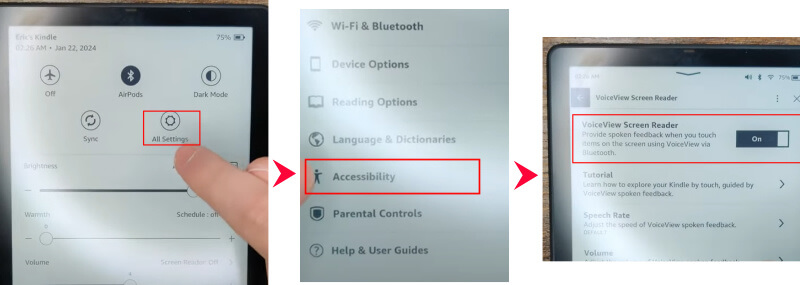
First, ensure VoiceView is enabled in your settings. Navigate to Menu > Settings > Accessibility > VoiceView Screen Reader and toggle the switch to enable it. Once activated, you can connect your Bluetooth audio device and start having your Kindle read books aloud.
To activate the reading function, simply double-tap on any word or section you want read aloud. The VoiceView feature will begin reading from that point forward. You can adjust the speech rate in the VoiceView Speech Settings if you prefer a faster or slower reading pace.
Many users find this feature particularly useful for Kindle Paperwhite devices, as the high-resolution display combined with text-to-speech creates a versatile reading experience. You can read along with the audio or just listen while doing other activities.
Kindle Text-to-Speech on Mobile Apps
The process differs slightly when using the Kindle app on your smartphone. Since the app itself doesn’t have built-in text-to-speech functionality, you’ll need to rely on your device’s accessibility features.
For iOS Devices:
Apple’s iOS has robust accessibility features that work well with the Kindle app. To enable text-to-speech, go to your iPhone or iPad’s Settings app, then navigate to Accessibility > Spoken Content. Turn on “Speak Screen” and customize the voice options to your preference.

Once enabled, open your Kindle app and swipe down with two fingers from the top of the screen to activate the reading function. The system will begin reading the text aloud, highlighting words as it goes. This method allows you to have Kindle books read aloud even though the app itself doesn’t have native text-to-speech.
For Android Devices:
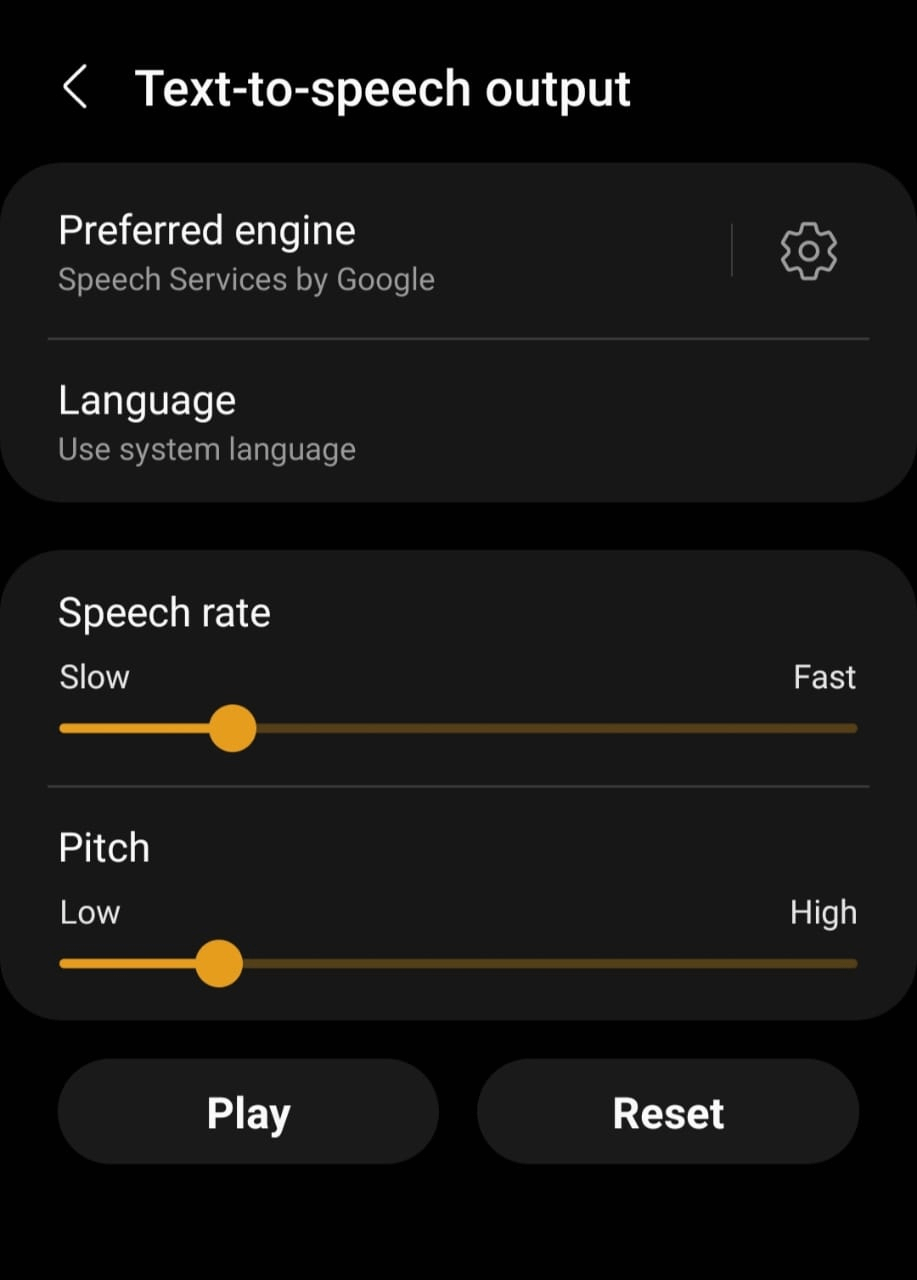
Android users can utilize Google’s Text-to-Speech engine to achieve similar results. Go to your device’s Settings, then Accessibility or General Management, and find Text-to-Speech output. Select Google Text-to-Speech as your preferred engine and adjust the speech rate and pitch according to your preferences.
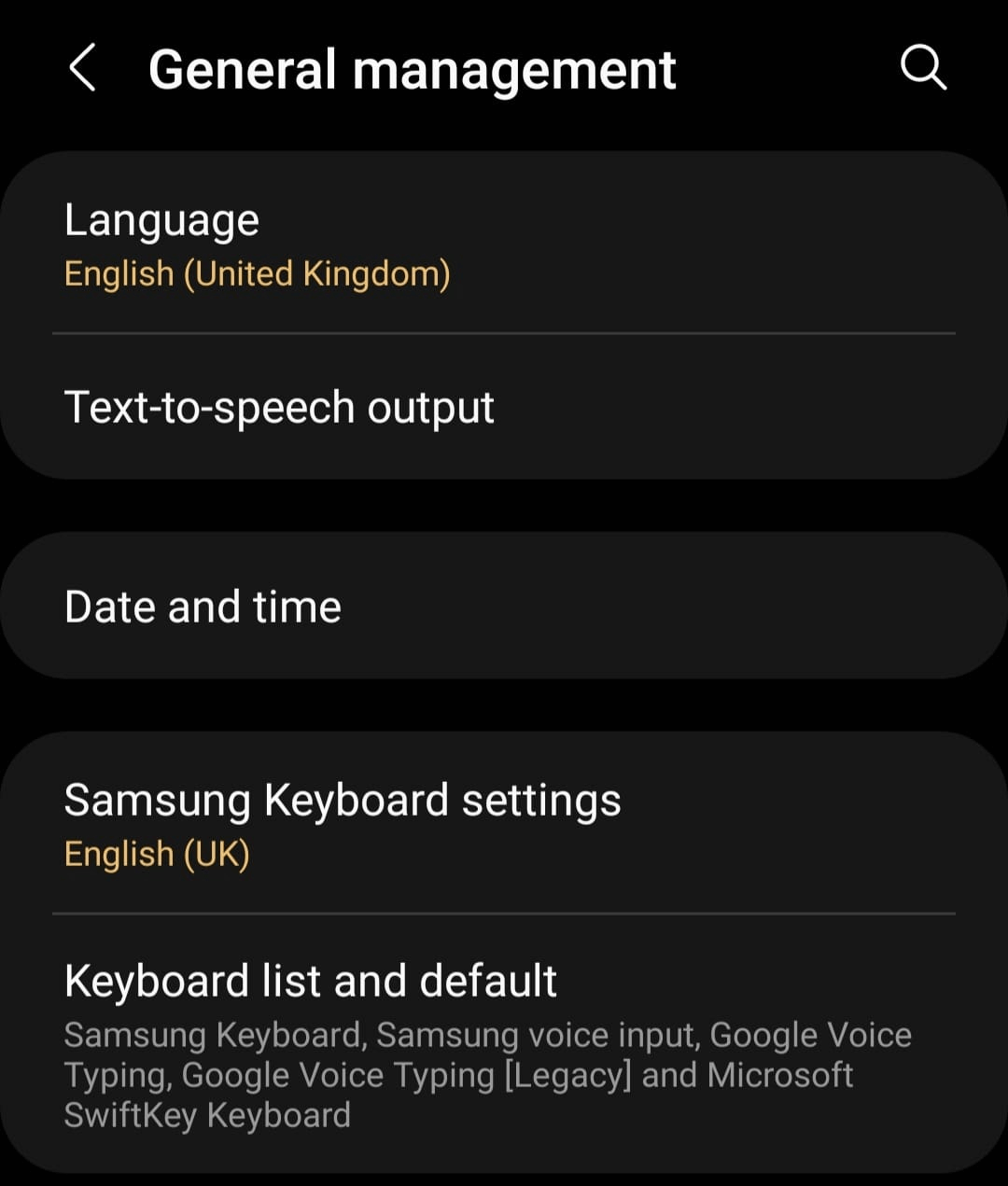
After configuring these settings, open your Kindle app, select a book, and use the menu option to start text-to-speech. The exact location of this option may vary depending on your device and app version, but it’s typically found in the reading menu or accessibility options.
Advanced Kindle TTS Features and Customization
Once you’ve mastered the basics of making your Kindle read to you, you might want to explore the customization options available. The reading experience can be tailored to your specific preferences, making it more enjoyable and effective.
Most text-to-speech systems allow you to adjust the speaking rate. If you find the default speed too slow or too fast, you can modify it in your device’s accessibility settings. Similarly, you can often choose between different voices – some people prefer male voices, others female, and you might find certain accents or tones more pleasant for extended listening.
Another useful feature is the ability to control reading granularity. You can typically choose to have your device read entire pages, paragraphs, or just selected text. This is particularly helpful if you only need specific sections read aloud or if you want to focus on particular content.
For those using VoiceView on Kindle e-readers, you can also customize the audio ducking settings. This feature automatically lowers the volume of other audio when VoiceView is speaking, which is especially useful if you’re listening to music while reading.
Alternative Solutions: Beyond Native Kindle TTS
While Kindle’s built-in text-to-speech capabilities are useful, they do have limitations. The voices can sometimes sound robotic, and the functionality varies between devices. This is where third-party text-to-speech solutions come in handy.
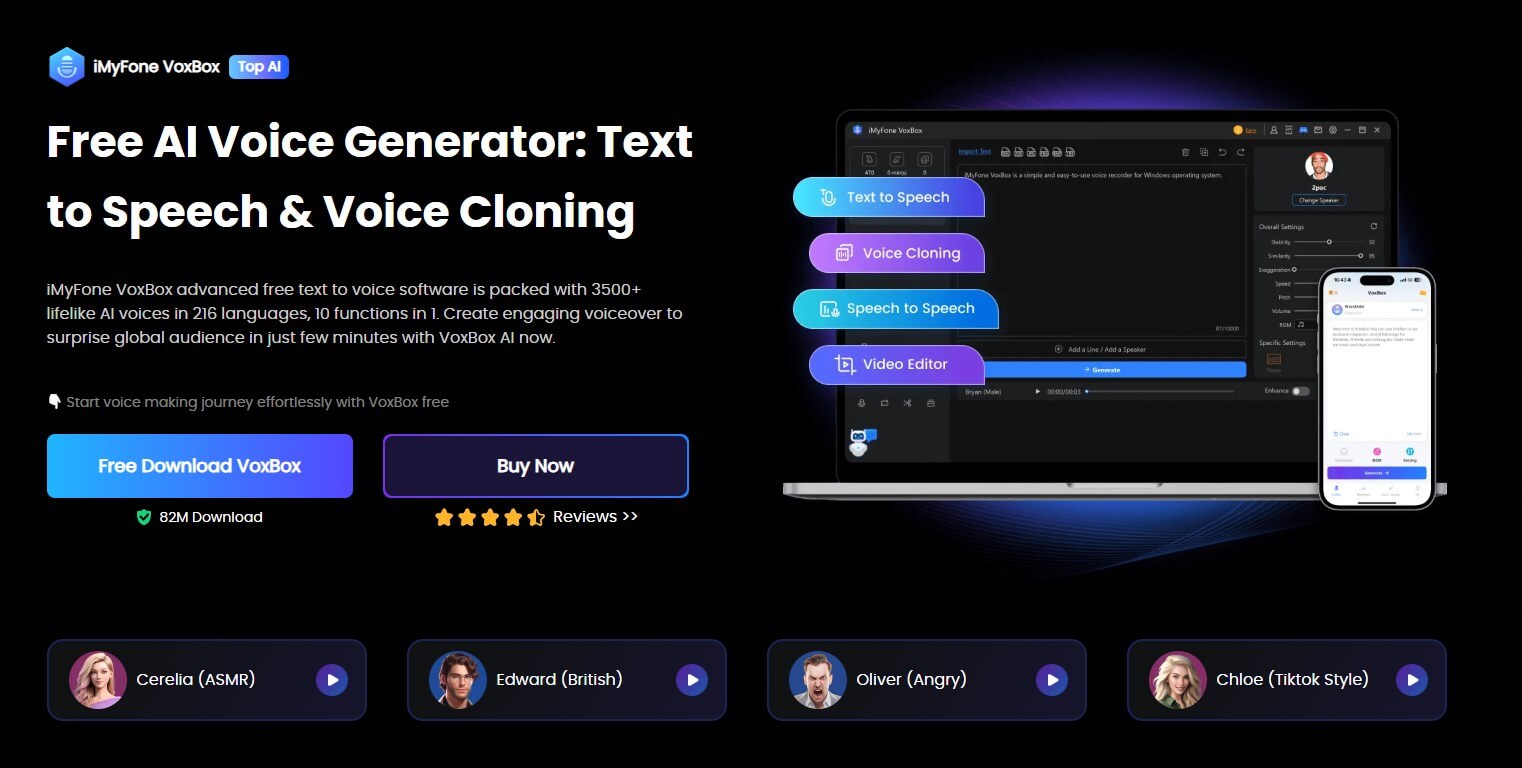
iMyFone VoxBox.Best AI Voice Generator & AI Voice Cloner: Create Custom Voices Instantly.iMyFone VoxBox is a powerful free text-to-speech software offering 3,500+ lifelike AI voices in 250+ languages, all with 10 features in one tool. Create professional voiceovers and captivate audiences worldwide in just minutes with VoxBox AI.
Check More Details | Download Now! | Check All Deals
VoxBox offers a superior text-to-speech experience with more natural-sounding voices and greater customization options. The software can convert any text, including Kindle books, into high-quality audio files that you can listen to on any device.
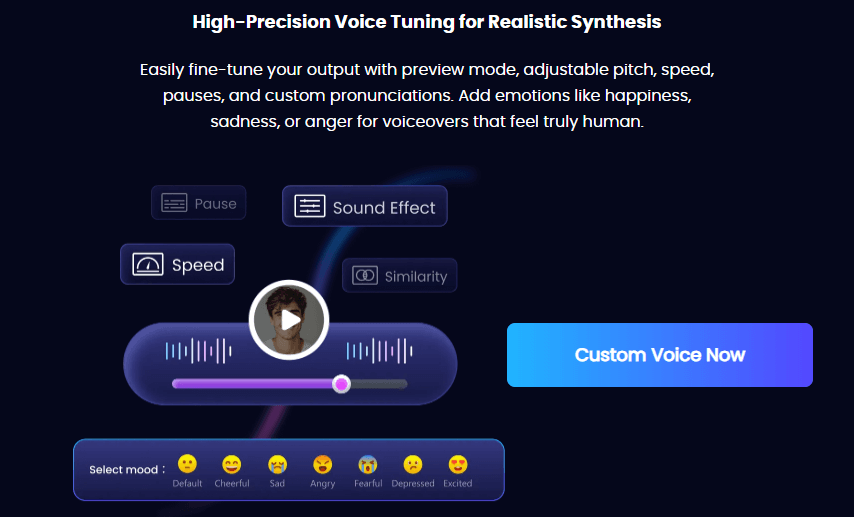
One of the significant advantages of using VoxBox is the voice variety. With thousands of voices across hundreds of languages, you can find the perfect narrator for any book. Whether you prefer a specific accent, gender, or speaking style, VoxBox likely has an option that suits your preferences.
The process is simple: export your Kindle book as a text file (using Calibre or similar software), import it into VoxBox, select your preferred voice and settings, and convert it to audio. You can then listen to the resulting audio file on any device, giving you more flexibility than Kindle’s native text-to-speech.
Making the Most of Kindle Read Aloud Features
To truly benefit from having your Kindle read books aloud, it helps to develop good listening habits and optimize your setup. Here are some tips for getting the most out of this feature:
First, consider your environment. While you can listen to Kindle books read aloud anywhere, some settings are more conducive to comprehension than others. If you’re listening while doing complex tasks, you might need to slow down the reading speed to ensure you don’t miss important details.
Bookmarking and note-taking work differently when listening. Most Kindle devices allow you to add bookmarks verbally when using VoiceView, but the process might be less intuitive than traditional reading. Take some time to learn the voice commands for your specific device.
Many users find that combining reading and listening enhances comprehension and retention. You might read visually during focused sessions and switch to audio when multitasking. This approach lets you enjoy books in more situations while still benefiting from traditional reading’s advantages.
Troubleshooting Common Kindle TTS Issues
Like any technology, you might encounter occasional issues when trying to make Kindle read to you. Here are solutions to some common problems:
If VoiceView isn’t working on your Kindle e-reader, first ensure Bluetooth is enabled and your audio device is properly connected. Sometimes simply reconnecting the Bluetooth device resolves the issue. Also check that VoiceView is enabled in your accessibility settings.
For mobile app users, if the text-to-speech feature isn’t working, verify that your device’s accessibility settings are correctly configured. On iOS, ensure Speak Screen is enabled; on Android, confirm that Google Text-to-Speech is set as the default engine.
Audio quality issues can often be resolved by adjusting speech settings. If the voice sounds distorted or unnatural, try modifying the speech rate or selecting a different voice option. Sometimes a simple device restart can resolve temporary glitches.
If you’re having trouble with specific books not being read aloud, check the book’s permissions. Some publishers disable text-to-speech for their titles, though this is less common than it used to be.
Enhancing Your Experience with Kindle Books Read Aloud
Once you’re comfortable with the basic functionality, you can explore ways to enhance your listening experience. Many regular users develop routines that maximize both enjoyment and comprehension.
Consider creating dedicated listening playlists or queues for your audiobooks. While Kindle manages your reading progress, having a plan for what to listen to next can make the experience more seamless. You might group books by genre, mood, or length to match your listening opportunities.
Some users find that adjusting reading speed based on content type improves their experience. Complex non-fiction might warrant a slower pace, while light fiction could be enjoyed at faster speeds. Don’t be afraid to experiment with different settings until you find what works best for each book.
If you regularly switch between reading visually and listening, take advantage of Whispersync technology. This Amazon feature synchronizes your progress across devices and formats, so you can pick up right where you left off whether you’re reading or listening.
The Future of Kindle Text-to-Speech
As technology advances, we can expect Kindle’s text-to-speech capabilities to improve significantly. Amazon continues to invest in AI and voice technologies, which will likely result in more natural-sounding voices and smarter reading features in future updates.
We might see integration with Alexa becoming more seamless, allowing for voice-controlled reading experiences across Amazon’s ecosystem. Improved personalization, where the system learns your preferences for different types of content, could also enhance the experience.
The boundaries between audiobooks and text-to-speech are likely to blur further. We may see hybrid formats that combine professionally narrated sections with AI-generated voice for the majority of text, offering the best of both worlds.
Comprehensive Guide to Kindle TTS Across All Devices
Let’s summarize the key steps for making Kindle read to you across different platforms:
For Kindle e-readers (Paperwhite, Oasis, etc.): Enable VoiceView in Accessibility settings, connect Bluetooth audio, then double-tap text to start listening. You can adjust speech rate in VoiceView Speech Settings.
For Kindle Fire tablets: Use either VoiceView or ask Alexa to read your books. The process is more integrated on Fire tablets, with sometimes better voice quality.
For iOS Kindle app: Use Speak Screen feature in Accessibility settings, then two-finger swipe down from top to start reading.
For Android Kindle app: Configure Google Text-to-Speech in device settings, then use the text-to-speech option in the Kindle app menu.
iMyFone VoxBox.Best AI Voice Generator & AI Voice Cloner: Create Custom Voices Instantly.iMyFone VoxBox is a powerful free text-to-speech software offering 3,500+ lifelike AI voices in 250+ languages, all with 10 features in one tool. Create professional voiceovers and captivate audiences worldwide in just minutes with VoxBox AI.
Check More Details | Download Now! | Check All Deals
Frequently Asked Questions About Kindle Reading Aloud
Can all Kindle books be read aloud?
Most Kindle books can be read aloud using text-to-speech, but some publishers disable this feature for certain titles. This is less common than it used to be, but you might occasionally encounter books that don’t allow text-to-speech.
Is the text-to-speech feature available in all languages?
Kindle’s text-to-speech supports multiple languages, but the quality and availability vary. Major languages like English, Spanish, French, and German typically have good support, while less common languages might have limited or lower-quality voice options.
Can I use text-to-speech without an internet connection?
Yes, once enabled and configured, Kindle text-to-speech works offline. The voice data is stored on your device, so you can enjoy having books read aloud even without an internet connection.
How does text-to-speech affect battery life?
Using text-to-speech will consume more battery than regular reading, as it requires additional processing power and, in the case of Bluetooth devices, wireless connectivity. However, most modern Kindle devices still offer substantial battery life even with regular text-to-speech use.
Can I adjust the voice speed and pitch?
Yes, most text-to-speech systems allow you to adjust speaking rate and often pitch as well. These settings are typically found in your device’s accessibility or text-to-speech settings menu.
Conclusion: Embracing the Future of Reading
The ability to have Kindle read to you represents a significant advancement in how we consume literature. It makes books more accessible, allows for multitasking, and can even enhance comprehension for some readers. Whether you’re using Kindle’s built-in features or third-party solutions like VoxBox, text-to-speech technology opens up new possibilities for book lovers.
As voice technology continues to improve, the experience of having Kindle books read aloud will become increasingly natural and enjoyable. The gap between human-narrated audiobooks and AI-generated speech is narrowing rapidly, making this an exciting time to explore audio reading options.
So the next time you find yourself wondering “will Kindle read to you,” remember that not only can it read to you, but it can do so in multiple ways across different devices. Experiment with the various options, customize the experience to your liking, and discover how text-to-speech can enrich your reading life.
Some images in this article are sourced from iMyFone.