TOOL HUNTER

Ever recorded a video only to find it’s playing sideways or upside down? It happens to the best of us – you’re excitedly filming a special moment, but forget to check your phone’s orientation. Suddenly, your beautiful landscape video looks like it was filmed during an earthquake. Don’t worry though, because there are several ways to fix this common problem, and you might already have the perfect tool installed on your computer.
VLC media player, that trusty program you probably use for watching videos, actually has some hidden talents when it comes to video editing. Learning how to flip a video with VLC can save you from those awkward sideways videos that make viewers tilt their heads. The process might seem a bit technical at first, but once you get the hang of it, you’ll be fixing orientation issues like a pro.
Table of Contents
- Understanding Video Orientation Issues
- How to Flip Video in VLC Media Player on Windows
- How to Flip Video in VLC Media Player on Mac
- How to Save Rotated Videos Permanently in VLC
- Alternative Method: Using iMyFone Filme for Video Rotation
- Comparing VLC and Filme for Video Rotation
- Common Video Rotation Scenarios and Solutions
- Troubleshooting Common Video Rotation Issues
- Advanced Rotation Techniques
- Mobile Video Rotation Options
- Preventing Orientation Issues Before They Happen
- Frequently Asked Questions About Video Rotation
Understanding Video Orientation Issues
Before we dive into the solutions, let’s talk about why videos end up with wrong orientations in the first place. Modern smartphones have sensors that automatically rotate the display based on how you’re holding the device. But sometimes, these sensors get confused, or the video recording app doesn’t properly read the orientation data. The result? A perfectly good video that plays back sideways or upside down.
This is where knowing how to flip video in VLC becomes incredibly useful. Whether you’re a content creator, someone documenting family memories, or just someone who wants their videos to look right, fixing orientation is a basic but essential skill.
How to Flip Video in VLC Media Player on Windows
The VLC media player flip video feature is available on both Windows and Mac, though the process differs slightly between the two operating systems. Let’s start with Windows, since that’s what most people use.
The first method we’ll explore shows you how to flip a video VLC temporarily – meaning the changes only apply while you’re watching in VLC and won’t permanently alter your original file. This is great for quick fixes when you don’t need to save the rotated version.
Temporary Rotation in VLC for Windows
Here’s your step-by-step guide to temporarily rotate videos using VLC on Windows:
Start by launching VLC media player on your computer. Click on the “Media” menu at the top left corner and select “Open File” to browse for the video that needs rotating. Once your video is playing, you’ll access the editing features through the “Tools” menu, then select “Effects and Filters.”
This opens a new window with several tabs. Click on “Video Effects” and then navigate to the “Geometry” tab where the rotation magic happens. Now you have two main options for rotating your video.
The first method involves using preset rotation angles. Click the “Transform” dropdown menu and you’ll see options to rotate by 90, 180, or 270 degrees, plus options to flip horizontally or vertically. This method is perfect for standard corrections where your video is sideways or upside down.
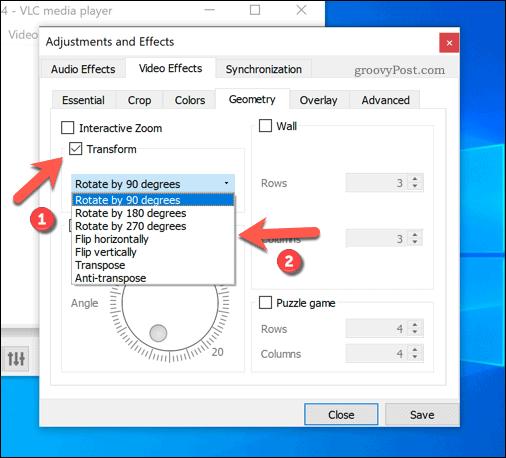
The second method gives you more precise control. Check the “Rotate” checkbox and you’ll see a circular dial appear. Dragging this dial lets you rotate the video to any angle you want, with the current angle displayed in the bottom-right corner. This is ideal for those tricky videos that are just slightly off-center.
Remember, these changes are temporary and will only apply while the video is playing in VLC. If you want to permanently save your rotated video, we’ll cover that in a later section.
How to Flip Video in VLC Media Player on Mac
Mac users can also take advantage of VLC’s rotation capabilities, though the interface and options are slightly different. The process for how to flip a video VLC on Mac is straightforward, but lacks the manual rotation option available in the Windows version.
Temporary Rotation in VLC for Mac
Here’s how Mac users can rotate their videos in VLC:
Begin by opening VLC and loading your video file through the “File” menu. Once your video is playing, go to the “Window” menu at the top of the screen and select “Video Effects” from the dropdown options.
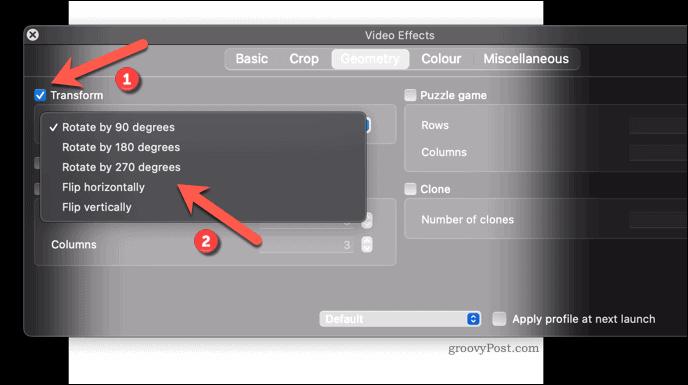
In the Video Effects window that appears, click on the “Geometry” tab. You’ll notice that unlike the Windows version, Mac users don’t get the manual rotation dial. Instead, check the “Transform” checkbox and use the dropdown menu to select from preset rotation options including 90, 180, and 270-degree rotations, plus horizontal and vertical flips.
The changes apply immediately to your playing video, allowing you to preview different orientations until you find the correct one. Just like with Windows, these rotations are temporary unless you take additional steps to save them permanently.
How to Save Rotated Videos Permanently in VLC
Now for the important part – making those rotation changes permanent! The temporary fixes we’ve covered are great for personal viewing, but what if you want to share your properly oriented video or use it in a project? Learning how to invert video in VLC permanently ensures your video will play correctly in any media player, not just VLC.
The process involves using VLC’s conversion feature while applying the rotation filter. It might sound complicated, but if you follow these steps carefully, you’ll have permanently rotated videos in no time.
Permanent Video Rotation in VLC
Here’s the complete process for saving your rotated videos permanently:
First, open your video in VLC and apply the rotation using the temporary method we discussed earlier. Make sure the video looks exactly how you want it before proceeding. Once you’re satisfied with the rotation, it’s time to move to the conversion settings.
Click on “Tools” in the menu bar, then select “Preferences.” At the bottom left of the Preferences window, you’ll need to click “All” to show the full range of settings. This reveals advanced options that aren’t visible in the simple interface.
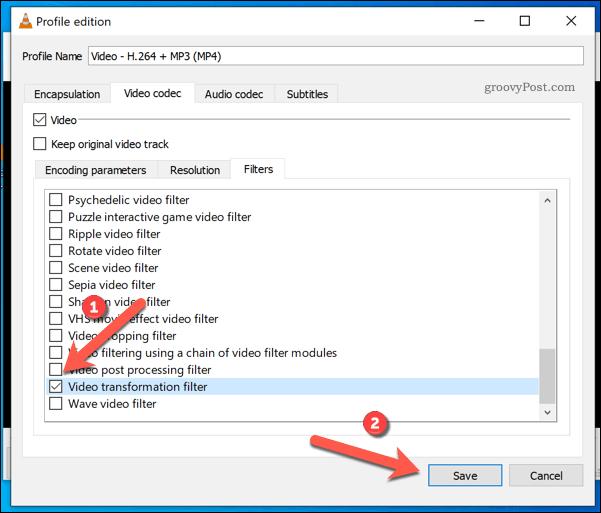
In the left-hand panel, navigate to “Video” and then “Filters.” On the right side, find and check the box for “Video transformation filter.” This crucial step ensures that the rotation you applied will be included when you convert the video. Click “Save” to confirm this setting.
Now go to the “Media” menu and choose “Convert / Save.” Click “Add” to select the video file you want to rotate, then click “Convert / Save” at the bottom. In the next window, choose your desired output format from the “Profile” dropdown menu. MP4 is usually a safe choice for compatibility.
Click the spanner icon next to the profile selection to access additional settings. Go to the “Video Codec” tab and ensure the “Video” checkbox is selected. Then navigate to the “Filters” tab and check “Video transformation filter” once again. This double confirmation ensures the rotation carries over to your new file.
Finally, choose where you want to save the converted file by clicking “Browse” next to “Destination file,” then click “Start” to begin the conversion process. The time this takes will depend on your video’s length and your computer’s speed. Once complete, you’ll have a permanently rotated version of your video that will play correctly in any media player.
Filme – Best Video Editor for Beginners.Explore Your Creativity, Limitless
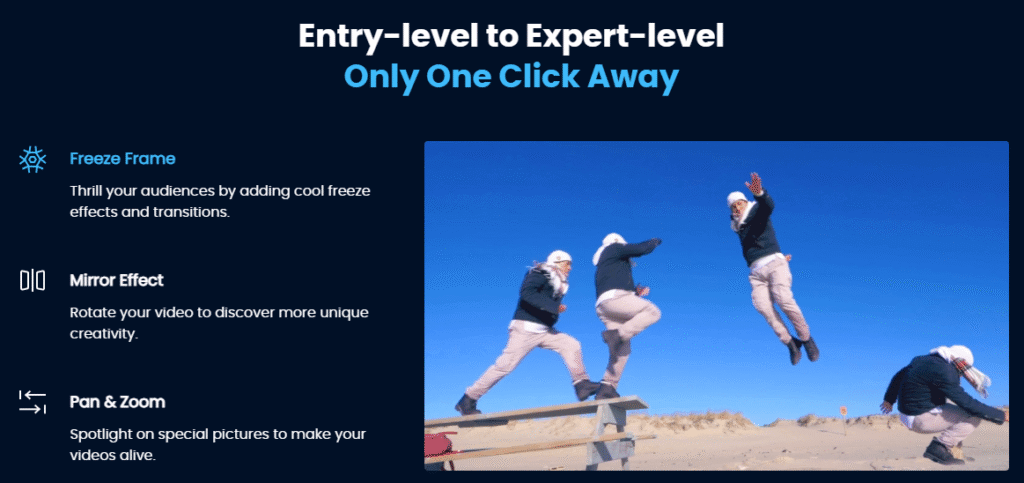
Alternative Method: Using iMyFone Filme for Video Rotation
While VLC media player flip video capabilities are useful, the process can be somewhat technical and intimidating for beginners. If you’re looking for a more user-friendly approach to video rotation, dedicated video editing software might be a better option.
iMyFone Filme offers a straightforward solution for how to flip a video with VLC-level precision but with much greater ease of use. This software is designed with beginners in mind, providing intuitive controls and a clean interface that makes video editing accessible to everyone.
Why Choose Filme Over VLC for Video Rotation?
Before we dive into the steps, let’s consider why you might prefer Filme for your video rotation needs. While VLC is primarily a media player with some editing features tacked on, Filme is designed specifically for video editing. This means the rotation tools are more accessible, the preview is more responsive, and the overall experience is smoother.
Filme provides two distinct methods for adjusting your video’s orientation: mirror effects for creating interesting visual compositions, and standard rotation for fixing orientation issues. Both are implemented in a way that’s much more intuitive than the VLC mirror video process.
Mirror Effects in Filme
The mirror effect is a creative way to add visual interest to your videos, and Filme makes it incredibly simple to apply:
Launch iMyFone Filme and import your video file. In the interface, click on “Effects” in the top left corner. Browse through the available effects until you find the “Mirror” section. Filme offers several mirror effects that can create fascinating symmetrical compositions.
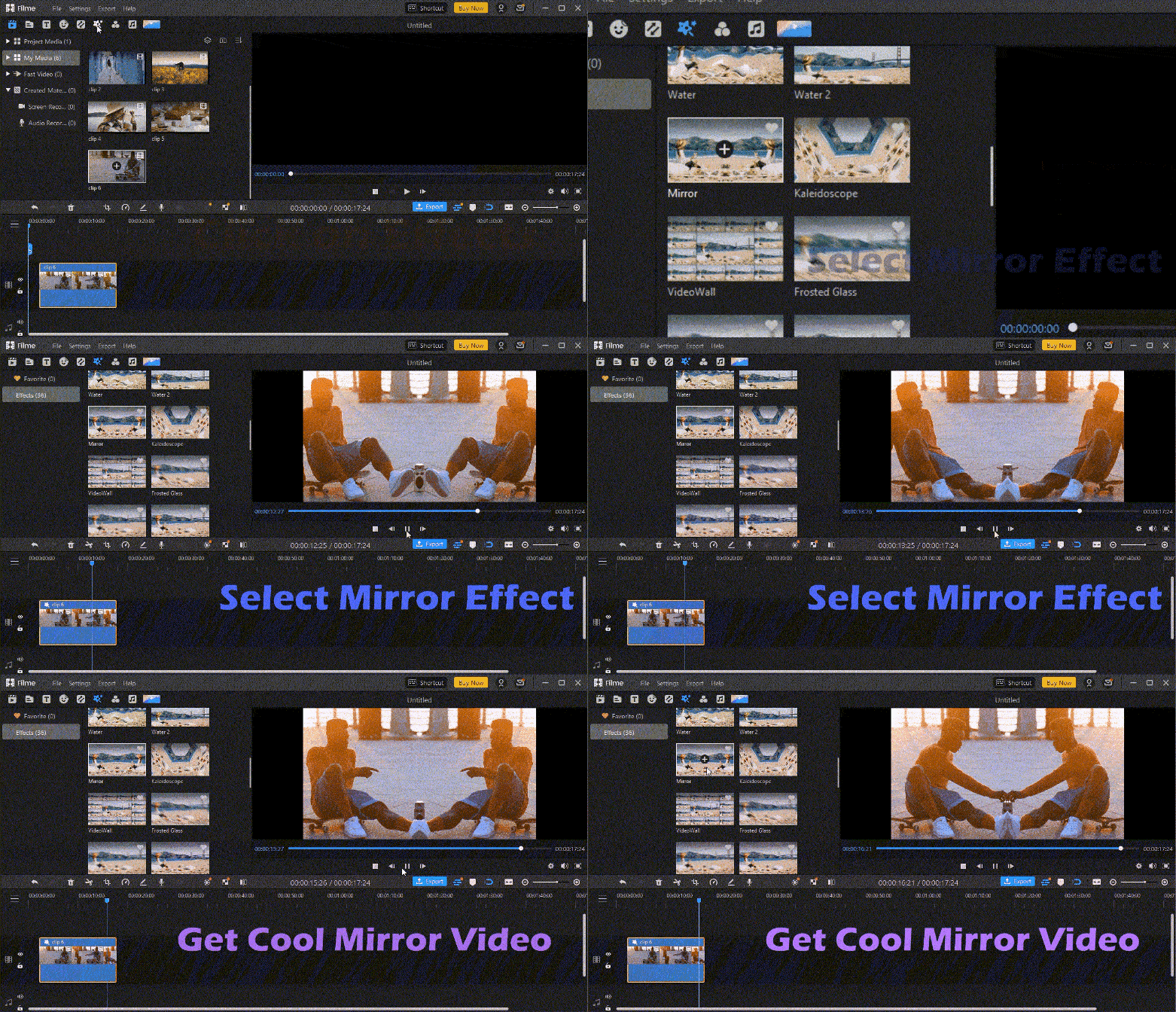
Simply drag your chosen mirror effect onto the video clip in the timeline. The effect applies immediately, and you can preview the result in real-time. This is perfect for creating artistic videos or adding a unique touch to your content.
Standard Video Rotation in Filme
For traditional video rotation to fix orientation issues, Filme offers a straightforward process:
After installing Filme on your computer (it’s available for both Windows and Mac), launch the program and use the interface to import the video you want to rotate. Drag the video from the media library to the timeline at the bottom of the screen.
Double-click on the video clip in the timeline to open the editing panel. Click the “Edit” icon in the toolbar to access the full range of editing options, including rotation.
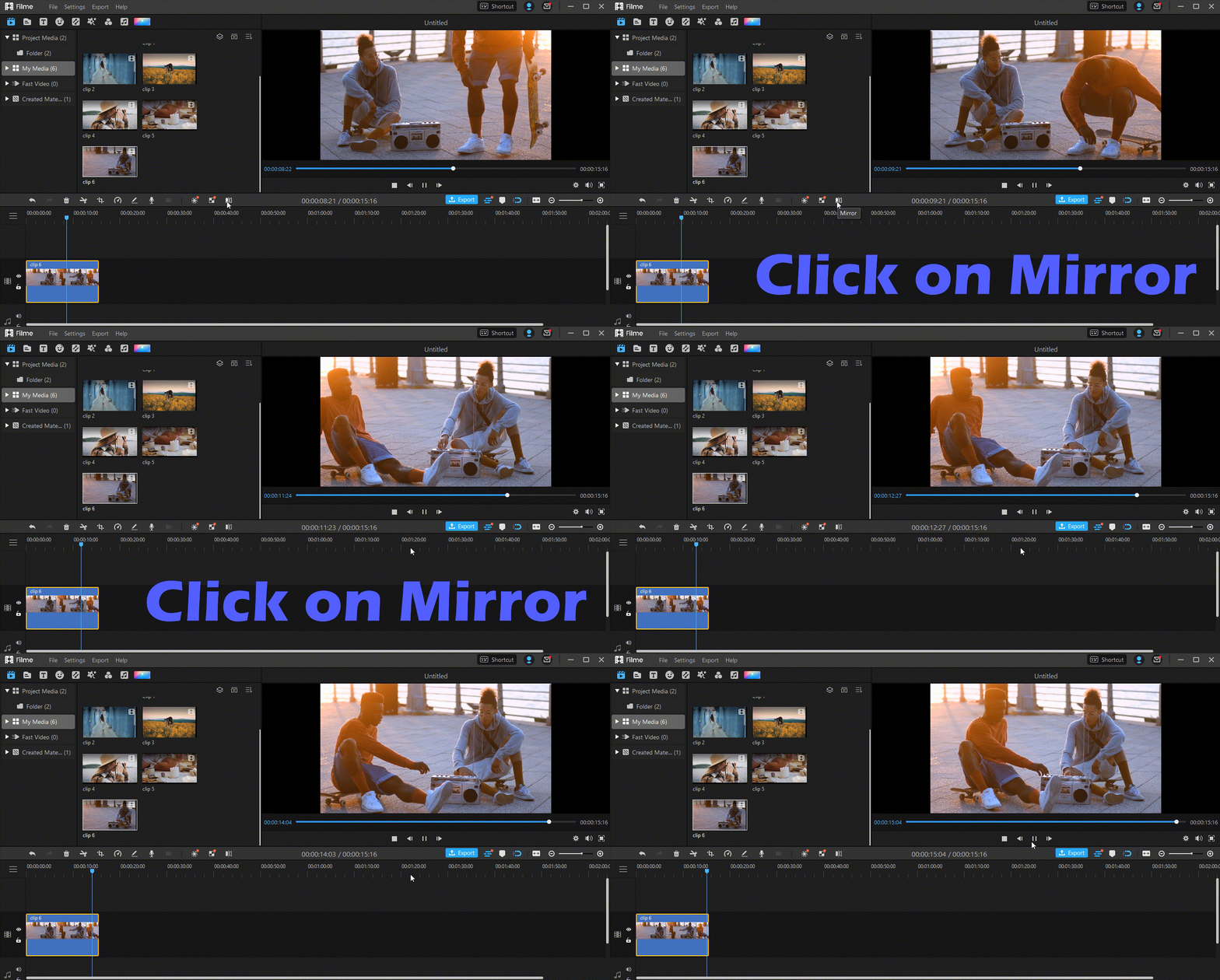
In the editing window, you’ll find a “Rotate” slider that lets you adjust the video’s orientation smoothly. Alternatively, you can type a specific rotation angle into the field provided. As you make adjustments, the preview window updates in real-time, making it easy to find the perfect orientation.

Another handy method is to simply double-click the video in the timeline and use the rotation handles that appear around the video in the preview window. This click-and-drag approach feels natural and gives you immediate visual feedback.
Once you’re satisfied with the rotation, click “OK” to confirm the changes. Finally, export your video by clicking the “Export” button and choosing your desired output settings. Filme offers various presets optimized for different platforms like YouTube, Instagram, or general computer playback.
Comparing VLC and Filme for Video Rotation
Now that we’ve explored both options, let’s compare VLC media player flip video capabilities against iMyFone Filme to help you decide which tool is right for your needs.
VLC’s main advantage is that it’s free and likely already installed on your computer. If you only need to rotate videos occasionally and don’t mind a somewhat technical process, VLC gets the job done. The ability to how to invert video in VLC is there, but it’s hidden among advanced settings that can confuse beginners.
Filme, while not free (though it does offer a trial version), provides a much more user-friendly experience. The rotation tools are front and center, the process is intuitive, and you get real-time previews of your changes. Additionally, Filme offers a comprehensive set of editing tools beyond just rotation, making it a better investment if you plan to do more video editing in the future.
The VLC mirror video process is functional but basic, while Filme offers creative mirror effects that can enhance your videos artistically. When considering how to flip a video with VLC versus how to do it with Filme, the latter clearly wins in terms of user experience and additional features.
Common Video Rotation Scenarios and Solutions
People need to rotate videos for various reasons, and understanding these scenarios can help you choose the right approach. Here are some common situations where you might need to how to flip video in VLC or use alternative tools:
Smartphone videos recorded in the wrong orientation are probably the most common scenario. If you’ve ever recorded a video with your phone sideways, only to find it plays back rotated on your computer, you’ve experienced this issue. Both VLC and Filme can fix this easily.
Action camera footage sometimes needs rotation adjustment, especially if you mounted your camera at an unusual angle to capture a specific shot. The process to how to flip a video VLC works well for these situations, though the permanent saving process ensures the rotation sticks.
Creative projects might require intentional rotation for artistic effect. While VLC can handle basic rotation, Filme’s additional effects and easier controls make it better suited for creative experimentation.
Archival footage conversion often requires rotation when transferring old videos to digital formats. If the original was recorded in an unusual orientation, you’ll need to correct it during the digitization process.
Filme – Best Video Editor for Beginners.Explore Your Creativity, Limitless
Troubleshooting Common Video Rotation Issues
Sometimes, rotating videos doesn’t go as smoothly as planned. Here are some common issues and their solutions:
If VLC isn’t saving your rotated video permanently, double-check that you enabled the video transformation filter in both the preferences and the conversion settings. This is the most common mistake when learning how to invert video in VLC permanently.
For videos that don’t rotate properly in VLC, try closing and reopening the program after applying the rotation filter. Sometimes the settings need a fresh start to take effect properly.
If you’re experiencing performance issues during rotation, especially with high-resolution videos, consider converting to a slightly lower resolution or using a more efficient codec like H.264.
When the VLC mirror video effect isn’t working as expected, check that you’ve selected the correct option—horizontal flip creates a mirror image, while vertical flip turns the video upside down.
For those wondering how to flip a video with VLC on older versions, note that the interface might differ slightly, but the general process remains the same through the Tools and Effects menus.
Advanced Rotation Techniques
Once you’ve mastered basic rotation, you might want to explore more advanced techniques. While VLC’s capabilities are somewhat limited in this regard, Filme offers more sophisticated options:
Selective rotation allows you to rotate only specific parts of your video by splitting the clip and applying rotation to individual segments. This is perfect for correcting orientation changes within a single video file.
Combining rotation with other effects can create unique visual styles. For example, you might rotate a video slightly and add a vintage filter for an artistic home movie look.
Batch processing multiple videos is much easier in dedicated editing software than learning how to flip video in VLC multiple times. If you have several videos that need the same rotation adjustment, Filme can process them all at once.
Precision rotation beyond the standard 90-degree increments is possible in both tools, but Filme’s interface makes it easier to set exact angles for those times when your video is just slightly off-level.
Mobile Video Rotation Options
While this guide has focused on desktop solutions, it’s worth noting that you can also rotate videos directly on your mobile device. The process varies between Android and iOS, but here’s a general overview:
On Android devices, Google Photos offers basic rotation tools. Open your video in Google Photos, tap the edit icon, and use the rotate tool to adjust orientation. Each tap rotates the video by 90 degrees.
iOS users can use the Photos app to rotate videos. Select the video, tap edit, and use the crop tool to access rotation options. Like Android, each tap rotates the video by 90-degree increments.
While mobile rotation is convenient for quick fixes, desktop solutions like VLC media player flip video tools or Filme offer more control and precision, especially for videos that need exact angle adjustments or permanent saving.
Preventing Orientation Issues Before They Happen
The best solution for rotated videos is preventing the problem in the first place. Here are some tips to avoid orientation issues:
Always be mindful of how you’re holding your phone when recording videos. Modern smartphones have orientation sensors, but they can still get confused if you move erratically during recording.
Use a tripod or stabilizer when possible to maintain consistent orientation throughout your recording. This is especially important for longer videos or professional projects.
Check your camera app settings—some apps have options to lock orientation or provide on-screen guides to help you maintain the correct framing.
Test your recording setup before important shots to ensure everything is working correctly. A quick 10-second test can save you from discovering orientation issues after the fact.
Frequently Asked Questions About Video Rotation
How can I rotate videos on Android devices?
Most Android devices have built-in rotation tools through the Google Photos app. Open your video in Google Photos, tap the edit option (usually represented by a slider icon), and look for the rotate tool. Each tap will rotate your video by 90 degrees until you achieve the desired orientation.
Why don’t my recorded videos rotate automatically?
This usually happens when the auto-rotation feature is disabled on your device, or when the video recording app doesn’t properly read the device’s orientation sensors. Try enabling auto-rotation in your device settings, and if that doesn’t work, the video may have been recorded without orientation data, requiring manual rotation.
What should I do if VLC doesn’t save my rotated video?
If you’re having trouble saving rotated videos in VLC, double-check that you’ve enabled the video transformation filter in both the preferences and the conversion settings. If problems persist, try updating to the latest version of VLC or consider using alternative software like iMyFone Filme, which offers a more reliable rotation and saving process.
Can I rotate videos without losing quality?
When done correctly, rotation shouldn’t significantly impact video quality. However, the conversion process involved in permanent rotation may cause minimal quality loss depending on your settings. To preserve quality, use the same resolution and a high-quality codec when saving your rotated video.
Is there a way to rotate videos online?
Yes, there are various online video rotation tools available. However