TOOL HUNTER

Having trouble with your Apple ID? You’re not alone. Many iPhone users experience moments when they just can’t sign into their Apple ID, leaving them unable to access essential services like iCloud, the App Store, or Apple Pay. It’s frustrating when you’re trying to login in iPhone and nothing seems to work.
I recently helped my friend Sarah who was having trouble signing in with Apple ID. She kept getting that annoying “verification failed” message every time she tried to access her account. She couldn’t download new apps, update existing ones, or even back up her photos to iCloud. After trying several solutions, we finally got her back in. Let me share what we learned about fixing these Apple ID sign in problems.
Understanding Why You Can’t Sign Into Apple ID
Before we dive into solutions, it helps to understand what might be causing these Apple ID sign in problems. When you’re having trouble signing in with Apple ID, it’s usually one of these common issues:
Sometimes it’s as simple as entering the wrong password too many times. Your account gets temporarily locked for security reasons. Other times, two-factor authentication might be acting up – maybe you’re not receiving the verification codes properly.
Network problems can also prevent you from being able to sign into your Apple ID. If your internet connection is weak or unstable, the authentication process can’t complete. Apple’s servers themselves might be experiencing downtime, which means no one can login in iPhone properly until they fix it.
Outdated software is another culprit. If your iOS version isn’t current, it might have compatibility issues with Apple’s authentication systems. And occasionally, certain apps that use your Apple ID credentials might be causing conflicts that prevent you from accessing your account.
Comprehensive Solutions for Apple ID Access Issues
Check Apple’s System Status First
Before you start changing settings on your device, take a moment to check if the problem is on Apple’s end. When many users report they can’t sign into Apple ID around the same time, it’s often a server issue.
Visit Apple’s System Status page through any web browser. Look for services like iCloud Account & Sign In, App Store, and iTunes Store. If you see yellow or red indicators next to any of these, Apple is experiencing outages. There’s nothing you can do but wait for them to resolve it.
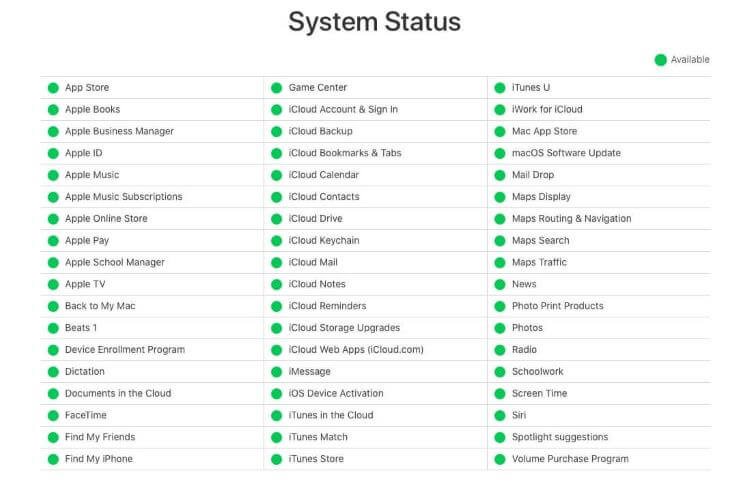
I remember one Tuesday afternoon when I thought my iPhone was broken because I couldn’t access any Apple services. Turns out Apple was doing server maintenance, and everything was back to normal within a couple of hours.
Verify Your Network Connection
A stable internet connection is crucial for Apple ID authentication. If you’re having trouble signing in with Apple ID, your network might be the issue.
Try switching between Wi-Fi and cellular data to see if one works better than the other. If you’re on Wi-Fi, try moving closer to your router or restarting it. Sometimes simply toggling Airplane mode on and off can refresh your connection.
If you’re using public Wi-Fi, some networks block the ports that Apple services use. In that case, switching to cellular data usually solves the problem immediately.
Adjust Date and Time Settings
This might sound strange, but incorrect date and time settings can cause significant Apple ID sign in problems. Apple’s security systems rely on accurate time synchronization to verify login attempts.
Go to Settings > General > Date & Time on your iPhone. Make sure “Set Automatically” is turned on. This allows your device to sync with Apple’s time servers. If this option was off, turning it on might immediately resolve your trouble signing in with Apple ID.

If you’ve recently traveled across time zones, your phone might not have updated properly. Manually selecting the correct time zone can sometimes fix authentication issues when you can’t sign into Apple ID.
Unlock Your Apple Account
If you’ve entered incorrect credentials multiple times, Apple may have temporarily locked your account for security reasons. This is a common reason why people can’t sign into their Apple ID.
Visit appleid.apple.com from any web browser to check your account status. If it’s locked, you’ll see instructions for unlocking it. This usually involves verifying your identity through email or answering security questions.
The process is straightforward but can take a little time. Once unlocked, wait a few minutes before trying to login in iPhone again, as the unlock might not be instantaneous across all Apple servers.
Manage Apps Using Your Apple ID
Some third-party apps use “Sign in with Apple” for authentication. Occasionally, these can cause conflicts that prevent you from accessing your main Apple ID.
Go to Settings > [Your Name] > Sign-In & Security > Apps Using Your Apple ID. Review the list and consider stopping access for any apps you don’t recognize or no longer use.
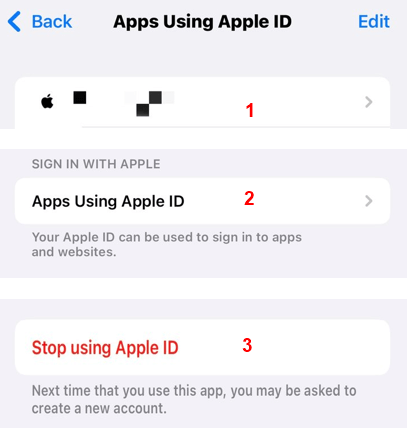
This won’t delete the apps from your phone, but it will revoke their access to your Apple ID. Sometimes this clears up authentication conflicts that were causing Apple ID sign in problems.
Force Restart Your iPhone
A simple force restart can resolve many temporary software glitches that might be preventing you from being able to sign into your Apple ID. The method varies by iPhone model:
For iPhone 8 or later: Quickly press and release the Volume Up button, then quickly press and release the Volume Down button. Finally, press and hold the Side button until you see the Apple logo.
For iPhone 7 and 7 Plus: Press and hold both the Side and Volume Down buttons until the Apple logo appears.
For iPhone 6s and earlier: Press and hold both the Home and Top (or Side) buttons until you see the Apple logo.
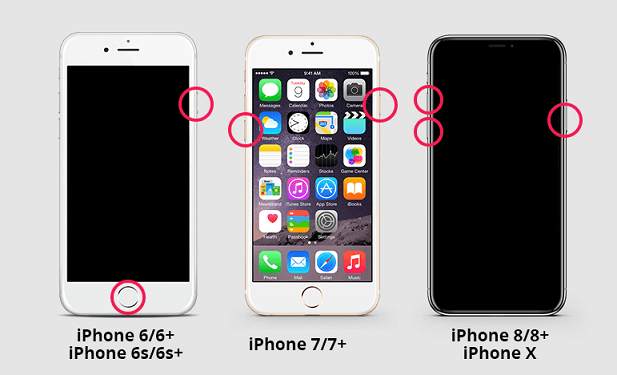
This process doesn’t erase any data but can clear temporary software issues that might be causing trouble signing in with Apple ID.
Update Your iOS Version
Running outdated iOS software can lead to various Apple ID sign in problems. Apple frequently releases updates that include security patches and bug fixes related to authentication.
Go to Settings > General > Software Update to check if any updates are available. If there is one, make sure your iPhone is connected to Wi-Fi and has sufficient battery life (or is plugged in) before starting the update.
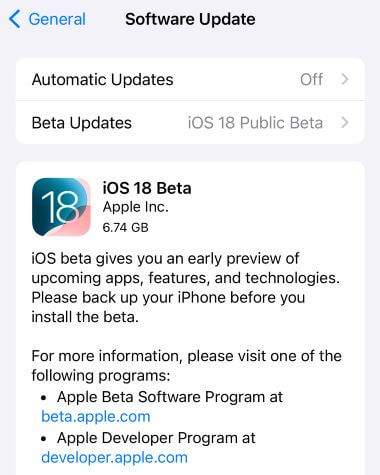
I’ve found that many authentication issues resolve themselves after updating to the latest iOS version. The update process might take 15-30 minutes, but it’s often worth it if you’ve been struggling to login in iPhone.
Reset Your Apple ID Password
If you suspect your password might be the issue, resetting it could solve your problem. This is particularly helpful if you can’t sign into Apple ID because you’ve forgotten your password or if your account has been compromised.
Visit iforgot.apple.com from any browser or use the “Forgot password?” option on your iPhone. You’ll need access to your trusted phone number or email address to verify your identity and reset your password.
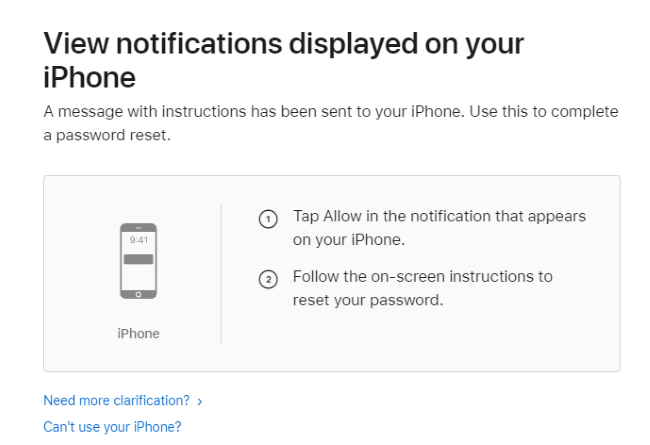
After resetting your password, you might need to sign back into all your Apple services and devices. This can be slightly inconvenient but often resolves persistent Apple ID sign in problems.
Reset All Settings
If you’re still having trouble signing in with Apple ID, resetting all settings might help. This will return all your preferences to their defaults without erasing your personal data.
Go to Settings > General > Transfer or Reset iPhone > Reset > Reset All Settings. You’ll need to enter your passcode to confirm this action.
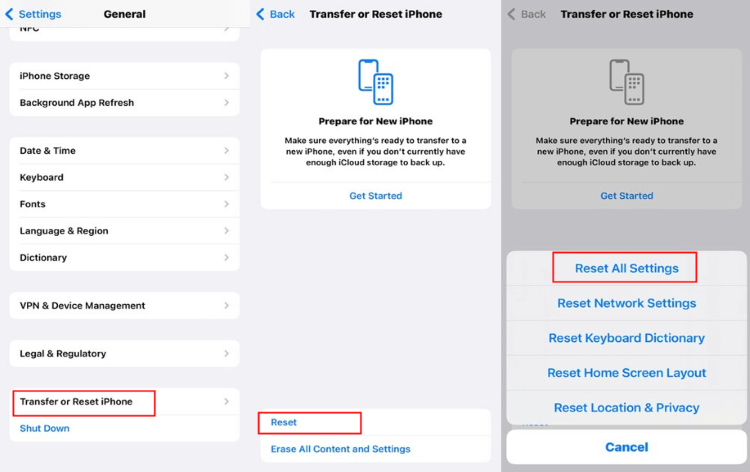
After the reset, you’ll need to reconfigure your Wi-Fi networks, wallpaper, privacy settings, and other preferences. But this process can eliminate configuration conflicts that were preventing you from being able to sign into your Apple ID.
iMyFone Fixppo.Downgrade iOS 26 to 18 or upgrade to iOS 26, no jailbreak.Repair 150+ iOS/iPadOS/tvOS system issues like stuck on Apple logo, boot loop, black screen without losing data.Free enter/exit Recovery Mode on iPhone and iPad with one-click.Factory reset iPhone/iPad/Apple TV without passcode/iTunes/Finder.Back up and restore iPhone data without iTunes/iCloud.Fix various iOS bugs at home for you to smoothly use your device.Support all iOS versions and devices including iOS 26/18 and iPhone 17.Fixppo only performs system repair with the user’s permission.
Check More Details | Download Now! | Check All Deals
Use a Professional System Repair Tool
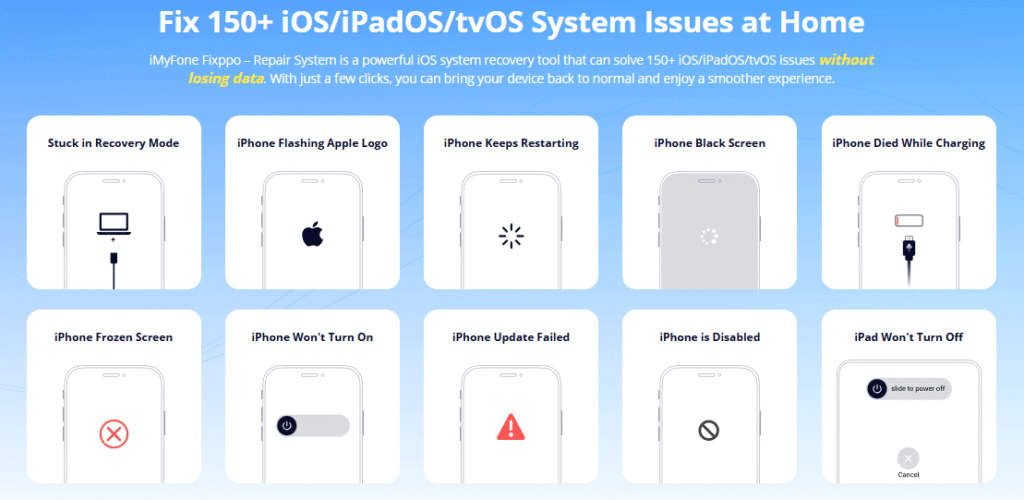
When you’ve tried everything and still can’t sign into Apple ID, a professional repair tool like iMyFone Fixppo might be your solution. These tools are specifically designed to fix iOS system issues without data loss.
Fixppo can address underlying system glitches that might be causing your Apple ID sign in problems. The process is straightforward: download the software, connect your iPhone, and follow the on-screen instructions.
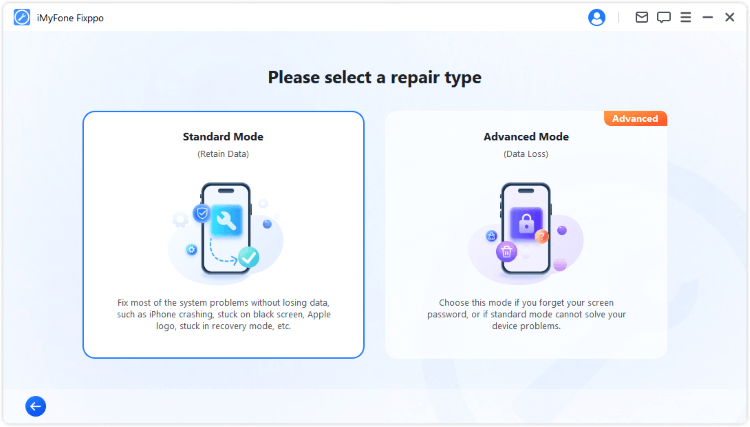
The tool will diagnose your device and repair any system-level issues that could be preventing you from being able to login in iPhone properly. It’s particularly useful when you’re experiencing trouble signing in with Apple ID due to deep-seated system errors.
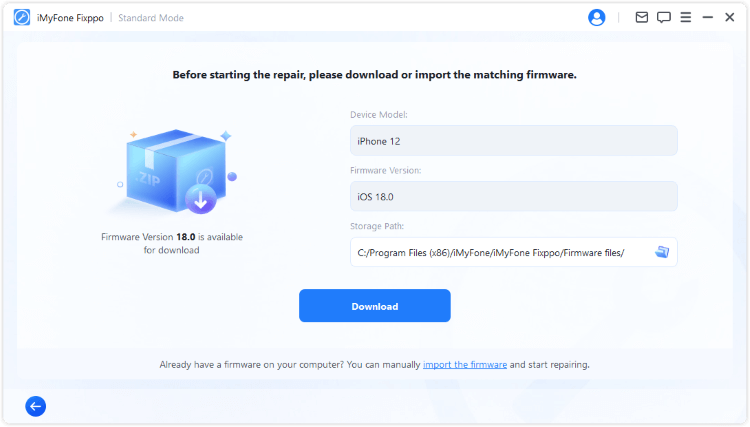
The repair process typically takes 10-15 minutes. Once completed, your iPhone will restart, and you should be able to sign in without those frustrating Apple ID sign in problems.

Restore iPhone via iTunes
If all else fails, restoring your iPhone through iTunes is the nuclear option. This will erase all content and settings, returning your device to factory condition. Only try this if you have a recent backup.
Connect your iPhone to a computer with iTunes installed. Select your device in iTunes, then choose “Restore iPhone.” This process will completely wipe your device and install a fresh copy of iOS.
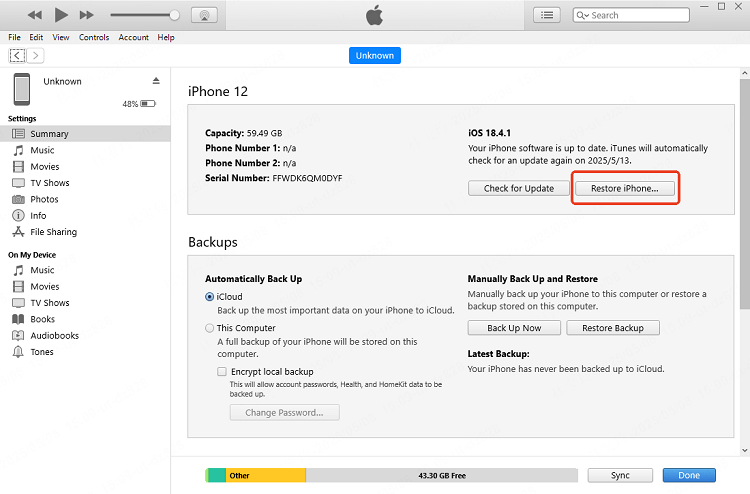
After restoration, you can set up your iPhone as new or restore from your backup. This extreme measure should eliminate any software issues causing your inability to sign into your Apple ID.
Preventing Future Apple ID Access Issues
Once you’ve resolved your current Apple ID sign in problems, take steps to prevent them from recurring. Keep your iOS updated, maintain good password hygiene, and regularly review which apps have access to your Apple ID.
Enable two-factor authentication for added security, but make sure your trusted phone numbers are current. Occasionally check Apple’s system status page if you experience sudden authentication issues, as server problems are beyond your control.
Remember that if you can’t sign into Apple ID, it’s usually a temporary issue that can be resolved with patience and the right troubleshooting steps. The solutions we’ve covered address the most common causes of these frustrating scenarios.
iMyFone Fixppo.Downgrade iOS 26 to 18 or upgrade to iOS 26, no jailbreak.Repair 150+ iOS/iPadOS/tvOS system issues like stuck on Apple logo, boot loop, black screen without losing data.Free enter/exit Recovery Mode on iPhone and iPad with one-click.Factory reset iPhone/iPad/Apple TV without passcode/iTunes/Finder.Back up and restore iPhone data without iTunes/iCloud.Fix various iOS bugs at home for you to smoothly use your device.Support all iOS versions and devices including iOS 26/18 and iPhone 17.Fixppo only performs system repair with the user’s permission.
Check More Details | Download Now! | Check All Deals
Final Thoughts on Apple ID Access Problems
Dealing with Apple ID authentication issues can be frustrating, especially when you need access to your apps, photos, and other Apple services. The key is to approach the problem methodically, starting with the simplest solutions before moving to more advanced troubleshooting.
Whether you’re experiencing trouble signing in with Apple ID due to network issues, outdated software, or more complex system glitches, there’s almost always a solution. The methods we’ve discussed range from quick fixes that take seconds to more involved processes that might take half an hour.
If you find yourself frequently unable to login in iPhone with your Apple ID, it might be worth contacting Apple Support for personalized assistance. They can check for account-specific issues that might not be resolvable through standard troubleshooting.
Remember that these Apple ID sign in problems are common, and you’re not alone in experiencing them. With patience and the right approach, you’ll likely regain access to your account and all the services that depend on it.
Some images in this article are sourced from iMyFone.