TOOL HUNTER

Have you ever found yourself wanting to listen to your favorite YouTube music or podcast while offline, but you’re not sure how to download audio from YouTube on your iPhone? You’re not alone! Many iPhone users face this challenge, wanting to save their favorite content for commutes, workouts, or times when internet access is limited. The good news is there are several reliable methods to convert YouTube videos to audio files on your iPhone, and we’re going to explore the three best approaches that actually work.
Whether you’re looking to create a personal music library, save educational content, or just have your favorite audio tracks available offline, understanding how to download YouTube audio on iPhone can be incredibly useful. Let’s dive into these methods and find the one that works best for your needs.
Table of Contents
- Understanding YouTube Audio Download Options for iPhone
- Using Online YouTube to MP3 Converter for iPhone
- Desktop Software Solutions for YouTube to iPhone Audio Conversion
- Advanced Solution: iMyFone Filme Video Editor
- Transferring Converted Audio Files to Your iPhone
- Legal and Ethical Considerations
- Quality Considerations for YouTube Audio on iPhone
- Troubleshooting Common Issues
- Creating and Managing Your Audio Library
- Alternative Methods and Apps
- Conclusion
Understanding YouTube Audio Download Options for iPhone
Before we get into the specific methods, it’s important to understand why downloading YouTube audio on iPhone isn’t as straightforward as you might hope. YouTube’s terms of service technically prohibit downloading content without permission, which is why you won’t find an official “download as audio” button in the YouTube app. However, there are legitimate ways to download audio from YouTube iPhone for personal use, especially when you’re dealing with content you’ve created yourself or have permission to download.
The process typically involves converting the YouTube video to an audio file format like MP3, which is compatible with most devices and media players. When learning how to download YouTube audio on iPhone, you’ll encounter various tools ranging from online converters to desktop software that can help you achieve this goal. Each method has its own advantages and limitations, which we’ll explore in detail.
Using Online YouTube to MP3 Converter for iPhone
One of the most popular methods for converting YouTube videos to audio involves using online conversion tools. These web-based services allow you to transform any YouTube video into an MP3 file that you can then transfer to your iPhone. The process is generally straightforward and doesn’t require installing any additional apps on your phone.
How Online YouTube to Audio Converters Work
Online YouTube to MP3 converter iPhone services work by processing the video URL you provide. When you paste a YouTube link into these converters, they extract the audio track from the video and convert it into an MP3 file that you can download. This method is particularly useful because it works directly through your web browser without requiring specialized software.
The quality of the resulting audio file can vary depending on the converter you use and the original video quality. Most converters offer options to select your preferred audio quality, allowing you to balance file size against sound quality based on your needs.
Step-by-Step Guide to Using Online Converters
Here’s how you can typically use an online YouTube to audio file iPhone converter:
First, open the YouTube app or website and find the video you want to convert. Tap the “Share” button and copy the video link. Then, open your web browser and navigate to a reliable online YouTube to MP3 converter. Paste the copied URL into the conversion box on the website. Select MP3 as your desired output format and choose your preferred audio quality if options are available. Click the convert button and wait for the process to complete. Once conversion is finished, download the audio file to your device.
After downloading, you’ll need to transfer the file to your iPhone. This can typically be done through cloud storage services, email, or direct transfer apps. Once on your iPhone, you can access the audio file through your Files app or add it to your music library.
Advantages of Online Converters
Online YouTube to MP3 converters offer several benefits for iPhone users. They’re easily accessible from any device with a web browser, requiring no software installation. Most online converters are free to use, though some may have limitations or offer premium features. These tools typically support conversion of videos from various platforms beyond just YouTube. The conversion process is usually quick, depending on your internet speed and the length of the video.
However, it’s important to use reputable converters, as some may contain ads or potentially unwanted software. Additionally, video length limitations may apply on some free conversion services.
Desktop Software Solutions for YouTube to iPhone Audio Conversion
If you prefer a more robust solution or frequently convert YouTube videos to audio, desktop software might be a better option. These programs typically offer more features and better quality control than online converters. The process involves converting the video on your computer and then transferring the audio file to your iPhone.
Using Freemake Video Converter
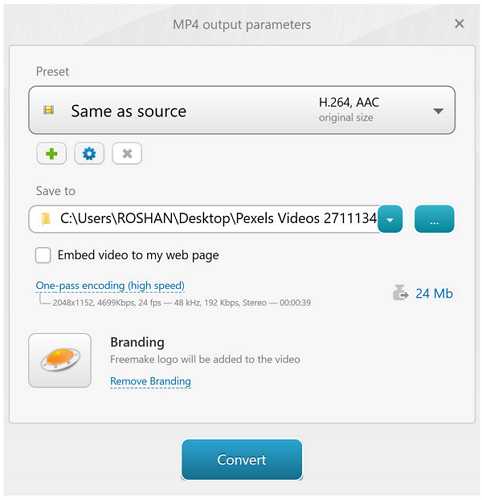
Freemake Video Converter is a popular free tool that can help you convert YouTube video to MP3 for your iPhone. This software supports over 200 video formats and provides various output options tailored for different devices, including iPhones.
To use Freemake for converting YouTube to audio on iPhone, first download and install the software on your computer. Copy the URL of the YouTube video you want to convert. Open Freemake and select the “Paste URL” option. Choose MP3 as your output format and adjust quality settings if desired. Start the conversion process and wait for it to complete. Once finished, transfer the audio file to your iPhone using iTunes, cloud services, or direct transfer methods.
Freemake offers batch processing, allowing you to convert multiple videos at once, which is convenient if you’re building a playlist. The software also maintains good audio quality and provides options to edit metadata like artist name and track title before transferring to your iPhone.
Benefits of Desktop Conversion Software
Desktop converters like Freemake provide several advantages for those learning how to extract audio from YouTube video on iPhone. They typically offer higher quality conversions compared to online tools. Most desktop software allows batch processing of multiple files simultaneously. You get more control over output settings like bitrate and sample rate. Desktop programs often work without constant internet connection after initial download. Many include additional features like basic audio editing and file management.
The main drawback is that you need access to a computer, which might not be as convenient as mobile-only solutions. However, the enhanced features and quality often make this worthwhile for regular users.
Advanced Solution: iMyFone Filme Video Editor
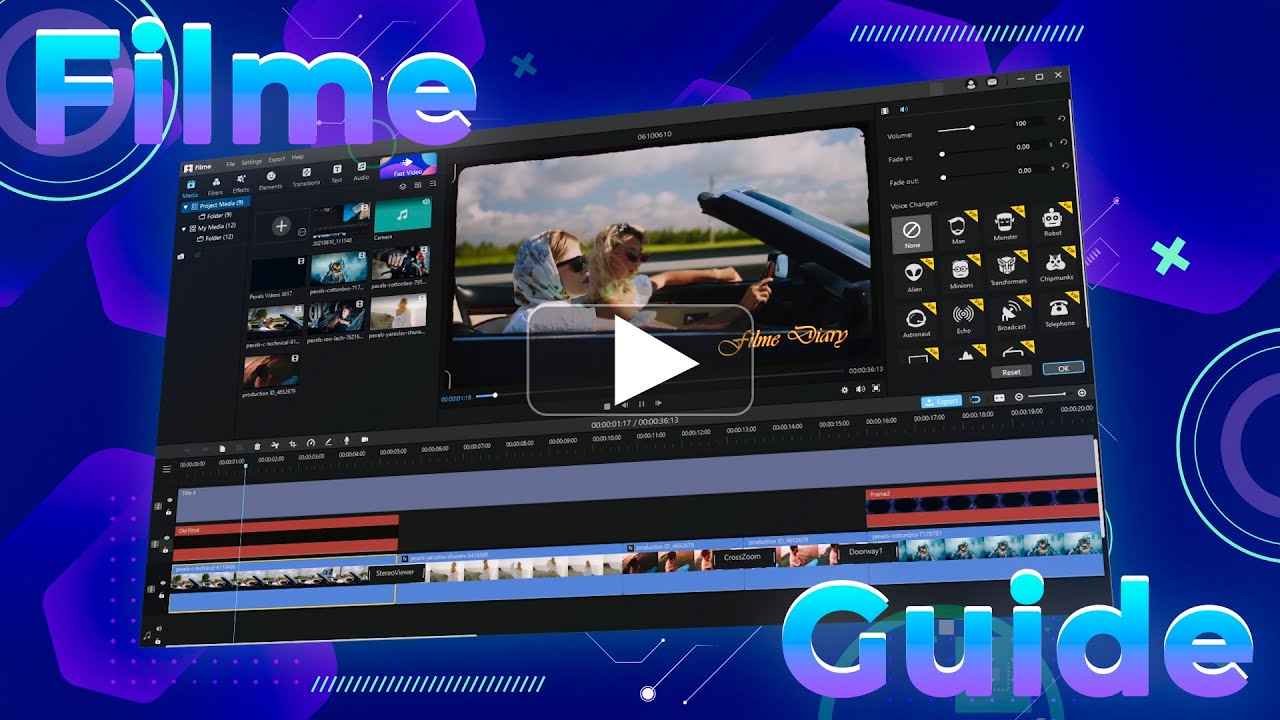
For users looking for a comprehensive tool that goes beyond simple conversion, iMyFone Filme offers a powerful solution. This video editing software includes robust audio extraction capabilities, making it an excellent choice for those who want to learn how to extract audio from YouTube video on iPhone with professional results.
Filme – Best Video Editor for Beginners.Explore Your Creativity, Limitless

Check More Details | Download Now! | Check All Deals
Comprehensive Audio Extraction with Filme
iMyFone Filme provides a straightforward method for YouTube to audio conversion while offering additional editing features that can enhance your final audio file. The process begins similarly to other methods: you copy the YouTube URL and use Filme’s download feature to obtain the video file. Then, instead of just extracting the audio, you can edit it to perfection before transferring to your iPhone.
The software allows you to trim unwanted sections, adjust volume levels, add fade-ins and fade-outs, and even combine multiple audio tracks. These features are particularly useful if you’re creating a seamless playlist or want to remove intros/outros from podcast episodes before transferring them to your iPhone.
Step-by-Step Audio Extraction with Filme
Using iMyFone Filme to learn how to download audio from YouTube iPhone involves these steps: First, launch Filme on your computer and select the download option. Paste the YouTube URL and download the video file. Import the downloaded video into your Filme project timeline. Use the “Detach Audio” feature to separate the audio track from the video. Edit the audio as needed using Filme’s editing tools. Export the project as an audio file in your preferred format. Transfer the final audio file to your iPhone using your preferred method.
This method gives you maximum control over the final audio quality and content, ensuring you get exactly what you want on your iPhone.
Why Choose Filme for YouTube to iPhone Audio Conversion
Filme stands out as a YouTube to MP3 converter iPhone solution for several reasons. It provides high-quality audio output with customizable settings. The interface is user-friendly, making it accessible even for beginners. In addition to audio extraction, it offers comprehensive video editing capabilities. The software includes built-in download functionality for convenience. It supports various audio formats compatible with iPhones.
For regular users who want both conversion capabilities and editing features, Filme represents excellent value despite not being free like some other options.
Transferring Converted Audio Files to Your iPhone
Once you’ve converted your YouTube videos to audio files using any of the methods above, you’ll need to transfer them to your iPhone. This process varies depending on the method you used for conversion and your personal preferences.
Using Cloud Services
Cloud storage services like iCloud Drive, Google Drive, or Dropbox provide a straightforward way to transfer audio files to your iPhone. After converting your YouTube video to audio on your computer, upload the file to your preferred cloud service. Then, on your iPhone, open the corresponding app and download the file. Once downloaded, you can typically save it to your Files app or directly to compatible music player apps.
Using iTunes or Finder
For those who prefer a more integrated approach, using iTunes (on Windows or older macOS versions) or Finder (on newer macOS versions) allows direct synchronization of audio files with your iPhone’s music library. Connect your iPhone to your computer, open iTunes or Finder, select your device, and navigate to the music synchronization settings. You can then choose to sync specific audio files or entire folders containing your converted YouTube audio.
Email and Messaging Apps
For single files or occasional transfers, you can email the audio file to yourself or send it through messaging apps like WhatsApp. This method is convenient for quick transfers but becomes cumbersome if you’re dealing with multiple files or large audio collections.
Legal and Ethical Considerations
When learning how to download YouTube audio on iPhone, it’s crucial to understand the legal implications. YouTube’s Terms of Service prohibit downloading content without explicit permission from the content creator. However, there are legitimate use cases, such as downloading content you’ve created yourself, content with a Creative Commons license, or content where the creator has explicitly granted download permissions.
Always respect copyright laws and content creators’ rights. If you’re unsure about the legality of downloading specific content, err on the side of caution or seek explicit permission from the content owner.
Quality Considerations for YouTube Audio on iPhone
The quality of audio you get from YouTube conversions depends on several factors. The original video quality affects the maximum possible audio quality. YouTube compresses audio to reduce file sizes, which can affect quality. The conversion method and settings you choose impact the final output. The bitrate you select during conversion determines the balance between file size and audio quality.
For most listening purposes, 128 kbps provides acceptable quality, while 192 kbps or higher offers noticeably better sound, especially through good headphones or speakers.
Troubleshooting Common Issues
When working with YouTube to audio file iPhone conversion, you might encounter some common issues. If conversion fails, try a different video URL or check if the video is available in your region. If the audio quality is poor, ensure you’re selecting the highest available quality option in your converter. If files won’t transfer to your iPhone, check your storage space and connection method. If audio doesn’t play on your iPhone, verify the file format is compatible (MP3 is universally supported).
Creating and Managing Your Audio Library
Once you’ve mastered how to extract audio from YouTube video on iPhone, you might want to organize your growing collection of audio files. Consider using music player apps that allow custom playlists, or organize files in folders within your Files app. Adding proper metadata (artist, album, track title) before transferring files to your iPhone can make organization much easier.
Alternative Methods and Apps
While we’ve covered the three primary methods for YouTube to audio conversion for iPhone, there are alternative approaches worth mentioning. Some third-party iOS apps claim to offer direct YouTube audio download capabilities, though these often violate App Store guidelines and may be removed. Browser-based solutions that work directly on iPhone sometimes appear but tend to be unreliable due to iOS restrictions.
The methods we’ve detailed above represent the most reliable and sustainable approaches for downloading audio from YouTube iPhone currently available.
Filme – Best Video Editor for Beginners.Explore Your Creativity, Limitless
Check More Details | Download Now! | Check All Deals
Conclusion
Learning how to download YouTube audio on iPhone opens up new possibilities for enjoying your favorite content offline. Whether you choose online converters for quick single conversions, desktop software like Freemake for batch processing, or comprehensive tools like iMyFone Filme for professional results with editing capabilities, there’s a solution for every need and skill level.
The key is to select the method that aligns with your technical comfort, quality requirements, and how frequently you plan to convert YouTube videos to audio. With the steps outlined in this guide, you’re now equipped to build your personal audio library from YouTube content and enjoy it wherever you go on your iPhone.
Remember to always respect copyright and content creators’ rights, and use these methods responsibly for content you have permission to download. Happy listening!
Some images courtesy of iMyFone