TOOL HUNTER

Summary: This guide provides clear, step-by-step methods to download shows from Amazon Prime Video for offline enjoyment. We explore the limitations of Amazon’s official download feature and introduce powerful, user-friendly tools that let you save your favorite movies and series permanently. Whether you’re preparing for a trip or just want a reliable offline library, you’ll find the perfect solution here to download Amazon Prime videos.
Ever found yourself stuck without internet, wishing you could watch that Amazon Prime show you’ve been binge-watching? Or maybe you’re about to board a long flight and want to load up your device with entertainment. The good news is, there are reliable ways to download shows from Amazon Prime Video and save them for offline viewing. While Amazon offers its own download option within its apps, it comes with quite a few strings attached. In this article, we’ll dive into the details of how you can truly own your content. We’ll cover everything from understanding Amazon’s own rules to using specialized software that gets the job done easily. By the end, you’ll know exactly how to build a personal library of Prime Video content that you can watch anytime, anywhere, no Wi-Fi required.

Table of Contents
- Can You Download Shows from Amazon Prime Directly?
- How to Download Shows from Amazon Prime with a Dedicated Downloader
- Using an Online Website to Download Amazon Prime Videos
- How to Save Amazon Prime Video with Screen Recording Software
- Frequently Asked Questions About Amazon Prime Video
- Wrapping It Up
Can You Download Shows from Amazon Prime Directly?

So, the big question first: can you download shows from Amazon Prime using their own system? The short answer is yes, but with major limitations. Amazon Prime Video does have a download feature built into its mobile and tablet apps. It’s designed for temporary offline viewing. You tap the download icon next to a movie or episode, and it saves to your device. Sounds simple, right?
However, this method is not a permanent solution for saving your favorite shows. The downloads are locked to the specific device you used. You can’t transfer that downloaded file to your laptop, a different tablet, or a USB drive. They are tied to the Amazon app on that one gadget. Furthermore, these downloads don’t last forever. Amazon sets an expiration date, often just 48 hours after you start watching the downloaded content, or 30 days from the download date if you haven’t started it. After that, the file becomes unusable and you’d need to re-download it, provided you still have an active internet connection and the title is still available on Prime.
Also, not every single movie or show on Prime Video is available for download. Some titles, due to licensing agreements with studios, simply don’t have the download option enabled. And you’re restricted to watching within the Amazon Prime Video app; you can’t play the files in VLC, Windows Media Player, or any other standard video player. For anyone looking to genuinely archive content, travel without worrying about expiration, or watch on unsupported devices, the official download method falls short. This leads many users to ask: how to download Amazon Prime videos in a more flexible way?
How to Download Shows from Amazon Prime with a Dedicated Downloader
If the official method is too restrictive, what’s the alternative? This is where dedicated video downloader software comes in. These tools are specifically designed to access streaming sites, remove playback restrictions, and save videos as standard video files on your computer. One of the most recommended options for this task is CleverGet Amazon Downloader. It’s a powerful program that handles Amazon Prime Video seamlessly.
Unlike the app downloads, using CleverGet means you get to keep the video files forever. You can choose the quality, often up to 1080p HD, and select the output format, like MP4 or MKV, which are compatible with virtually all media players and devices. It also allows you to preserve subtitles and multiple audio tracks if available. This is the real answer for users who want to know how to download shows from Amazon Prime without deadlines or device locks.
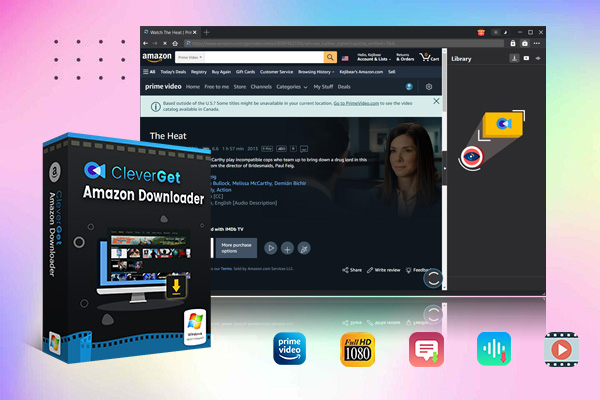
Here’s a breakdown of why a tool like CleverGet is so useful for downloading Amazon Prime content:
- It bypasses the digital locks (DRM) on Prime videos.
- It downloads the full HD quality without any loss.
- It saves files in universal MP4/MKV formats.
- It keeps subtitles and alternate audio languages.
- It lets you download entire seasons in batch.
Using it is straightforward. Here’s how you can download Amazon Prime videos with CleverGet.
Step 1: Get the Software Installed
First, you need to get the CleverGet Amazon Downloader program on your Windows or Mac computer. After installation, launch the application. You’ll be prompted to log into your Amazon Prime account directly within the software’s built-in browser. This is necessary for the tool to access your video library.

Step 2: Browse and Find Your Content
Once logged in, the interface will look familiar—it’s essentially a browser window pointed at Amazon Prime Video. You can search for a specific title, browse through categories, or go to your watchlist. When you find the movie or TV show episode you want, just click on it to open the video page. The software will automatically analyze the page for downloadable content.

Step 3: Customize and Start the Download
After analysis, a window will pop up showing you all available options. This is where you have full control. You can select the video quality (like 480p, 720p, or 1080p), choose your preferred audio language, and pick which subtitles to include, if any. You also select the output format (MP4 is a great default). Once your choices are set, hit the download button. The file will then save directly to a folder on your computer, and you can watch it anytime with any player.

This method effectively solves the problem of how to download Amazon Prime videos for permanent, flexible offline use. The process is quick, and the resulting files are yours to keep, organize, and watch on any device.
Try CleverGet Amazon Downloader right now! The best Amazon Prime Video downloader to download videos without losing quality and effects to MP4/MKV for offline playback on any device, supporting up to 1080p HD, multi-language subtitles, and ad removal.
Get the Windows version | Get the Mac version | Use the time-limited promotional campaign
Using an Online Website to Download Amazon Prime Videos
Maybe you don’t want to install software on your computer. Is there a way to download Amazon Prime movies directly from a website? There are online services, often called online video downloaders, that claim to do this. They work by having you paste the link to the Prime video you want into their website, and then they provide a download link.
One popular example of such a service is SaveFrom.net. The process seems simple: copy the URL of the Prime Video from your browser’s address bar while the movie is playing, go to the online downloader’s site, paste the link, and hit a download button. It might offer you a choice of quality before saving the file to your computer.

However, it’s crucial to be cautious with this method. Online downloaders often struggle with modern streaming sites like Amazon Prime, which have strong security measures. You might find that the service doesn’t work at all, or it only captures a low-quality version of the video. More importantly, you have to provide your Prime Video link to a third-party website, which could be a privacy concern. Also, you typically have very little control over the output—no option for subtitles or specific audio tracks.
While it’s a no-installation option, its reliability and quality are inconsistent compared to dedicated desktop software. For a one-time, quick download of a video where quality isn’t paramount, it might suffice. But for building a quality offline library from Amazon Prime Video, the online method is often less dependable.
How to Save Amazon Prime Video with Screen Recording Software
Another approach to get videos from Amazon Prime onto your computer is by recording your screen while the video plays. This method doesn’t “download” the original file but instead creates a new recording of the content as it appears on your monitor. It’s a universal workaround that works for almost any video playing on your screen.
Software like Leawo Screen Recorder is designed for this. It’s a flexible tool that can capture any region of your screen, including full-screen video playback from Amazon Prime. The advantage is that it will work regardless of Amazon’s download restrictions or DRM. The potential downside is that the quality is limited to what your screen can display, and the recording process can be time-consuming for long movies.

If you choose this path, here is a general guide on how to use screen recording to save Amazon Prime videos:
Step 1: Open your screen recorder software (e.g., Leawo Screen Recorder) and set your preferences. Choose where to save files and select a video format like MP4. You can also adjust the quality settings here to match your needs.

Step 2: Set the recording area. You can choose to record the full screen or select a specific window—just make sure it’s the window where your Amazon Prime video will play.

Step 3: Configure the audio source. Ensure the software is set to capture “system sound” so it records the audio from the video, not your microphone (unless you want to add commentary).

Step 4: Start playing your Amazon Prime movie. Then, hit the record button in your screen recorder software. Let the entire movie or episode play out while it’s being recorded.

Step 5: When the video ends, stop the recording. The software will process and save the file to your chosen folder. You can now watch this recorded MP4 file offline.

Screen recording is a solid backup plan. It answers the question of “can you download Amazon Prime movies” with a creative “yes, by recording them.” It’s especially useful for content that is otherwise completely locked down.
Try Leawo Screen Recorder right now! Record all activities on your computer screen as HD screencast, webcam video, system and microphone audio, and capture screenshots effortlessly, perfect for tutorials, online classes, presentations, gameplay, and meetings.
Get the Windows version | Get the Mac version | Use the time-limited promotional campaign
Frequently Asked Questions About Amazon Prime Video
How to Cancel Subscriptions on Amazon Prime Video?
To stop an Amazon Prime Video subscription or a channel subscription (like STARZ or Showtime), you need to go to your Amazon account management page. Log in to Amazon.com, go to “Accounts & Lists,” and select “Memberships & Subscriptions.” Find the subscription you want to cancel and click “Cancel Subscription.” Follow the prompts to confirm. Remember, you’ll typically have access until the end of the billing period you’ve already paid for.
Why Does Prime Video Have Ads Now?
Amazon has introduced ads into Prime Video streams as a way to generate additional revenue. This helps fund the creation of new original shows and movies. There is often an extra-cost, “ad-free” tier you can upgrade to if you prefer not to see commercials. The ads are usually short and play before or during some content.
How to Sign Out of Prime Video on a Smart TV?
Signing out of the Prime Video app on a TV is usually done within the app’s settings menu. Open the Prime Video app on your TV, navigate to the settings or gear icon (this varies by TV brand), and look for an option called “Sign Out,” “Deregister Device,” or “Log Out.” Select it to remove your account from that TV. You will need to log in again with your password if you or someone else wants to use it later.
Can You Download Amazon Prime Videos on a Computer?
Officially, Amazon only allows downloads through its mobile and tablet apps for iOS and Android. There is no official download feature in the web browser version on a Windows PC or Mac. This is precisely why third-party downloader software, as discussed earlier, exists—to fill this gap and let you download shows from Amazon Prime directly to your laptop or desktop.
Wrapping It Up
We’ve explored several methods to download shows from Amazon Prime Video, each with its own pros and cons. The official in-app download is convenient for short-term, on-the-go viewing on phones and tablets but lacks permanence and flexibility. For true ownership and high-quality archives, a dedicated downloader like CleverGet Amazon Downloader is the most effective solution. It directly handles the task of how to download Amazon Prime videos, providing DRM-free files in your chosen format.
Online downloaders offer a quick, no-install try but can be unreliable. Screen recording serves as a versatile last-resort tool that works by capturing what’s on your screen. Your best choice depends on your needs. If you want a permanent, high-quality collection that you can watch on any device for years to come, investing in a reliable desktop downloader is the way to go. Now you’re fully equipped to save your favorite Prime content and enjoy it offline whenever you want.
Some images used in this article are from the internet.