TOOL HUNTER

Have you ever wanted to create a simple picture slideshow to share your favorite memories with friends and family? Many people don’t realize that Windows Media Player offers a straightforward way to create basic slideshows without needing any special software. While it might not have all the fancy features of professional slideshow makers, it’s perfect for quick and simple presentations.
In this comprehensive guide, we’ll walk you through creating a picture slideshow on Windows Media Player, share expert tips for making your slideshows more engaging, and answer common questions about the process. Whether you’re creating a slideshow for personal memories or professional presentations, you’ll find everything you need right here.
Creating Your First Slideshow with Windows Media Player
Learning how to create a video with Windows Media Player is surprisingly simple. The built-in slideshow feature in Windows 10 makes it incredibly convenient to showcase your photography skills or create presentations for school or work. The process is so straightforward that you can have your first slideshow ready in just a few minutes.
Filme – Best Video Editor for Beginners.Explore Your Creativity, Limitless
Check More Details | Download Now! | Check All Deals
Let’s dive into the step-by-step process for creating your slideshow windows media player experience.
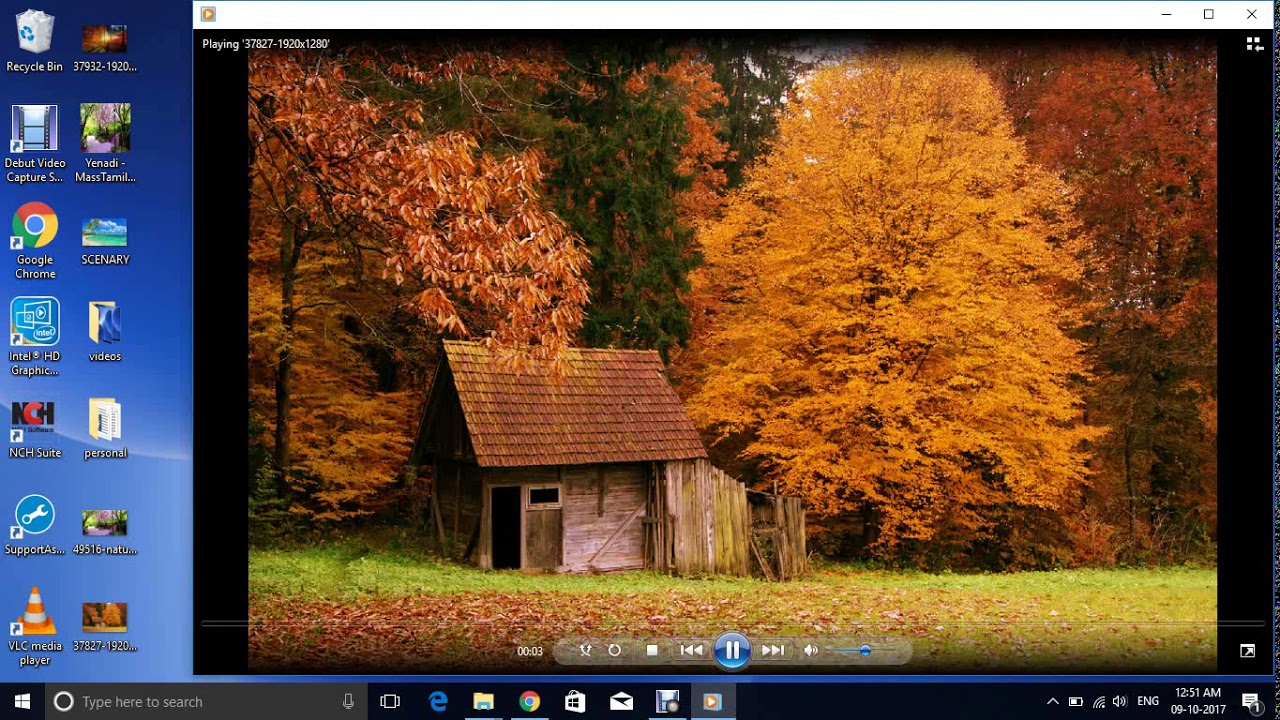
Step 1: Launch Windows Media Player
Begin by opening Windows Media Player on your computer. You can find it by clicking the Start button on your taskbar and searching for “Windows Media Player” in the applications list. Once it opens, look for the “Create Playlist” option typically located in the top left corner of the interface.
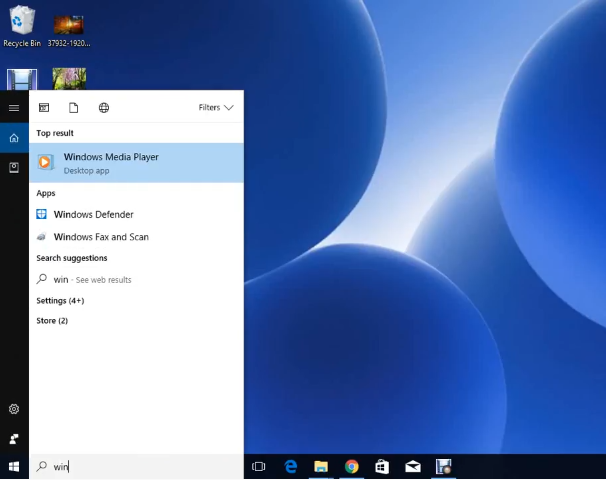
Step 2: Add Your Pictures
The heart of any slideshow is, of course, the images. Before you start adding pictures, think about the story or message you want your slideshow to convey. Are you creating a vacation memory slideshow or a business presentation? Having a clear concept will help you select the most appropriate images.
To add pictures, simply navigate to the folder containing your images and drag them into the Windows Media Player window. You can select multiple images at once by holding the Ctrl key while clicking on each photo. This method of how to make a slideshow on windows 10 is both intuitive and efficient.
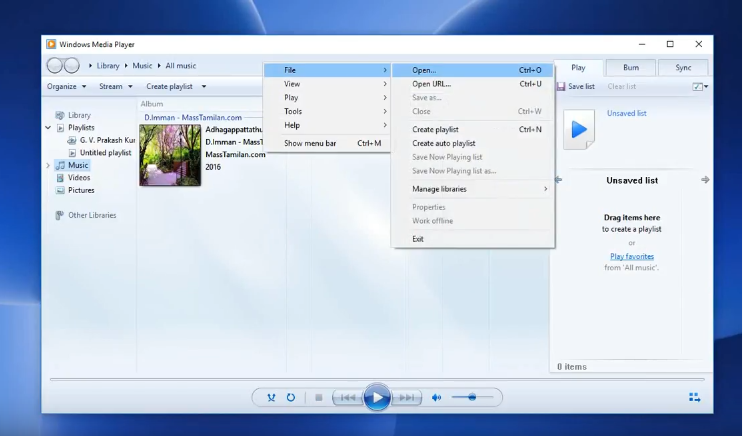
Step 3: Save Your Playlist
Once you’ve added all your desired images, click the “Save” option at the top of the window. You’ll be prompted to give your playlist a name – choose something descriptive that will help you identify it later. After naming your playlist, press the “Return” or “Enter” key to complete the saving process.
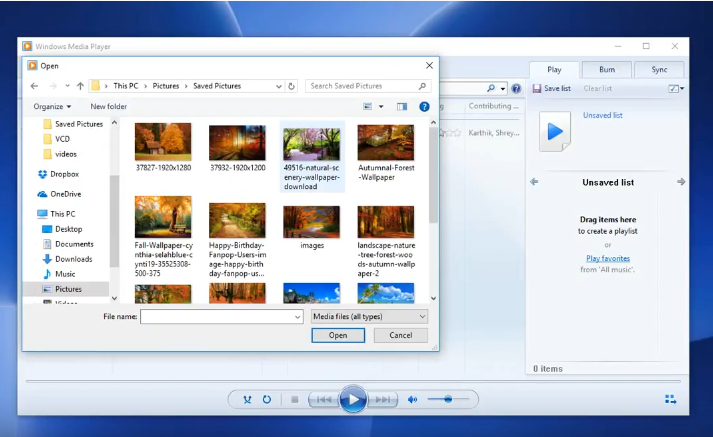
Step 4: Start Your Slideshow
Now for the exciting part – playing your slideshow! Simply double-click on the playlist you just created, and your slideshow windows media player presentation will begin. You have the option to view it in full-screen mode for a more immersive experience or keep it in a smaller window.
If you want to adjust how quickly the images transition, you can modify the windows media player photo slideshow speed. Go to the “Playing” menu, select “Enhancements,” and then choose “Play Speed Settings” to make adjustments. This feature is particularly useful when you’re learning how to make videos on windows media player with specific timing requirements.
Advanced Windows Media Player Features
Beyond basic slideshow creation, Windows Media Player offers several additional features that can enhance your presentation experience. Understanding how to make a windows media player video with these extra capabilities can significantly improve your final product.
One of the most useful features is the ability to add background music to your slideshow. This transforms a simple image presentation into a more engaging multimedia experience. The process for adding music is straightforward and integrates seamlessly with the slideshow function.
Another valuable feature is the shuffle option, which allows you to randomize the order of your images. This is perfect for when you want to create a more dynamic presentation or when the sequence of images isn’t critical to your message.
For those looking to preserve their slideshows, Windows Media Player also includes a burning function that lets you create DVDs of your presentations. This is ideal for sharing your slideshows with others who might not have digital access or for creating physical backups of your important presentations.
Professional Slideshow Alternative: iMyFone Filme
While Windows Media Player provides basic slideshow functionality, sometimes you need more advanced features and creative options. This is where iMyFone Filme shines as the premier alternative for creating stunning slideshows.
Filme – Best Video Editor for Beginners.Explore Your Creativity, Limitless

Check More Details | Download Now! | Check All Deals
iMyFone Filme is a free software solution that provides extensive options for expressing your creativity and sharing precious moments with loved ones. It offers a comprehensive suite of features for editing videos, enhancing pictures, and creating truly remarkable slideshow videos that far surpass what’s possible with basic tools.
Key Features of iMyFone Filme
The software stands out with its impressive array of features designed specifically for creating engaging visual content. When comparing how to create a video with Windows Media Player versus using iMyFone Filme, the difference in capabilities becomes immediately apparent.
One of the most significant advantages is the extensive template library. iMyFone Filme offers numerous free templates that can instantly elevate your slideshow’s appearance. With more than 20 dedicated video templates, you can give your presentation a professional look without any design experience.
The transition and effects library is another standout feature. With over 100 different transitions and filters available, you can create smooth, professional-looking scene changes that keep your audience engaged. This is a substantial upgrade from the basic transitions available in standard slideshow windows media player creations.
Text and decoration options provide another layer of creativity. You can add captions, titles, and various decorative elements to enhance your story and provide context for your images. This feature is particularly valuable for educational presentations or when you want to highlight specific details in your photos.
The audio capabilities complete the package. iMyFone Filme includes access to more than 50 royalty-free soundtracks, allowing you to add the perfect musical accompaniment to your slideshow. This solves the common challenge of finding appropriate music that complements your visual content without copyright concerns.
Creating Slideshows with iMyFone Filme
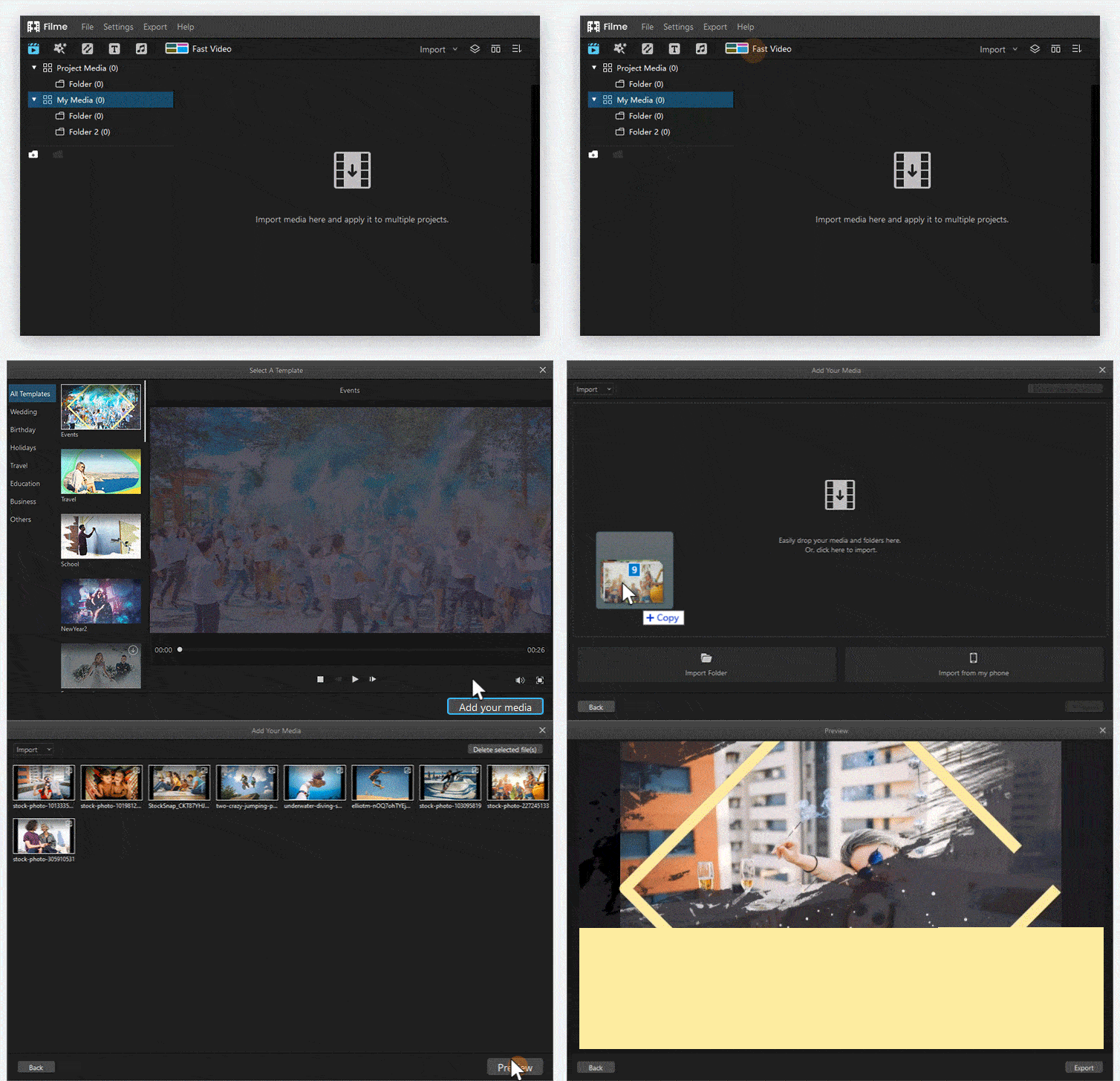
The process of how to make a slideshow on windows 10 with iMyFone Filme is both intuitive and powerful. After downloading and installing the software, you simply import your images and begin crafting your presentation.
Using Pre-designed Templates
For those who want professional results quickly, the pre-designed templates are a game-changer. These templates handle all the technical aspects of slideshow creation, including transition timing, music synchronization, and visual effects. This option is perfect when you’re short on time or prefer not to manually adjust every setting.
Customization Options
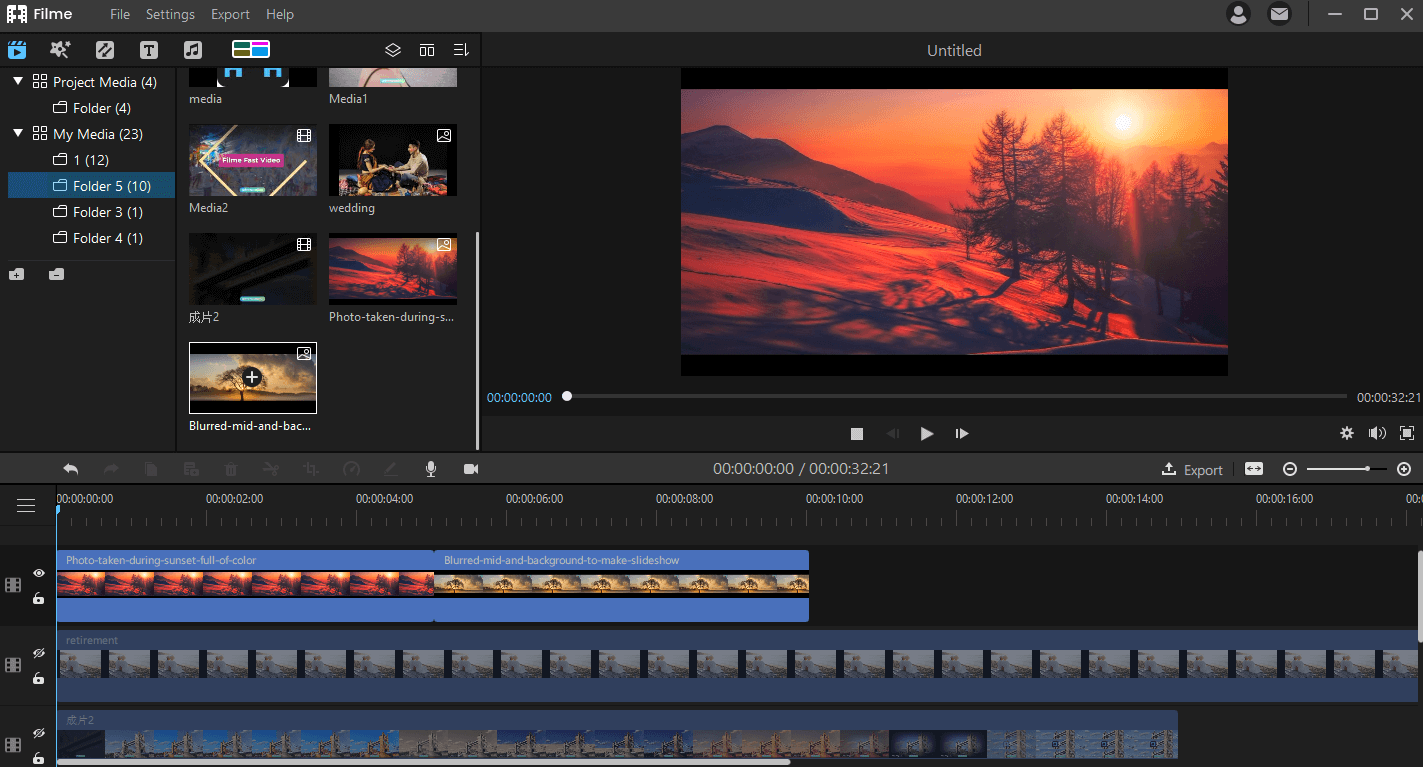
If you prefer hands-on control, iMyFone Filme offers extensive customization capabilities. You can manually adjust every aspect of your slideshow, from the duration each image displays to the specific transition effects between slides. This level of control ensures your final product perfectly matches your creative vision.
Exporting and Sharing
Once your slideshow is complete, iMyFone Filme provides multiple options for exporting and sharing your creation. You can save it in various formats optimized for different platforms or directly share to social media sites. This flexibility makes it easy to distribute your slideshow to your intended audience, whether they’re viewing on computers, mobile devices, or through online platforms.
Expert Tips for Creating Memorable Slideshows
Creating a slideshow that captivates your audience requires more than just technical knowledge of how to make videos on windows media player or other software. These professional tips will help you create presentations that leave a lasting impression.
Optimal Length Management
One of the most common mistakes in slideshow creation is making the presentation too long. While you might be excited to share all your images, audience attention spans are limited. A good rule of thumb is to keep most slideshows between 3-5 minutes, ensuring you include only your best and most relevant images. If you have extensive content to share, consider breaking it into multiple shorter slideshows rather than one lengthy presentation.
Enhancing with Visual Elements
Plain image transitions can become monotonous over time. Incorporating decorative elements like subtle animations, tasteful stickers, or informative text overlays can significantly enhance viewer engagement. These elements should complement rather than distract from your main images. When learning how to make a windows media player video more engaging, remember that sometimes less is more with decorative elements.
The Power of Music
Music profoundly influences the emotional impact of your slideshow. The right soundtrack can transform a simple image collection into a powerful storytelling experience. Choose music that matches the mood you want to create – upbeat tunes for celebratory slideshows, softer melodies for reflective moments, and professional instrumentals for business presentations. Always ensure you have the appropriate rights to use any music you include.
Quality Matters
Image resolution significantly affects the professional appearance of your slideshow. Always use the highest quality images available to you. While HD 720p is acceptable, 1080p or higher resolution images will make your slideshow look substantially more professional. If you’re creating a slideshow windows media player presentation for a large screen or projection, higher resolutions become even more important.
Meticulous Review Process
Never underestimate the importance of reviewing your work before sharing it with others. Watch your complete slideshow multiple times, checking for issues like awkward transitions, misspelled text, poorly timed music cues, or image quality problems. It’s helpful to have someone else review it as well, as fresh eyes often catch things you might have overlooked.
Leveraging Specialized Software
While basic tools like Windows Media Player work for simple projects, dedicated slideshow software typically offers significant advantages for more important presentations. These specialized programs provide better templates, more transition options, superior editing capabilities, and optimized output formats. The time saved and quality improvement often justify using dedicated software, especially for business presentations or special occasions.
Frequently Asked Questions
Many people have similar questions when first learning how to create a video with Windows Media Player or exploring slideshow creation in general. Here are answers to some of the most common queries.
Adding Background Music to Windows Media Player
Background music can dramatically improve your slideshow experience. To add music to your Windows Media Player slideshow, first launch the application. Locate the “Capture video” option in the movie tasks panel, then click “Music” followed by “Browse.” This will open a new window where you can select the audio file you want to use. After choosing your music, click “Import” to add it to your playlist. The music will now play alongside your images during the slideshow.
Creating DVDs with Windows Media Player
Windows Media Player includes functionality for burning your slideshows to DVD, which is perfect for sharing or archival purposes. Start by inserting a blank DVD into your computer’s drive. Open Windows Media Player and click the “Burn” option typically found on the right side of the interface. Select the videos, images, or music you want to include and drag them to the burn list. The program will guide you through the remaining steps to complete the DVD creation process.
Randomizing Your Slideshow Order
Sometimes you might want to display your images in a random order rather than a predetermined sequence. Windows Media Player makes this easy with its shuffle feature. Open your slideshow in Windows Media Player, then access the settings menu. Look for the shuffle option and turn it on. When you now play your slideshow, the images will appear in a random order, creating a different experience each time you view it.
Best Free Slideshow Software with Music
While Windows Media Player provides basic functionality, iMyFone Filme stands out as an exceptional free slideshow maker that includes extensive music options. It offers dozens of customization features for creating personalized slideshows, plus a collection of pre-designed templates for those who prefer a quicker approach. The combination of user-friendly interface, powerful features, and included music library makes it an excellent choice for both beginners and experienced users.
Filme – Best Video Editor for Beginners.Explore Your Creativity, Limitless
Check More Details | Download Now! | Check All Deals
Conclusion
Creating engaging picture slideshows doesn’t require advanced technical skills or expensive software. As we’ve seen, Windows Media Player provides a perfectly adequate solution for basic slideshow needs, allowing you to quickly assemble and share your images with others. The process of how to make a slideshow on windows 10 with this built-in tool is straightforward enough for anyone to master quickly.
For those seeking more creative control and professional results, iMyFone Filme offers an impressive array of features that can elevate your slideshows from simple image displays to compelling visual stories. Whether you choose the simplicity of Windows Media Player or the enhanced capabilities of dedicated software, the most important element is your creativity and the stories you want to share through your images.
Remember that practice improves your slideshow creation skills more than anything else. Don’t be afraid to experiment with different approaches, transition styles, and music choices until you find what works best for your specific needs and audience. The more slideshows you create, the more intuitive the process will become, and the better your final results will be.
We hope this comprehensive guide has provided you with all the information you need to create beautiful, engaging slideshows that effectively share your memories and messages with others. Whether you’re using Windows Media Player for quick projects or exploring more advanced software for special occasions, the ability to create compelling visual presentations is a valuable skill in our increasingly digital world.
Some images courtesy of iMyFone