TOOL HUNTER

Ever found yourself wanting to listen to just the audio from your favorite YouTube videos or movie clips without having to watch the whole thing? Maybe you want to save mobile data or simply enjoy the music while doing other tasks. Converting MP4 video files to MP3 audio format is the perfect solution, and there are several ways to accomplish this.
Many people wonder if they can convert MP4 to MP3 using Windows Media Player, and the answer is yes! While Windows Media Player offers a built-in method for this conversion, there are also faster and more efficient alternatives available. Let’s explore all your options for transforming your video files into audio tracks you can enjoy anywhere.
Table of Contents
- How to Convert MP4 to MP3 with Windows Media Player
- Online Tools to Convert MP4 to MP3 Free on Windows and Mac
- Using Video Editing Software to Convert MP4 to MP3
- How to Convert MP4 to MP3 Using iTunes on Mac
- Additional Guide: Converting M4A to MP3 Using Windows Media Player
- Choosing the Right Conversion Method
- Final Thoughts
How to Convert MP4 to MP3 with Windows Media Player
Windows Media Player has been a staple media application on Windows computers for years. Many users don’t realize that this familiar program can actually help you convert MP4 to MP3 with Windows Media Player functionality. The process involves using the “Save As” feature to transform your video file into an audio format.
Before we dive into the steps, it’s worth noting that if you’re looking to enhance your audio with additional music or sound effects before conversion, you might want to consider using a dedicated video editor like Filme, which offers a rich library of royalty-free music and audio effects.
Here’s how to convert MP4 to MP3 in Windows Media Player:
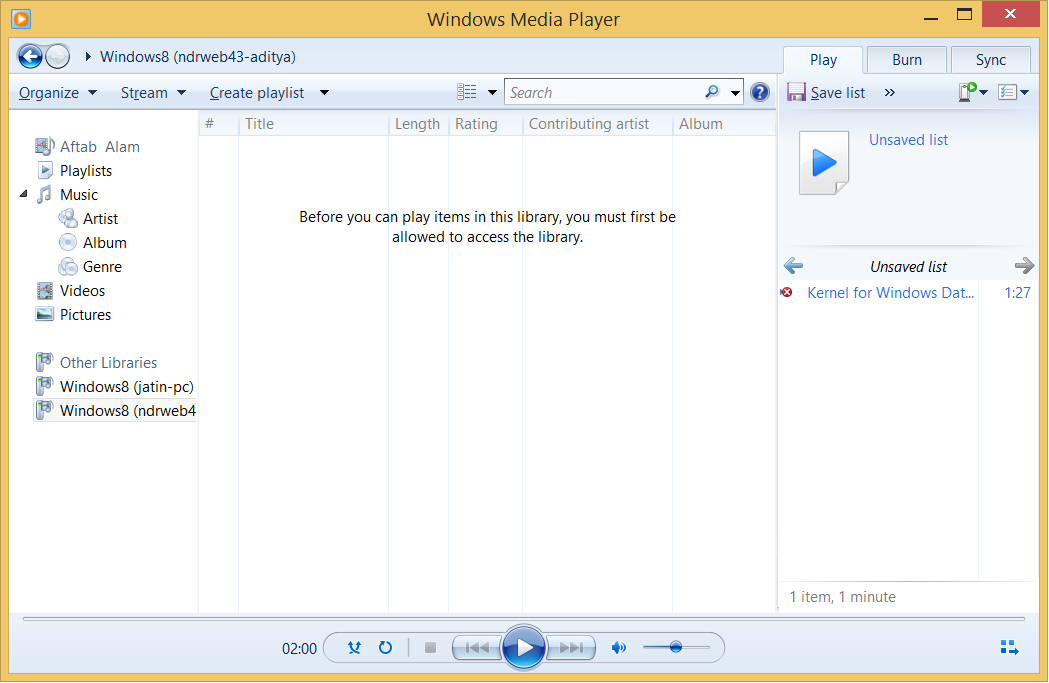
Launch Windows Media Player
Begin by opening Windows Media Player on your computer. When the program first opens, you might notice that the menu bar isn’t immediately visible. This is normal – you’ll need to access it through the Organize option.
Display the Menu Bar
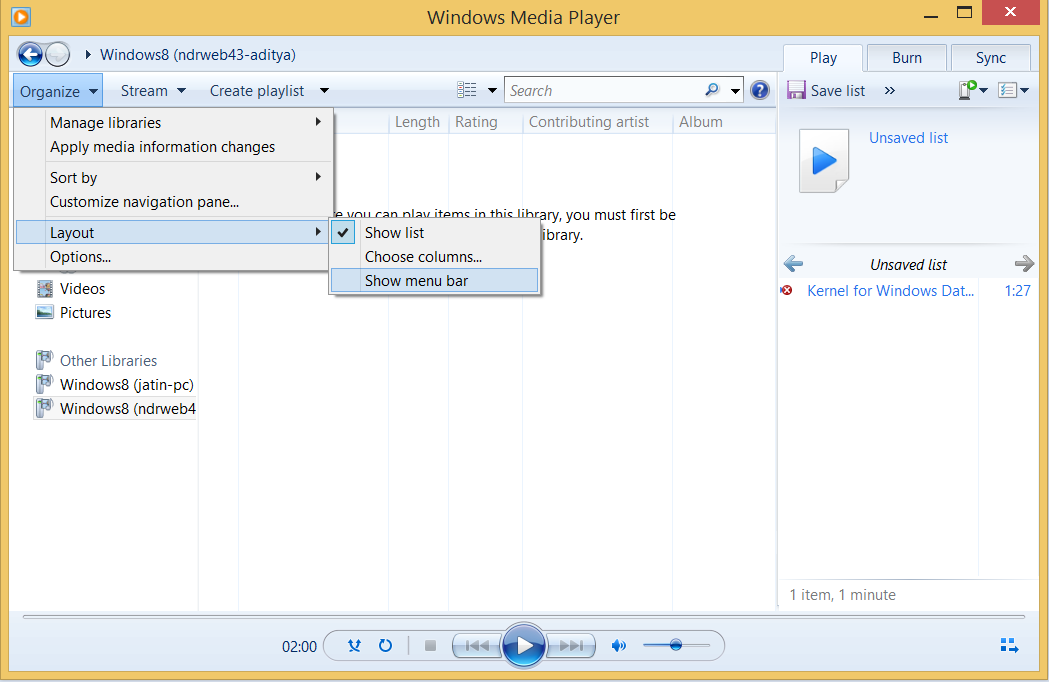
Click on the “Organize” button located in the top-left corner of the window. From the dropdown menu that appears, navigate to “Layout” and then select “Show menu bar.” This will make the traditional file menu visible at the top of your window.
Choose Your MP4 File
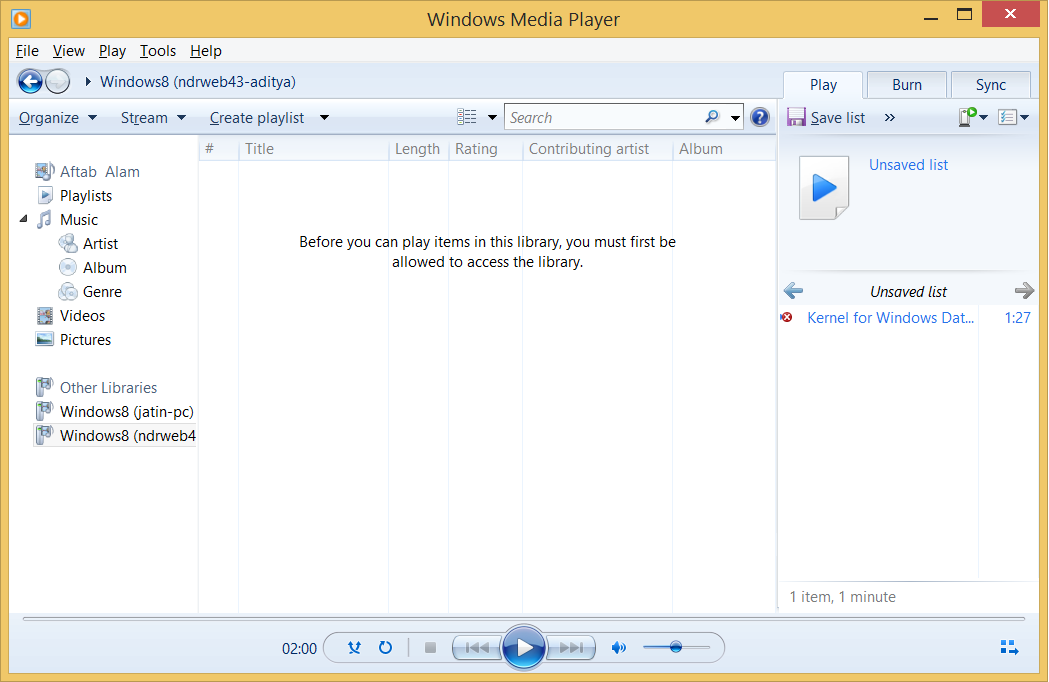
With the menu bar now visible, click on “File” in the top-left corner. Select “Open” from the dropdown menu and browse to locate the MP4 file you want to convert. Once you’ve found it, click “Open” to load it into Windows Media Player.
Save as MP3 Format
Now that your file is loaded, go back to the “File” menu and this time choose “Save As.” This is the crucial step that will allow you to convert MP4 to MP3 on Windows Media Player by changing the file format during the saving process.
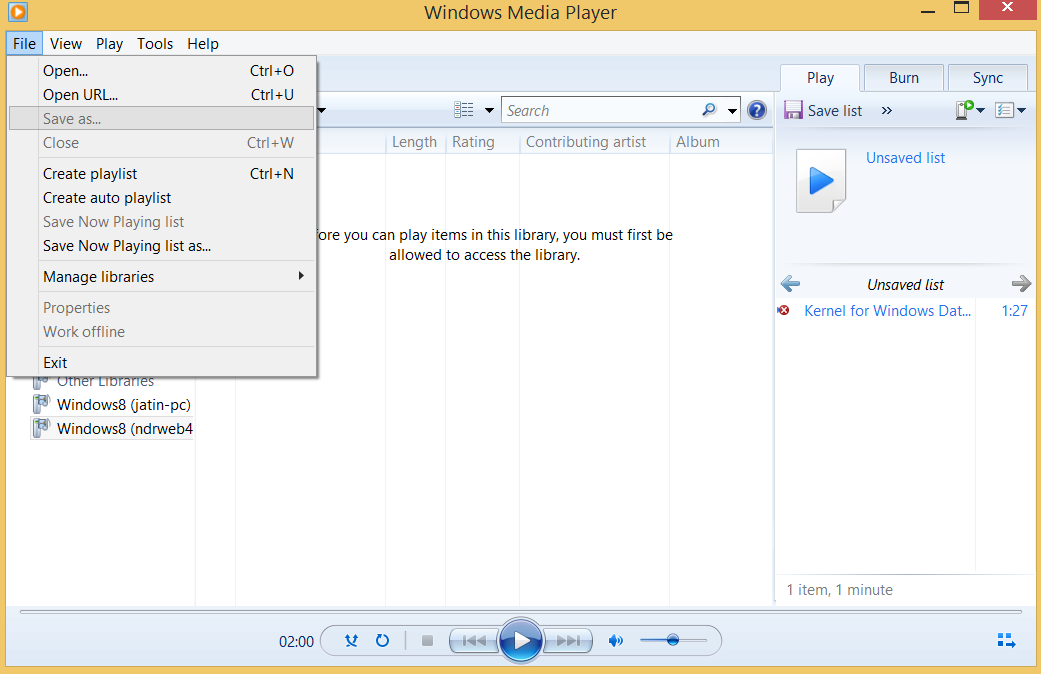
Select Destination and Save
A dialog box will appear asking where you want to save the file. Choose your desired location and importantly, change the “Save as type” to MP3 format. You might need to scroll through the options to find it. Once you’ve selected MP3 and chosen your save location, click “Save” to complete the conversion process.
The process to convert MP4 to MP3 with Windows Media Player is somewhat hidden but definitely possible. However, many users find this method somewhat slow and not always reliable for all types of MP4 files.
Is Windows Media Player Available on Mac?
If you’re a Mac user wondering about using Windows Media Player, the straightforward answer is no. Windows Media Player is exclusively designed for Windows operating systems. Mac users will need to explore alternative methods, which we’ll cover in later sections.
Online Tools to Convert MP4 to MP3 Free on Windows and Mac
For those who need quick conversions without installing software, online converters offer a convenient solution. These web-based tools work on both Windows and Mac computers and typically process files much faster than Windows Media Player.
One excellent option is the Filme online audio converter, which provides a secure and efficient way to convert MP4 to MP3 online. The process is straightforward: upload your MP4 files, click convert, and download your MP3 files immediately. Best of all, this service is completely free and supports unlimited file conversions.
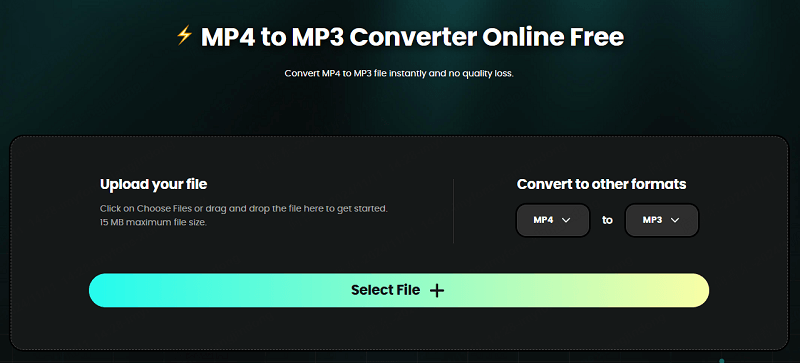
Online converters are particularly useful when you need to convert just a few files quickly or when you’re using a computer where you can’t install software. They eliminate the need to figure out how to convert MP4 to MP3 in Windows Media Player with its somewhat complicated process.
Using Video Editing Software to Convert MP4 to MP3
While the methods above can help you convert MP4 to MP3, they often come with limitations like slow processing speeds and technical complications. For a smoother, more reliable experience, dedicated video editing software like iMyFone Filme provides an excellent alternative for converting your files.
Filme offers a surprisingly straightforward solution to convert MP4 to MP3 without the technical hassles associated with some other methods. Its user-friendly interface makes the process accessible even for those with no video editing experience.
Filme – Best Video Editor for Beginners.Explore Your Creativity, Limitless

Check More Details | Download Now! | Check All Deals
Key Advantages of iMyFone Filme:
- Extremely user-friendly interface requiring no technical knowledge
- Access to multiple resources and effects without additional fees
- Free trial version to test compatibility with your needs
- Fast and efficient MP4 to MP3 conversion capabilities
- Additional video editing features beyond simple conversion

Convert MP4 to MP3 with Filme in Three Simple Steps:
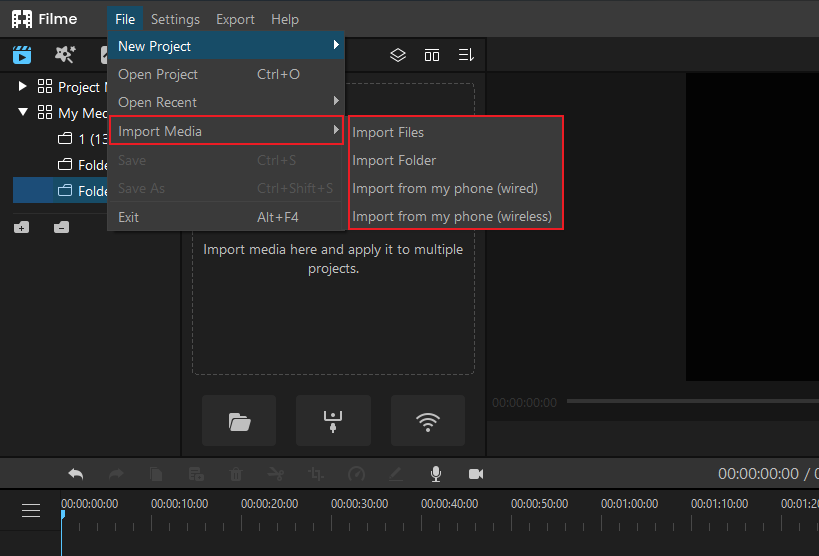
Import Your Source Media
Launch iMyFone Filme and import the MP4 file you want to convert. You can do this by selecting “Import Media” from the File menu, which gives you several options for bringing your file into the program.
Add Media to the Timeline
Once your file appears in the “My Media” section, simply drag and drop it onto the timeline at the bottom of the interface. Alternatively, you can click the “+” button to manually add the file to your project timeline.
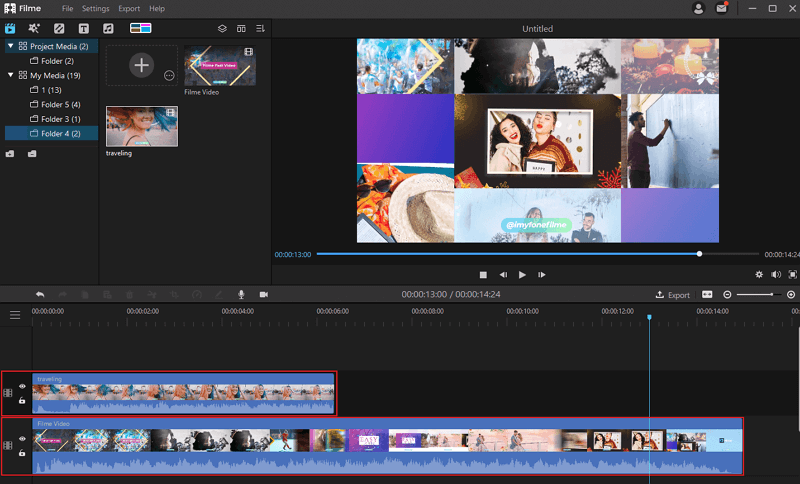
Export as MP3 Format
This is where you actually convert MP4 to MP3. Click the “Export” button and in the window that appears, you’ll have the option to save your project as various audio formats including MP3, WAV, AAC, FLAC, and OGG. Select MP3 as your output format, choose where you want to save the file, add a name if desired, and click “Export” to complete the conversion.
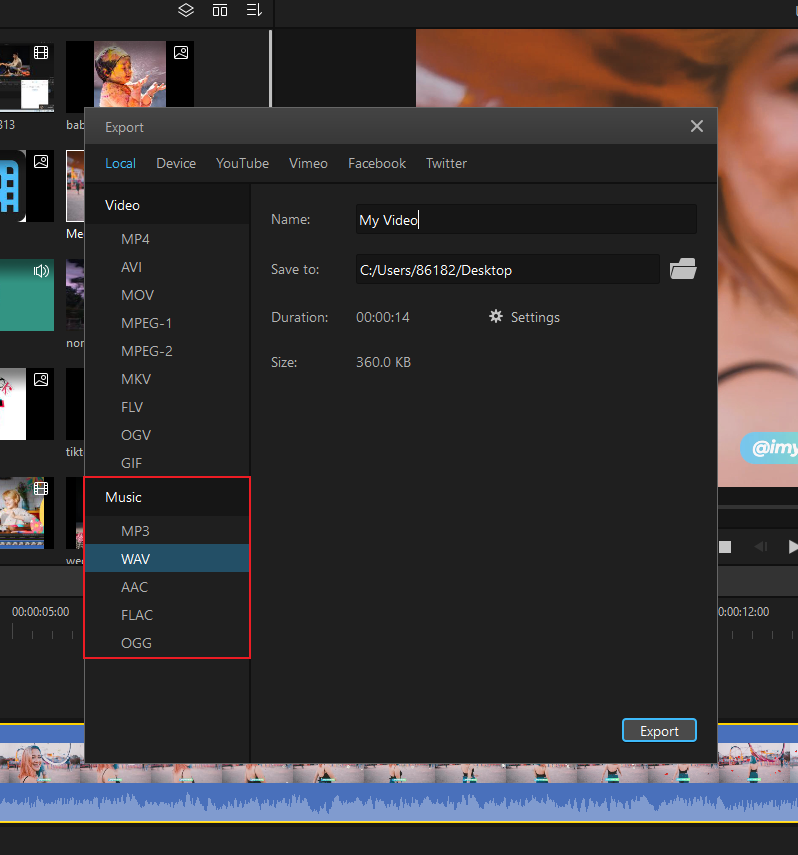
The process to convert MP4 to MP3 with Filme is not only faster than using Windows Media Player but also more reliable and comes with the bonus of having a full-featured video editor at your disposal for future projects.
How to Convert MP4 to MP3 Using iTunes on Mac
For Mac users, iTunes provides a built-in solution for converting media files. While primarily known as a media management tool, iTunes has conversion capabilities that allow you to convert MP4 to MP3 with just a few clicks.
The process preserves your original MP4 file while creating a new MP3 version, giving you the flexibility to keep both or delete the original after conversion if you prefer.
Configure iTunes Import Settings
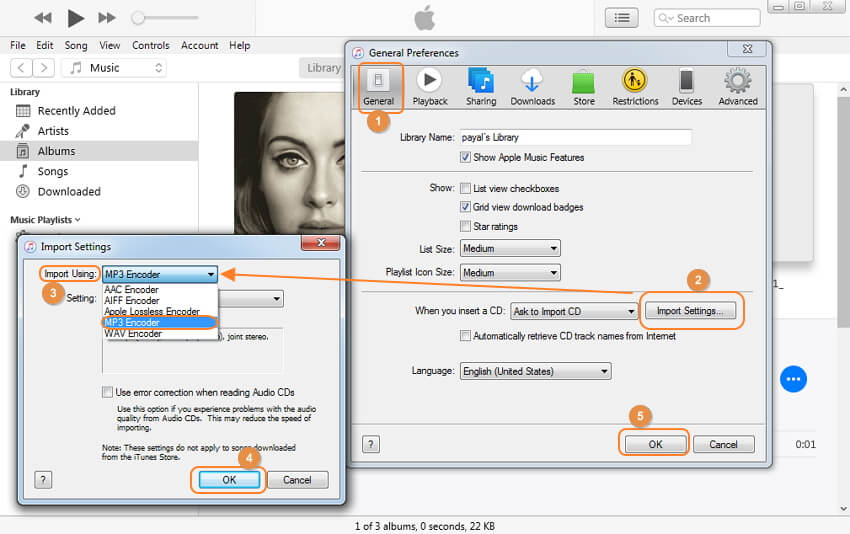
Open iTunes and go to Edit > Preferences in the main menu. Select the General tab and click on “Import Settings.” In the Import Using section, choose “MP3 Encoder” from the dropdown options. Click OK to confirm these settings, which tells iTunes what format to use when converting files.
Add File to Your Library
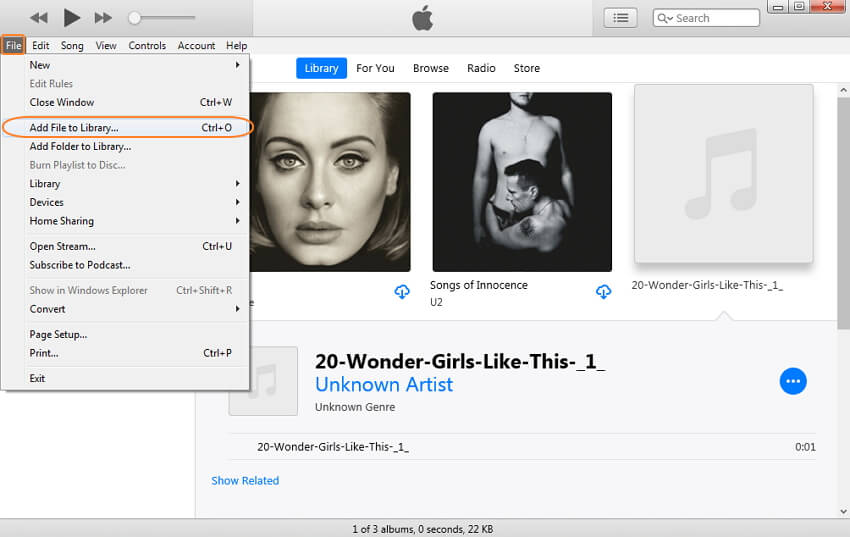
Locate the MP4 video you want to convert in your iTunes library. If the file isn’t already in iTunes, you can add it by going to File > Add File to Library and browsing to its location on your computer.
Create MP3 Version
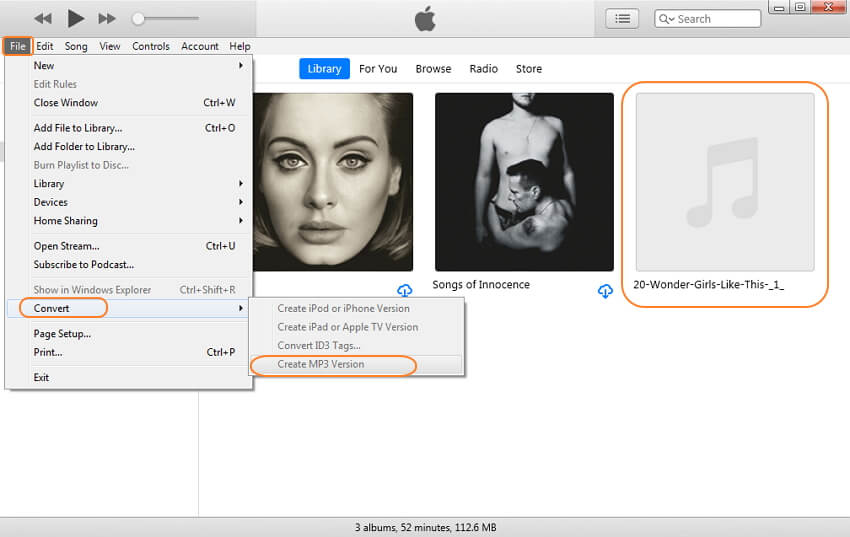
With the file selected, go to File > Convert > Create MP3 Version. iTunes will then process the file and create an MP3 copy in your library. The new file will appear alongside the original, typically with the same name but in MP3 format.
While iTunes works well for simple conversions, users dealing with multiple files or wanting higher quality results might still prefer dedicated software like Filme, which offers batch processing capabilities and more control over the output quality.
Filme – Best Video Editor for Beginners.Explore Your Creativity, Limitless
Check More Details | Download Now! | Check All Deals
Additional Guide: Converting M4A to MP3 Using Windows Media Player
While we’ve focused on MP4 to MP3 conversion, you might also encounter M4A files that you want to convert to the more universally compatible MP3 format. M4A isn’t as widely supported across media players, so conversion is often necessary.
Windows Media Player can handle this conversion as well, providing a solution when it’s the only tool available to you.
Import M4A File into Windows Media Player
Open your M4A files in Windows Media Player by either using the Open option from the File menu or simply dragging and dropping the files directly into the player interface. The files will be added to your library automatically.
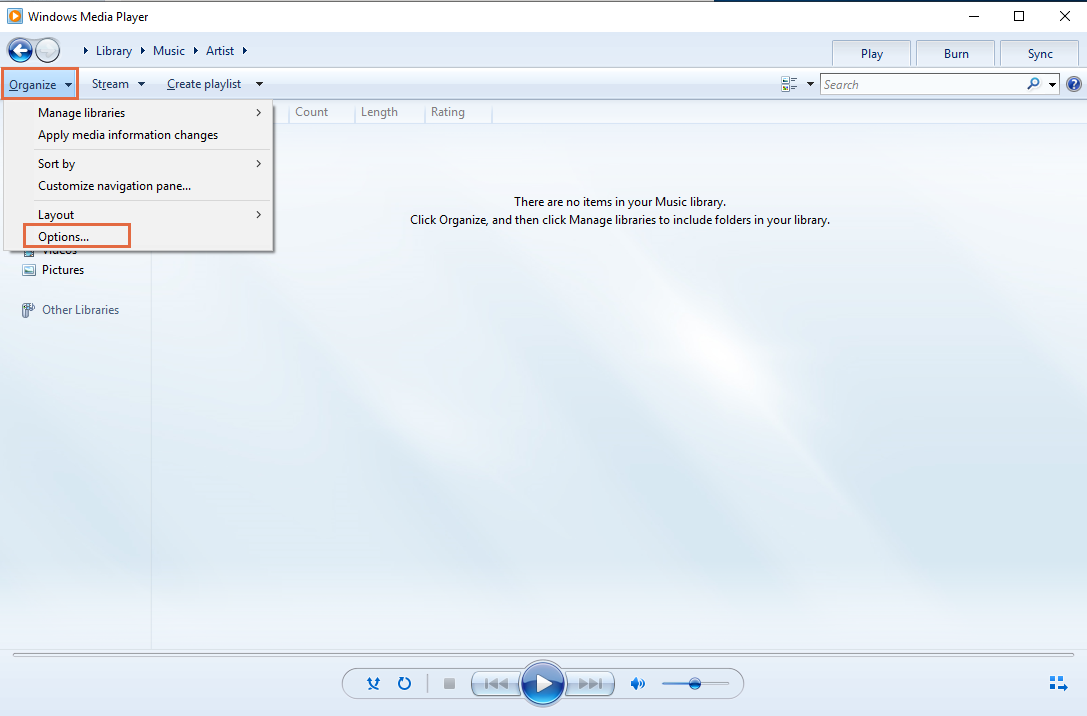
Access the Organize Menu
Click the “Organize” button in the upper left corner of the window, then select “Options” followed by “Rip Music” from the dropdown menus. This will open the settings related to audio extraction and conversion.
Set the Destination Folder
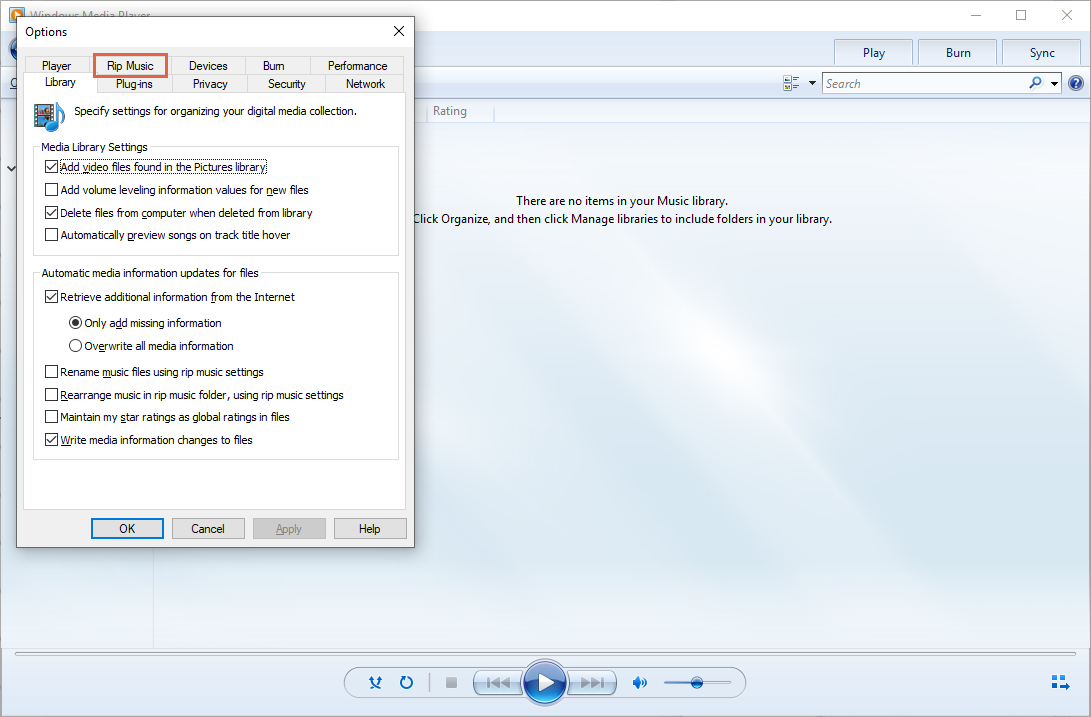
In the Rip Music settings window, click on the “Change” button to select where you want the converted files to be saved. Choose an appropriate location on your computer that’s easy to remember and access later.
Choose MP3 as Output Format
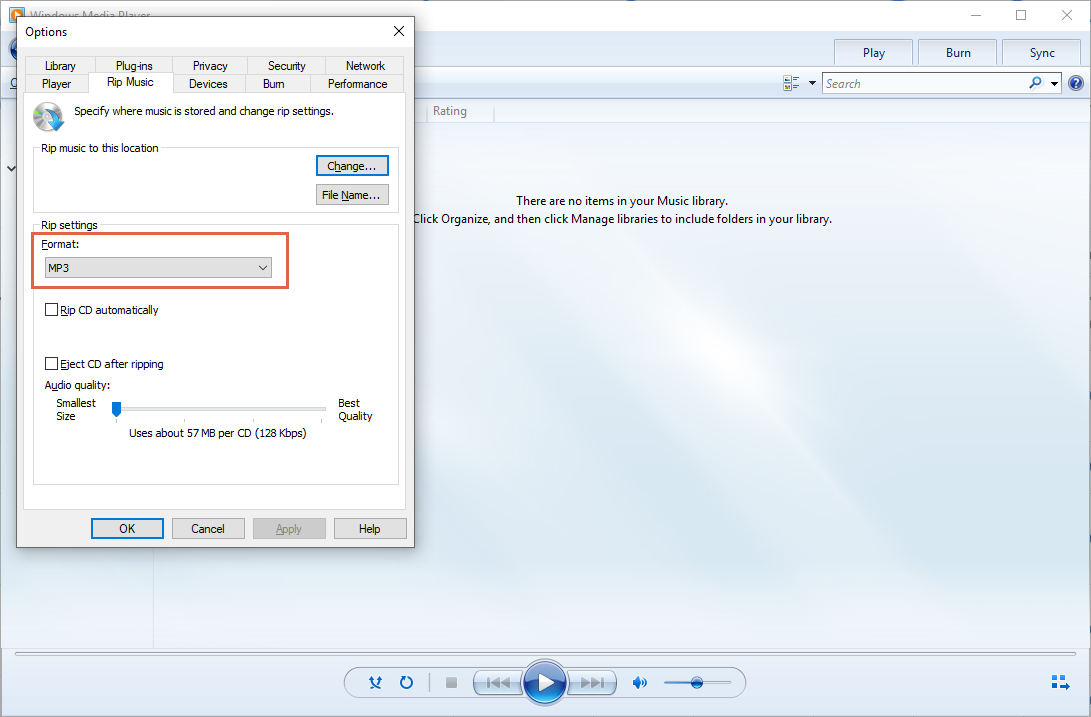
Locate the “Format” dropdown menu in the Rip Music settings and select “MP3” as your preferred format. You can also adjust the audio quality using the bitrate settings if desired, though the default settings typically work well for most users.
Choosing the Right Conversion Method
Now that you know several ways to convert MP4 to MP3, how do you choose the right method for your needs? Each approach has its advantages depending on your specific situation.
If you only need to convert a file occasionally and prefer using built-in Windows tools, learning how to convert MP4 to MP3 Windows Media Player style might be sufficient. The method is free and doesn’t require installing additional software, though it can be somewhat slow and limited in its capabilities.
For quick, one-off conversions without software installation, online converters offer the most convenience. They work on any system with a web browser and typically process files faster than Windows Media Player.
If you regularly need to convert files or want more control over the process, dedicated software like Filme provides the best experience. The ability to convert multiple files at once, adjust quality settings, and access additional editing features makes it worth considering for frequent users.
Mac users will find iTunes adequate for occasional conversions, though those working with multiple files might prefer more specialized tools.
Final Thoughts
Converting MP4 files to MP3 format opens up new possibilities for enjoying your media content. Whether you want to create audio playlists from video content, save storage space, or simply listen without watching, having the right conversion method makes all the difference.
While Windows Media Player offers a built-in way to convert MP4 to MP3, the process isn’t always intuitive or efficient. Online converters provide a quick alternative, and dedicated software like iMyFone Filme delivers the best overall experience with additional editing capabilities.
No matter which method you choose, you now have the knowledge to transform your video files into audio formats that you can enjoy anywhere, on any device. The next time you find yourself wanting just the audio from a video file, you’ll have multiple options to make it happen quickly and easily.
Some images courtesy of iMyFone