TOOL HUNTER

Summary: This comprehensive guide explains exactly how to change alarm sound on iPhone, covering everything from using built-in tones to setting your favorite song as a custom alarm. We’ll also show you how to adjust the alarm volume and create personalized vibration patterns for a more pleasant wake-up experience.
Waking up to the same jarring sound every morning can set a grumpy tone for your entire day. If you’re wondering how to change alarm sound on iPhone to something more pleasant, you’re in the right place. Whether you have the latest iPhone 15 or an older model, the process is straightforward and opens up a world of customization. Let’s dive into the steps to transform your morning routine.
What Alarm Sound Should You Choose for Your iPhone?
Feeling groggy and hitting snooze repeatedly might not just be about sleep quality. Sometimes, the culprit is the alarm sound itself. The default tones, while effective at grabbing attention, can be stressful. Switching to a gentler, more melodic alarm tone can make waking up a less daunting task. Think about sounds that gradually increase in volume or music that you genuinely enjoy. This simple change can provide a morning boost and help you start your day with more energy rather than irritation.
How to Change Alarm Sound on iPhone Using the Clock App
The easiest way to change alarm ringtone iPhone is through the pre-installed Clock application. This method works on all iPhone models, including the iPhone 15.
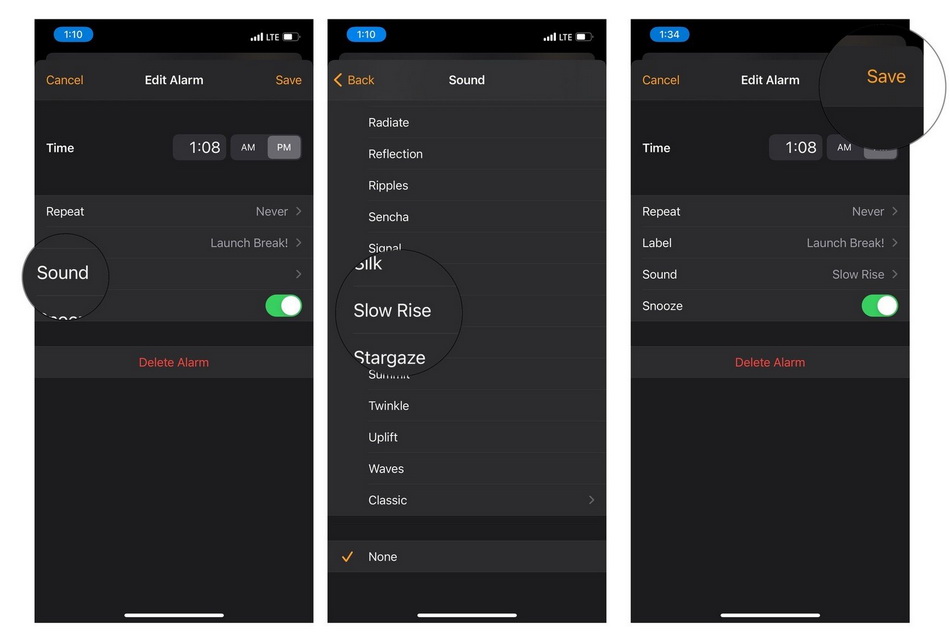
Here’s a step-by-step walkthrough:
- Locate and open the Clock app on your iPhone’s home screen.
- Tap on the Alarm tab at the bottom of the screen.
- To edit an existing alarm, tap Edit in the top-left corner and then select the alarm. To create a new one, tap the + icon in the top-right corner.
- Set your desired wake-up time using the scroll wheels.
- Now, tap on the Sound option. You’ll see a list of default ringtones and alert tones provided by Apple.
- Scroll through the list and tap on any sound to preview it. When you find one you like, selecting it will set it for that alarm.
- Finally, tap Save in the top-right corner to confirm your new alarm sound.
This is the basic method that answers the common query how do i change sound for alarm on iphone. But what if you want to use your own music?
How to Set a Custom Song as Your iPhone Alarm Sound
For a truly personalized wake-up, you can set any song from your Apple Music or iTunes library as your alarm. This is a fantastic way to change alarm sound on iPhone 15 or any other model to something you love.
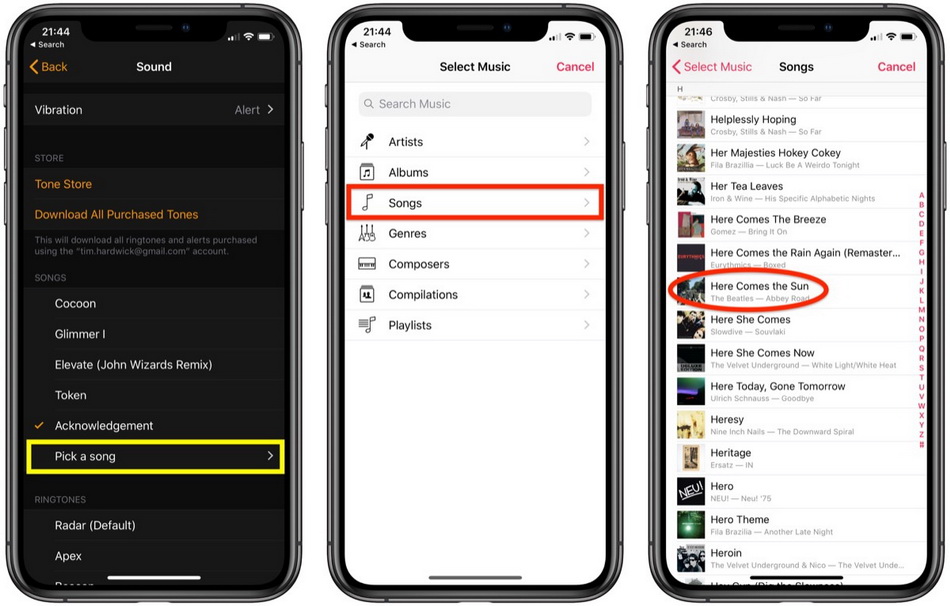
Follow these steps to change alarm ringtone iPhone to a custom track:
- Open the Clock app and go to the Alarm tab.
- Tap the + to create a new alarm or Edit an existing one.
- After setting the time, tap on Sound.
- Scroll all the way to the top of the sounds list. Under the SONGS section, you will find an option called Pick a Song.
- Tapping this will open your music library. You can browse by Playlists, Artists, Albums, or Songs.
- Select the song you want to wake up to. Remember, only the first 30 seconds of the song will play for the alarm.
A key point here is that the song must be available in your local iPhone library, purchased from the iTunes Store, or available through an active Apple Music subscription. If your favorite tune isn’t from these sources, don’t worry—there are still ways to get it onto your alarm.
Creating a Custom Alarm Tone from Any Audio Source
If the song you want isn’t on Apple Music or iTunes, you can create a custom audio file and transfer it to your iPhone. This process involves recording or downloading the audio you want, trimming it to 30 seconds (the iPhone alarm limit), and moving it to your device’s music library. While this requires a few more steps, it grants you complete freedom over your alarm tone change iPhone project.
Specialized audio recording software can capture sound from virtually any source on your computer, such as streaming websites or audio playback software. Once recorded, the audio file can be saved in a compatible format like MP3.
Try Leawo Music Recorder right now! Record music and audio from any source including YouTube, Spotify, radios, and podcasts with 100% original quality retained.
Get the Windows version | Get the Mac version | Use the time-limited promotional campaign
The next step is getting that file onto your iPhone. You can use file management applications designed for iOS devices. These tools often allow you to directly transfer music files from your computer to your iPhone’s local storage, bypassing the need for iTunes syncing in some cases.
Try Leawo iTransfer right now! 100% Safe and Reliable on Transferring Photos/Music/Contacts/SMS… between iOS Devices, iTunes, and Computer.
Get the Windows version | Get the Mac version | Use the time-limited promotional campaign

After the custom audio file is successfully on your iPhone, you can go back to the Clock app, tap Sound > Pick a Song, and your newly transferred tune should appear in your song list, ready to be selected as your new alarm.
How to Change iPhone Alarm Volume
Picking the perfect sound is only half the battle. If it’s too quiet, you’ll sleep through it; if it’s too loud, you’ll jump out of your skin. Here’s how to change alarm sound on iPhone volume to the perfect level.

The volume for your alarms is actually tied to your general ringer and alert volume. To adjust it:
- Open the Settings app on your iPhone.
- Scroll down and tap on Sounds & Haptics.
- Under the Ringer and Alerts section, you’ll see a volume slider.
- Drag the slider left or right to decrease or increase the volume. As you drag, your iPhone will play a sample sound so you can hear the level change.
- For quick control, ensure the Change with Buttons option is turned on. This allows you to use the physical volume buttons on the side of your iPhone to adjust the ringer and alarm volume when you are not playing media.
This setting controls the volume for all your alarms, so find a level that works for you in your typical environment. It’s a crucial part of learning how do i change sound for alarm on iphone effectively.
How to Change iPhone Alarm Vibration
For times when you need a silent wake-up—like in a shared room or a library—or if you just prefer a physical nudge, setting your alarm to vibrate is a great option. You can even customize the vibration pattern.
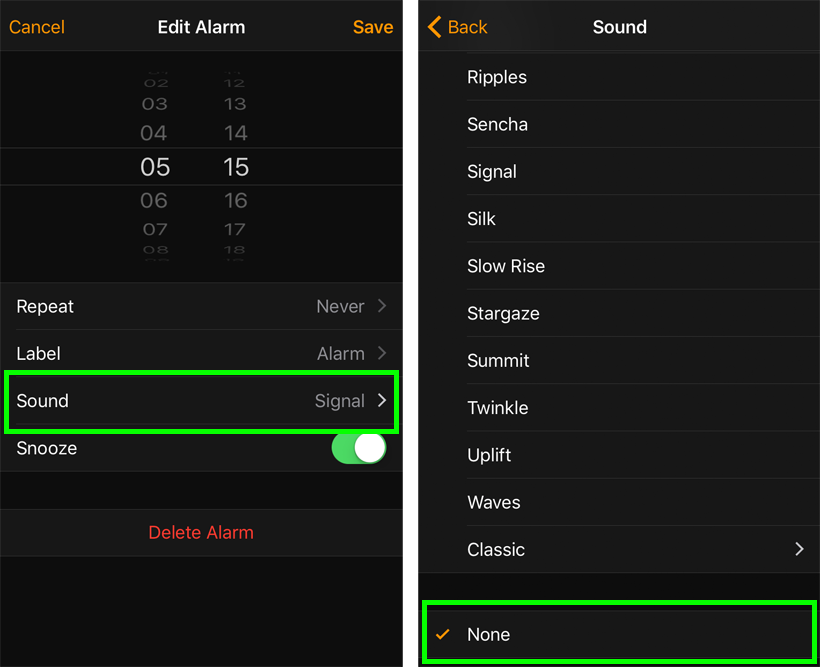
To change alarm sound on iPhone 15 or other models to a vibration-only alert:
- In the Clock app, edit or create an alarm as before.
- Tap on Sound.
- Scroll to the very top of the list and select None. This turns off the audible sound for that specific alarm.
- Go back to the alarm settings screen and now tap on Vibration.
- You’ll see a list of preset patterns like
Heartbeat,Symphony, orRapid. Tap each to feel a preview. - To create your own unique pattern, scroll to the bottom and tap Create New Vibration.
- On the next screen, you can tap and hold on the black area to create a custom pulse pattern. Tap Stop when finished.
- You can Play it back to test, Record a new one, or Save it. Give your custom vibration a name and save it. It will now appear in your vibration list for selection.
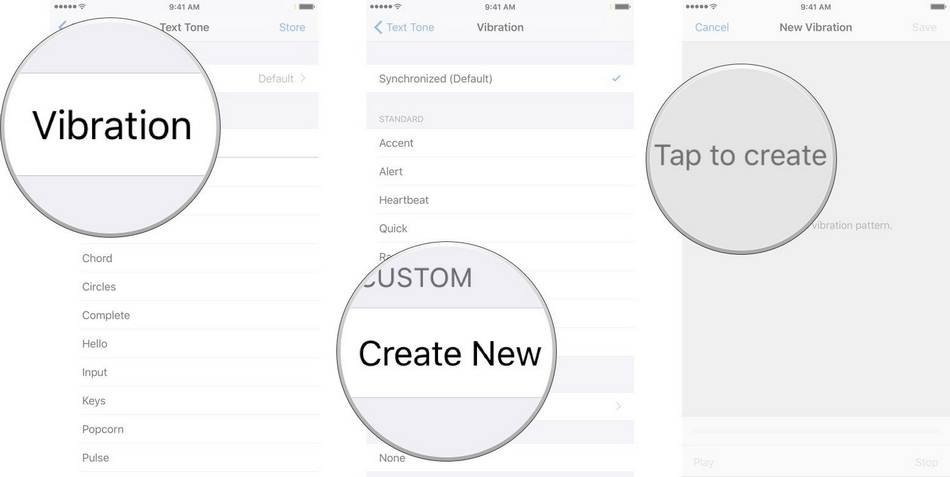
Combining a gentle custom vibration with a low-volume sound can be the perfect recipe for a calm yet effective wake-up call, completing your knowledge on how to fully manage your alarm tone change iPhone settings.
Final Thoughts on Personalizing Your Wake-Up
Figuring out how to change alarm ringtone iPhone is more than a technical task—it’s about improving your daily well-being. By moving away from the default, often abrasive sounds and towards music or tones you find calming or energizing, you take control of the first few moments of your day. Whether you choose a built-in tone, a favorite song, or a custom vibration, these small changes can have a significant impact on your morning mood and overall routine. So, open your Clock app and start crafting a wake-up experience that you’ll actually look forward to.
Some images are sourced from the internet.