TOOL HUNTER

Summary: Are you looking for ways to bypass YouTube age restriction? This guide compiles seven effective solutions, from simple browser tricks to using third-party tools, that can help you access age-restricted content without always needing to sign into a Google account. We’ll also explain what triggers these blocks and how content creators can apply them.
Navigating YouTube’s vast library can sometimes hit a frustrating roadblock: the age restriction screen. You find a video that seems perfect for your research, a tutorial, or just curiosity, only to be greeted by a message asking you to sign in to verify your age. Not everyone has a Google account handy, and sometimes you just want quick, anonymous access. This is where knowing how to bypass YouTube age restriction becomes incredibly useful. Whether you’re on a Chromebook, a shared computer, or simply prefer not to log in, there are several methods you can try. This article will walk you through various techniques, including using specific websites, tweaking settings, and even downloading videos, to bypass YouTube age filter and watch the content you need.
Table of Contents
- Understanding YouTube’s Age Restriction System
- How to Check if Your Video is Age-Restricted
- Method 1: Disable Restricted Mode on Your Browser
- Method 2: The Simple URL Embed Trick
- Method 3: Adjust Your Google Account Birthday
- Method 4: Utilize a Third-Party YouTube Viewer Website
- Method 5: Stream Through VLC Media Player
- Method 6: Access via a Proxy or VPN Website
- Method 7: Download the Video for Offline Viewing
- For Creators: How to Age-Restrict Your Own Videos
Understanding YouTube’s Age Restriction System
Before we dive into the solutions, it’s helpful to understand what you’re dealing with. YouTube’s age restriction is a content filter designed to shield younger audiences from material deemed inappropriate for viewers under 18. It’s important to note that this is different from YouTube’s “Restricted Mode,” which is a broader, optional filter often used in schools and libraries.
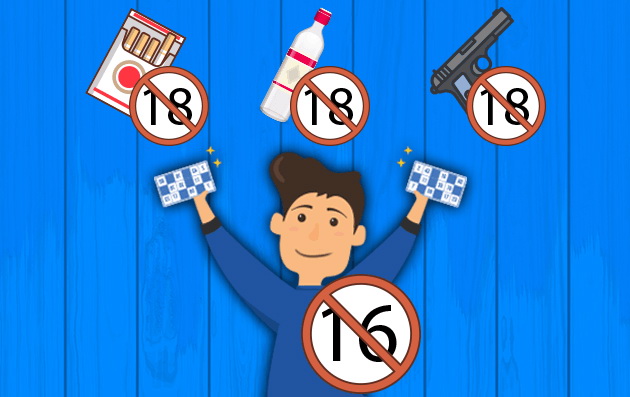
YouTube’s automated systems, and sometimes human reviewers, flag videos that fall into certain categories. These include content featuring harmful or dangerous activities (like improper use of tools or substances), sexually suggestive material, graphic violence, excessive profanity, or other mature themes. When a video is age-restricted, it won’t appear for users who aren’t signed in or who are signed into an account registered to someone under 18. Even if the video is embedded on another website, clicking play will redirect you to YouTube to sign in. This system aims to create a safer environment but can often block access to educational or historical content that happens to include mature elements.
How to Check if Your Video is Age-Restricted
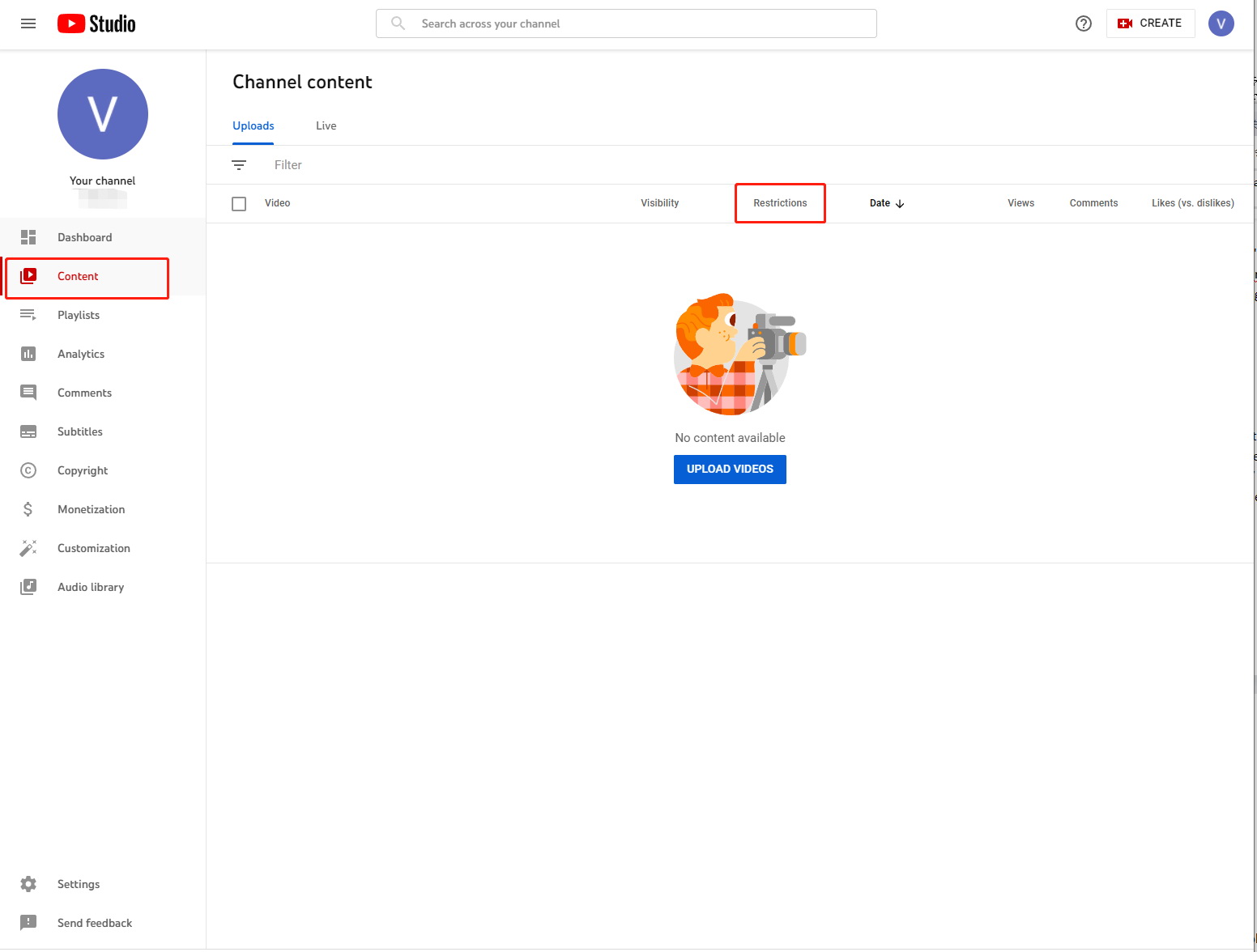
If you’re a content creator, you might wonder if your own uploads have been flagged. YouTube Studio provides tools to check this. In your “Videos” dashboard, look for a “Restrictions” column. You can also use the “Age restriction” filter to quickly sort your content. The platform’s algorithms are constantly updated, so a video’s status can change if the system reassesses it against its current policies.
Method 1: Disable Restricted Mode on Your Browser
Sometimes, the barrier isn’t a formal age restriction but the broader “Restricted Mode.” This is a good first step to try when you encounter a block. It’s a simple setting within YouTube itself.
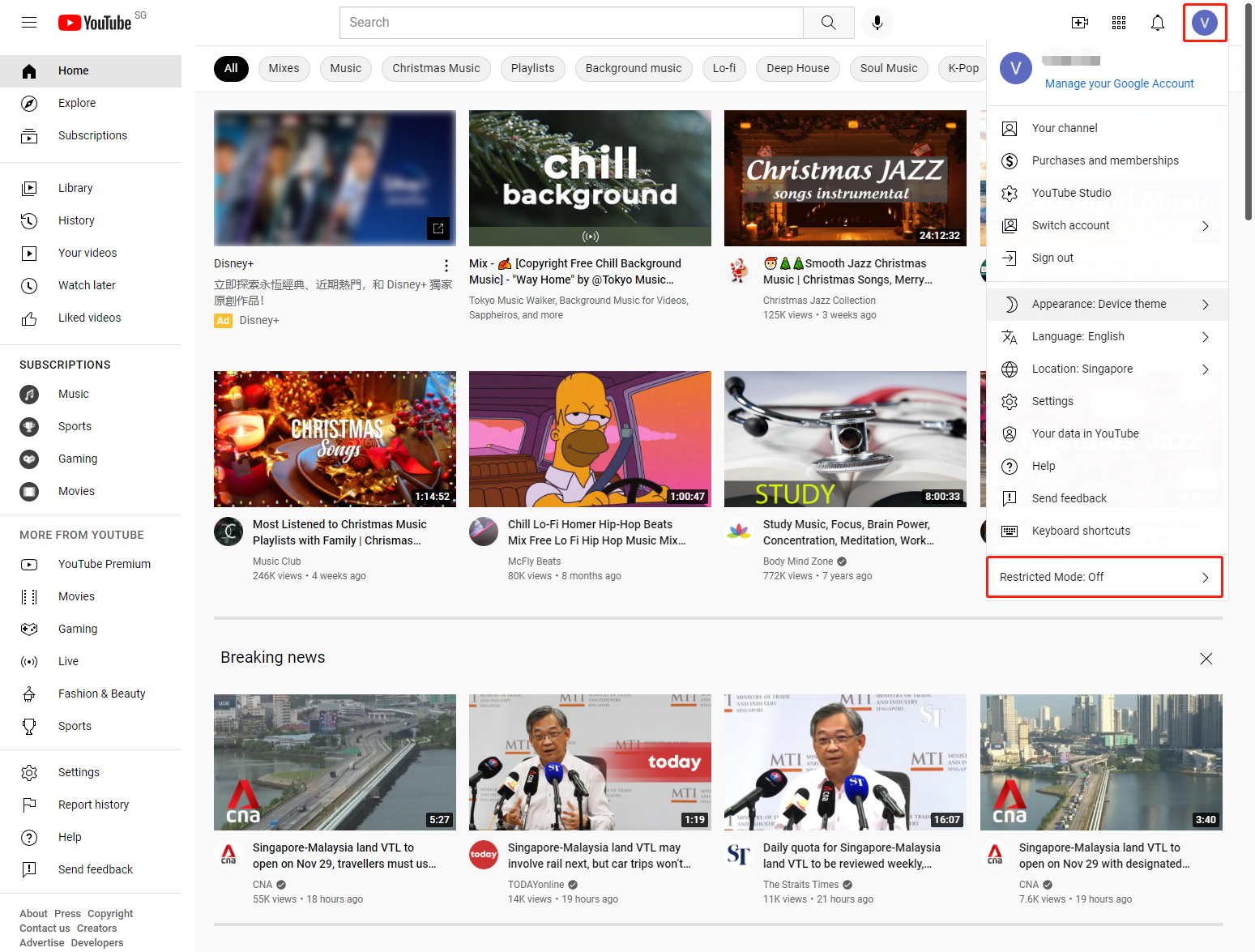
Here’s how to do it: Scroll to the very bottom of any YouTube page. If you’re signed in, you’ll see a “Restricted Mode” option. Click it and set it to “Off.” If you’re not signed in, the option might still be there, but it could be tied to your browser or network settings. Remember, if you’re on a school, work, or public network, the administrators may have this mode locked on, preventing you from turning it off.
Method 2: The Simple URL Embed Trick
This is a classic and clever workaround that exploits how YouTube serves videos to other websites. It doesn’t always work, especially on newer or heavily restricted videos, but it’s worth a shot due to its simplicity. The goal is to view the video through YouTube’s embed player, which sometimes bypasses the age gate.
- Copy the URL of the age-restricted video from your browser’s address bar.
- Look for the part that says
watch?v=in the URL. - Replace
watch?v=withembed/. - Press Enter to load the new URL.
For example, youtube.com/watch?v=dQw4w9WgXcQ becomes youtube.com/embed/dQw4w9WgXcQ. This loads a stripped-down page containing only the video player, which might just let you watch without signing in.
Method 3: Adjust Your Google Account Birthday
If you have a Google account but it’s set with an underage birthday, this is the most official way to resolve the issue. Google uses the birth date in your profile to enforce age-based restrictions across its services. To bypass YouTube age restriction permanently for your account, you need to ensure your profile states you are over 18.
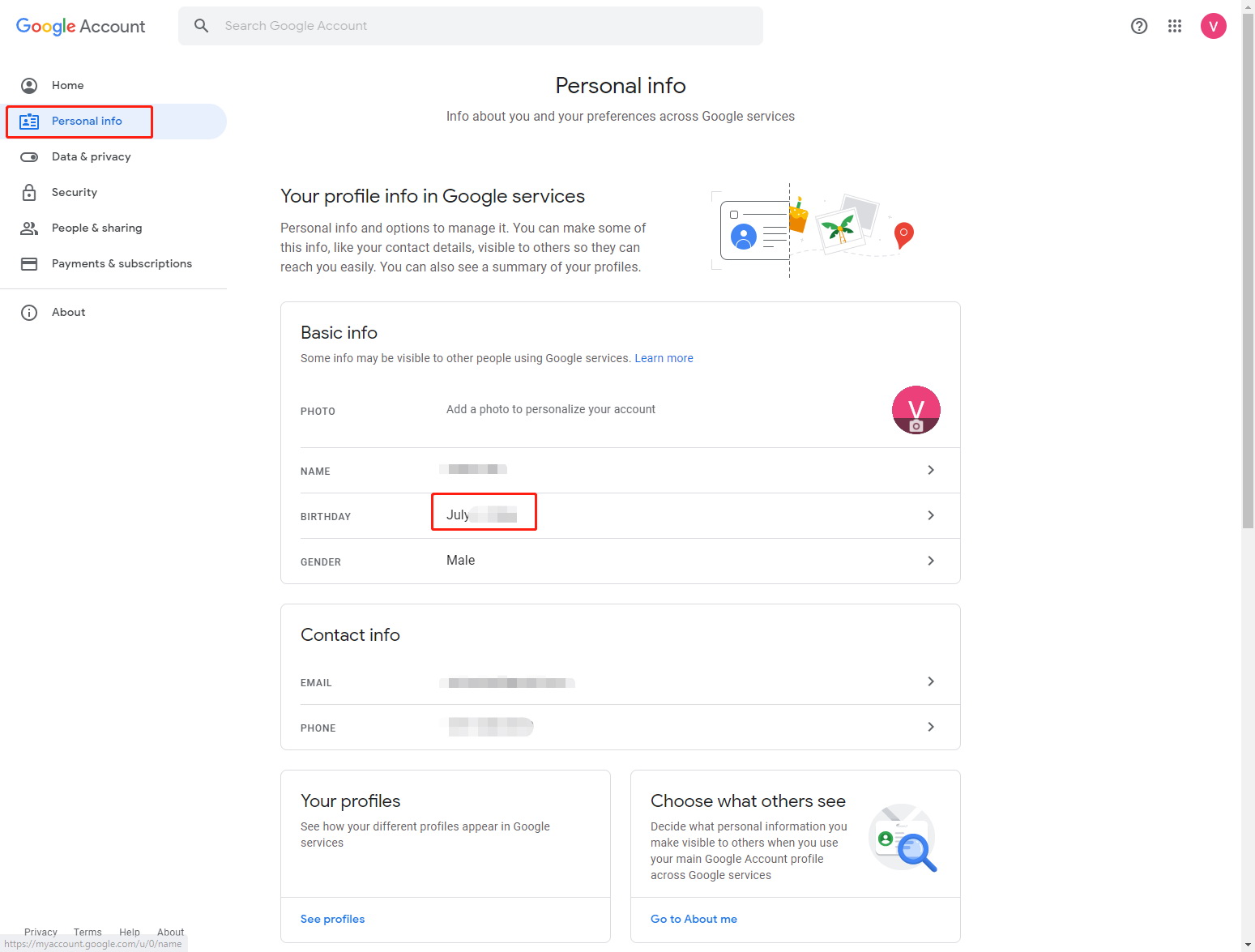
Go to your Google Account management page, navigate to “Personal info,” and find the “Birthday” section. Edit the date to reflect an age over 18 and save the changes. You may need to wait a short while for the change to propagate across YouTube. Keep in mind that Google may have policies against providing false information, so this method is best for correcting an accidentally wrong date.
Method 4: Utilize a Third-Party YouTube Viewer Website
One of the most popular searches is for a youtube bypass website. These sites act as intermediaries, fetching the video from YouTube and streaming it to you through their own player. They can be a quick fix, but their reliability varies as YouTube frequently updates its systems to block such access.
The common trick involves modifying the video URL. Instead of going to youtube.com, you change the domain to something like youtubensfw.com or repeatyoutube.com. Simply take the video ID (the string of letters and numbers after v=) and paste it onto one of these alternative domains. For instance, for video ID dQw4w9WgXcQ, you would try youtubensfw.com/dQw4w9WgXcQ. Exercise caution with these sites, as they may host intrusive ads.
Method 5: Stream Through VLC Media Player
VLC is a powerful, free media player known for playing virtually any file format. A lesser-known feature is its ability to stream video directly from online URLs, including YouTube. This method can sometimes circumvent the in-browser age check.
- Ensure you have VLC Media Player installed on your computer or mobile device.
- Open VLC and navigate to Media > Open Network Stream (or a similar option).
- Paste the full URL of the YouTube video you want to watch into the box.
- Click play. VLC will attempt to fetch and play the video stream directly.
This approach doesn’t always work with age-restricted content, as YouTube’s server might still require verification, but it bypasses the YouTube website interface entirely, which can be enough.
Method 6: Access via a Proxy or VPN Website
While primarily used for geo-blocking, proxy websites can also help you bypass YouTube age filter. A proxy server acts as a middleman between your computer and YouTube, making your requests appear to come from somewhere else. This can sometimes confuse the age-verification check.
Search for a free web proxy service online. On the proxy’s homepage, you’ll find a URL bar. Paste the link to the age-restricted YouTube video there and click the button to surf. The video should load within the proxy site’s frame. Be aware that free proxies can be slow, unreliable, and may pose privacy or security risks, so avoid entering any personal information while using them.
Method 7: Download the Video for Offline Viewing
Perhaps the most definitive way to bypass YouTube age restriction is to download the video file to your device. Once downloaded, it’s just a file on your hard drive, free from any of YouTube’s online restrictions. This is particularly useful for archival purposes or for watching content on a Chromebook or other device where other methods fail.
To do this, you would need a reliable video downloader tool or website. These services work by analyzing the YouTube video page and extracting the direct video file link for you to save. It’s crucial to respect copyright and only download content you have permission to, or that is for personal use where allowed by law. Downloading also gives you a permanent copy you can watch anytime, without worrying about the video being taken down or restricted later.
Try Leawo CleverGet Video Downloader right now! Download up to 8K videos, Shorts videos, playlists, channels, music videos, movies, TV shows, and even live videos from YouTube, TikTok, Instagram, Facebook, Pinterest and 1000+ other websites.
Get the Windows version | Get the Mac version | Use the time-limited promotional campaign

For Creators: How to Age-Restrict Your Own Videos
If you create content, you have a responsibility to use the age-restriction tool appropriately. If your video contains material suitable only for audiences over 18, applying this restriction helps keep the YouTube community safe and ensures your content is shown to the intended audience.
You can set this during upload. In the upload flow, under “Audience,” select “No, it’s not made for kids.” This will unlock the “Age restriction” option, where you can choose “Yes, restrict my video to viewers over 18 only.”
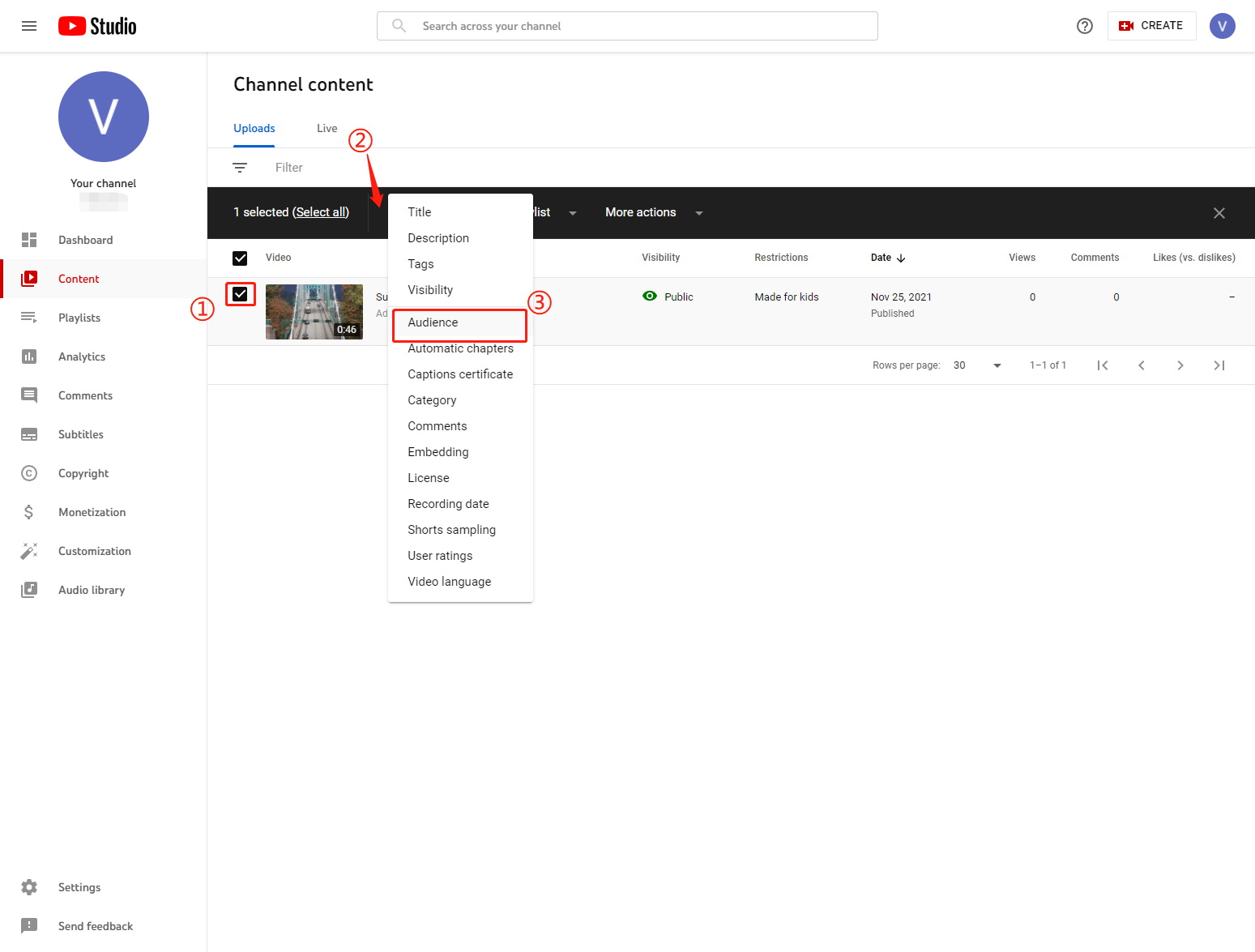
For videos already published, go to YouTube Studio, select the video from your list, click on “Details,” and find the “Age restriction” option under the “Audience” section to enable it. The same setting is available when setting up a live stream before you go live.
Navigating age restrictions on YouTube requires a bit of know-how, whether you’re a viewer trying to access content or a creator responsibly managing your uploads. From simple URL hacks and settings adjustments to using software like VLC or downloaders, there are multiple avenues to explore when you need to bypass YouTube age restriction. Remember that the effectiveness of these methods can change as YouTube updates its platform, and always prioritize safe and legal viewing practices. With the right approach, you can unlock a wider range of content for learning, entertainment, and creativity.
Some images in this article are sourced from the internet.