TOOL HUNTER

Summary: If you’re asking does Xbox One play 4K Blu-ray, the answer depends on your specific console model. The original Xbox One cannot, but the Xbox One S and Xbox One X do support 4K Blu-ray playback. This guide will walk you through the capabilities of each model and provide practical solutions for enjoying your 4K movie collection.
With the newer Xbox Series consoles often difficult to find, many gamers are still enjoying their trusty Xbox One, One S, or One X. A common question that pops up for these older, yet capable, machines is about their video prowess, specifically regarding ultra-high-definition content. People want to know: can Xbox One play Blu-ray 4k movies? The curiosity is understandable, as 4K Blu-rays offer stunning picture quality that can truly elevate movie night. Let’s dive into the details and clear up any confusion about what your console can and cannot do.
Understanding 4K Support Across the Xbox One Family
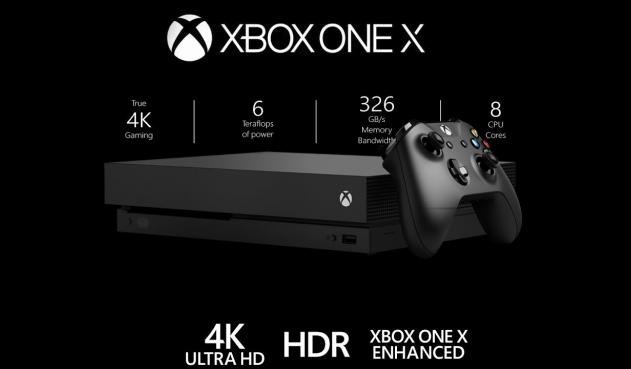
When Microsoft first launched the Xbox One, 4K technology was still emerging. As a result, the very first model of the Xbox One does not support native 4K video playback from discs or streaming apps, nor does it upscale games to 4K resolution. Its hardware simply wasn’t designed for it. However, the story changes with the mid-generation refreshes.
The Xbox One S and the more powerful Xbox One X were significant upgrades in this department. Both consoles introduced support for 4K video playback. This means they can stream 4K content from services like Netflix and, crucially, play 4K Ultra HD Blu-ray discs directly from the drive. So, if your main question is can xbox one x play 4k blu-ray, the answer is a definitive yes. The Xbox One S also joins in on this capability, making both consoles excellent all-in-one entertainment hubs for gaming and premium movie watching.
How to Play 4K Blu-ray on Xbox One S and Xbox One X
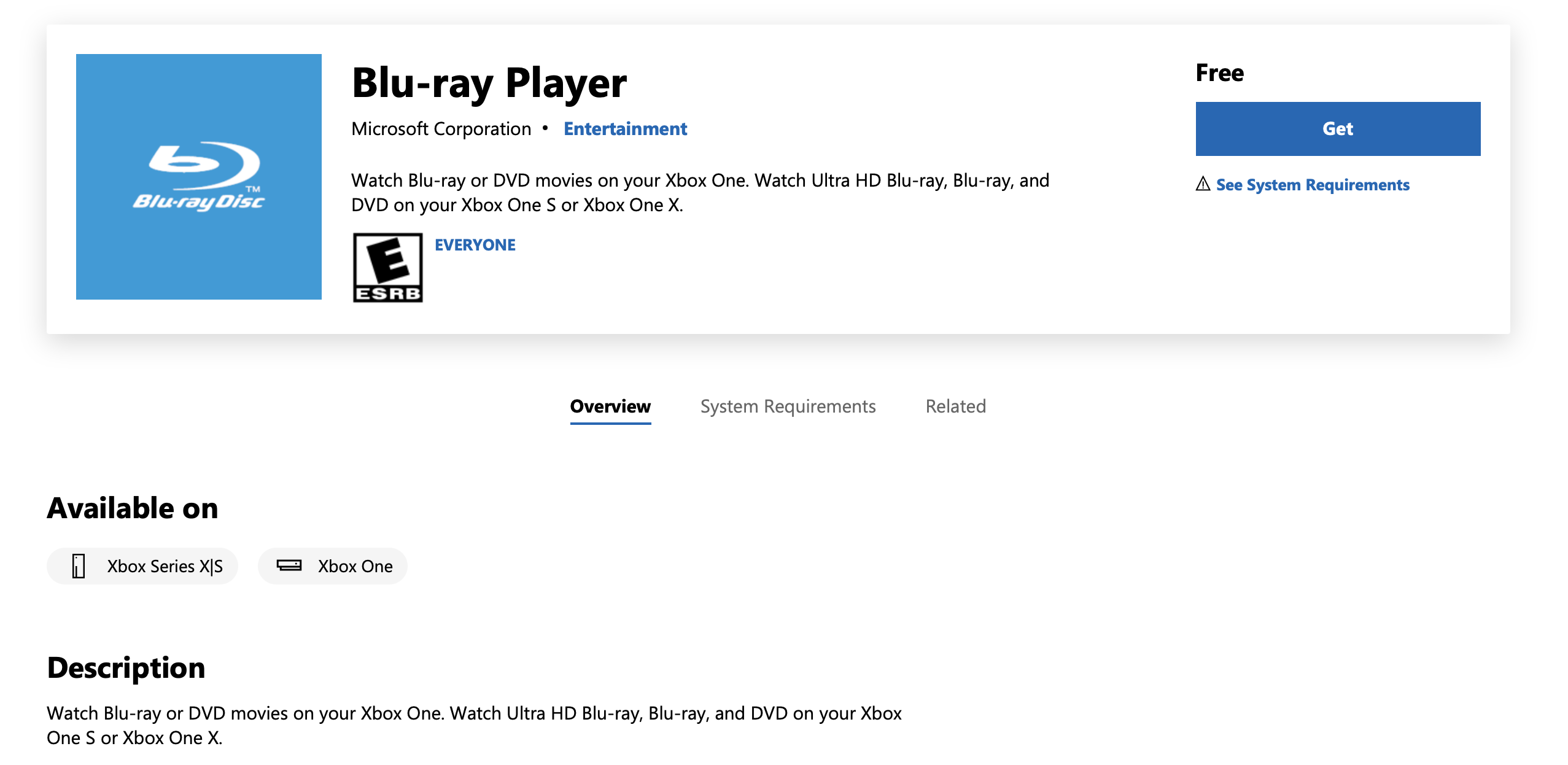
If you own an Xbox One S or an Xbox One X, you’re in luck. Playing a 4K Blu-ray is a straightforward process, but it requires a free app from Microsoft. The console doesn’t handle Blu-ray playback with its default media player; you need to download a dedicated application.
Here is a simple step-by-step guide to get you started:
Step 1: Ensure you are signed into your Xbox Live account on your console. From the home dashboard, navigate to and open the Microsoft Store.
Step 2: Select the ‘Search’ function (usually represented by a magnifying glass icon) and type in “Blu-ray Player” using the on-screen keyboard or your controller.
Step 3: The official Blu-ray Player app from Microsoft should appear in the search results. Select it and then choose the ‘Get’ or ‘Install’ button to download it to your console. The app is free.
Step 4: Once installed, insert your 4K Ultra HD Blu-ray disc into the console’s optical drive. Launch the Blu-ray Player app, and it should automatically recognize the disc and begin playback. You can then use your controller to access menus, special features, and playback controls just like a standard Blu-ray player.
This process is essentially the same for both the Xbox One S and the Xbox One X. The app provides a consistent experience, allowing you to enjoy the incredible visual fidelity and high dynamic range (HDR) that 4K Blu-ray discs offer.
What About the Original Xbox One? Solutions for 4K Blu-ray Discs
Now, for the owners of the original Xbox One model, the situation is different. Since this console lacks the necessary hardware—specifically a 4K UHD Blu-ray optical drive—it physically cannot read 4k blu ray discs. Inserting one will likely result in an error message or the disc simply not being recognized. So, if you’re stuck with this model and have a growing collection of 4K movies, what are your options? You don’t have to miss out entirely.
One of the most effective solutions is to create a digital copy of your movie. This involves “ripping” or copying the content from the 4K Blu-ray disc to a digital file stored on your computer’s hard drive. Once you have a digital file, you can transfer it to a USB drive or stream it over your home network to your Xbox One. While the original Xbox One will downscale a native 4K file to 1080p, you’ll still have access to the movie, and the file will be ready to play at full quality if you ever upgrade your TV or console.
To rip a 4K Blu-ray, you need specialized software because these discs are protected by strong encryption like AACS 2.0. One such tool that handles this task is Leawo UHD Ripper. This software is designed to decrypt and convert 4K Blu-ray content into common video formats like MP4 or MKV.
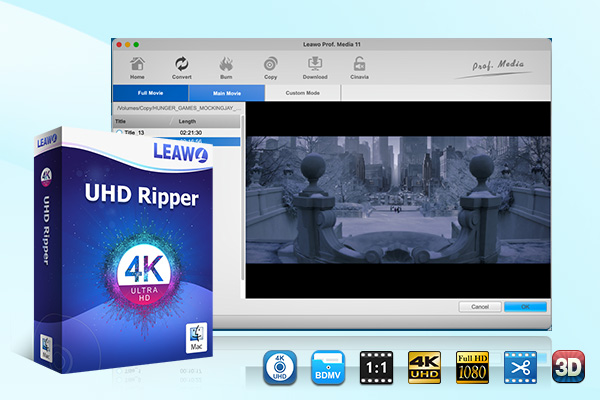
Try Leawo UHD Ripper right now! Rip 4K Ultra HD Blu-ray to Video/Audio in 180+ formats with Hardware Acceleration and 100% Original Quality Retained.
Get the Windows version | Get the Mac version | Use the time-limited promotional campaign
Here’s a general overview of how the ripping process works:
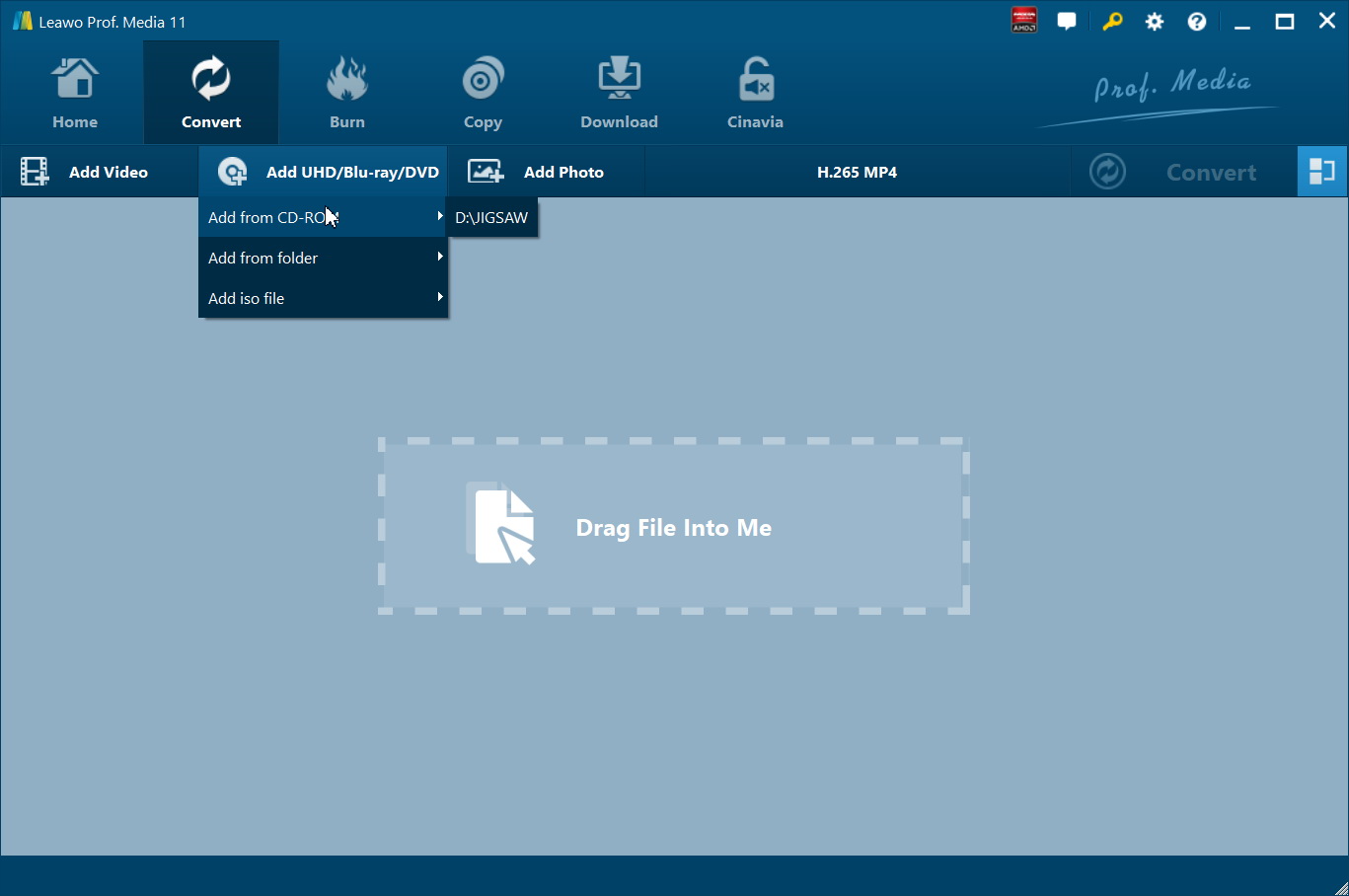
Step 1: Load the 4K Blu-ray Disc
Insert your 4K UHD Blu-ray movie into your computer’s optical drive (which must also be UHD-friendly). Launch your chosen ripping software and use the import function to load the disc. The software will scan the disc and present you with the available titles, often corresponding to the main movie, previews, and special features.
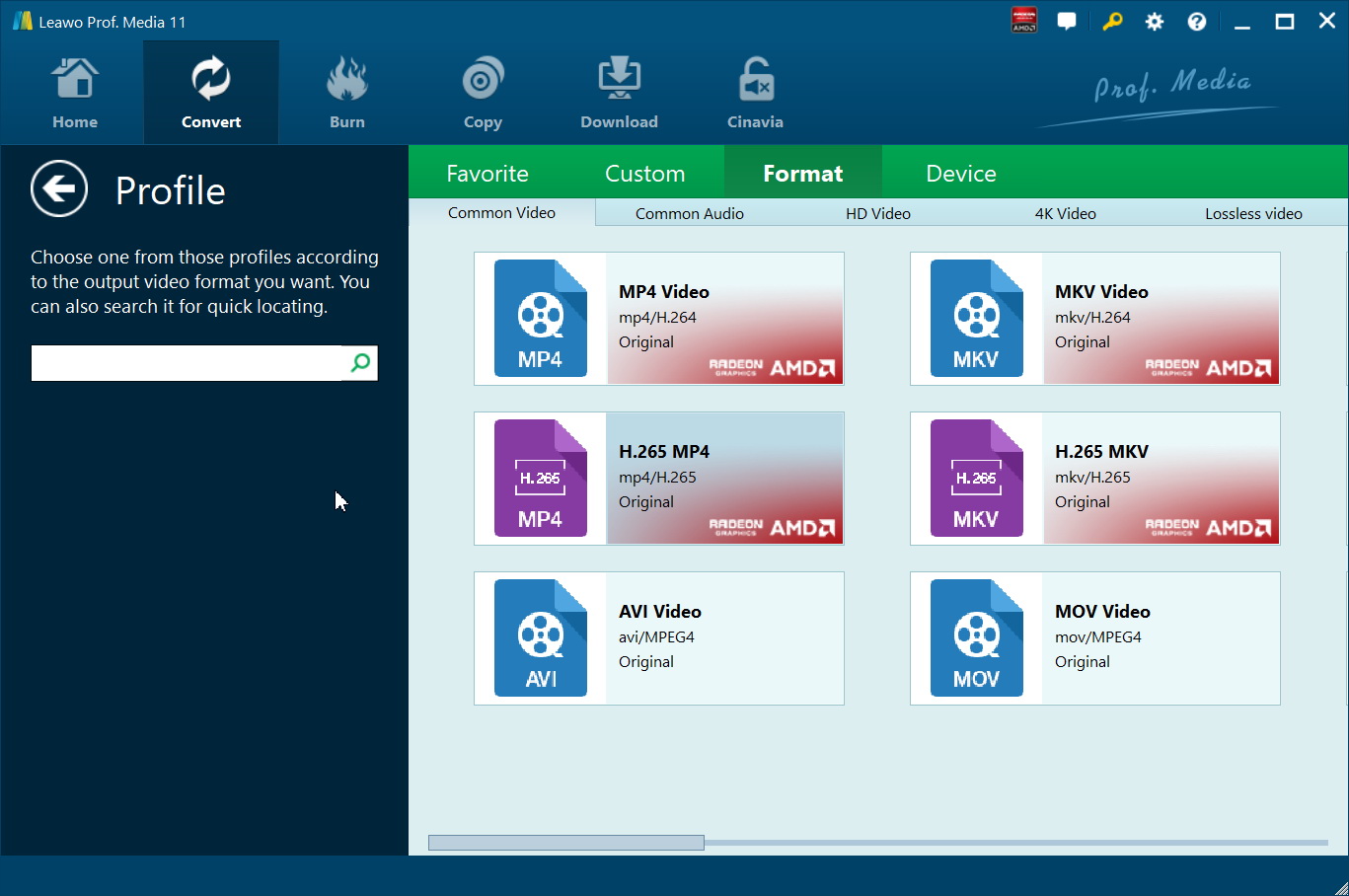
Step 2: Choose Your Output Settings
This is where you decide the format and quality of your digital copy. Most software allows you to select a preset profile. For compatibility with media players and game consoles, formats like MP4 with H.264 or H.265 (HEVC) video codecs are excellent choices. You can often choose the resolution—selecting 1080p is fine for the original Xbox One, but choosing 4K will future-proof your file. You can also adjust advanced parameters like bitrate if you wish.
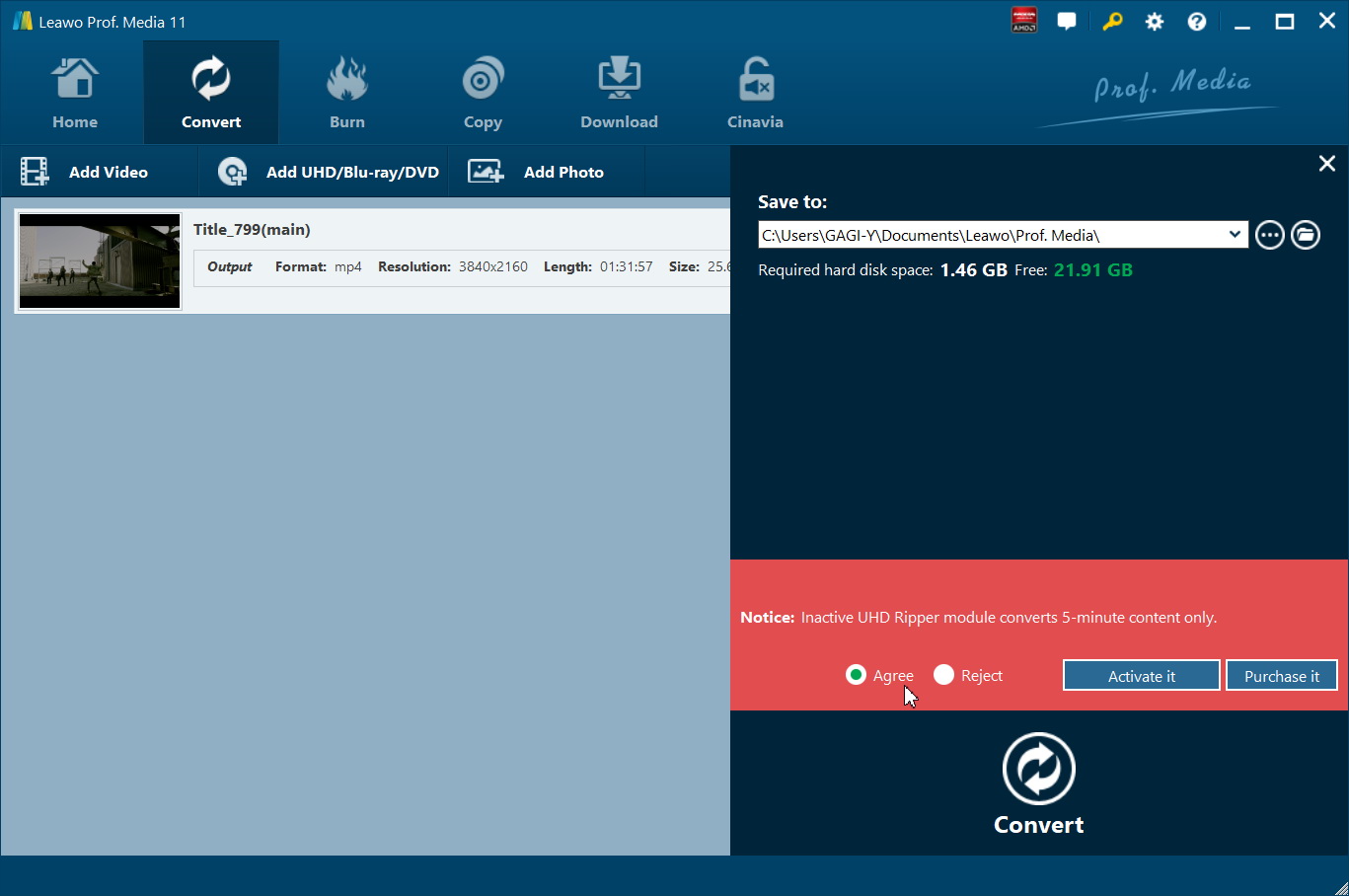
Step 3: Start the Conversion Process
After configuring your settings, choose a destination folder on your computer for the output file. Then, initiate the conversion or ripping process. This can take a significant amount of time depending on the length of the movie and the speed of your computer, as decrypting and encoding 4K video is computationally intensive.
Once the process is complete, you’ll have a digital file of your movie. You can then place this file on a USB drive, connect it to your Xbox One, and use the console’s built-in Media Player app to watch it. Alternatively, you can set up a media server on your PC (using software like Plex) and stream the file directly to your console over your home network.
Considering the Xbox Series S and Series X
For those looking toward the future, it’s worth noting how the newer consoles handle this. The Xbox Series X continues the tradition of the One X, featuring a 4K UHD Blu-ray drive and full support for disc playback using the same Blu-ray Player app. It’s a powerhouse for both gaming and media.
The Xbox Series S, however, presents a different scenario. In a move toward digital-only gaming, Microsoft did not include an optical disc drive in the Series S. Therefore, can xbox one play 4k blu-ray is a question that doesn’t even apply to the Series S—it cannot play any discs at all. For Series S owners, the only way to watch movies is through digital purchases, subscriptions, or by creating digital copies from physical media as described above, which makes the ripping solution highly relevant for this audience as well.
Final Thoughts on Xbox One and 4K Blu-ray Playback
To wrap things up, the ability to play 4K Blu-ray discs on an Xbox console is not universal. It’s a feature reserved for the Xbox One S, Xbox One X, and Xbox Series X. The original Xbox One model cannot handle these discs. If you find yourself with a console that doesn’t support 4K discs but you have the movies, don’t despair. The method of creating a digital backup is a perfectly viable workaround that preserves your investment in physical media and gives you flexible access to your films.
Whether you’re trying to figure out does xbox one play 4k blu-ray for your own setup or planning a future purchase, understanding these distinctions is key to building the perfect home entertainment system. With the right knowledge and tools, you can ensure that your movie nights are always in the highest quality possible.
Some images used are for illustrative purposes and sourced from the internet.