TOOL HUNTER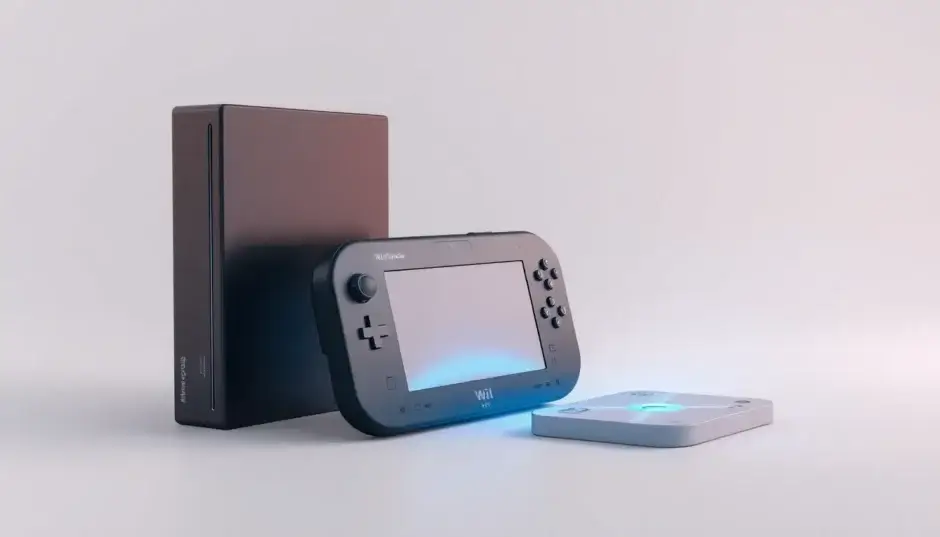

Summary: Many gamers wonder, can you watch DVDs on a Wii U directly? The short answer is no, but there are reliable workarounds. This guide explores two primary methods: using unofficial software like the Homebrew Channel, and the simpler approach of converting your DVD collection into a format the Wii U can recognize and play through its Photo Channel.
If you’ve ever looked at your Wii U and your stack of movie DVDs and asked yourself, “can you play DVD on Wii U?” you’re not alone. It’s a common question with a history. Nintendo designed the Wii U primarily as a game console, leaving out the licensing and hardware needed for standard DVD video playback. But that doesn’t mean your movie nights are doomed. With a bit of know-how, you can unlock this functionality. Let’s dive into the details and clear up the confusion once and for all.
Does the Wii U Have a Built-in DVD Player?
Straight from Nintendo’s official support channels, the console is not equipped to play DVDs, Blu-rays, HD-DVDs, or audio CDs. The hardware lacks the necessary decoders, and Nintendo never intended it to be a universal media player in that sense. So, if you insert a commercial movie DVD, the Wii U simply won’t recognize it. This holds true for the original Wii as well.
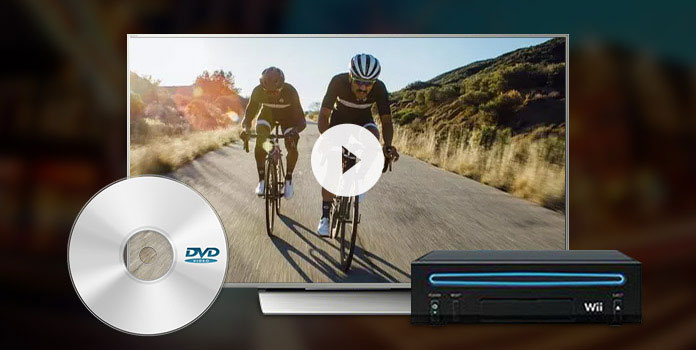
However, the story doesn’t end there. The Wii U does have a hidden pathway for video playback: the Photo Channel. This feature, designed for viewing personal photos and clips, supports specific video file formats. Therefore, while you can’t watch DVDs on a Wii U directly from the disc, you can watch the content of those DVDs if you first transform it into a file the Photo Channel understands.
Here’s what the Photo Channel on the Wii U can handle:
| Supported Media Type | Specific Formats & Notes |
|---|---|
| Video Files | QuickTime Movie (.mov) using Motion JPEG video codec.<br>AVI (.avi) using Motion JPEG video codec. |
| Image Files | JPEG format (baseline). |
| Audio Files | AAC format (files with .mp4 or .m4a extensions). |
The key takeaway is the “Motion JPEG” requirement. Not all .mov or .avi files will work; they must be encoded with this specific, older codec. This is crucial when looking for a conversion tool. So, asking “can you watch DVDs on a wii u” shifts from a question of hardware to one of software conversion. Below, we outline two distinct paths to achieve your goal.
How to Play DVDs on Wii U Using the Homebrew Channel
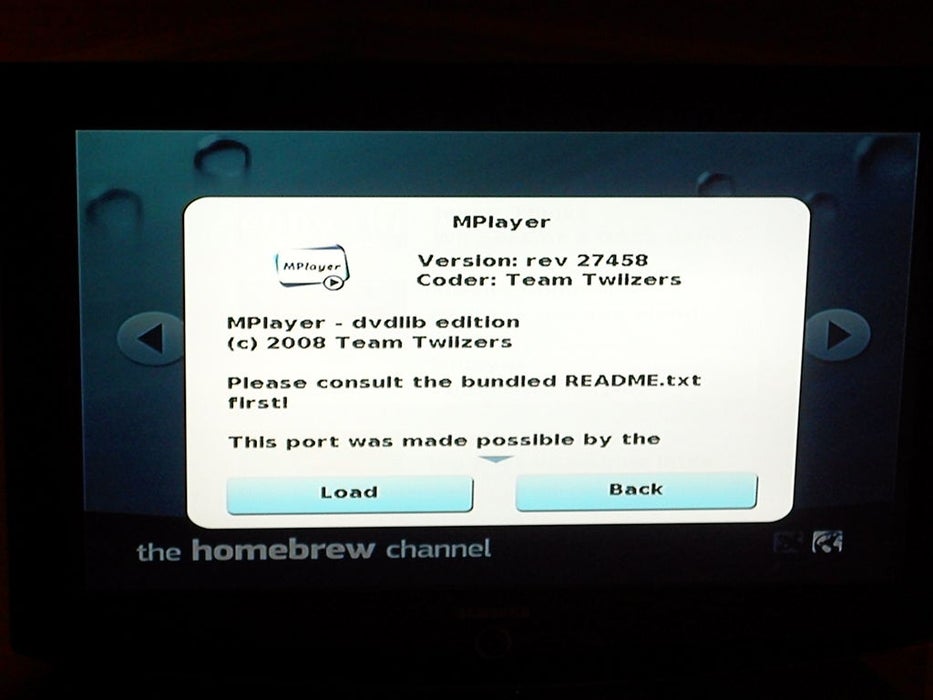
The first method ventures into the world of unofficial software. The Homebrew Channel is a third-party application that opens up your Wii U to programs not authorized by Nintendo. One such program is a media player capable of reading DVD discs directly. This method answers “can you play dvd on wii u” with a technical ‘yes,’ but it requires several steps and components.
What You’ll Need:
- A Wii or Wii U console (specific system versions may be required, like 3.2 for the original Wii).
- An SD card (2GB or less, formatted as FAT/FAT32 – not SDHC).
- A copy of The Legend of Zelda: Twilight Princess for Wii (used in the initial exploit).
- Files for the “Twilight Hack” and the Homebrew Channel installer.
- MPlayer Homebrew application (the DVD player software).
- The DVDX application (enables the DVD drive to read movie discs).
The Process in Steps:
-
Install the Homebrew Channel: This involves using the Twilight Princess game to run an exploit. You’ll copy specific hack files to your SD card, manage game save data, and run the installer from within the game. Once completed, the Homebrew Channel will appear on your Wii Menu like any other channel.
-
Install the DVD Playback Software: With the Homebrew Channel active, you then install MPlayer and the essential DVDX component onto your SD card. Running the DVDX installer from the Homebrew Channel is a critical step to patch the system’s DVD drive functionality.
-
Play Your DVD: Finally, launch MPlayer from the Homebrew Channel, navigate to the DVD-Video option, select the title, and your movie should start playing. This method effectively turns your console into a Wii U DVD player through unofficial means.
While this method works, it’s complex, involves multiple software pieces, and carries minimal risk (though primarily just voiding warranty). It’s a project for the tech-savvy user. For a more straightforward and universally accessible solution, converting your DVDs is the recommended route.
The Easier Method: Convert DVDs for Wii U Playback
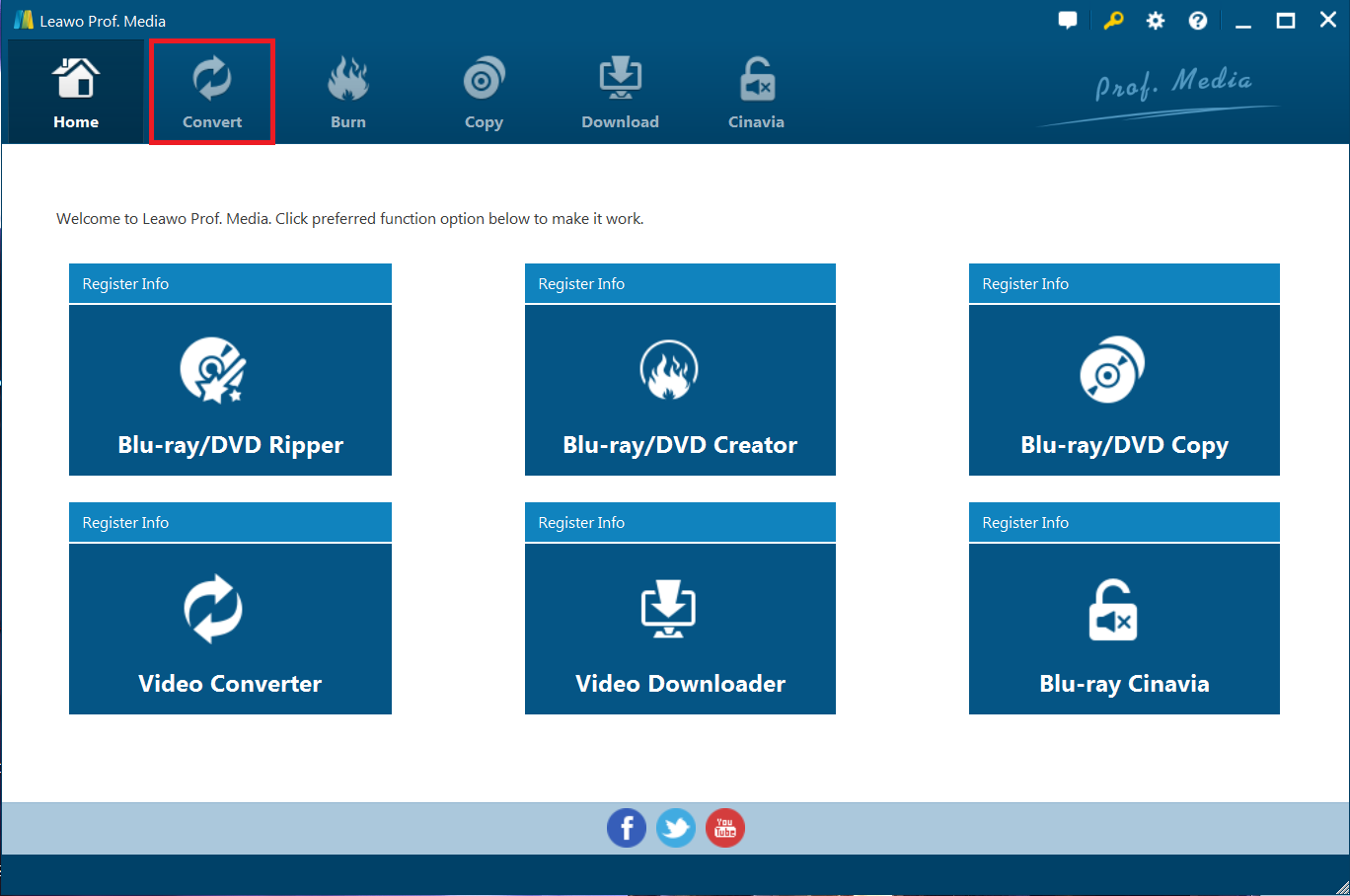
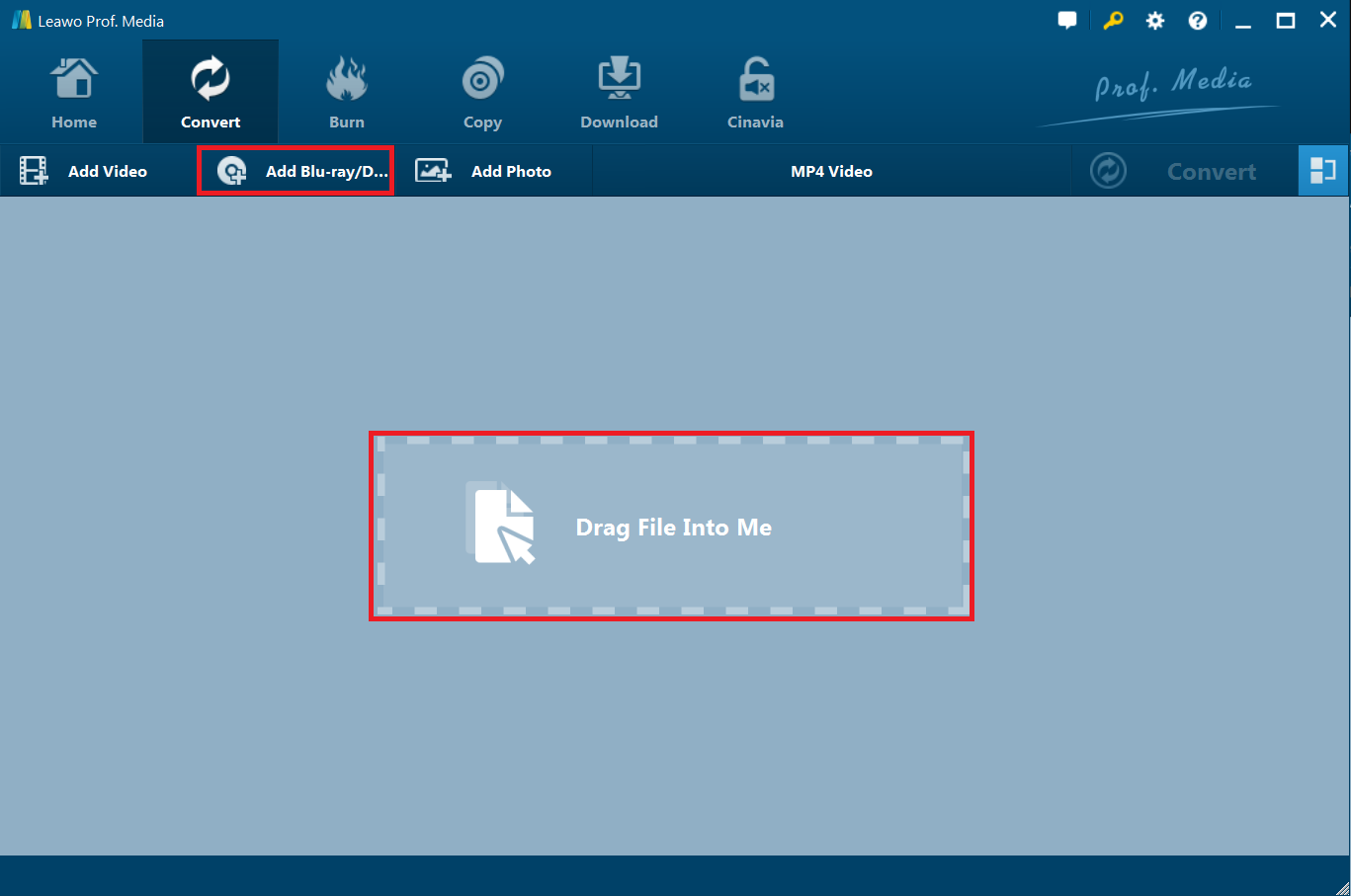
The simpler and often more reliable answer to “can you watch dvds on the wii u” is conversion. This method bypasses the need for system modifications altogether. Instead, you use software on your computer to “rip” or convert the video content from your DVD into a .mov or .avi file that matches the Photo Channel’s strict Motion JPEG requirements. You then transfer this file to an SD card or stream it to your console.
This approach requires a capable DVD conversion tool. Such software needs to decrypt the DVD’s copy protection and re-encode the video into the correct format. A good converter provides presets tailored for the Wii, saving you from manually configuring complex video settings.
General Steps for DVD Conversion and Playback:
- Convert the DVD: Using conversion software on your computer, load your DVD. Select an output profile specifically for “Wii” or “Wii U,” which should output a compatible
.movor.avifile. Start the conversion process. - Transfer the File: Copy the converted video file from your computer onto an SD card (formatted as FAT32).
- Play on Wii U: Insert the SD card into your Wii U. Open the Photo Channel, navigate to the SD card section, and select your video file to start playback.
For a more integrated experience, you can also set up a media server like Plex on your computer and use the Wii U’s browser or a compatible channel to stream the converted files directly to your TV, avoiding the need for an SD card altogether.
Choosing the Right DVD Conversion Tool
Since conversion is the most user-friendly method, picking the right software is key. You need a tool that handles decryption, offers the correct output format, and is easy to use. Look for features like:
- Support for DVD disc, folder, and ISO image sources.
- A dedicated output profile for “Wii” or “Wii U” that automatically sets the right Motion JPEG codec.
- Ability to select specific movie titles, chapters, subtitles, and audio tracks.
- Additional editing features if you want to trim or adjust the video.
Try Leawo DVD Ripper right now! Rip DVDs to video and audio in 180+ formats with 6X faster speed and 100% original quality retained.
Get the Windows version | Get the Mac version | Use the time-limited promotional campaign
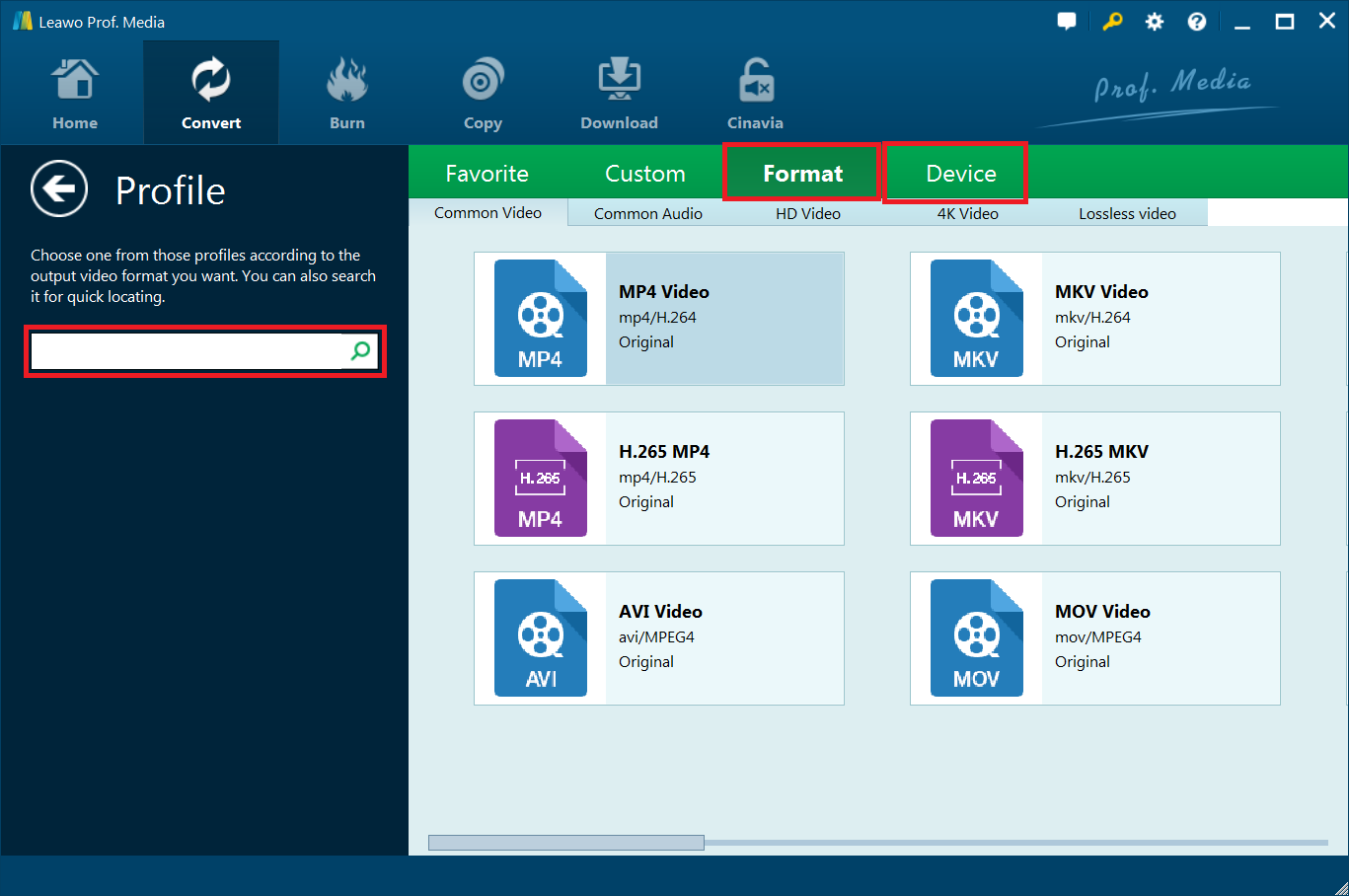
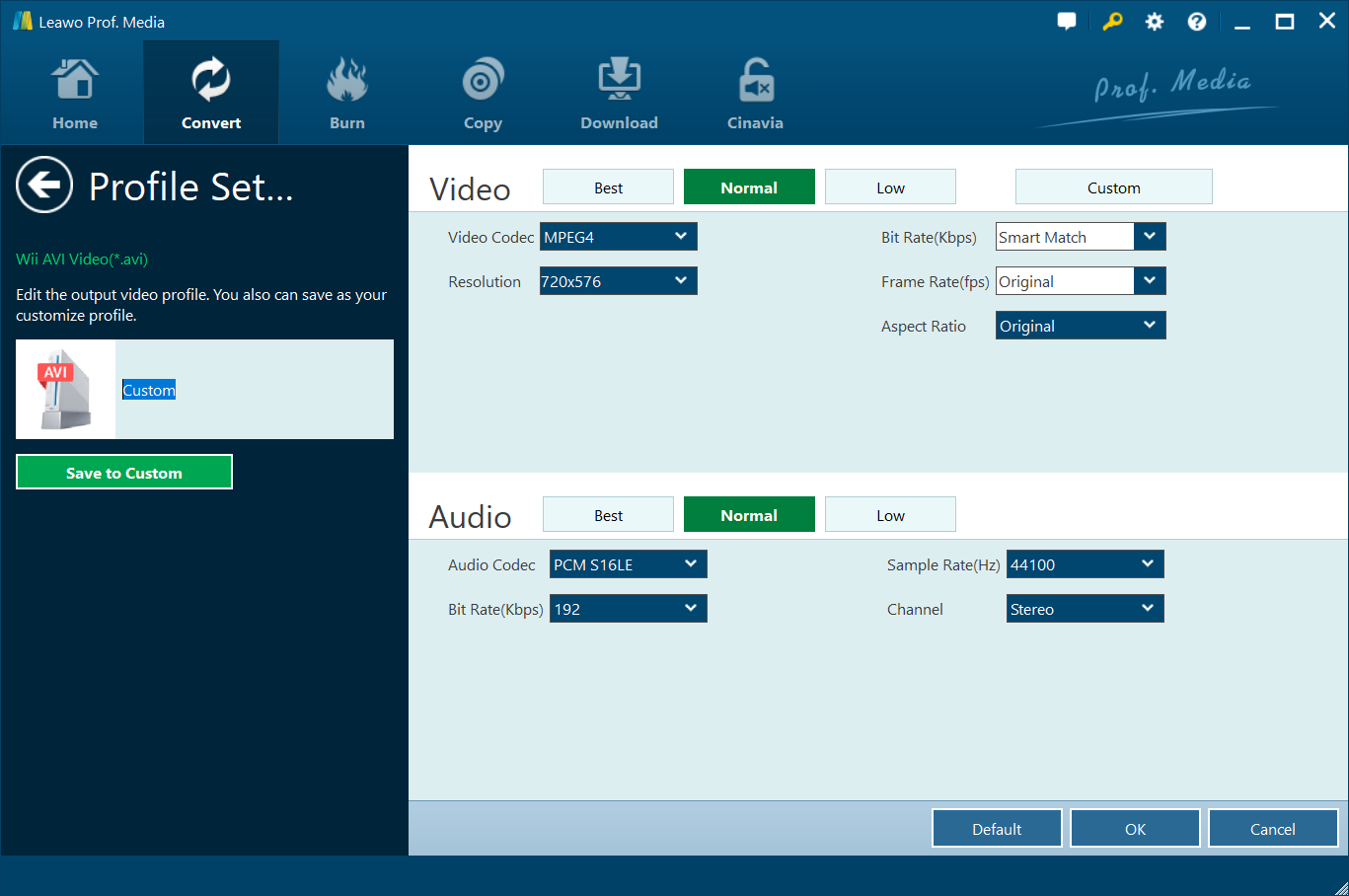
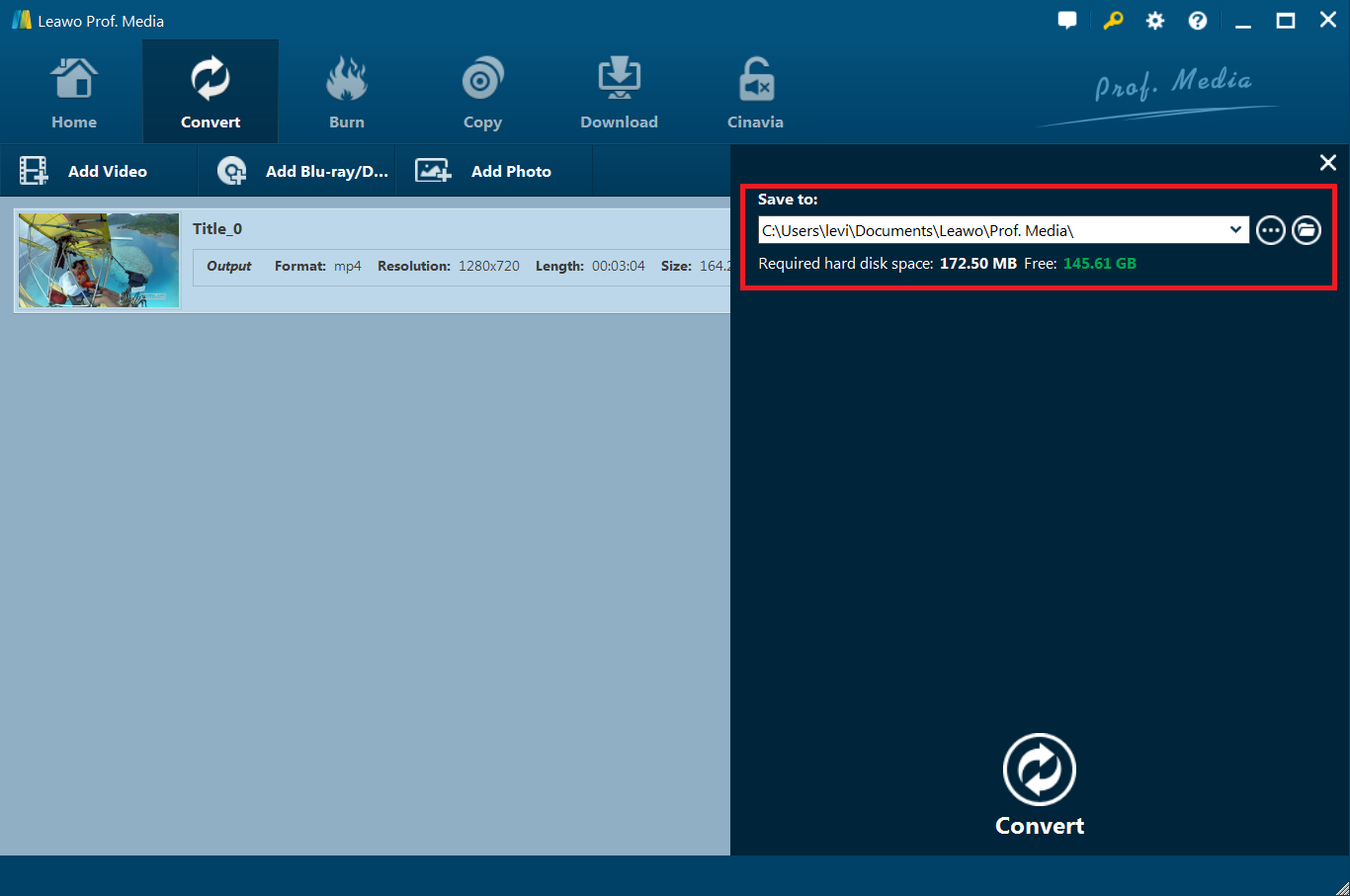
Using such a tool simplifies the entire process. After conversion, transferring the file and playing it back via the Photo Channel feels seamless. It’s a legal way to create a personal copy of your owned media for use on a device that otherwise wouldn’t support it. This method definitively solves the wii u dvd player dilemma without touching your console’s system software.
Final Verdict: Can You Watch DVDs on a Wii U?
So, can you watch DVDs on a Wii U? Not directly from the disc tray, no. But with the two methods outlined above, you absolutely can enjoy your DVD movie collection on the console.
- The Homebrew Channel method is a technical hack that enables direct DVD playback. It’s free but complex, requiring multiple steps, specific game files, and comfort with unofficial software.
- The Conversion method is the simpler and more reliable choice for most users. By converting your DVDs to Wii U-compatible files, you use the built-in Photo Channel for playback. It requires conversion software but is a one-time, straightforward process per DVD.
For the vast majority of users looking for a hassle-free way to play their movies, converting DVDs into the correct format is the clear winner. It answers the question “can you play dvd on wii u” with a practical and safe solution. Now you can finally unite your gaming and movie libraries in one place.
Try Leawo Video Converter right now! 6X Faster Speed and 1:1 Quality to Convert Videos and Audios in 180+ Formats from One to Another
Get the Windows version | Get the Mac version | Use the time-limited promotional campaign

Some images used in this article are for illustrative purposes and are sourced from the internet.