TOOL HUNTER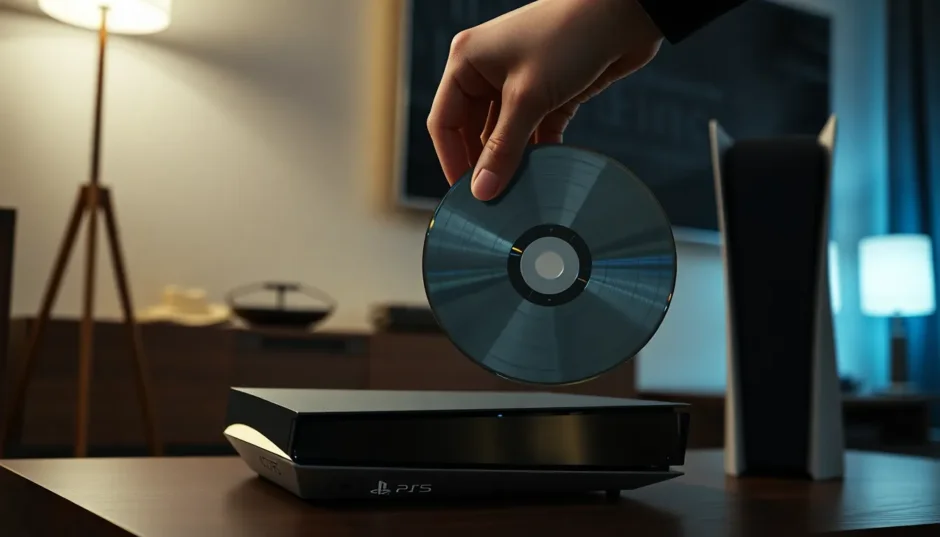

Summary: Wondering how to play Blu-ray on PS5? You’re in the right place. This guide covers everything from the simple steps to get your movie playing, to the best TV settings for stunning picture quality, and crucial info on PS5 region locks for Blu-ray discs. We’ll also tackle common problems and their fixes.
So, you’ve got your PlayStation 5, the powerhouse for gaming, but did you know it’s also a fantastic home entertainment center? That’s right, your PS5 can double as a high-quality Blu-ray player, bringing your movie collection to life in brilliant detail. If you’re new to this or have run into a snag, don’t worry. Figuring out how to play Blu-ray on PS5 is straightforward, and we’re here to walk you through every part of the process.

Does the PS5 Actually Play Blu-ray Discs?
Let’s start with the basic question: can you watch Blu-ray on PS5? Absolutely. The PlayStation 5 is designed to be more than just a game console. It supports a wide range of optical discs for your viewing pleasure. This includes the latest 4K Ultra HD Blu-rays, which deliver an incredibly sharp and vibrant picture that really shows off what your TV can do. Unlike some other consoles that might need an extra app, the PS5 has the capability built right in.
Here’s a quick list of the disc formats your PS5 can handle:
- 4K UHD Blu-ray discs
- Standard Blu-ray discs (BD-ROM, BD-R/RE)
- DVDs (DVD-ROM, DVD-R/RW, DVD+R/RW)
It’s good to know what isn’t supported too. The PS5 cannot play CDs or certain older or specialized disc types like BD-RE version 1.0. Also, the console needs an internet connection every once in a while to renew its encryption keys for playing the latest protected movies, but this usually happens automatically in the background.
Try Leawo Blu-ray Player right now! 100% Free 4K UHD Blu-ray/DVD/4K HD Video Player in the World!
Get the Windows version | Get the Mac version | Use the time-limited promotional campaign

How to Play Blu-ray on PS5: The Simple Steps
The process for how to watch Blu-ray on PS5 is refreshingly simple. It’s pretty much as easy as playing a game.
- Make sure your PS5 is connected to your TV and turned on.
- Take your Blu-ray movie disc and gently insert it into the disc slot on the front of the console. The slot is the same one you use for game discs.
- The PS5 will automatically recognize the disc. Within a few seconds, you should see the media home screen appear, and the movie will typically start playing, or you’ll get a menu to start playback.
That’s really all there is to it for most movies! The console takes care of the rest, reading the disc and outputting the video and audio to your home theater setup.
Optimizing Your Experience: Best Settings for Blu-ray on PS5
To get the absolute best experience when you play Blu-ray on PS5, a little bit of setup goes a long way. It’s not just about popping in the disc; it’s about making sure your entire system is tuned for performance.

Your TV Matters: For 4K Blu-rays, you’ll want a TV that can keep up. Look for a 4K TV with support for High Dynamic Range (HDR) and a 120Hz refresh rate if possible. This combo allows the PS5 to deliver the stunning visuals the movie studio intended.
Check the HDMI Connection: Always use the HDMI cable that came with your PS5. It’s a high-speed cable designed to handle the massive amount of data from 4K HDR content. Also, dig into your TV’s settings menu and find the HDMI settings for the port your PS5 is using. Change it from “