TOOL HUNTER

Summary: This guide provides three practical solutions for users wondering how to play MKV files on Mac, especially when QuickTime Player fails. We’ll explore dedicated media players, a legacy plugin method for QuickTime, and a reliable conversion approach, helping you choose the best path for smooth MKV playback on your MacBook or iMac.
If you’ve ever downloaded a movie or a TV show episode only to find it’s in the MKV format, you know the frustration. Your Mac’s default QuickTime Player throws up an error, leaving you stuck. The question “how to play MKV files on MacBook” is incredibly common. This format, while excellent for quality and features like multiple audio tracks and subtitles, isn’t natively supported by Apple’s ecosystem. But don’t worry—getting your MKV videos to play is easier than you think. Let’s dive into the most effective ways to solve this playback puzzle.
Table of Contents
Why QuickTime Player Won’t Play MKV Files
Before we get to the solutions, it’s helpful to understand the ‘why’. QuickTime Player is designed by Apple to work seamlessly with formats like MOV and MP4, which are optimized for its hardware and software. The MKV (Matroska Video) container is an open-source format that can pack in high-definition video, multiple audio tracks, chapter points, and subtitle files—features that aren’t a priority for QuickTime’s core design. So, when you try to open an MKV, QuickTime simply doesn’t recognize the file structure. This fundamental incompatibility is why you need to look beyond the default app. The good news is, whether you want to find a way to make QuickTime Player MKV compatible or use a different tool altogether, you have excellent options.
Method 1: Use a Dedicated Media Player (The Easiest Way)
The most straightforward answer to “how to play MKV on Mac” is to bypass QuickTime entirely and use a third-party media player built to handle a wide range of formats. These players come with the necessary codecs pre-packaged, meaning you just install the app and hit play. Here are five of the best contenders, each with its own strengths.
Leawo Blu-ray Player: A Powerhouse for HD Playback
For users who want a no-compromise experience, Leawo Blu-ray Player is a top-tier choice. It’s more than just an MKV player; it’s a full-featured media center. It plays MKV files on Mac directly, with no quality loss, and supports advanced features like 4K UHD and 1080p Full HD playback. You have full control over audio tracks and subtitles, which is a big deal for international films or shows.

A significant advantage is its ability to handle not just files but also disc images (ISO) and physical Blu-rays/DVDs, bypassing region codes. Its interface is clean and user-friendly, making it a great option if you want powerful features without a steep learning curve. For simply watching mkv on Mac with high fidelity, this player is a robust and reliable option.
Try Leawo Blu-ray Player right now! 100% Free 4K UHD Blu-ray/DVD/4K HD Video Player in the World!
Get the Windows version | Get the Mac version | Use the time-limited promotional campaign,

VLC Media Player: The Free and Versatile Veteran
VLC is often the first name that comes up for media playback issues, and for good reason. This open-source player is a Swiss Army knife. It plays almost anything you throw at it—MKV, AVI, FLV, and even obscure formats. It’s completely free, with no ads or premium tiers.

While its interface can feel a bit technical, its reliability is unmatched. It’s a fantastic choice if you need a quick, free solution and don’t mind a utilitarian design. For learning how to play MKV files on MacBook without spending a dime, VLC is a community-trusted champion.
DivX Player: Optimized for DivX and MKV
Developed by the company behind the DivX codec, DivX Player for Mac offers excellent playback for MKV and DivX-encoded videos. It provides a polished viewing experience with features like cloud saving and the ability to cast videos to other screens via Wi-Fi.

Be aware that to unlock playback for all MKV files, you may need the premium version. It’s a good middle-ground option if you want something more refined than VLC but are okay with potential in-app purchases.
MPlayerX: Lightweight and Efficient
If your priority is a small, fast app that doesn’t hog system resources, MPlayerX is worth a look. It comes with a wide array of built-in codecs, allowing it to play MKV files on Mac efficiently. Its minimalist design focuses on playback, with gestures for quick control via your Mac’s trackpad.
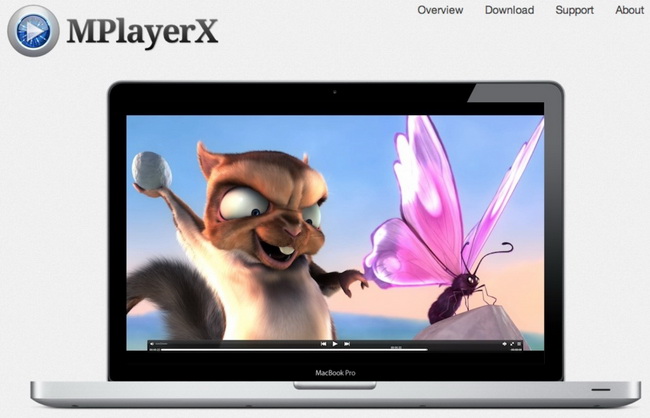
It’s less about fancy features and more about being a lean, mean, playing machine. It’s an excellent choice for older Macs or users who want a simple, distraction-free player.
Elmedia Player: A Feature-Rich Universal Player
Elmedia Player rounds out the list as a versatile and capable application. It supports a vast list of video and audio formats, including MKV, FLV, MP4, and AVI. Beyond playback, it can stream videos to devices like Chromecast or AirPlay and includes a basic video downloader.
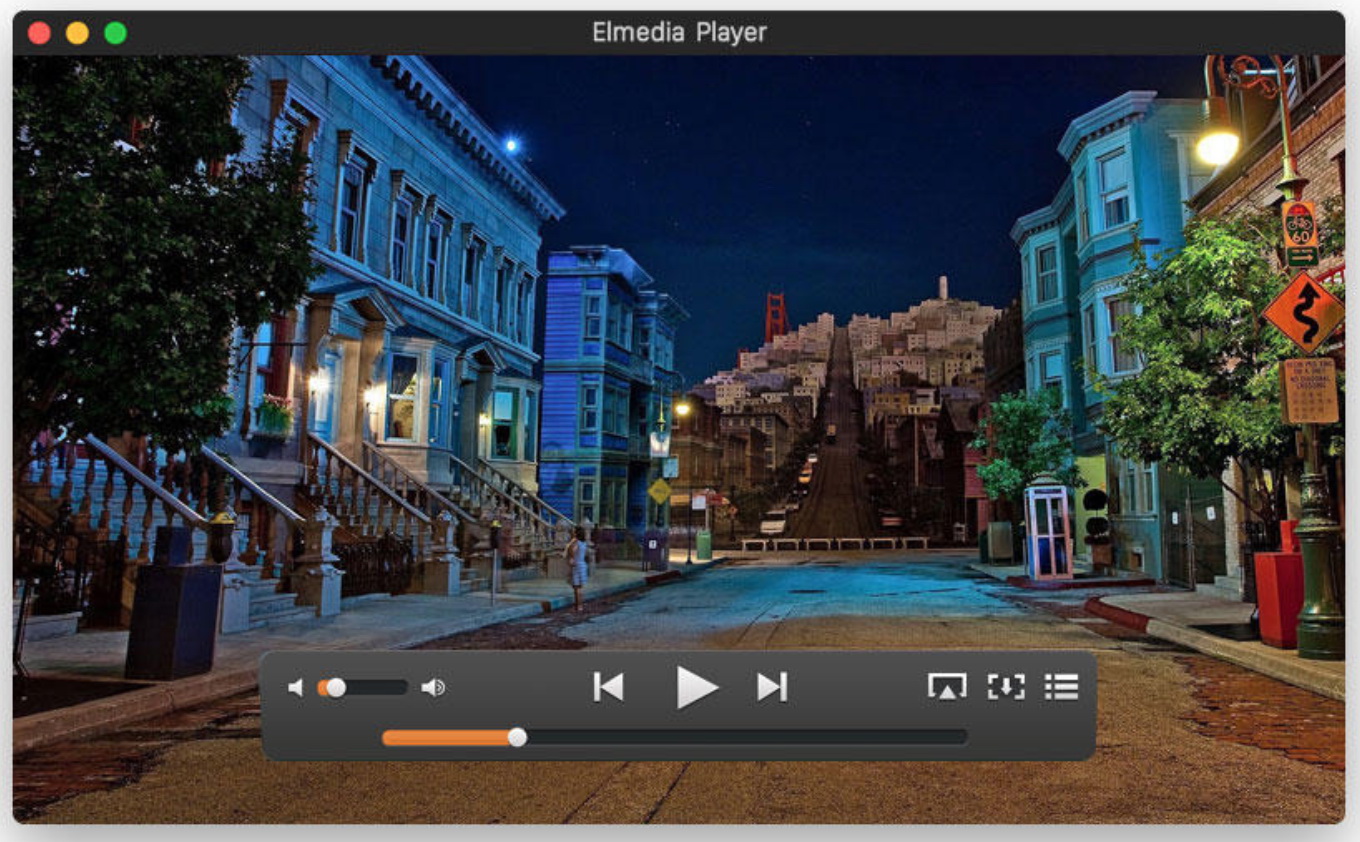
It also offers on-the-fly adjustments for video parameters like brightness and contrast. If you want a single app that can play, stream, and tweak your videos, Elmedia is a strong contender for your daily driver.
Quick Comparison: Leawo offers the most advanced features for disc and high-quality playback. VLC is the ultimate free, do-it-all tool. DivX Player is sleek but may require payment for full functionality. MPlayerX is the lightweight speedster, and Elmedia is the versatile all-rounder with streaming perks. Choosing the best app to play MKV on Mac depends on whether you value power, simplicity, or extra features like casting.
Method 2: The Plugin Approach (A Legacy Solution)
Some Mac purists really want to use QuickTime Player. This leads to the search for a codec pack or plugin. Historically, the answer was a project called Perian. Dubbed the “Swiss-army knife for QuickTime,” Perian was a free, open-source plugin that taught QuickTime Player to understand formats like MKV, AVI, and WMV.
The process was simple: you downloaded and installed Perian, and suddenly your QuickTime Player MKV compatibility was unlocked. You could right-click an MKV file, choose “Open With QuickTime Player,” and it would work. It felt like magic for those wanting to use the native player.
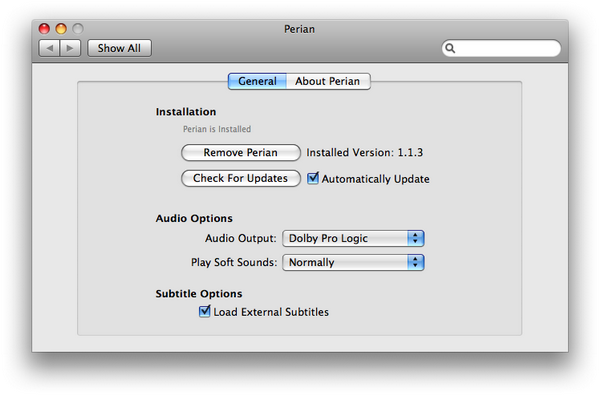
However, there’s a major caveat. The Perian project was officially discontinued in 2012. While the code remains available, it is not maintained and does not work on modern versions of macOS (Mavericks 10.9 and later). You might find it works if you hunt down an old copy of QuickTime 7 Pro on a vintage Mac, but for most users today, this path is closed. It’s important to mention this method for completeness, but we cannot recommend it for current systems due to security and stability risks from unmaintained software. The quest for a modern “MKV QuickTime player” plugin, unfortunately, doesn’t have a safe, reliable answer.
Method 3: Convert MKV to a QuickTime-Friendly Format
If you’re determined to use QuickTime Player or need your MKV files to work in other Apple apps like iMovie, conversion is a perfect, permanent solution. This involves changing the MKV file’s container to something QuickTime loves, like MP4 or MOV, without significantly harming the video quality. This solves the “how to play MKV files on Mac” question by changing the file itself.
For this, you need a trustworthy converter. Leawo Video Converter is a tool designed for this exact task. It’s a powerful program that can decode MKV files and re-package them into MOV or MP4 format, preserving the original video and audio quality. It’s not just a converter; it also has basic editing tools if you want to trim clips or adjust parameters before converting.
Try Leawo Video Converter right now! 6X Faster Speed and 1:1 Quality to Convert Videos and Audios in 180+ Formats from One to Another
Get the Windows version | Get the Mac version | Use the time-limited promotional campaign,

Here’s a simple guide on how to play MKV on Mac by converting them for QuickTime:
Add Your MKV File: Launch the converter and add your MKV video file by dragging it into the window or using the “Add Video” button.
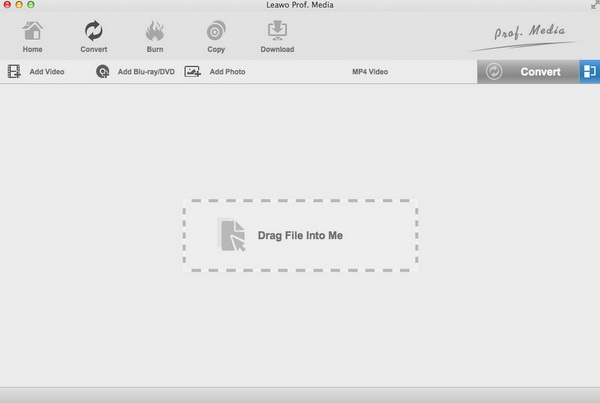
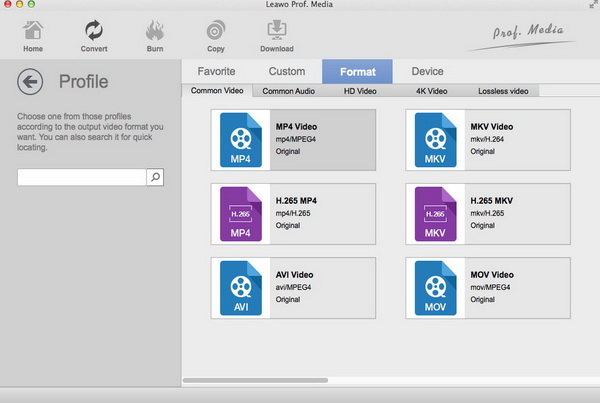
Choose Output Format: Click on the output format option. Since you want to use QuickTime, select MOV or MP4 as your target format. These are natively supported by the QuickTime player MKV can’t normally use.
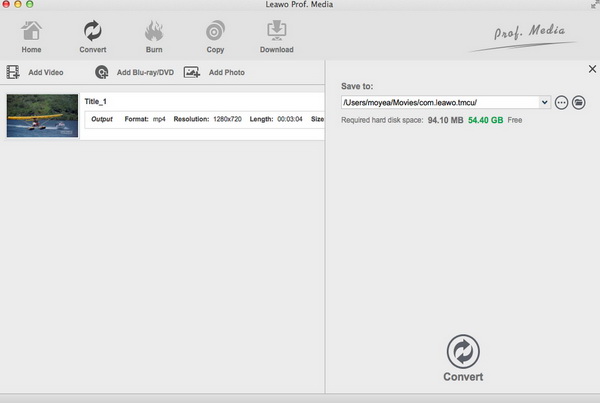
Convert and Play: Choose a save location and start the conversion. Once finished, you’ll have a new .mov or .mp4 file. You can now double-click it, and it will open perfectly in QuickTime Player on your MacBook. Problem solved!
This method is excellent if you have a library of MKV files you want to integrate into your Apple ecosystem permanently. It does take some time and storage space (you’ll have two copies of the video), but it grants universal compatibility.
Which Method Should You Choose?
So, what’s the best way for watching MKV on Mac? It depends on your needs:
- For Immediate, Hassle-Free Playback: Install a dedicated media player like Leawo Blu-ray Player or VLC. This is the fastest and most reliable method for most people. Just install, open, and play.
- For Apple Ecosystem Integration: Convert your MKV files to MOV/MP4 using a tool like Leawo Video Converter. This is ideal if you plan to edit the videos in iMovie or want them permanently in your iTunes library.
- The Plugin Route: As discussed, using Perian to make an MKV QuickTime player is outdated and not viable on modern macOS. It’s best to consider this a historical note rather than a current solution.
Beyond Playback: Handling MKV Like a Pro
Once you’ve solved the basic playback issue, you might encounter other MKV-related tasks. For instance, you may need to edit an MKV file, add or sync subtitles (SRT files), or fix a file that has corruption issues (“broken MKV”). Many of the tools mentioned, like Leawo Video Converter, have editing capabilities built-in. For more advanced tasks, dedicated video editing software that supports MKV natively or after conversion is the way to go.
Final Thoughts
The inability of QuickTime Player to handle MKV files is a common hiccup, but it’s one with several clear solutions. You don’t have to miss out on your favorite videos. Whether you opt for the simplicity of a powerful third-party player like Leawo Blu-ray Player or the permanence of conversion for use with QuickTime Player, you can easily enjoy all your MKV content on your Mac. The next time you find yourself searching for “how to play MKV files on MacBook,” remember you have multiple effective paths to a perfect movie night.
Some images are sourced from the internet.