TOOL HUNTER

Summary: Accidentally deleted your iPhone call history and need to get it back? This comprehensive guide walks you through multiple proven methods to recover deleted call history on iPhone, whether directly from your device, from an iTunes backup, or from iCloud. We’ll cover everything from using Apple’s built-in tools to powerful third-party software solutions.
Losing your call log can be frustrating, especially if you need to find a missed number or verify a past conversation. Many iPhone users mistakenly believe that once a call record is gone, it’s gone forever. The good news is, that’s often not the case. Whether you deleted it by accident, lost it after an update, or your phone malfunctioned, there are several pathways to attempt an iPhone call log recovery. Let’s dive into the most effective strategies.
Recover Deleted Call History from iPhone Using iTunes or iCloud
The most common first thought for many is to use Apple’s official restoration channels: iTunes (or Finder on newer Macs) and iCloud. Both methods involve restoring your entire device from a backup, which can indeed bring back your lost call history on iPhone.
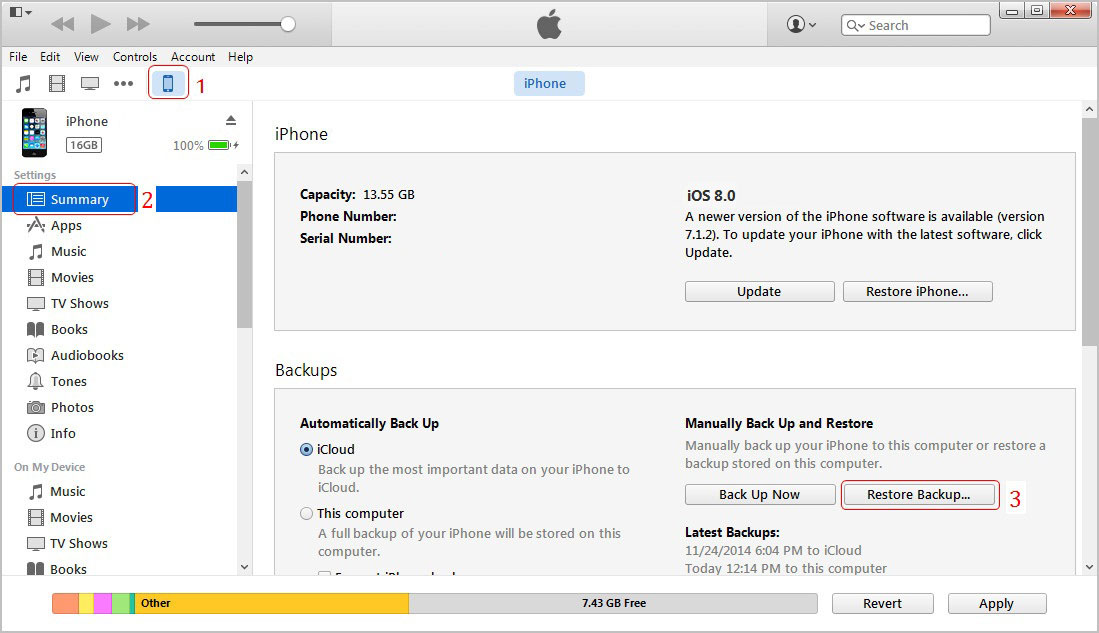
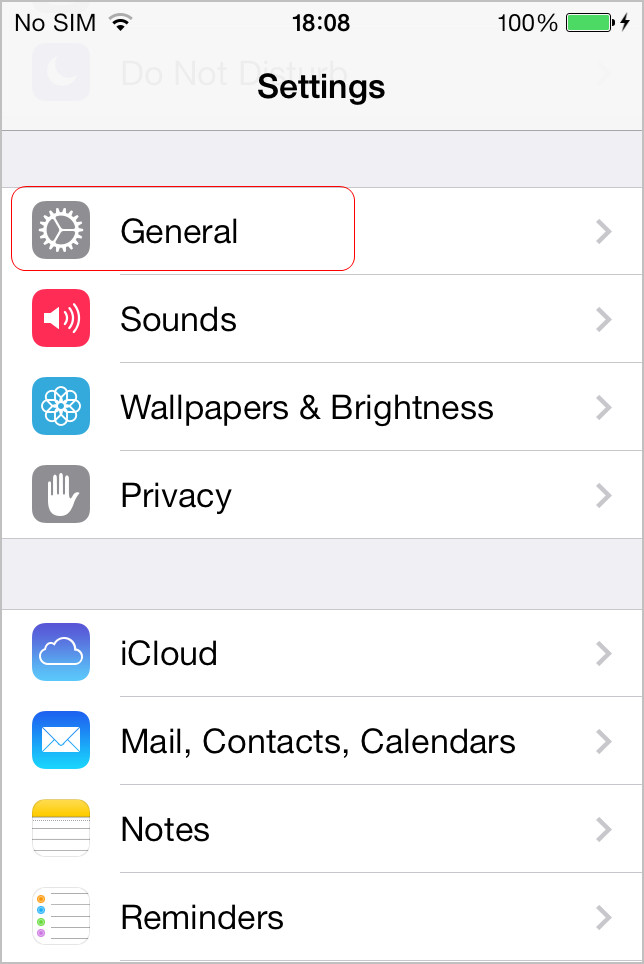
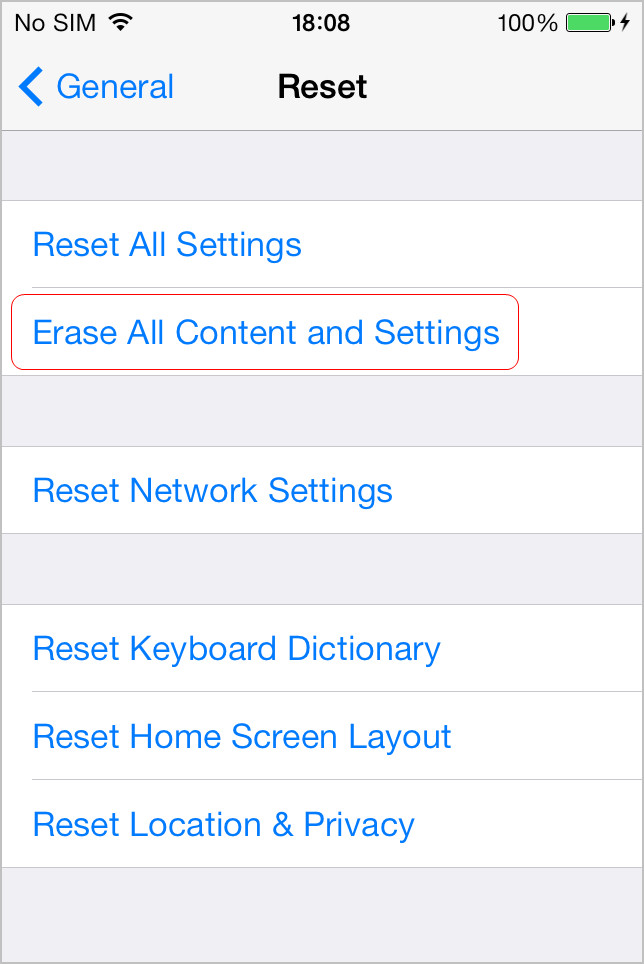
Using iTunes is straightforward. Connect your iPhone to your computer, open iTunes, select your device, and choose “Restore Backup.” This process will replace all current data on your iPhone with the data from the selected backup point. The major caveat? You will lose any data created or changed since that backup was made. It’s a full-device rollback. The same principle applies if you want to recover call log on iPhone via iCloud. You’d need to erase your iPhone completely (Settings > General > Reset > Erase All Content and Settings), then go through the setup process again and choose “Restore from iCloud Backup.”

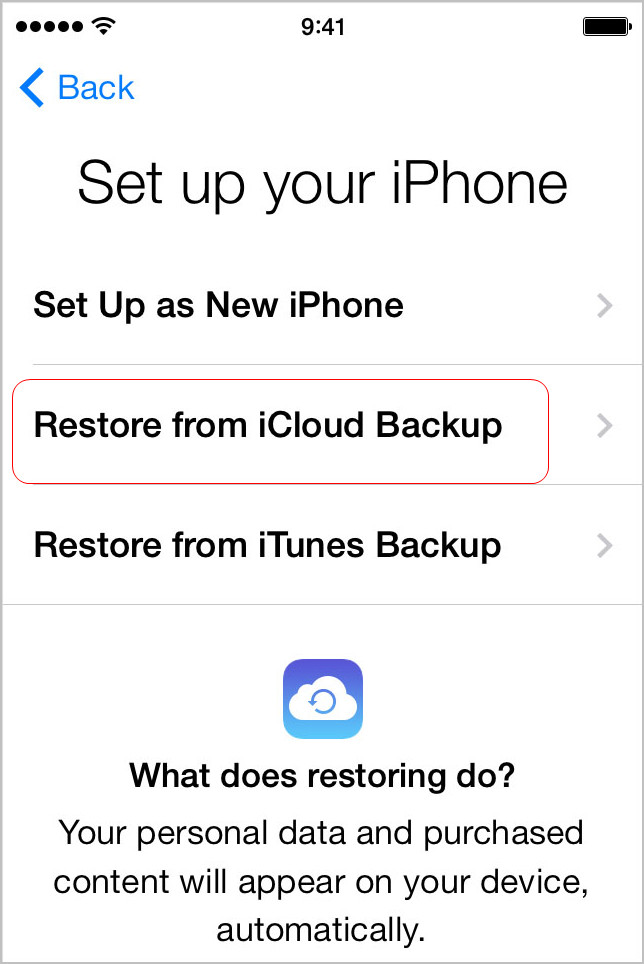
While these methods can successfully recover iPhone call log, they are nuclear options. They are not selective. You can’t just recover the call history; you recover everything from that backup and sacrifice all newer data. For a more surgical approach that targets only your lost calls, third-party data recovery tools offer a much better solution. These tools can scan your device or backup files directly to find and extract deleted data that hasn’t been overwritten.
Try Leawo iOS Data Recovery right now! 100% Recover Deleted or Lost Data from iTunes, iCloud and iOS Devices (iPhone, iPad, and iPod) Safely and Accurately!
Get the Windows version | Get the Mac version | Use the time-limited promotional campaign

How to Recover Deleted Call History on iPhone Directly
If you haven’t synced or backed up your iPhone since the call history was deleted, specialized data recovery software might be able to scan the device’s storage for remnants of the deleted data. This is often the best chance for iPhone call log recovery when no recent backup exists. The process typically involves connecting your iPhone to a computer and running a scan.
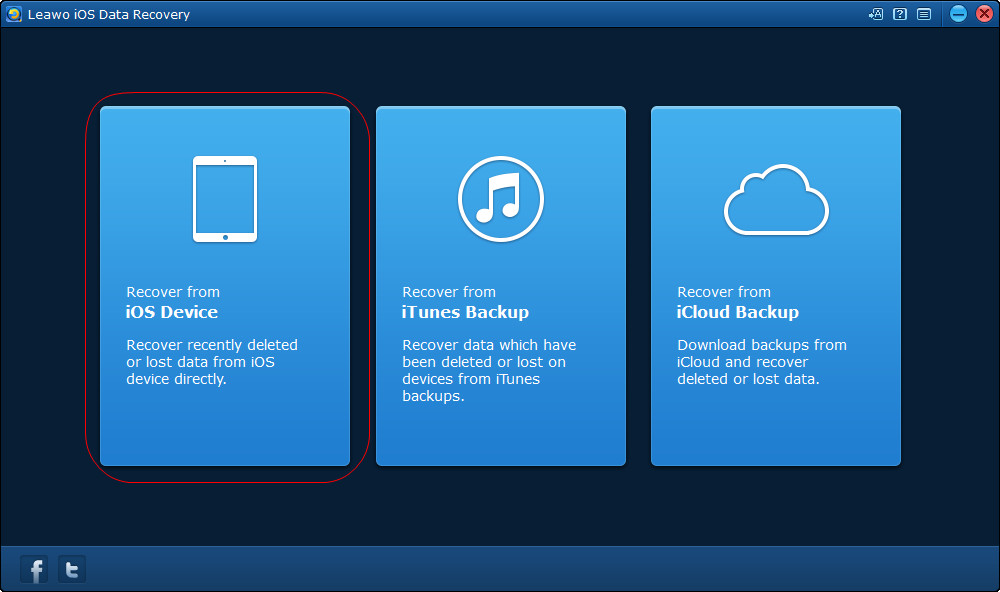
Step 1: Launch your chosen data recovery program on your computer. Look for an option like “Recover from iOS Device” or “Scan iPhone.”

Step 2: Use a genuine USB cable to connect your iPhone to the computer. Trust the computer if prompted on your iPhone screen. The software should detect your device. Initiate the scan process. This deep scan can take some time as it searches for recoverable data fragments.
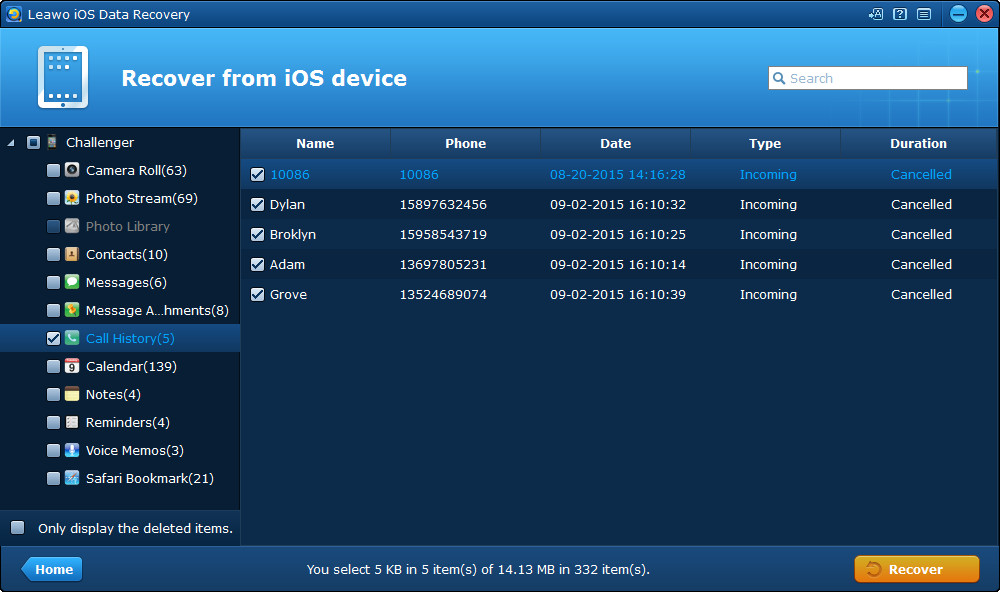
Step 3: Once the scan completes, you’ll see a list of data types. Navigate to and select “Call History” or “Call Log.” The software should display both existing and deleted call records, often marked differently. Preview and check the specific call logs you wish to recover deleted call history on iPhone.

Step 4: Click the “Recover” button. You’ll be asked to choose a save location on your computer—not back to the iPhone directly. Saving recovered data directly to the iPhone risks overwriting the very data you’re trying to save. Once saved to your computer, you can view the call log, usually as an HTML or CSV file. This method is ideal for targeted call history deleted iPhone recovery without affecting other data on your phone.
Extract and Recover Call History from an iTunes Backup
Maybe you do have a backup, but you don’t want to restore your entire phone and lose recent photos, messages, or apps. This is where backup extraction tools shine. You can peek inside your iTunes (or Finder) backup file and pull out just the call log. This is a perfect method to recover call log on iPhone from a backup snapshot.
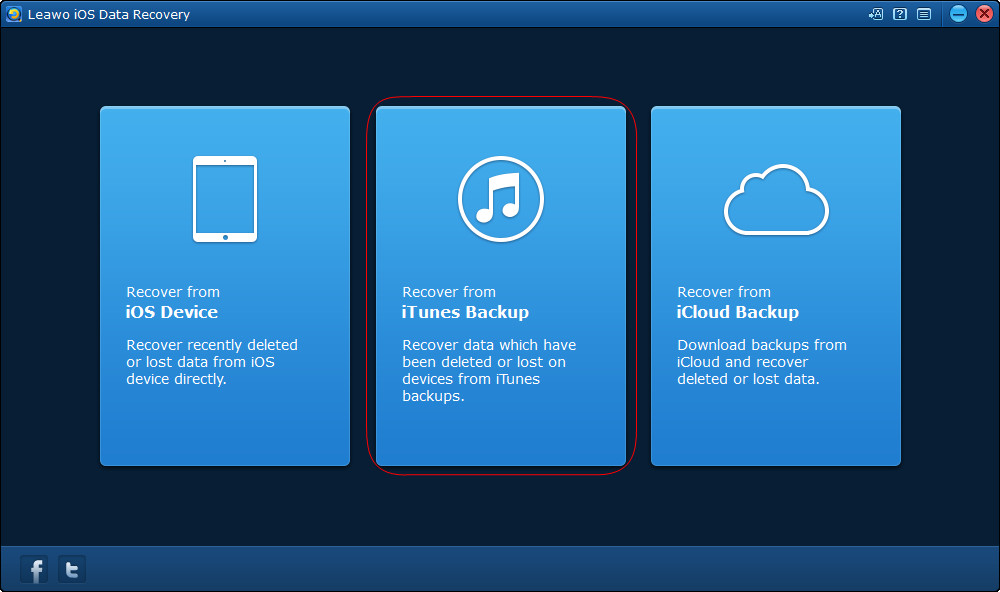
Step 1: Open the data recovery software and select the mode for recovering from an iTunes backup. The software will automatically list all the iTunes backup files found on your computer.
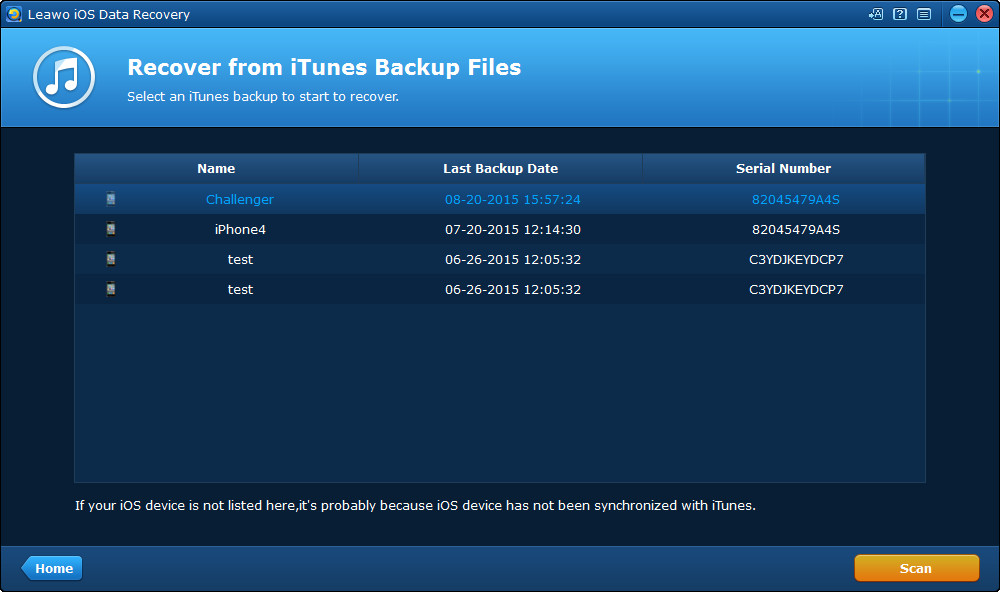
Step 2: From the list, choose the most relevant backup file. Ideally, pick one that was created before you deleted the call history. Click “Scan” to let the software unpack and analyze the backup contents.
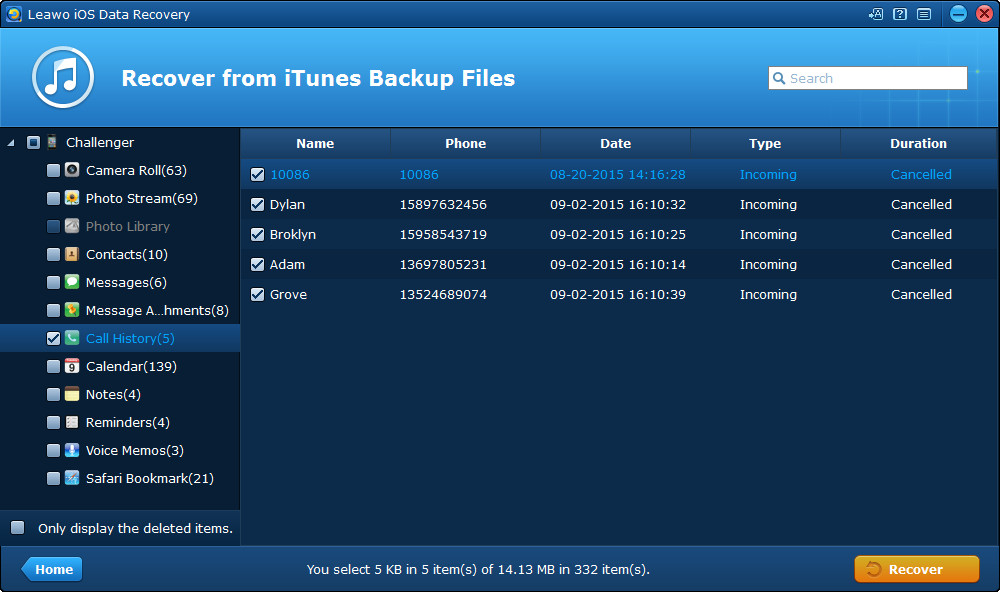
Step 3: After the scan, browse the data categories and select “Call History.” You can preview the details, including phone numbers, call dates, durations, and types (incoming, outgoing, missed). Select the items you need to recover iPhone call log.
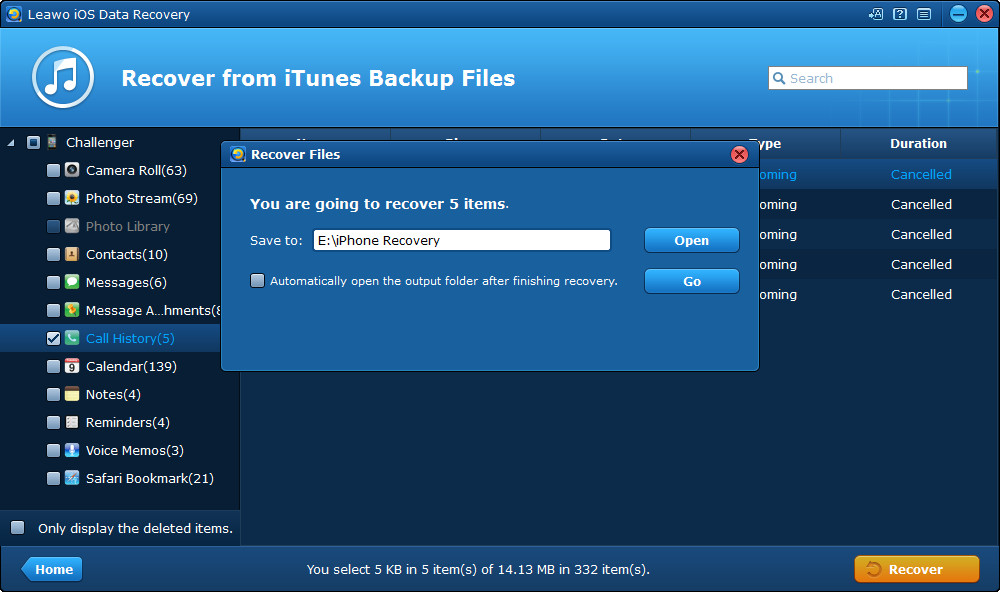
Step 4: Click “Recover” and select a folder on your computer to save the extracted call history. This process leaves your iPhone untouched and your iTunes backup intact. You get a file containing your old call log that you can reference anytime. It’s a non-destructive way to handle a call history deleted iPhone situation.
How to Recover Deleted Call History from iCloud Backup
For those who rely on iCloud, a similar extraction process is available. Instead of downloading the entire backup to your device, you can use desktop software to log into iCloud, download just the backup data, and extract the call log. This is another safe way to recover deleted call history on iPhone without a full device restore.
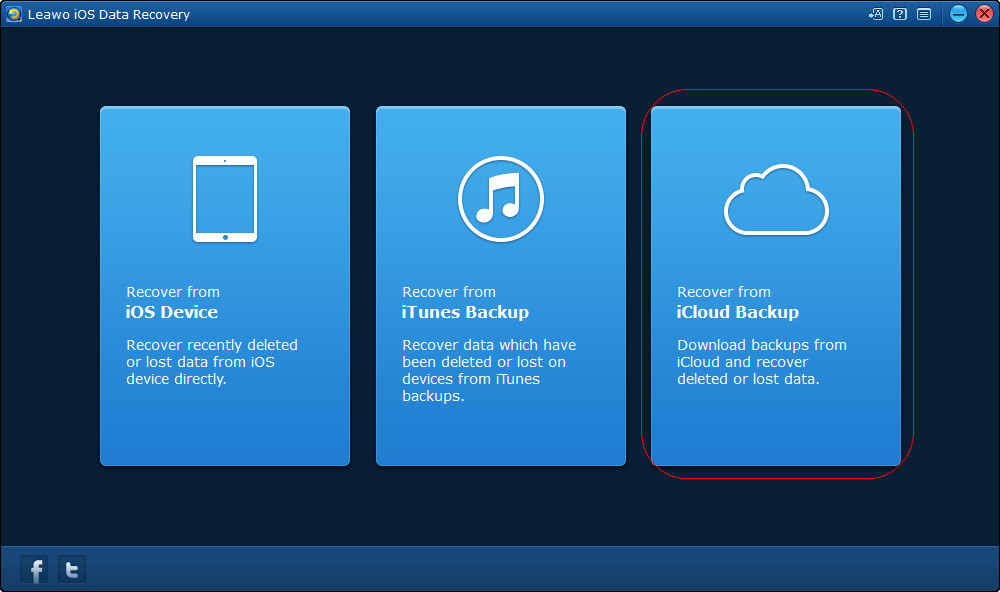
Step 1: In the recovery program, choose the option for iCloud backup recovery. You will need to sign in with your Apple ID and password.
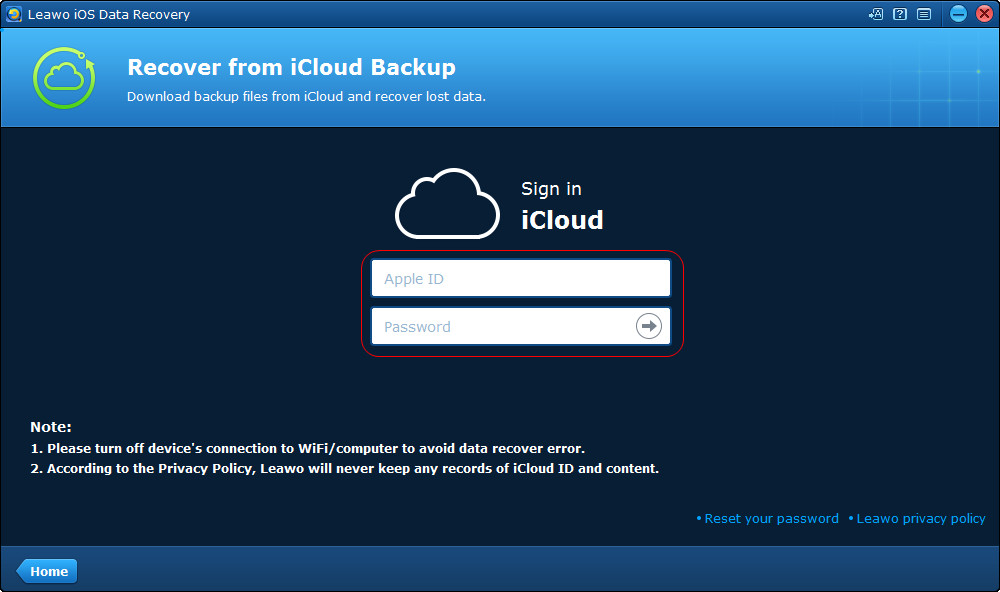
Step 2: Authenticate with your Apple ID. For security, you may need to complete two-factor authentication. Use the same Apple ID used to create the iCloud backup you want to access.
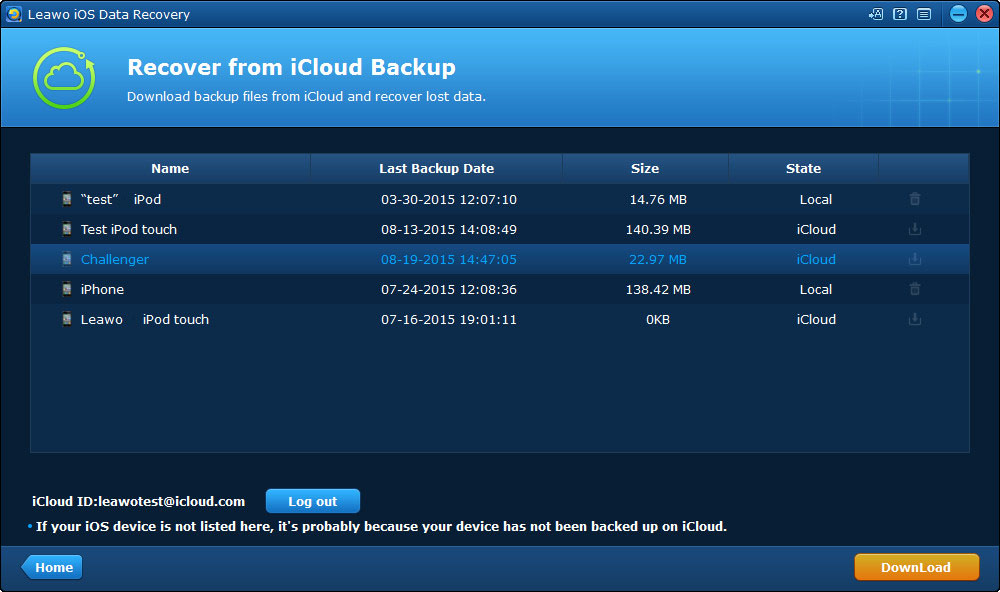
Step 3: The software will display a list of available iCloud backups associated with your account. Select the appropriate backup file and click “Download.” The software will typically let you choose which data types to download to save time—just select Call History.
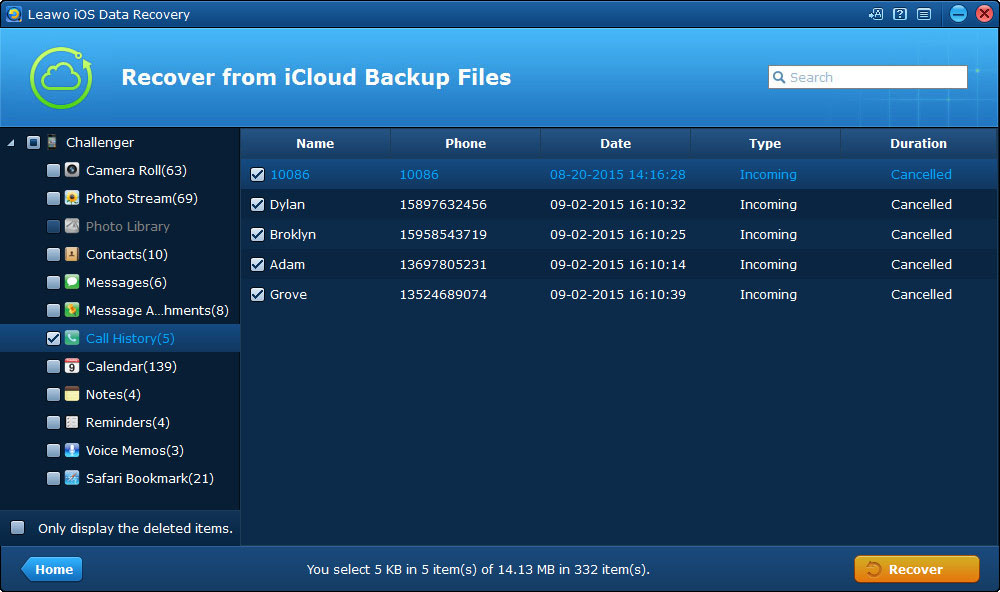
Step 4: Once the download and scan are complete, the call history data will be available for preview. Select the specific records you want to retrieve to complete your iPhone call log recovery.

Step 5: Initiate the recovery and save the file to your computer. The recovered log is now safely stored separately, giving you a permanent record even if you later delete it from iCloud or your iPhone.
Choosing the Right Method for Your Situation
So, which method should you use to recover call log on iPhone? It depends on your specific scenario:
- No Backup, Recent Deletion: Try direct recovery from the iOS device first.
- Has iTunes Backup, Needs Selective Recovery: Use iTunes backup extraction.
- Has iCloud Backup, Prefers Cloud Access: Use iCloud backup extraction.
- Willing to Overwrite Current iPhone Data: Use full restore via iTunes or iCloud.
The key takeaway is that a call history deleted iPhone event is not necessarily permanent. Between Apple’s own ecosystem and powerful third-party tools, you have multiple shots at getting that valuable information back. The most important habit you can develop is regular, consistent backups—this gives you the safest fallback option for any data loss.
Some images are sourced from the internet for illustrative purposes.