TOOL HUNTER

Have you ever wondered how to make your Twitter posts more engaging and eye-catching? Well, embedding videos on Twitter is one of the best ways to grab attention and increase interaction with your followers. Whether you’re sharing your own content or someone else’s, knowing how to properly embed video on Twitter can significantly boost your social media presence.
Table of Contents
- Why Embed Videos on Twitter?
- How to Embed Video on Twitter from Different Devices
- How to Embed Someone Else’s Video on Twitter
- Creating Original Videos for Twitter
- Editing Tools for Better Twitter Videos
- Best Practices for Twitter Videos
- Troubleshooting Common Video Embedding Issues
- Advanced Twitter Video Strategies
- Measuring Video Performance on Twitter
- Conclusion
Why Embed Videos on Twitter?
Before we dive into the step-by-step process, let’s talk about why you should consider embedding videos in your tweets. Videos on Twitter aren’t just fancy additions – they’re powerful tools that can transform your social media game.
When you embed a video on Twitter, you’re not just sharing content – you’re creating an experience for your viewers. Statistics show that tweets with embedded videos receive significantly more engagement compared to regular text tweets or even those with images. We’re talking about hundreds of percentage points more in terms of likes, retweets, and replies.
The beauty of video content on Twitter lies in its ability to stop the scroll. As users quickly browse through their feeds, compelling video content makes them pause and pay attention. This increased dwell time translates to better visibility for your account and more opportunities to connect with your audience.
How to Embed Video on Twitter from Different Devices
Learning how to embed video into Twitter might seem complicated at first, but it’s actually quite straightforward once you know the steps. The process varies slightly depending on whether you’re using a desktop computer, iPhone, or Android device.
Desktop Method for Embedding Twitter Videos
If you’re using Twitter on your computer, here’s how you can embed video on Twitter:
First, log into your Twitter account through your web browser. Navigate to the video you want to share in your tweet. Look for the three dots icon (often called the “more options” button) located near the tweet. Clicking this will reveal a dropdown menu with several choices.
From this menu, select the “Embed Video” option. Twitter will generate an HTML code that you can copy. This code can be used not only in tweets but also on websites if you want to display Twitter content elsewhere. Once you’ve copied the code, you can paste it into your new tweet composition window.
The great thing about using the desktop method is that you get a preview of how the embedded video will appear, ensuring everything looks perfect before you publish your tweet.
iPhone Method for Twitter Video Embedding
For iPhone users, the process of how to embed a video in Twitter is slightly different but equally simple:
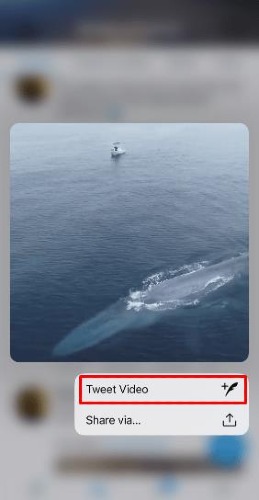
Open your Twitter app and find the video you’d like to share in your tweet. Instead of tapping quickly, press and hold your finger on the video itself. After a moment, a menu will pop up with various options.
From this menu, select “Tweet video.” This will open the tweet composition screen with the video already attached. The best part? You’re not retweeting the original post – you’re creating a new tweet with the video embedded, which looks much cleaner and more professional.
You can add your own commentary, hashtags, or mentions while the video plays directly in your tweet. The original poster will still be credited, appearing below the video content.
Android Approach to Embedding Videos
Android users have their own method for how to embed video into Twitter:
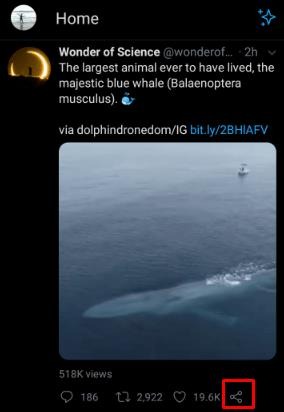
Launch your Twitter app and locate the video content you want to share. Tap the share icon (which looks like three dots connected by lines) typically found in the bottom right corner of the tweet.
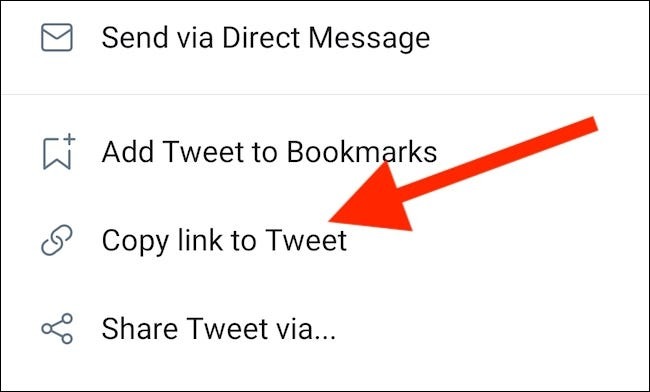
From the share menu, select “Copy link.” Now, start composing a new tweet and paste the copied link into the text field. Here comes the important part: you’ll need to edit the link slightly.
Delete everything in the link after the question mark symbol (?). Then, type “/video/1” at the end of the remaining link. When you publish your tweet, it will display the video beautifully with the original creator credited below.
How to Embed Someone Else’s Video on Twitter
Sharing other people’s content is a great way to build community and relationships on Twitter. When you embed someone else’s video on Twitter, you’re not just sharing great content – you’re also showing appreciation for other creators, which can lead to valuable connections and collaborations.
There are two main approaches to sharing others’ video content: through retweeting or through embedding without retweeting. Both have their place in your Twitter strategy.
The Retweet Method
Retweeting is the simplest way to share someone else’s video on Twitter. It’s straightforward and requires just a couple of clicks:
Find the tweet containing the video you want to share. Look for the retweet icon (which resembles two arrows forming a square or cycle). Click this icon, and you’ll have the option to either retweet immediately or quote tweet.
If you choose to quote tweet, you can add your own comments above the original tweet. This method is great when you want to add context or your perspective to the shared content while still giving full credit to the original creator.

Embedding Without Retweeting
Sometimes you might want to share a video without the entire original tweet attached. This creates a cleaner look and lets your commentary take center stage. Here’s how to embed a video in Twitter without retweeting:
Locate the video you want to share and click the share icon (three connected dots). Select “Copy link” from the menu that appears. Begin composing a new tweet and paste the copied link.
Now, edit the link by removing everything after the question mark. Add “/video/1” to the end of the truncated link. When you post the tweet, it will display the video beautifully while still crediting the original creator in a less prominent way.
This method is particularly useful when you want the video to be the star of the show without the distraction of the original tweet’s text or other embedded elements.
Creating Original Videos for Twitter
While sharing existing videos is great, creating your own original content can take your Twitter presence to the next level. When you tweet a video that you’ve created specifically for your audience, you have complete control over the message, style, and branding.
Original videos allow you to establish your unique voice and perspective. They can help you stand out in a sea of shared content and position you as a creator rather than just a curator. The process of how to embed video on Twitter works the same whether the content is yours or someone else’s, but the impact of original content can be much more significant for building your personal or brand identity.
Consider what type of video content resonates with your audience. Tutorials, behind-the-scenes glimpses, quick tips, or entertaining clips can all perform well on Twitter. The key is to provide value while staying true to your brand’s voice and your audience’s interests.
Editing Tools for Better Twitter Videos
If you’re creating original videos for Twitter, having a good editing tool can make a world of difference. Well-edited videos look more professional, are more engaging, and ultimately perform better in terms of viewer retention and engagement.
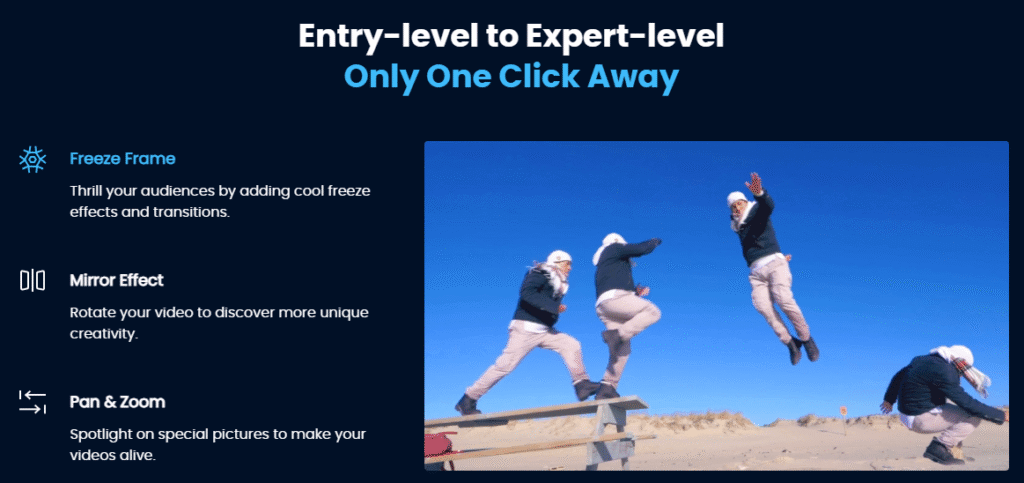
Filme – Best Video Editor for Beginners.Explore Your Creativity, Limitless
Check More Details | Download Now! | Check All Deals
When selecting a video editor for Twitter content, look for tools that offer quick editing capabilities, since Twitter videos are typically shorter than content for other platforms. The ability to trim clips, add text overlays, include basic transitions, and adjust audio levels are essential features.
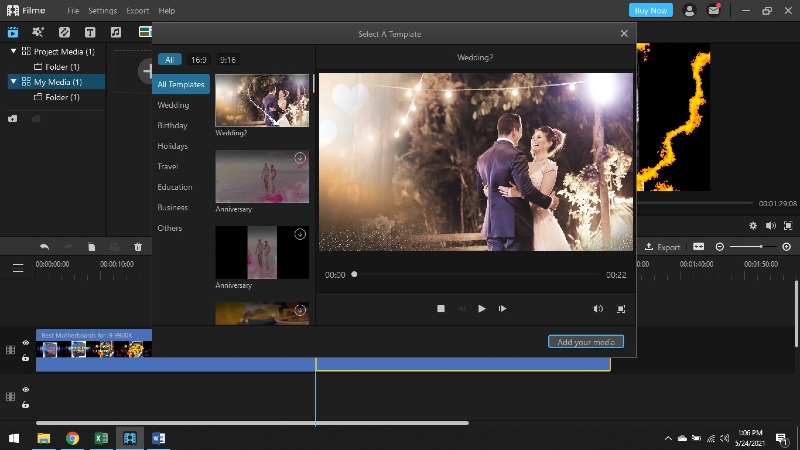
Many video editing tools now offer templates specifically designed for social media platforms, which can save you time while ensuring your content looks polished and platform-appropriate. Some even have aspect ratio presets for different social media platforms, taking the guesswork out of formatting.
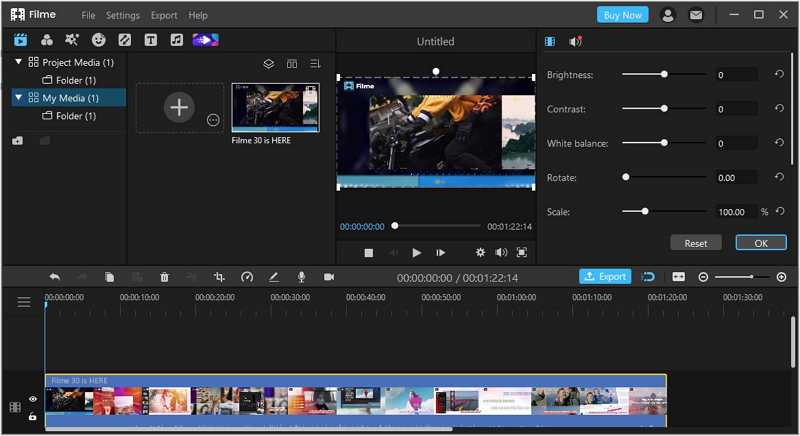
Consider your skill level when choosing an editing tool. If you’re new to video editing, look for intuitive interfaces with drag-and-drop functionality. If you’re more experienced, you might prefer software with advanced features and customization options.
The good news is that there are quality editing options available at various price points, including free tools with robust feature sets. Many modern video editors don’t require powerful computers either, with cloud-based options becoming increasingly popular.
Best Practices for Twitter Videos
Knowing how to embed a video in Twitter is important, but understanding how to optimize those videos for maximum impact is equally crucial. Here are some best practices to keep in mind:
Keep your videos concise. While Twitter supports videos up to 2 minutes and 20 seconds, shorter videos often perform better. The first few seconds are critical for grabbing attention, so make them count.
Add captions or text overlays. Many users watch videos with the sound off, especially when browsing in public places. Including captions ensures your message gets across regardless of audio settings.
Use engaging thumbnails. When you embed video on Twitter, the platform typically selects a frame from your video to display as a preview. Some editing tools allow you to specify which frame to use as the thumbnail, so choose an engaging one that makes people want to click.
Consider the aspect ratio. Vertical videos (9:16) tend to perform better on mobile devices, which is where most Twitter users access the platform. However, horizontal videos (16:9) can work well too, especially for content that’s also being shared on other platforms.
Include a clear call to action. What do you want viewers to do after watching your video? Like the tweet? Retweet it? Visit your website? A clear CTA can significantly increase engagement.
Troubleshooting Common Video Embedding Issues
Sometimes, despite following the steps correctly, you might encounter issues when trying to embed video on Twitter. Here are some common problems and their solutions:
If the video isn’t displaying properly, check that you’ve edited the link correctly (for the Android method). The “/video/1” addition is crucial for proper embedding.
Some videos can’t be embedded due to the original poster’s privacy settings. If you’re unable to embed a particular video, it might be because the creator has restricted embedding capabilities.
If you’re trying to embed a video from another platform like YouTube, the process might be different. Typically, you would just paste the YouTube link into your tweet, and Twitter will automatically generate an embedded player.
Browser issues can sometimes interfere with embedding functionality. If you’re having trouble on desktop, try clearing your cache or using a different browser.
Filme – Best Video Editor for Beginners.Explore Your Creativity, Limitless
Check More Details | Download Now! | Check All Deals
Advanced Twitter Video Strategies
Once you’ve mastered the basics of how to embed video into Twitter, you might want to explore more advanced strategies to maximize your video content’s impact:
Create video threads: Twitter threads allow you to connect multiple tweets together. Consider creating a series of videos that tell a story or explain a complex topic across several connected tweets.
Use Twitter’s native video features: Twitter offers features like pinned tweets that can help you highlight your best video content. Pinning a popular video tweet to the top of your profile ensures it’s the first thing visitors see.
Incorporate videos into your Twitter Moments: Moments allow you to curate collections of tweets around a specific theme or event. Including video tweets in your Moments can make them more engaging and dynamic.
Experiment with different video types: Try mixing up your video content between educational, entertaining, and inspirational videos to see what resonates most with your audience. Analytics can help you understand which types perform best.
Schedule your video tweets: Posting when your audience is most active can significantly increase your video’s initial engagement, which in turn can boost its visibility in Twitter’s algorithm.
Measuring Video Performance on Twitter
Understanding how your video content performs is key to refining your strategy. Twitter provides analytics that can show you how many views your videos receive, how long people watch them, and what engagement they generate.
Pay attention to completion rates – how many viewers watch your entire video. This metric can help you understand if your videos are the right length and if the content is compelling enough to hold attention.
Also monitor how video tweets affect your overall account metrics. Do they bring you new followers? Do they generate more profile visits? Understanding these broader impacts can help you justify the time investment in creating video content.
Conclusion
Learning how to embed video on Twitter is a valuable skill in today’s social media landscape. Whether you’re sharing others’ content or creating your own, video tweets can significantly boost engagement and help you connect with your audience in more meaningful ways.
The process of how to embed a video in Twitter varies slightly by device, but once you’ve practiced a few times, it becomes second nature. Remember that you have options – from simple retweets to clean embedded videos that let your commentary shine.
As you become more comfortable with video on Twitter, don’t be afraid to experiment with different types of content and strategies. The platform is constantly evolving, and staying adaptable will help you make the most of its video capabilities.
Most importantly, have fun with it! Video content allows you to express creativity and connect with your audience in ways that text alone can’t match. So go ahead, tweet a video that showcases your personality, shares your knowledge, or simply brings a smile to someone’s face.
Some images sourced from iMyFone