TOOL HUNTER

Creating a slideshow is one of the most effective ways to present information, whether you’re putting together a school project, a business presentation, or a personal photo collection. Microsoft PowerPoint has long been the go-to tool for this purpose, offering a range of features that help you build professional-looking slideshows. However, it’s not the only option available, and sometimes you might want to explore alternatives that offer more creative freedom or a simpler workflow.
In this guide, we’ll walk you through how to make a slideshow using Microsoft PowerPoint, discuss its strengths and limitations, and introduce you to a powerful alternative that can help you create stunning slideshows with ease.
How to Make a Slideshow in Microsoft
Microsoft PowerPoint is a widely used program for creating presentations and slideshows. If you’re looking to learn how to make a simple slideshow, PowerPoint is a solid starting point. Before diving in, it’s a good idea to gather all the images you plan to use and any background music you’d like to include. This preparation will make the process smoother.
Step 1. Launch Microsoft PowerPoint and select “Blank Presentation.” To add your photos, go to the “Insert” tab, click on “Photo Album,” and then choose “New Photo Album.” Select the images you want and click “Create.”
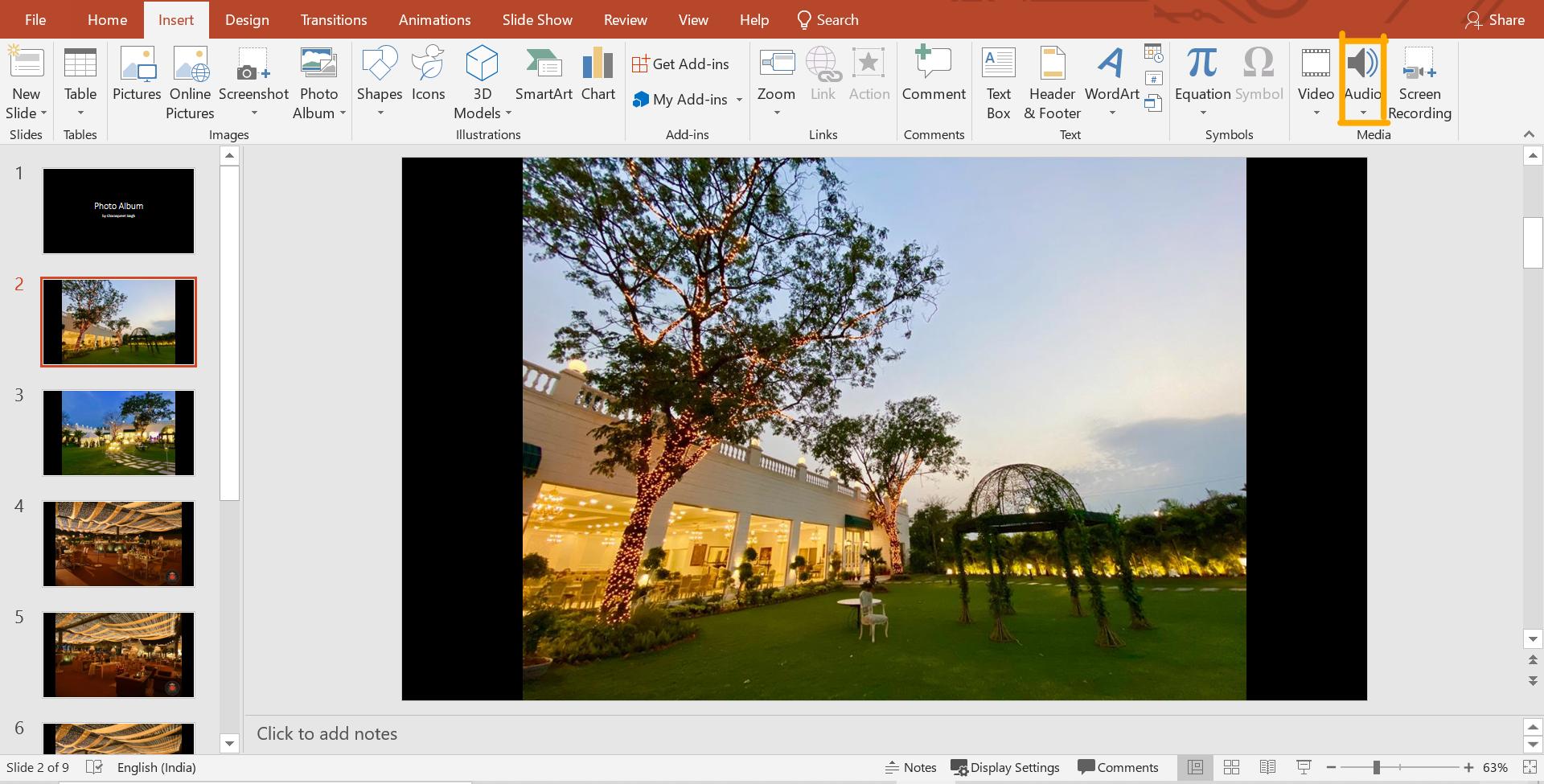
Step 2. Once your images are in place, you can enhance your slideshow by adding background music. Navigate to “Insert,” then “Audio,” and select “Audio on My PC.” Locate your audio file and click “Insert.”
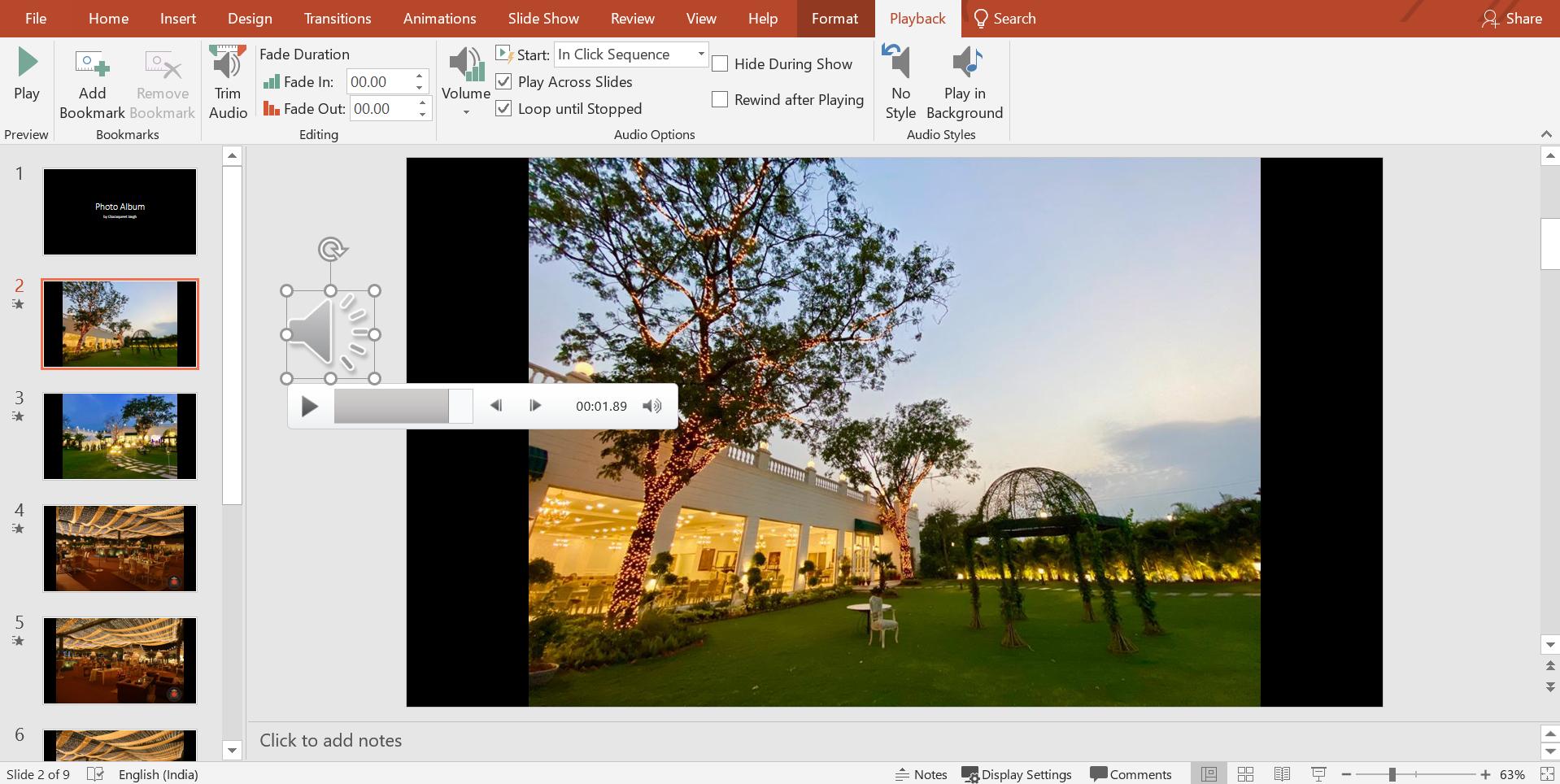
Step 3. Adjusting the audio across multiple slides can be tricky in PowerPoint. You’ll need to ensure the music plays consistently throughout your presentation. Select the audio icon, go to the “Playback” tab, and choose “Play in Background.” Use the “Trim Audio” option to set the desired length and adjust fade-in and fade-out effects for smoother transitions.
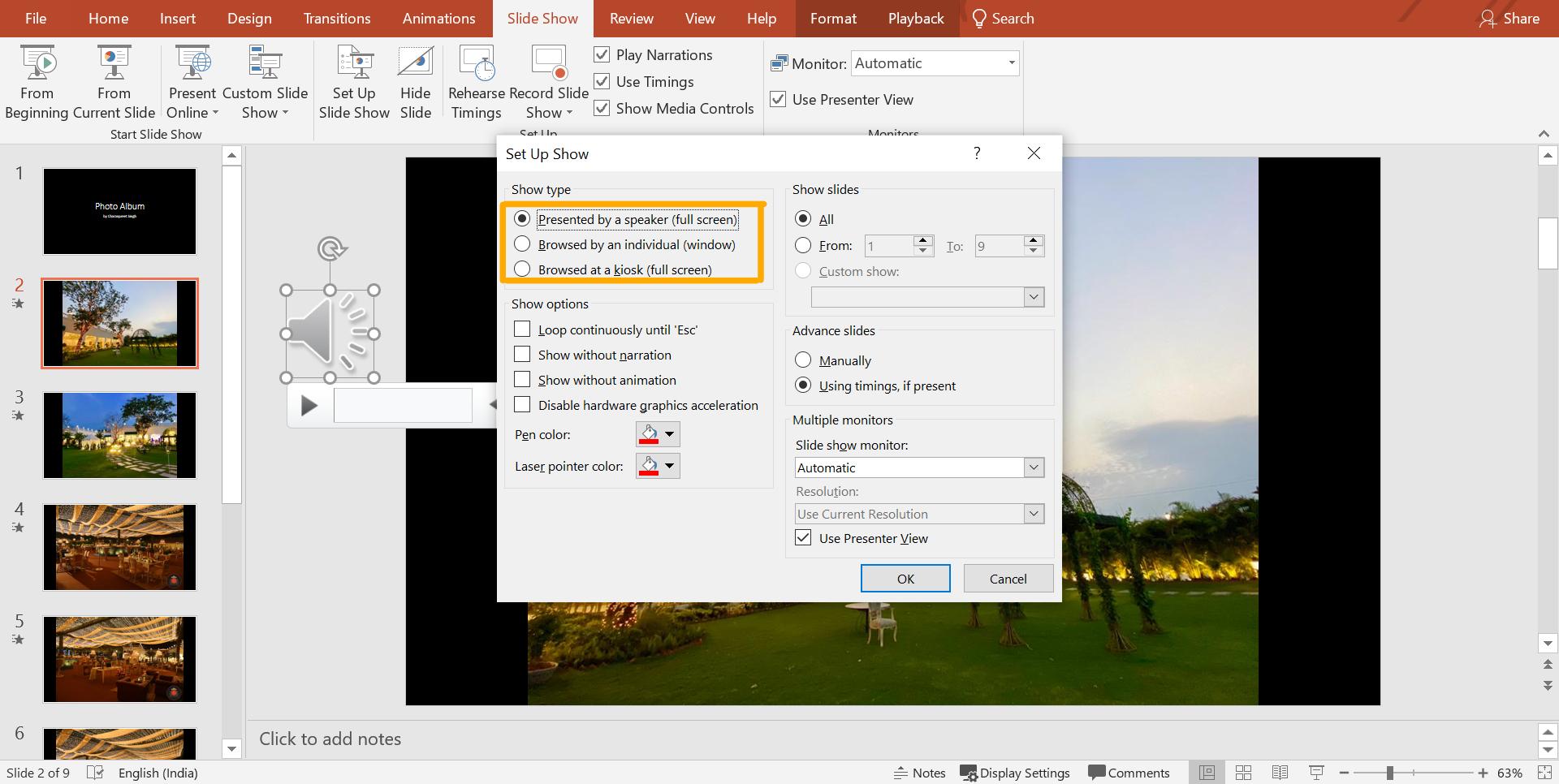
Step 4. To set up how your slideshow will be displayed, click on “Slide Show” and then “Set Up Slide Show.” You can choose from options like “Presented by a Speaker,” “Browsed by an Individual,” or “Browsed at a Kiosk.” For a looping slideshow, the kiosk mode is ideal.
Step 5. Timing is crucial for a polished slideshow. Click on “Rehearse Timings” to practice and set the duration for each slide. As the slideshow runs, click “Next” when you’re ready to move to the following slide. This helps you sync the slides with your audio or narration.
Step 6. Finally, to save your slideshow as a video, go to “File,” select “Export,” and click “Create Video.” Choose your preferred format and save the file to your desired location.
While PowerPoint is a capable tool, it does have a learning curve, especially when it comes to advanced features like audio synchronization. If you’re looking for a more intuitive and feature-rich solution, you might want to consider an alternative.
iMyFone DreamVid.iMyFone DreamVid.Upload any photo you like to create a video with AI.Add portraits of your loved ones to bring them to life.Upload images of people or characters you love to generate AI hugging or kissing videos with one click.Explore advanced AI face swap technology to create multiple videos with different avatars.Enjoy a vast collection of templates to transform photos into captivating videos.

Check More Details | Download Now! | Check All Deals
The Best Alternative to Microsoft Slideshow Software
If you find PowerPoint a bit overwhelming or limiting, there are excellent alternatives available. One such tool is Filme, a user-friendly software designed to help you create beautiful slideshows quickly and efficiently. Unlike the traditional Microsoft slideshow program, Filme offers a range of templates and editing features that simplify the process.
Key features of Filme include:
- Pre-designed Templates: Choose from a variety of templates tailored for different occasions, complete with transitions and music.
- Customizable Graphics: Add effects, transitions, and text to make your slideshow more engaging.
- Basic Editing Tools: Trim, crop, rotate, and adjust the speed of your images with ease.
- Direct Sharing: Export your slideshow directly to platforms like YouTube, Facebook, and Vimeo.
Filme’s intuitive interface makes it a great choice for both beginners and advanced users. Whether you’re learning how to make a slideshow on Word or exploring other tools, Filme offers a seamless experience.
How to Make a Slideshow with Filme
Filme provides two main modes for creating slideshows: Fast Mode and Editing Mode. Fast Mode is perfect for those who want a quick and easy way to make a slideshow, while Editing Mode offers more control and customization options.
Using Fast Mode
Step 1. Open Filme and select “Fast Mode.”
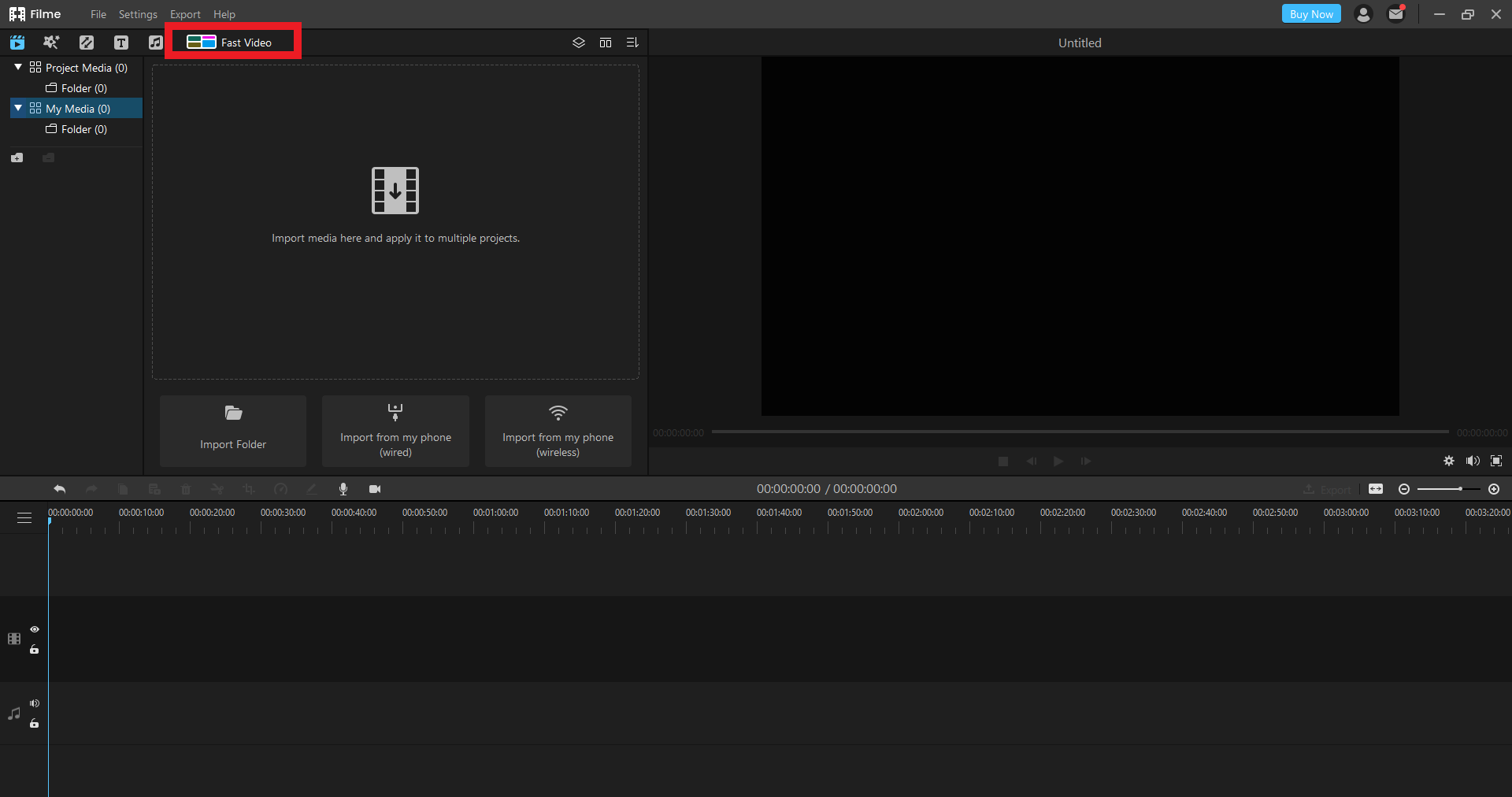
Step 2. Browse through the available templates and choose one that fits your needs.
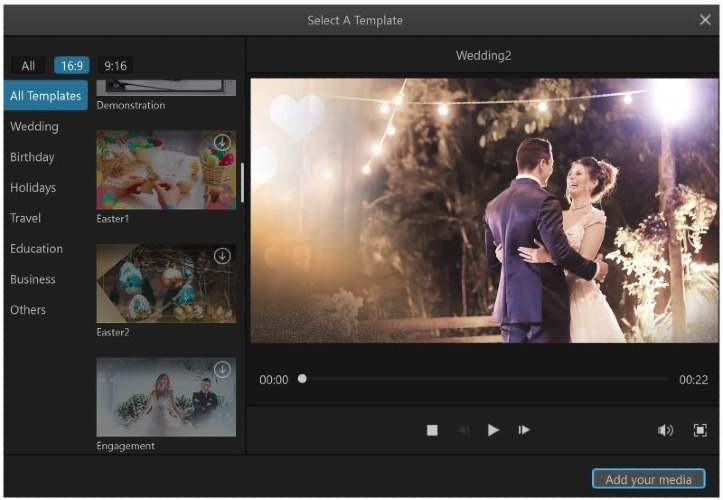
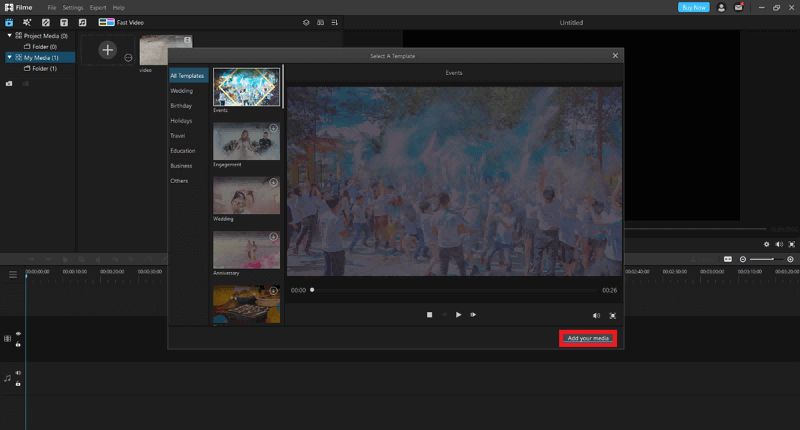
Step 3. Click “Add Your Media” and import your images. You can drag and drop files directly or import them from your phone.
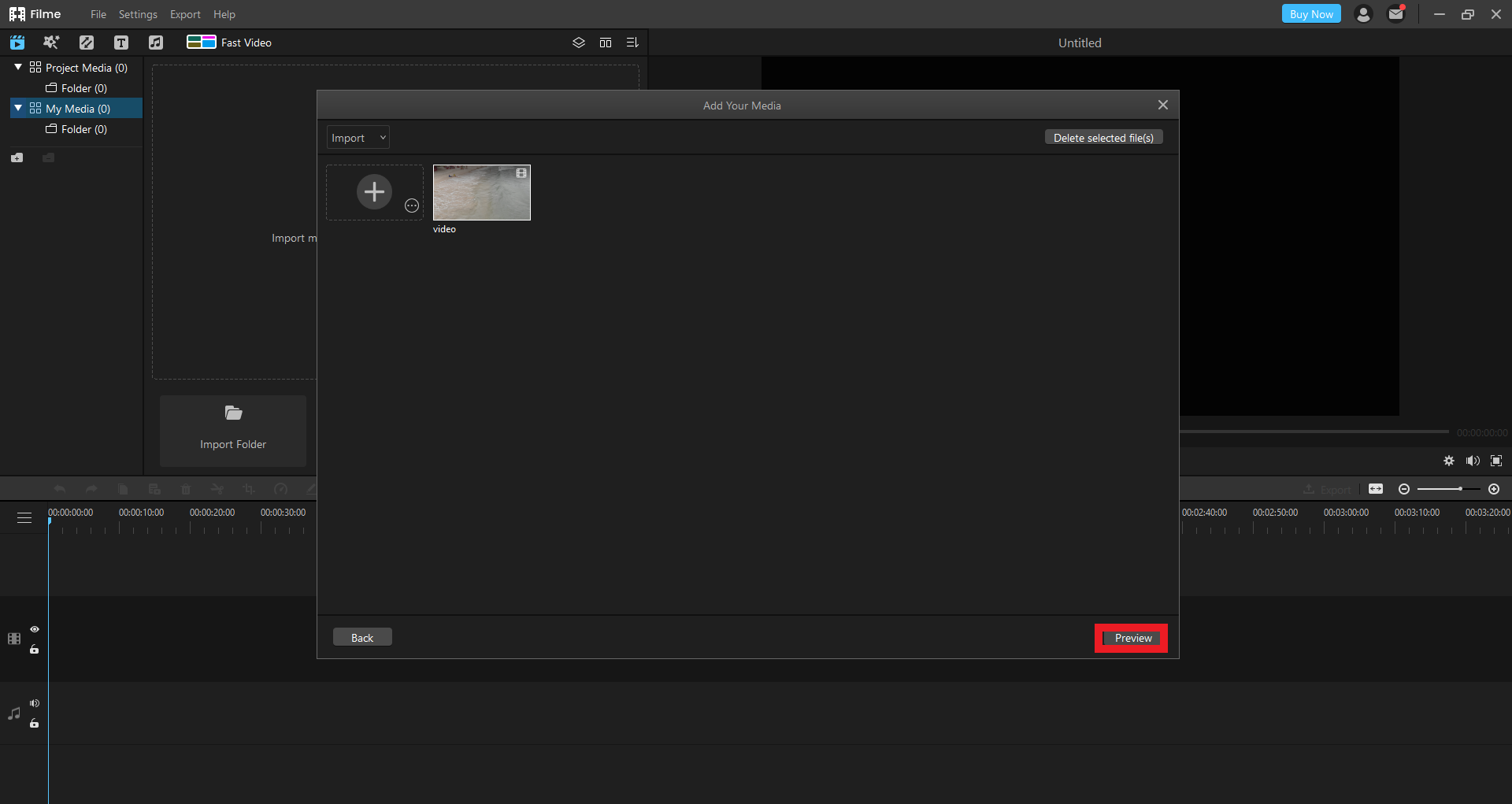
Step 4. Preview your slideshow to ensure everything looks good, then click “Export.”
Step 5. Choose your preferred format and save the video to your computer or upload it directly to social media.
Using Editing Mode
Step 1. Open Filme and click on “Project Media” to import your images.
Step 2. Add your photos by clicking the “Insert” icon or dragging them into the workspace.
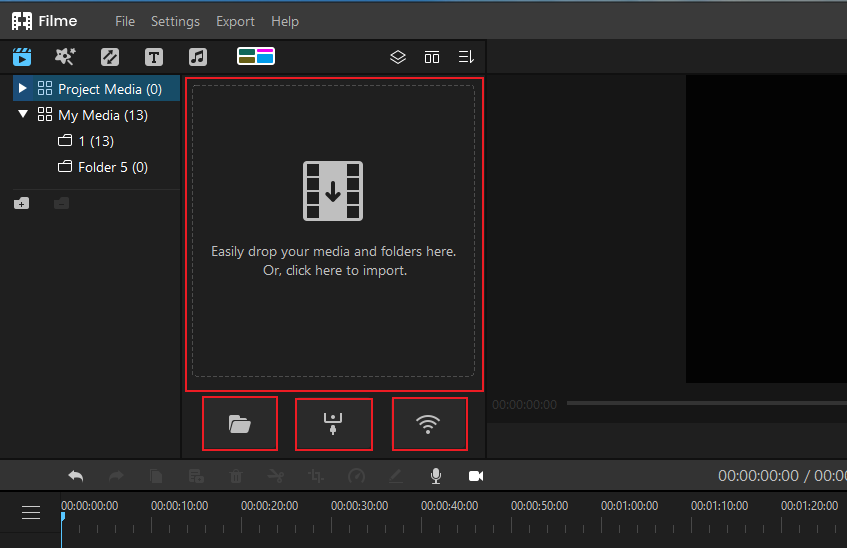
Step 3. Import your audio file and place it on the timeline. This makes it easier to sync your images with the music.
Step 4. Arrange your images in the order you want them to appear.
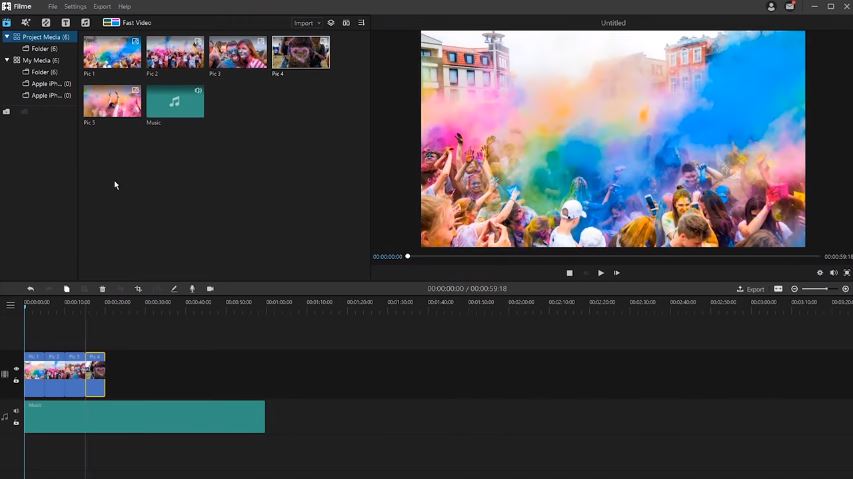
Step 5. Enhance your slideshow by adding transitions between images. Filme offers over 112 transition effects to choose from.
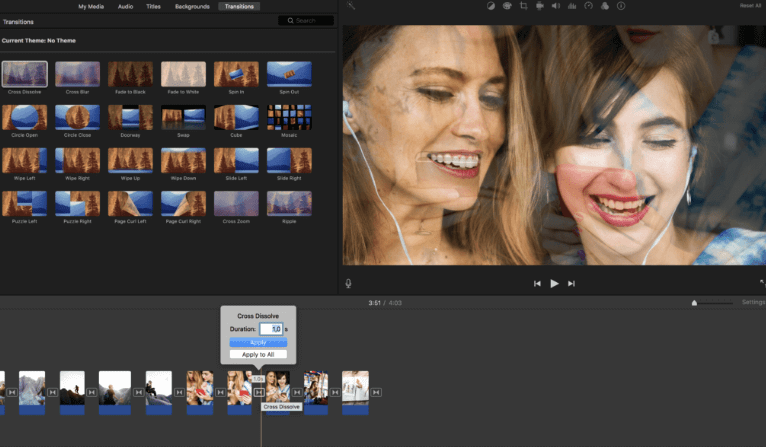
Step 6. Apply visual effects to your images from a library of 172 options.
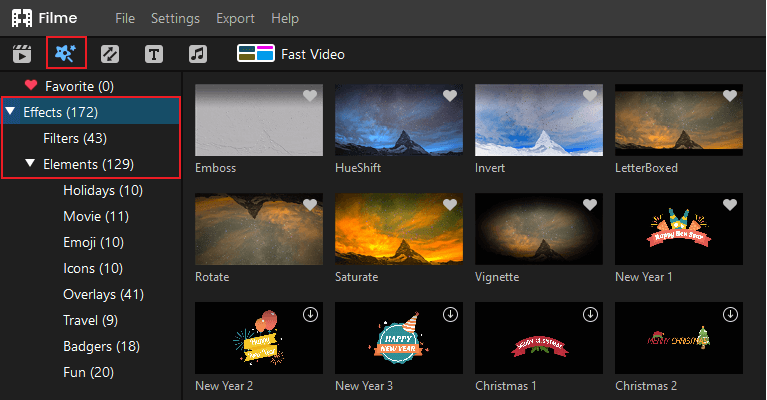
Step 7. Add text overlays to provide context or captions for your slides.
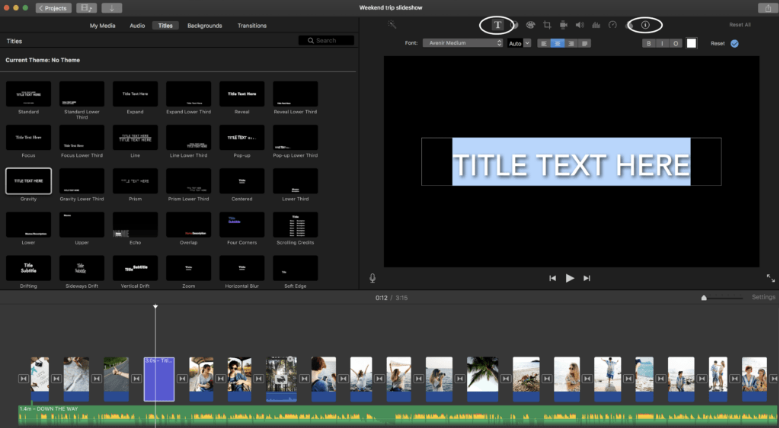
Step 8. Use basic editing tools to fine-tune your images, such as cropping or adjusting zoom.
Step 9. Once you’re satisfied, export your slideshow in your preferred format or share it directly online.
Filme’s versatility and ease of use make it an excellent choice for anyone looking to create a slideshow without the complexity of traditional software.
iMyFone DreamVid.iMyFone DreamVid.Upload any photo you like to create a video with AI.Add portraits of your loved ones to bring them to life.Upload images of people or characters you love to generate AI hugging or kissing videos with one click.Explore advanced AI face swap technology to create multiple videos with different avatars.Enjoy a vast collection of templates to transform photos into captivating videos.
Check More Details | Download Now! | Check All Deals
Why Choose an Alternative to Microsoft Slideshow Program?
While Microsoft PowerPoint is a reliable tool for creating slideshows, it may not always meet everyone’s needs. Learning how to make a slide show on computer with PowerPoint requires time and practice, especially for advanced features. Alternatives like Filme offer a more streamlined experience, with pre-designed templates and intuitive controls that save time and effort.
Additionally, tools like Filme provide more creative options, such as a wider variety of transitions, effects, and text styles. This makes it easier to produce professional-looking slideshows without extensive editing knowledge.
Tips for Creating Engaging Slideshows
No matter which tool you use, keeping your audience engaged is key. Here are some tips to make your slideshow stand out:
- Keep It Simple: Avoid cluttering your slides with too much text or too many images. Focus on a clear message.
- Use High-Quality Media: Blurry images or poor-quality audio can detract from your presentation.
- Sync Audio and Visuals: Ensure your music or narration complements the flow of your slides.
- Practice Timing: Rehearse your slideshow to ensure smooth transitions and appropriate timing for each slide.
Conclusion
Creating a slideshow doesn’t have to be complicated. While Microsoft PowerPoint is a powerful tool, alternatives like Filme offer a more user-friendly and creative approach. Whether you’re learning how to make a slideshow on Word or exploring other options, the key is to choose a tool that fits your skill level and needs.
If you’re looking for a straightforward way to create stunning slideshows, give Filme a try. Its combination of ease of use and advanced features makes it an excellent choice for both beginners and experienced users.
Some images sourced from iMyFone.