TOOL HUNTER

Ever been scrolling through your Facebook feed and stumbled upon a video you absolutely need to keep? Maybe it’s a hilarious clip from a friend, a useful tutorial, or a memorable moment you want to save forever. The big question is: how to save a video from Facebook on your iPhone? You’re not alone in wondering this, and luckily, there are several straightforward methods to get those videos safely stored on your device.
Whether it’s your own upload or someone else’s post, we’ve got you covered with multiple techniques. Let’s dive into the various ways you can download videos from Facebook directly to your iPhone’s camera roll.
Different Methods for Saving Facebook Videos to Your iPhone
When it comes to saving Facebook content to your device, there isn’t just one universal method. The approach you take can depend on where the video originated from and what tools you’re comfortable using. Some methods work better for videos you’ve posted yourself, while others are perfect for content shared by friends or public pages.
The process of saving fb videos to iPhone might seem tricky at first, especially since Facebook doesn’t include a direct download button for most content. But with the right techniques, you’ll be building your video collection in no time. Let’s explore the most effective methods that actually work.
Using Third-Party Apps to Save Your Own Facebook Videos
Sometimes you might have uploaded a video to your Facebook profile but no longer have the original file on your phone. This happens more often than you’d think! Maybe you cleared space on your device or the video was transferred from another phone. Whatever the reason, you can still retrieve your own Facebook posts using reliable third-party applications.
One of the safest options is using a document manager app from the App Store. These apps act as intermediaries between Facebook and your camera roll, providing a secure way to transfer files without compromising your device’s security.
Here’s how to save a video from Facebook on your iPhone using this method:
Step 1: Head to the App Store and download a reliable file management application. Look for apps with good ratings and recent updates to ensure compatibility with current iOS versions.
Step 2: Open your Facebook app and navigate to the video you want to save. Tap the three dots or share button (depending on your app version) and select “Copy Link” to grab the video’s URL.

Step 3: Launch your file manager app and look for its built-in browser or downloader feature. This is where you’ll paste the Facebook video link you just copied.

Step 4: The app will process the link and generate download options. You’ll typically see quality choices and a download button. Tap to start the download process.

Step 5: Once downloaded, locate the video in your app’s file section. You’ll usually find an option to export or share the file. Select “Save Video” to transfer it to your iPhone’s camera roll.
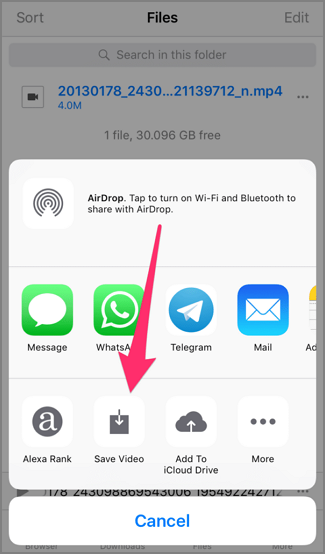
This method might take a few extra steps, but it’s one of the most reliable ways to download videos from Facebook in iPhone when dealing with your own content. The extra layers of security provided by App Store-vetted applications give you peace of mind while saving your precious memories.
Downloading Videos from Other People’s Facebook Posts
What about when you come across an amazing video on someone else’s timeline? The process for saving facebook video iPhone style from other people’s posts is slightly different but equally manageable. While the previous method works perfectly, there’s an even quicker approach using online downloader websites.
These web-based tools eliminate the need for additional app downloads, making them perfect for one-time or occasional downloads. The key is using reputable sites that don’t require personal information or Facebook login details.
Here’s the streamlined process for saving videos from others’ posts:
Step 1: Just like before, find the video you want to save in your Facebook feed. Tap the share button and select “Copy Link” to capture the video’s web address.
Step 2: Open your preferred web browser (Safari works perfectly) and visit a reliable Facebook video downloader website. There are several trustworthy options available through simple web searches.
Step 3: Paste the copied Facebook URL into the downloader’s input field and tap the download or generate button.
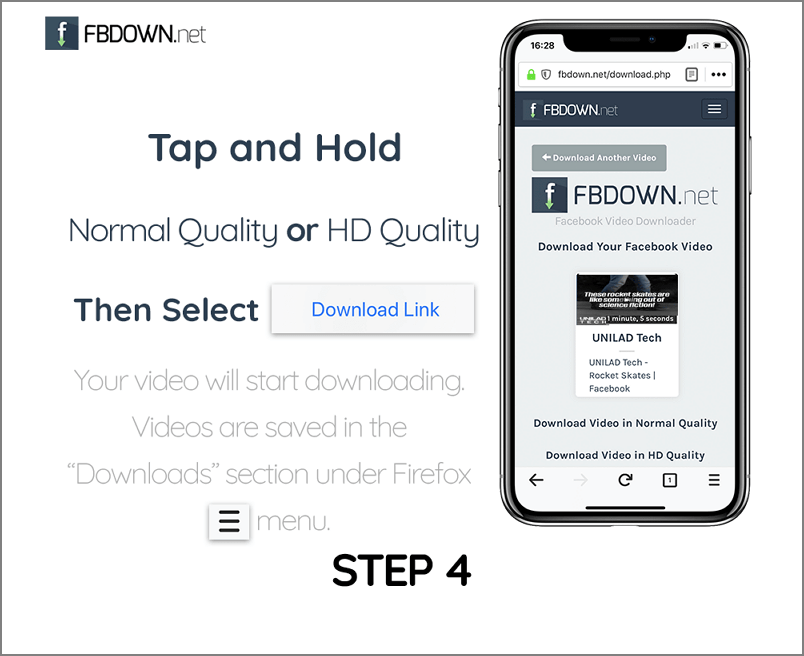
Step 4: The site will process the video and present download options. You’ll typically get to choose between different quality settings before initiating the actual download to your device.
This method represents probably the fastest way to download videos from Facebook in iPhone when dealing with content from friends, family, or public pages. The entire process happens within your browser, making it convenient and temporary—no additional apps clogging up your phone’s storage.
Saving Videos from Facebook Messenger Conversations
Facebook Messenger often contains video gems shared in private conversations that you might want to preserve. The good news is that saving video from Facebook Messenger to your iPhone is arguably the simplest method of all three approaches. Messenger includes built-in functionality for this exact purpose, requiring no third-party tools or complicated steps.
Whether it’s a funny clip from a group chat or a precious family moment shared privately, here’s how to secure those videos:
Step 1: Open your Facebook Messenger app and navigate to the conversation containing the video you want to save.
Step 2: Locate the video in the chat history. Press and hold on the video clip until a menu of options appears.

Step 3: Tap “Save Video” from the menu that appears. The video will immediately be saved to your iPhone’s camera roll without any additional steps.
This straightforward approach makes saving facebook video iPhone users receive through Messenger incredibly simple. It’s worth noting that this method only works for videos actually sent through Messenger—not videos shared as links to Facebook posts.
Important Considerations When Downloading Facebook Videos
Before you start building your video collection, there are some crucial factors to keep in mind. Understanding these aspects will ensure you have the best experience while protecting your device and respecting content creators’ rights.
Storage space is a significant consideration when you save fb videos to iPhone. High-quality videos can quickly eat up your available memory, especially if you’re downloading multiple clips. A single minute of HD video can consume 100-200MB of space, so it’s wise to periodically check your storage situation and delete videos you no longer need.
Video quality is another important factor. The original quality of Facebook videos varies significantly depending on how they were uploaded and compressed. When using online downloaders, you’ll often get the same quality that’s available on Facebook, which might not be full HD. If video quality is crucial for your needs, consider whether the available resolution meets your standards before downloading.
Device security should always be a priority. While searching for ways to download videos from Facebook in iPhone, you might come across suggestions to jailbreak your device. We strongly advise against this approach. Jailbreaking removes Apple’s security protections, voids your warranty, and exposes your device to potential malware. The methods we’ve described work perfectly on standard iOS installations without compromising your phone’s security.
Copyright awareness is equally important. While saving videos for personal use is generally acceptable, redistributing or using others’ content commercially without permission may violate copyright laws. Always respect content creators’ rights and consider reaching out for permission if you plan to use downloaded videos beyond personal viewing.
Enhancing Your Downloaded Videos with Professional Tools
Once you’ve mastered saving facebook video iPhone collections, you might want to take your content to the next level. This is where video editing tools can transform your downloaded clips into polished, professional-looking content perfect for sharing on other platforms or preserving special moments with enhanced quality.
iMyFone DreamVid.iMyFone DreamVid.Upload any photo you like to create a video with AI. Add portraits of your loved ones to bring them to life. Upload images of people or characters you love to generate AI hugging or kissing videos with one click. Explore advanced AI face swap technology to create multiple videos with different avatars. Enjoy a vast collection of templates to transform photos into captivating videos.

Check More Details | Download Now! | Check All Deals
Modern video editors offer features that can significantly improve your downloaded Facebook videos. Basic editing functions like trimming unwanted sections, stabilizing shaky footage, or adjusting brightness can make a noticeable difference in video quality. These improvements are especially valuable if you’re planning to share the videos on other social platforms or use them in personal projects.
Advanced features available in professional editing software include color correction tools that can enhance dull footage, audio adjustment capabilities to improve sound quality, and transition effects that create smooth connections between different video segments. Some editors even offer specialized filters and effects specifically designed for social media content.
The format compatibility of professional editors is another significant advantage. After you save fb videos to iPhone, you might discover they’re in a format that doesn’t work well with other applications or devices. Quality video editors can convert your downloads into more suitable formats while maintaining—or even improving—the original quality.
iMyFone DreamVid.iMyFone DreamVid.Upload any photo you like to create a video with AI. Add portraits of your loved ones to bring them to life. Upload images of people or characters you love to generate AI hugging or kissing videos with one click. Explore advanced AI face swap technology to create multiple videos with different avatars. Enjoy a vast collection of templates to transform photos into captivating videos.
Check More Details | Download Now! | Check All Deals
Organization features in video editors can also help you manage your growing collection of downloaded content. As you learn how to save a video from Facebook on your iPhone more frequently, you’ll appreciate tools that help you categorize, tag, and quickly locate specific videos in your library.
For those interested in more creative projects, many video editors include features like picture-in-picture effects, green screen capabilities, and advanced audio mixing. These tools can help you combine multiple downloaded videos into compilations, add commentary or background music, and create entirely new content from your Facebook downloads.
Troubleshooting Common Download Issues
Even with the best methods, you might occasionally encounter challenges when trying to download videos from Facebook in iPhone. Understanding these common issues and their solutions will help ensure successful downloads every time.
One frequent problem involves videos that won’t download despite following all steps correctly. This can happen if the video’s privacy settings restrict downloading. Some users set their videos to prevent downloading, in which case you might need to ask their permission or use screen recording as an alternative method.
Browser-related issues can also interfere with the downloading process. If you’re using the web-based method and experiencing problems, try clearing your browser cache or switching to a different browser. Sometimes, enabling desktop mode in your mobile browser can resolve compatibility issues with downloader websites.
Connectivity problems can interrupt downloads, especially with larger video files. Ensure you have a stable internet connection before starting the download process. Using Wi-Fi rather than cellular data is recommended for more reliable downloads and to avoid consuming your data allowance.
If you’re having trouble with the app-based method, check that your file manager app is updated to the latest version. Older versions might not be compatible with current Facebook security protocols or iOS updates. Reinstalling the app can sometimes resolve persistent issues.
When saving facebook video iPhone users sometimes find that the downloaded file doesn’t appear in their camera roll immediately. This delay is normal—the iOS Photos app needs time to index new content. If the video doesn’t appear after several minutes, try restarting your phone or checking the “Recently Added” album specifically.
Maximizing Your Downloaded Video Experience
Now that you know how to save a video from Facebook on your iPhone, let’s explore how to make the most of your growing video collection. Proper organization and strategic usage can transform your downloaded videos from random clips into a valuable media library.
Creating themed albums in your Photos app is an excellent way to organize your downloaded content. You might create separate albums for tutorial videos, funny clips, family moments, or inspirational content. This organization makes it much easier to find specific videos when you need them.
Backup strategies are crucial for preserving your important downloads. While having videos on your iPhone is convenient, device loss or failure could mean losing your entire collection. Consider using cloud storage services or transferring important videos to a computer for safekeeping.
Understanding video specifications can help you make better decisions when downloading. If storage space is limited, you might choose standard definition downloads for casual viewing videos while reserving high-definition downloads for particularly important or visually stunning content.
As you become more comfortable with the process to download videos from Facebook in iPhone, you might develop a routine for managing your downloads. Setting aside time weekly or monthly to review, organize, and backup your new additions can prevent your collection from becoming overwhelming or disorganized.
Sharing your downloaded videos responsibly is another consideration. While you might be tempted to repost amazing videos you’ve found, always consider the original creator’s rights. When in doubt, sharing the original Facebook post rather than your downloaded copy is often the better approach.
Conclusion
Learning how to save a video from Facebook on your iPhone opens up new possibilities for preserving and enjoying content that matters to you. Whether it’s capturing precious memories, saving helpful tutorials, or collecting inspiration for your own creative projects, these methods put you in control of your Facebook video experience.
The three primary approaches we’ve covered—using file manager apps for your own content, web downloaders for others’ posts, and Messenger’s built-in save function—provide comprehensive coverage for virtually any Facebook video scenario. Each method has its strengths, and having all three in your toolkit ensures you’re prepared for whatever video-saving needs arise.
Remember that while downloading videos is convenient and useful, respecting content creators and being mindful of storage and quality considerations will ensure the best experience. As you build your personal video library, you’ll appreciate having these valuable clips readily available on your device, ready to enjoy, share, or use as inspiration for your own creative endeavors.
The ability to save fb videos to iPhone represents just one aspect of managing your digital content effectively. As you become more proficient with these techniques, you’ll likely discover new ways to integrate downloaded videos into your daily life, from showing friends clips when offline to using them in personal projects and presentations.
iMyFone DreamVid.iMyFone DreamVid.Upload any photo you like to create a video with AI. Add portraits of your loved ones to bring them to life. Upload images of people or characters you love to generate AI hugging or kissing videos with one click. Explore advanced AI face swap technology to create multiple videos with different avatars. Enjoy a vast collection of templates to transform photos into captivating videos.
Check More Details | Download Now! | Check All Deals
Some images courtesy of iMyFone