TOOL HUNTER

Ever wondered if you can spice up your video chats with those fun Snapchat filters you love? Well, you’re in luck! The answer is a definite yes – you can absolutely use filters on Snapchat video calls to make your conversations more entertaining and visually appealing.
Snapchat’s video call feature supports real-time filters that can transform your appearance, add cool backgrounds, or create hilarious effects during live calls. Whether you want to look like a cute animal, have sparkling effects around your face, or just add some creative flair to your video chats, Snapchat’s got you covered.
Table of Contents
- Getting Started with Snapchat Video Call Filters
- How to Use Filters During Snapchat Video Calls
- Expanding Your Filter Options Beyond Snapchat
- Enhancing Snapchat Videos with iMyFone Filme
- Troubleshooting Common Filter Issues
- Creative Ideas for Using Snapchat Video Call Filters
- Snapchat Video Call Filter Etiquette
- The Future of Video Call Filters
- Frequently Asked Questions
- Conclusion
Getting Started with Snapchat Video Call Filters
Before you can start using those awesome filters during your video calls, there’s one important step you need to complete. The filter feature for video calls isn’t automatically enabled, so you’ll need to turn it on in your settings first.
Here’s how to enable Snapchat video call filters on your device:
Step 1: Open the Snapchat app from your smartphone’s home screen. Make sure you’re logged into your account.
Step 2: From the camera screen, swipe downward or tap on your profile icon in the top-left corner to access your profile page.
Step 3: Look for the settings icon in the top-right corner (it looks like a gear or cogwheel) and tap on it to open the settings menu.
Step 4: Scroll down until you find the “Additional Services” section, then tap on “Manage” to access the preferences for additional features.
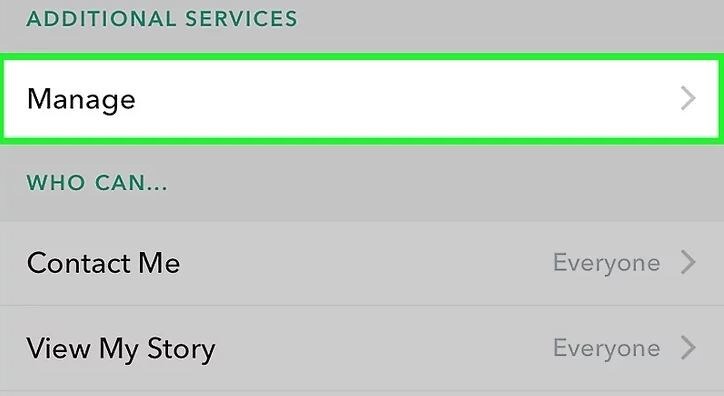
Step 5: Locate the “Filters” option and toggle the switch to turn it on. When the switch turns green, you’ll know that Snapchat video call filters are now enabled and ready to use.
This process works the same way on both iPhone and Android devices, and it only takes a minute to set up. Once you’ve enabled filters, you’re all set to make your video calls much more exciting!
How to Use Filters During Snapchat Video Calls
Now that you’ve enabled the feature, let’s dive into the fun part – actually using filters during your video calls. The process is surprisingly simple and intuitive, even if you’re new to Snapchat’s video calling features.
Starting Your Video Call
First things first, you need to initiate a video call with your friend or group:
- Swipe right from the camera screen to access your friends list
- Select the friend or friends you want to video call (you can have up to 15 people in a group video call)
- Tap the video camera icon to start the call

Wait for your friend to accept the call, and once they do, you’ll see their video feed on your screen.
Applying Filters During Your Call
Here’s where the magic happens – adding those creative filters to your video call:
Step 1: Once your call is connected, look at the bottom of your screen. You’ll see a carousel of available Snapchat filters right below your video preview.
Step 2: Swipe left or right through the filter options to browse all the available choices. There are usually dozens of filters to choose from, including face filters, background effects, and thematic filters based on current events or holidays.
Step 3: Tap on any filter to apply it to your video. Both you and your friend will see the filter effect in real-time. Some filters might take a moment to load if you haven’t used them before, but they typically activate very quickly.
The great thing about Snapchat video call filters is that you can change them as often as you like during the call. Just tap on a different filter, and it will immediately replace the current one. This lets you keep the conversation fresh and entertaining by switching up your look throughout the call.
Advanced Filter Techniques
For those who want to get even more creative, Snapchat allows you to combine multiple filters simultaneously. This advanced technique lets you layer effects for even more dramatic transformations:
- First, apply your primary filter as you normally would
- Then, tap and hold that filter with one finger
- While holding the first filter, use another finger to swipe through additional filters
- Tap on a second filter to apply it over the first one
This stacking technique works with many (but not all) filters and can create some truly unique and hilarious combinations. Experiment with different pairings to discover your favorite combinations!
Filme – Best Video Editor for Beginners.Explore Your Creativity, Limitless
Expanding Your Filter Options Beyond Snapchat
While Snapchat offers a great selection of filters for video calls, you might eventually find yourself wanting more variety or more sophisticated editing options. That’s where third-party video editing tools come in handy, allowing you to enhance your Snapchat videos with even more creative possibilities.
Why Consider Additional Filter Tools?
Snapchat’s built-in filters are fantastic for real-time use during video calls, but they do have some limitations. The selection changes regularly, with some filters being available only for limited times. Additionally, you can’t create custom filters for personal use within the app itself.
If you’re recording your Snapchat video calls or creating Snapchat stories with pre-recorded content, having access to a wider range of filters and editing tools can significantly enhance your final product.
Introducing Professional Video Editing Solutions
For those serious about elevating their Snapchat content, professional video editing software offers virtually unlimited possibilities. These tools typically provide:
- Thousands of additional filters and effects beyond what Snapchat offers
- More precise control over how filters are applied
- Ability to create custom filter combinations
- Advanced editing features like trimming, cropping, and adding text
- Higher quality output for sharing on other platforms
Enhancing Snapchat Videos with iMyFone Filme
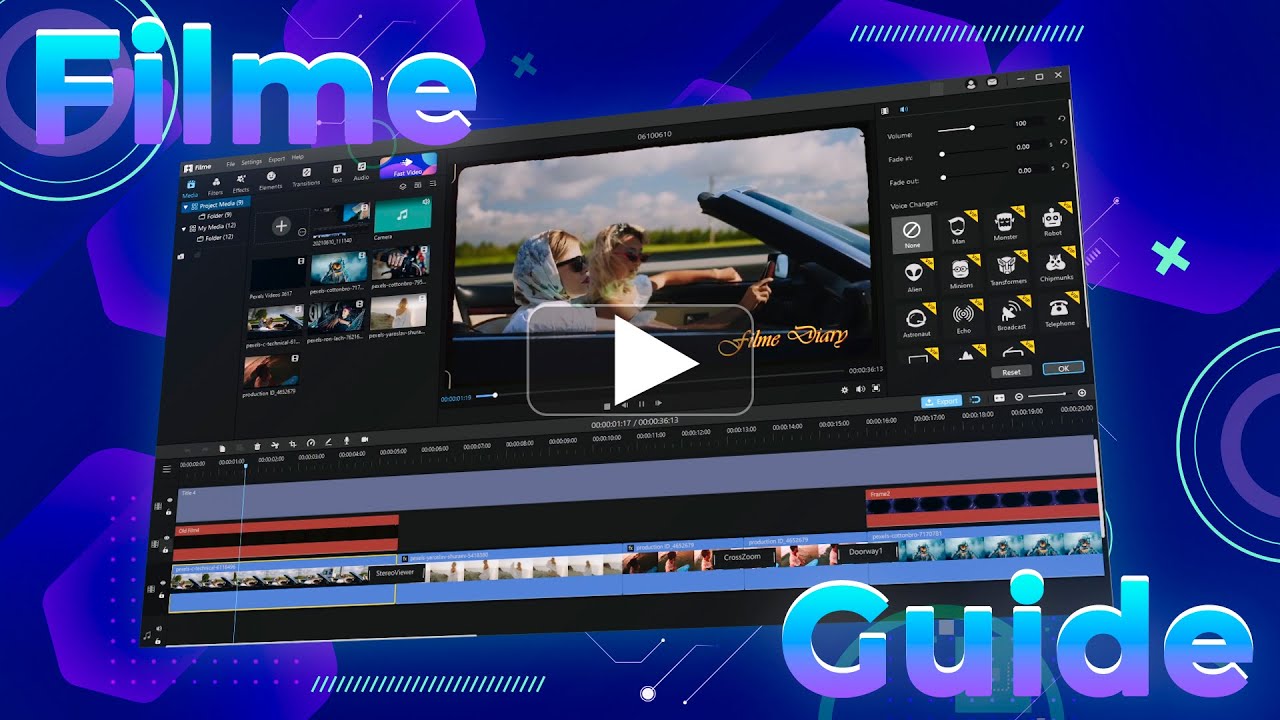
When it comes to taking your Snapchat videos to the next level, iMyFone Filme stands out as an excellent choice. This user-friendly video editor is perfect for both beginners and experienced creators who want to add professional touches to their Snapchat content.
What Makes Filme Special?
Filme is designed with simplicity in mind, making it accessible even if you’ve never used video editing software before. Despite its ease of use, it packs powerful features that can transform ordinary Snapchat videos into extraordinary content.
Some of the key advantages include:
- Intuitive interface that doesn’t require a learning curve
- One-click application of filters and effects
- Compact software size that doesn’t slow down your computer
- Immediate preview of how effects will look on your video
- Comprehensive toolkit for all basic and advanced editing needs
Key Features of iMyFone Filme
This versatile editor offers an impressive range of capabilities specifically useful for enhancing Snapchat videos:
Extensive Filter Library: Access thousands of unique filters and effects that go far beyond Snapchat’s offerings. From subtle color corrections to dramatic transformations, you’ll find plenty of options to match any mood or style.
Multi-Layer Editing: Apply multiple filters and effects simultaneously, with precise control over how they interact. This allows for creative combinations that simply aren’t possible within the Snapchat app itself.
Atmosphere Adjustment: Fine-tune the overall feel of your videos with tools that adjust lighting, color temperature, saturation, and other elements that contribute to the video’s mood.
Comprehensive Editing Toolkit: Beyond filters, Filme provides all the standard editing features you’d expect, including trimming, cropping, rotating, splitting, and merging video clips.
Flexible Editing Modes: Choose between different interface modes depending on your experience level and the complexity of your project.
Audio Control: Separate audio from video tracks and adjust them independently, add background music, or incorporate sound effects.
Speed Adjustment: Create slow-motion or time-lapse effects by adjusting the playback speed of your video clips.
Rapid Editing Mode: Quickly put together polished videos using templates and automated editing features.
Slideshow Creation: Compile multiple photos and video clips into engaging slideshows with smooth transitions.
Text and Title Integration: Add captions, titles, and other text elements with a variety of fonts and animation options.
How to Apply Filters to Snapchat Videos Using Filme
Using Filme to enhance your Snapchat videos is a straightforward process:
Step 1: Download and install iMyFone Filme on your computer, then launch the application.
Step 2: Click on the “Import Media” button and locate the Snapchat video you want to edit from your computer’s storage.
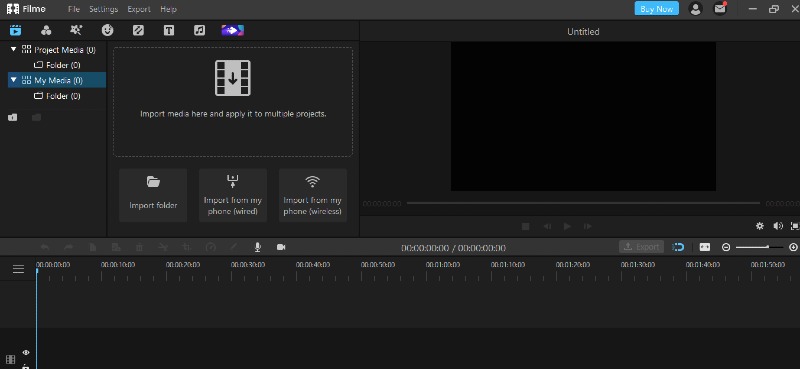
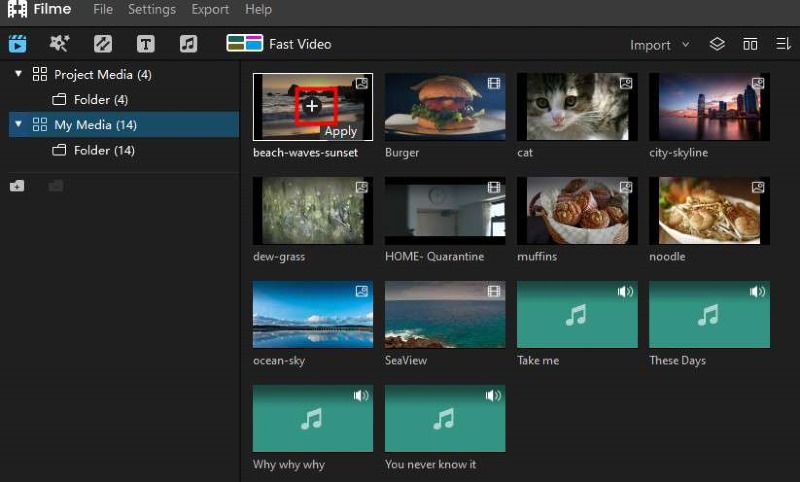
Step 3: Drag the video file to the timeline at the bottom of the screen, or click the “+” sign that appears when you hover over the video thumbnail.
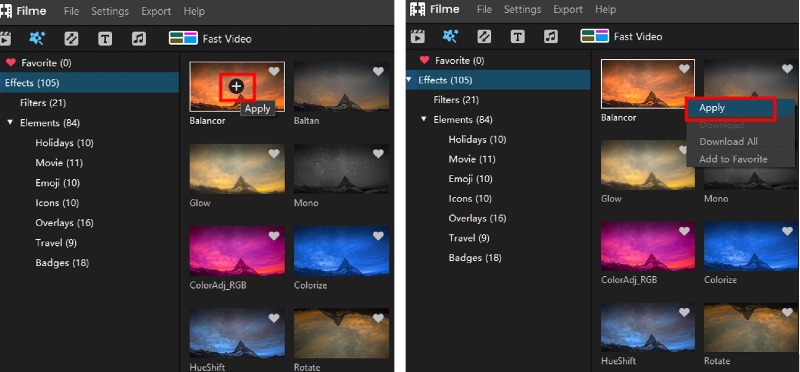
Step 4: With the video selected in the timeline, browse through the filter options in the left panel. Click on any filter to see a preview of how it will look on your video.
Step 5: When you find a filter you like, click the “Apply” button to add it to your video. You can adjust the intensity and duration of the filter effect using the controls that appear.
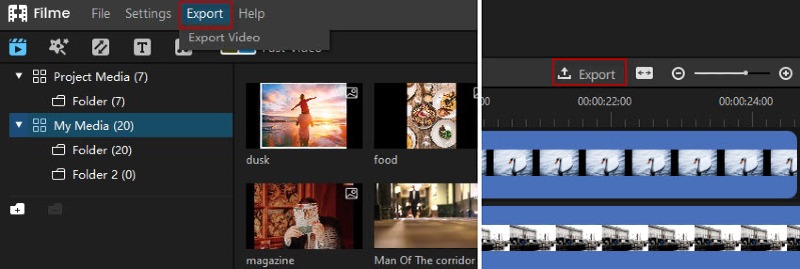
Step 6: Once you’re satisfied with your edited video, click the “Export” button in the top-right corner, choose your preferred video format and quality settings, and save the final video to your computer.
The ability to carefully select and customize filters before applying them to your Snapchat videos gives you a level of creative control that simply isn’t possible within the Snapchat app alone. Whether you’re looking to create content for social media, preserve special moments with friends, or just have fun with video editing, tools like Filme open up a world of possibilities.
Filme – Best Video Editor for Beginners.Explore Your Creativity, Limitless
Troubleshooting Common Filter Issues
Even with Snapchat’s generally reliable performance, you might occasionally encounter issues with filters during video calls. Here are some common problems and their solutions:
Filters Not Showing Up During Video Calls
If you can’t see any filter options during your Snapchat video calls, the most likely cause is that filters haven’t been properly enabled in your settings. Double-check that you’ve followed the enabling process outlined earlier in this guide.
Also, ensure that your Snapchat app is updated to the latest version, as older versions might not support all filter features. You can update the app through your device’s app store.
Filters Not Working Properly
Sometimes filters might appear but not function correctly during video calls. This can happen due to several reasons:
Poor internet connection: Snapchat filters require a stable internet connection to work properly. If your Wi-Fi or cellular data is weak, try moving to a location with better reception or connecting to a different network.
Device performance issues: If your phone is running low on storage space or memory, filters might not work smoothly. Try closing other apps running in the background to free up resources.
App glitches: Occasionally, the Snapchat app itself might have temporary issues. Try force-closing the app and restarting it, or restarting your phone entirely.
Limited Filter Selection
You might notice that some filters you’ve seen elsewhere aren’t available during your video calls. This is normal – Snapchat frequently rotates its filter offerings, with many filters being available only for limited times or in specific regions.
Additionally, some special filters require certain conditions to activate, such as facing the camera directly, having adequate lighting, or detecting specific facial features. Make sure you’re in a well-lit environment and facing your camera directly for the best filter detection.
Creative Ideas for Using Snapchat Video Call Filters
Now that you know how to use filters on Snapchat video calls, let’s explore some creative ways to incorporate them into your conversations:
Themed Video Calls
Coordinate with friends to use matching or complementary filters during your calls. For holidays, birthdays, or special events, choose filters that match the occasion to create a more immersive experience.
Storytelling with Filters
Use filters to enhance stories you’re telling during video calls. For example, use animal filters when talking about pets, travel-themed filters when sharing vacation stories, or weather effects when discussing the climate.
Surprise Reactions
Change filters unexpectedly to create humorous moments during conversations. A sudden transformation can lighten the mood or emphasize a point in a fun way.
Background Variety
Don’t forget about background filters that can transform your surroundings. If you’re in a messy room or a boring location, use background filters to create a more appealing visual environment for your video calls.
Filter Challenges
Create games where participants rapidly change filters or try to find the most absurd filter combinations. This can be especially entertaining during group video calls with multiple friends.
Snapchat Video Call Filter Etiquette
While filters can make video calls more enjoyable, it’s important to use them appropriately:
Know Your Audience
Consider who you’re video calling before using filters. While friends might appreciate hilarious or dramatic filters, professional contacts might prefer more subtle effects or no filters at all.
Don’t Overdo It
Using too many rapid filter changes can be distracting and might make it difficult for others to focus on the conversation. Use filters to enhance communication, not disrupt it.
Test Filters Before Important Calls
If you have an important video call where you plan to use filters, test them beforehand to make sure they work properly and look the way you expect.
Be Mindful of Filter Limitations
Some filters might not work well in certain lighting conditions or with specific facial features. If a filter isn’t working properly, it’s better to switch to a different one rather than struggle with it during your call.
The Future of Video Call Filters
As technology continues to advance, we can expect even more sophisticated filter options for video calls. Augmented reality (AR) filters that interact with your environment, AI-powered filters that can generate custom effects in real-time, and more immersive 3D filters are likely on the horizon.
Snapchat continues to be at the forefront of this innovation, regularly introducing new filter technologies and expanding what’s possible during video communication. Staying updated with the latest Snapchat features will ensure you can take full advantage of these developments as they emerge.
Frequently Asked Questions
Why can’t I use filters on my Snapchat video call?
If you’re unable to use filters during Snapchat video calls, the most common reason is that the filter feature hasn’t been enabled in your settings. Go to your profile, access settings, find “Additional Services,” tap “Manage,” and make sure the filter toggle is switched on.
Another possibility is internet connection issues. Snapchat filters require a stable internet connection to load and function properly. Check your Wi-Fi or cellular data connection if filters aren’t working.
Can I use Snapchat filters without creating an account?
No, Snapchat requires users to create an account and log in to access filters and most other features. The platform doesn’t offer guest access or limited functionality for non-users.
If you want to experiment with similar filter effects without creating a Snapchat account, consider using alternative apps or video editing software that offer filter features without mandatory account creation.
Do Snapchat video call filters work in group calls?
Yes, Snapchat video call filters work in both one-on-one calls and group video calls with up to 15 participants. Each participant can apply their own individual filters during the call.
Are there filters that work on both participants during a video call?
While each participant controls their own filters, some interactive filters are designed to create coordinated effects between call participants. These special filters might create shared backgrounds, complementary visual elements, or synchronized animations that appear on both sides of the call.
Why do some filters not work during video calls?
Certain filters require specific conditions to function properly. These might include:
- Adequate lighting for face detection filters
- Front-facing camera usage for filters that track facial movements
- Specific device capabilities that older phones might not support
- Regional restrictions that limit filter availability in certain locations
Can I create custom filters for Snapchat video calls?
While Snapchat doesn’t allow users to create custom filters for personal video calls through the standard app, businesses and organizations can create sponsored filters for specific locations or events through Snapchat’s filter creation platform.
For personal use, you’re limited to the filters available in Snapchat’s rotating collection, though third-party editing tools like Filme offer more customization options for recorded videos.
Conclusion
Using filters on Snapchat video calls is not only possible but also incredibly simple once you know how to enable and access them. These creative tools can transform ordinary video conversations into entertaining, engaging experiences that showcase your personality and creativity.
Whether you’re using Snapchat’s built-in filters during live video calls or enhancing your recorded Snapchat videos with third-party editing tools, the possibilities for creative expression are virtually endless. From subtle enhancements to dramatic transformations, filters allow you to control how you appear and communicate through video.
Remember that the key to great filter use is balance – they should enhance your communication rather than distract from it. With the knowledge you’ve gained from this guide, you’re now equipped to make the most of Snapchat’s filter features and take your video calls to the next level.
So go ahead, enable those filters, start experimenting with different effects, and most importantly, have fun connecting with friends and family in creatively filtered ways!
Some images in this article are sourced from iMyfone.