TOOL HUNTER

If you’ve ever wanted to spice up your Discord conversations with some fun voice effects, you’ve probably heard about Voicemod. This popular voice changer lets you transform your voice in real-time, making your gaming sessions and voice chats way more entertaining. But figuring out how to connect voicemod to discord can sometimes be tricky, and you might run into situations where voicemod not working properly.
Don’t worry though – in this comprehensive guide, we’ll walk you through everything you need to know about using Voicemod with Discord. We’ll cover setup for both computers and mobile devices, troubleshoot common issues when voice mod not working on discord, and even introduce you to an amazing alternative if you’re looking for something different.
Table of Contents
- How to Connect Voicemod to Discord on Windows
- Using Voicemod with Discord on Mobile Devices
- Troubleshooting Voicemod Not Working on Discord
- Why is My Voicemod Not Working? Common Scenarios
- MagicMic: The Ultimate Voicemod Alternative
- Preventing Voicemod Issues Before They Happen
- Advanced Voicemod Tips and Tricks
- When to Consider Switching to an Alternative
- Conclusion
How to Connect Voicemod to Discord on Windows
Setting up Voicemod with Discord on your Windows computer is pretty straightforward once you know the steps. Many people think it’s complicated, but it’s actually quite simple. The key is making sure both programs are configured correctly to work together.
Downloading and Installing Voicemod
The first step in learning how to connect voicemod to discord is getting the software installed properly. Head over to the official Voicemod website and look for the “Download for Free” button. When you click it, you’ll be asked to sign in using your Discord, Twitch, or Google account. This is normal – Voicemod uses this to manage your free license.
Once you’re logged in, the download should start automatically. The file will be a standard .exe installer that you can run to set up Voicemod on your computer. Follow the installation prompts, and within a few minutes, you’ll have Voicemod ready to go.
Configuring Your Audio Settings
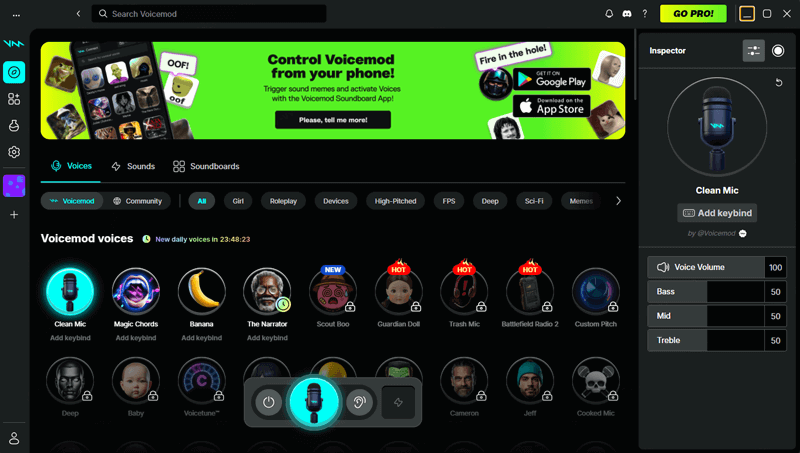
After installation, open Voicemod and you’ll see the main interface. This is where you’ll select your microphone as the input device. Make sure to choose the actual microphone you’re using, not the Voicemod virtual device at this point. You can test your voice to make sure everything is working properly and hear how you sound through your headphones or speakers.
Exploring Voice Filters
One of the most fun parts of Voicemod is browsing through all the different voice filters. You’ll find everything from robot voices to alien sounds, deep demon voices to high-pitched chipmunk effects. The free version gives you access to a rotating selection of voices that changes daily, while the Pro version unlocks everything permanently.
Take some time to play around with different effects and find ones you like. You can even create custom voice settings if you want to get really creative with your sound.
Connecting Voicemod to Discord
Now for the most important part – actually connecting Voicemod to Discord. This is where some people get confused, but it’s really simple once you know where to look.
Open Discord and click on the settings gear icon near your username at the bottom left. In the settings menu, select “Voice & Video” from the left sidebar. Look for the “Input Device” option – this is crucial. Instead of leaving it on “Default” or selecting your actual microphone, you need to choose “Microphone (Voicemod Virtual Audio Device)” from the dropdown menu.

This tells Discord to use Voicemod as your microphone input rather than your physical microphone directly. Once you’ve made this change, you’re all set! Join a voice channel and test it out – your voice should now be coming through with whatever Voicemod effect you have selected.
Using Voicemod with Discord on Mobile Devices
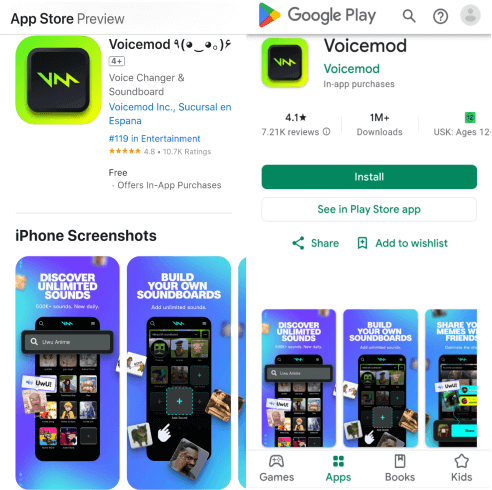
Did you know you can also use Voicemod on your smartphone? The mobile app works with both iOS and Android devices and can integrate with Discord mobile too. While the mobile version has fewer features than the desktop version (offering about 10 voice filters), it’s still great for on-the-go voice changing.
Downloading Voicemod Mobile
Head to the App Store (for iPhone users) or Google Play Store (for Android users) and search for “Voicemod.” Download and install the app just like you would any other mobile application.
Setting Up the Mobile App
Once installed, open Voicemod and go through the initial setup process. You’ll need to grant microphone permissions when prompted – this is essential for the app to work. The interface is pretty intuitive, with your available voice filters displayed prominently for easy access.
Configuring Discord Mobile Settings
Now open the Discord app on your phone and tap on your profile picture in the bottom right corner to access settings. Scroll down to “Voice & Video” settings – this might be under an “App Settings” section depending on your Discord version.
In the input settings, select “Voicemod” as your microphone input. The exact wording might vary slightly, but look for something referencing Voicemod or voice changing.

Testing Your Setup
Join a voice channel and start talking! You should hear your voice with the selected Voicemod effect applied. The mobile integration isn’t quite as seamless as the desktop version, but it works well for casual use when you’re away from your computer.
Troubleshooting Voicemod Not Working on Discord
Sometimes, despite your best efforts, you might encounter situations where voicemod not working as expected. This can be frustrating, but most issues have simple solutions. Let’s look at some common problems and how to fix them.
Restart Your Computer
It might sound cliché, but restarting your computer genuinely solves a lot of technical issues. When voicemod not working properly, a simple restart can resolve conflicts with other applications, clear temporary glitches, and reset audio drivers that might be causing problems.
If you’re wondering why is voicemod not working after it was fine yesterday, a restart should be your first troubleshooting step. It’s quick, easy, and surprisingly effective.
Check Your Microphone Settings
Another common reason for voice mod not working on discord is incorrect microphone configuration. If Voicemod can’t access your microphone properly, it obviously won’t be able to modify your voice.
On Windows, go to Settings > System > Sound and check your microphone under input devices. Use the “Test microphone” feature to make sure Windows can hear you properly. If there’s an issue here, fix it before worrying about Voicemod specifically.
Verify Discord Settings
If you’re specifically dealing with voicemod not working on discord, the problem might actually be in Discord’s settings rather than Voicemod itself. Go back to Discord’s Voice & Video settings and double-check that “Microphone (Voicemod Virtual Audio Device)” is still selected as your input device.
Sometimes Discord updates can reset this to default, or you might have accidentally changed it while adjusting other settings. This is one of the most common reasons why is my voicemod not working in Discord specifically.
Reinstall Both Applications
If you’re still dealing with voicemod not working after trying the above steps, a clean reinstall might be necessary. Uninstall both Voicemod and Discord, then download and install the latest versions of both.
This ensures you have the most current files and that any corrupted data from previous installations is completely removed. When you reinstall, set everything up fresh rather than restoring old settings.
Why is My Voicemod Not Working? Common Scenarios
Sometimes understanding exactly why is voicemod not working requires looking at specific symptoms. Here are some common scenarios and their solutions:
No Voice Effects in Discord
If people in Discord can hear you, but without any voice effects, this usually means Discord isn’t using Voicemod as the input device. Double-check that you’ve selected the Voicemod virtual audio device in Discord’s settings rather than your physical microphone.
Voicemod Crashes or Freezes
If Voicemod itself is crashing or freezing, this could be due to conflicts with other audio software or outdated drivers. Try closing other audio applications and updating your sound card drivers. If the problem persists, reinstall Voicemod.
Robot Voice or Audio Artifacts
Sometimes you might get robotic sounds, stuttering, or other audio artifacts. This is often due to sample rate conflicts. Make sure Voicemod and Discord are using the same sample rate (usually 48000 Hz works best). You can adjust this in both applications’ audio settings.
No Sound at All
If there’s complete silence when you try to use Voicemod, check that your microphone is properly connected and selected in Voicemod’s settings. Also verify that you haven’t muted yourself accidentally in either Voicemod or Discord.
MagicMic: The Ultimate Voicemod Alternative
While Voicemod is a solid voice changer, sometimes you might want something different – especially if you’re consistently dealing with voicemod not working issues. That’s where MagicMic comes in as an excellent alternative that’s actually easier to use in many ways.
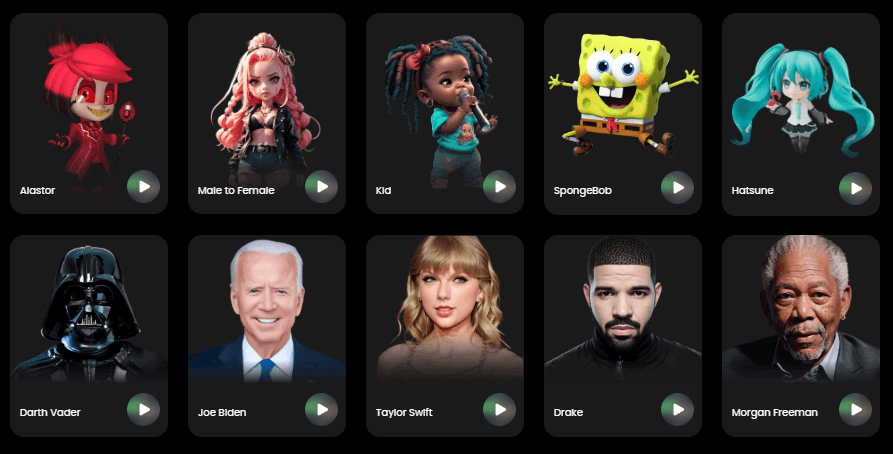
iMyFone MagicMic.Best Real Time AI Voice Changer.MagicMic is a professional real-time AI voice changer that changes your voice while communicating online. It’s easy to use, has extremely low latency, features high quality AI voices and is compatible with all systems. Discover 500+ AI voices and 100K+ meme soundboards with MagicMic today!
Check More Details | Download Now! | Check All Deals
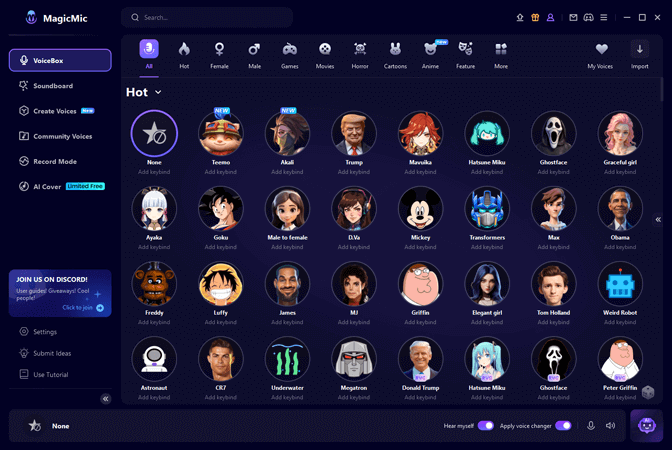
MagicMic stands out because of its massive library of voice options and sound effects. While Voicemod offers a good selection, MagicMic takes it to the next level with over 500 AI voices and an incredible 100,000+ soundboard options. Whether you want to sound like a specific character, creature, or even a celebrity, MagicMic likely has you covered.
Key Features of MagicMic
What really makes MagicMic special is its combination of power and ease of use. Here are some of its standout features:
Real-time voice changing on both Windows and Mac computers, with customizable hotkeys for instant voice switching during conversations. This is perfect for streaming or gaming when you need to quickly change voices without fiddling with settings.
Compatibility with all major platforms including Discord, Skype, Zoom, and popular games like Fortnite, PUBG, CSGO, and many others. Unlike some voice changers that only work with specific applications, MagicMic integrates seamlessly with virtually everything.
An enormous collection of voice effects including male to female voice conversion, monster voices, cartoon characters, robotic effects, and much more. The variety significantly exceeds what’s available in Voicemod’s free version.
Hundreds of sound effects covering everything from animal noises to environmental sounds, meme audio clips, and custom creations. These are perfect for punctuating your conversations or trolling friends during gaming sessions.
Advanced voice studio features that let you create and customize your own unique voice filters. If you can’t find exactly what you’re looking for in the preset library, you can build it yourself.
An affordable pricing structure with a generous free version and reasonably priced Pro options. You can get started without spending anything and upgrade later if you need the additional features.
Using MagicMic with Discord
Setting up MagicMic with Discord follows a similar process to Voicemod, but many users find it more straightforward:
First, download and install MagicMic on your computer. The installation process is quick and simple with clear instructions.
Open Discord and navigate to the Voice & Video settings, just like you would for Voicemod. In the input device dropdown, select “Microphone (Voice Changer Virtual Audio Device)” – this is MagicMic’s virtual audio cable that routes your modified voice to Discord.
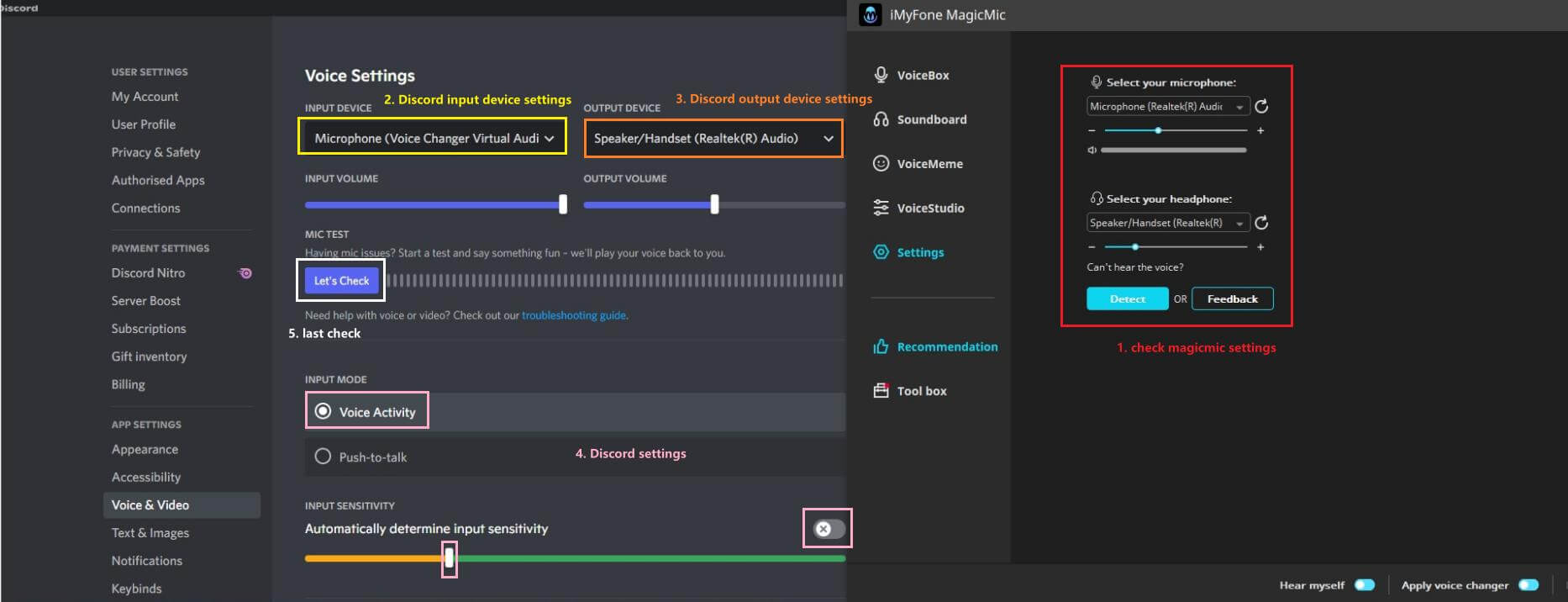
Adjust the input sensitivity slider so it shows green when you’re speaking. This ensures Discord is properly detecting your voice through MagicMic.
Now you’re ready to start using MagicMic! Select any voice effect from the library, and you’ll immediately sound different in Discord. The changes happen in real-time with virtually no delay, which is crucial for natural conversations.

Why Choose MagicMic Over Voicemod?
While both voice changers are capable, MagicMic offers several advantages that might make it a better choice for you:
The voice library is significantly larger, especially in the free version. Where Voicemod rotates a limited selection of free voices, MagicMic gives you access to hundreds of options right from the start.
The soundboard functionality is much more extensive. With over 100,000 sounds available, you’ll never run out of audio clips to enhance your conversations and gaming sessions.
Many users report better stability and fewer instances of the software crashing or disconnecting. If you’ve been frustrated with voicemod not working reliably, MagicMic might provide a more consistent experience.
The interface is generally considered more user-friendly and intuitive, especially for beginners who might find Voicemod’s layout a bit overwhelming.
The AI voice quality is often crisper and more natural-sounding, with less of the robotic artifact that sometimes occurs with voice changers.
Preventing Voicemod Issues Before They Happen
The best way to deal with voicemod not working situations is to prevent them from occurring in the first place. Here are some proactive steps you can take:
Keep both Voicemod and Discord updated to the latest versions. Developers regularly release patches that fix bugs and improve compatibility.
Before starting a gaming session or important call, do a quick audio check to make sure everything is working properly. Join a Discord channel by yourself and use the built-in voice testing feature.
Avoid changing audio settings while in the middle of a conversation. Make adjustments when you have time to test them properly rather than trying to fix issues on the fly.
If you use multiple audio applications, be aware that they can sometimes conflict with each other. Close unnecessary audio software when using Voicemod to reduce the chance of problems.
Advanced Voicemod Tips and Tricks
Once you’ve mastered the basics of how to connect voicemod to discord, you might want to explore some more advanced features:
Create custom voice shortcuts for quick switching during conversations. Voicemod allows you to assign specific voices to keyboard shortcuts so you can change your sound instantly without opening the main interface.
Experiment with layering effects for truly unique voice creations. While Voicemod doesn’t allow multiple effects simultaneously by default, you can create custom voices that combine elements of different filters.
Use the soundboard features to play audio clips during your Discord conversations. This is great for adding sound effects, music snippets, or meme audio to enhance your chats.
Explore the community voices section where other users share their custom creations. You might find some amazing voice filters that you wouldn’t have thought to create yourself.
When to Consider Switching to an Alternative
While Voicemod is a great tool, there are certain situations where you might want to consider switching to an alternative like MagicMic:
If you consistently experience voicemod not working issues despite trying all troubleshooting steps, it might be a compatibility problem with your specific hardware or software setup.
If you need more voice options than Voicemod’s free version provides but don’t want to pay for a subscription, MagicMic’s free tier offers significantly more content.
If you primarily want to use soundboards rather than voice changing, MagicMic’s massive 100,000+ soundboard library is hard to beat.
If you use both Windows and Mac computers and want a consistent experience across both platforms, MagicMic offers full compatibility while Voicemod is primarily Windows-focused.
Conclusion
Learning how to connect voicemod to discord opens up a world of creative possibilities for your online conversations. Whether you’re gaming with friends, participating in group calls, or streaming to an audience, voice changing can make everything more entertaining and engaging.
While occasional issues with voicemod not working can be frustrating, they’re usually solvable with the troubleshooting steps we’ve covered. From simple restarts to checking your Discord settings, most problems have straightforward solutions.
iMyFone MagicMic.Best Real Time AI Voice Changer.MagicMic is a professional real-time AI voice changer that changes your voice while communicating online. It’s easy to use, has extremely low latency, features high quality AI voices and is compatible with all systems. Discover 500+ AI voices and 100K+ meme soundboards with MagicMic today!
Check More Details | Download Now! | Check All Deals
If you find yourself constantly dealing with voice mod not working on discord or simply want access to more voice options and features, MagicMic presents an excellent alternative that’s worth exploring. With its massive library of voices and sound effects, user-friendly interface, and reliable performance, it might just become your new go-to voice changer.
Whether you stick with Voicemod or try MagicMic, the important thing is that you’re having fun and expressing yourself creatively in your online interactions. Voice changing technology has come a long way, and tools like these make it accessible to everyone regardless of technical expertise.
So go ahead – download your voice changer of choice, set it up with Discord, and start surprising your friends with your amazing vocal transformations!
Some images courtesy of iMyFone