TOOL HUNTER

Are you tired of hearing random sound effects while trying to chat with friends on Discord? You’re definitely not alone. Many users find the constant audio interruptions annoying, especially when they’re in the middle of an important conversation or gaming session. Learning how to mute soundboard discord can significantly improve your experience on the platform.
Whether you’re looking to mute soundboard discord for personal preference or because the sounds are disrupting your workflow, this comprehensive guide will walk you through multiple methods to achieve peace and quiet. We’ll cover everything from basic soundboard muting to completely disabling all Discord sounds, plus some bonus tips for enhancing your audio experience.
Table of Contents
- Understanding Discord Soundboards
- How to Mute Soundboard Discord Through Server Settings
- Alternative Method: How to Mute Discord Soundboard Using User Settings
- Advanced Sound Management: Fine-Tuning Your Audio Experience
- Enhancing Your Discord Experience with Voice Modification
- Troubleshooting Common Discord Sound Issues
- Mobile Discord: Managing Sounds on iOS and Android
- Creating a Balanced Audio Environment for Different Scenarios
- Frequently Asked Questions About Discord Sound Management
- Creating Your Ideal Discord Audio Experience
Understanding Discord Soundboards
Before we dive into how to disable soundboard discord, let’s first understand what exactly a Discord soundboard is and why you might want to turn it off.
Discord soundboards are essentially digital collections of audio clips that users can play during voice channel conversations. Think of them as modern-day sound effect machines that let people express reactions, emotions, or just have fun with friends using pre-recorded audio snippets. When someone uses a soundboard, everyone in the voice channel hears the selected sound effect.
The feature works similarly to Reactions and Super Reactions but with audio instead of visual elements. Users can upload their own sounds or choose from existing libraries, then trigger them with a simple click or keyboard shortcut during voice chats.
While soundboards can be entertaining in casual settings, they often become problematic in more serious environments. Gaming sessions requiring concentration, work-related discussions, or simply wanting to avoid audio clutter are all valid reasons to learn how to mute discord soundboard functionality.
How to Mute Soundboard Discord Through Server Settings
The most direct method to mute soundboard discord involves adjusting your server permissions. This approach works well if you’re a server administrator or have the necessary permissions to modify server settings.
Here’s how to disable soundboard discord using server settings:
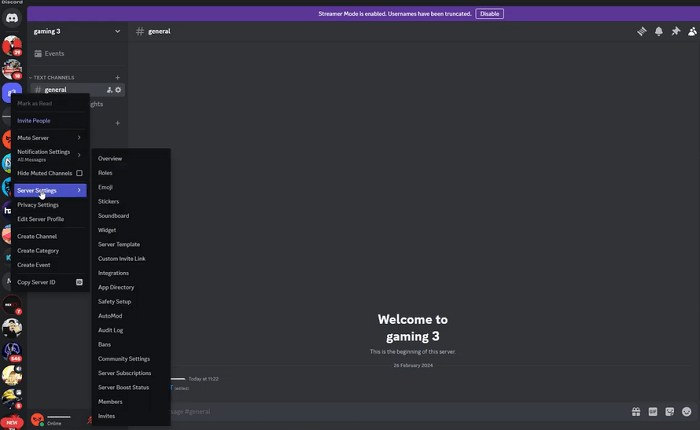
First, open Discord and navigate to the specific server where you want to mute the soundboard. Look for the server name at the top of your screen, then click on the dropdown arrow next to it. From the menu that appears, select “Server Settings.” This will open a new window with various configuration options for your server.
Once you’re in the Server Settings, you’ll see several categories on the left side of the screen. Click on “Overview” to access the general server settings. This section contains basic information about your server and some fundamental permission settings.
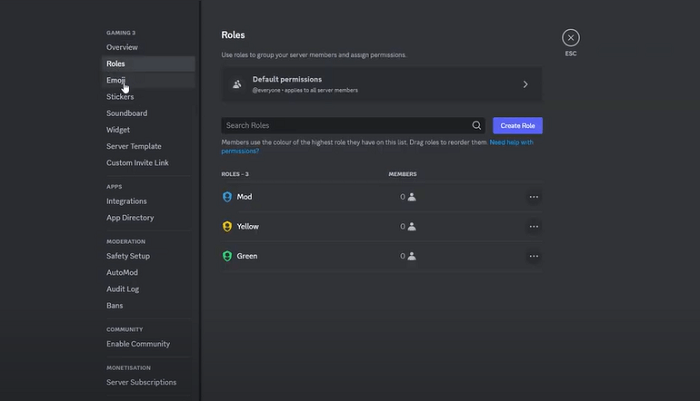
Now, navigate to the “Roles” section in the left sidebar, then select “Default Permissions.” This controls what actions all members can perform by default, unless specifically overridden by role-based permissions.
Scroll through the list of permissions until you find the “Use Soundboard” option. This permission controls whether members can access and use soundboards in voice channels. To completely mute soundboard discord for all members with the default permissions, simply toggle this option off.
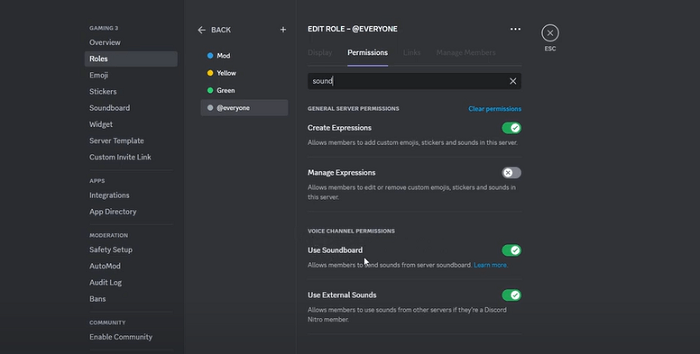
After disabling this permission, members won’t be able to use soundboards in any voice channels unless they have a specific role that grants them this permission. This method effectively allows you to mute discord soundboard usage across your entire server with just a few clicks.
Remember that these changes only affect the specific server you’re modifying. If you want to mute soundboard discord across multiple servers, you’ll need to repeat this process for each one.
Alternative Method: How to Mute Discord Soundboard Using User Settings
If you don’t have server administrator permissions or simply want to mute soundboard discord for your personal experience without affecting other users, Discord’s user settings provide another solution. This method focuses on disabling all Discord sounds, including soundboard effects, through your personal account settings.
Here’s how to mute discord soundboard using this alternative approach:
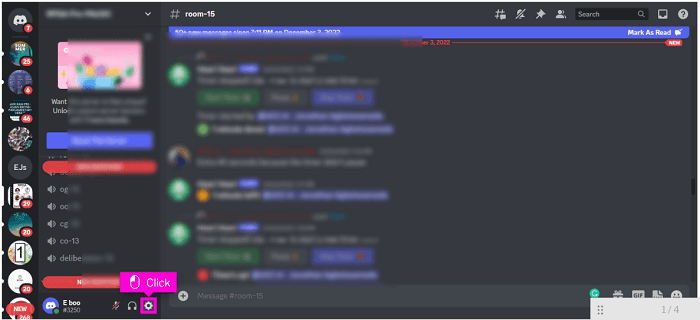
Start by launching the Discord application on your computer. Look for the gear-shaped Settings icon typically located in the bottom-left corner of the screen, near your username and avatar. Clicking this icon will open your User Settings, where you can customize various aspects of your Discord experience.
Once in User Settings, navigate to the “App Settings” section in the left sidebar, then select “Voice & Video.” This section contains all the audio-related settings for your Discord client, including input and output device selection, volume controls, and advanced audio features.

Scroll down until you find the “Sounds” subsection. Here, you’ll see several options related to Discord’s audio behavior. Look for settings labeled “Message Notifications,” “Incoming Call Sound,” and similar audio alerts. To effectively mute soundboard discord and other audio interruptions, you’ll want to disable all of these sound options.
Another effective method is to enable Streamer Mode, which automatically disables most sounds and notifications. You can find this option under the “App Settings” section labeled “Streamer Mode.” When activated, this mode optimizes your Discord experience for streaming by minimizing potential distractions, including soundboard noises.
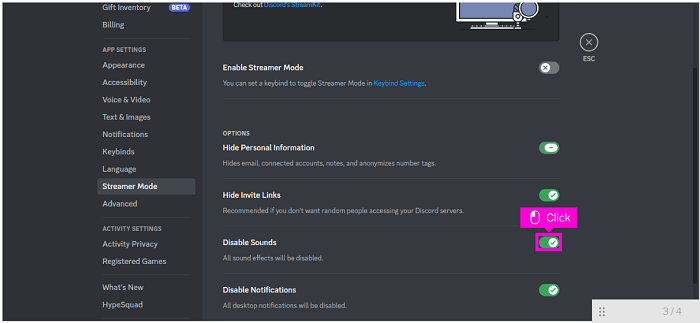
For complete audio silence, locate the “Disable All Sounds” option. This comprehensive setting will mute every audio element in Discord, including soundboard effects, notification pings, and connection sounds. Toggle this option on to create a completely silent Discord experience.
This method to mute soundboard discord is particularly useful because it works across all servers without requiring administrator permissions. However, keep in mind that it disables all Discord sounds, not just soundboards, so you might miss important audio cues like incoming call notifications.
Advanced Sound Management: Fine-Tuning Your Audio Experience
Sometimes, completely muting all sounds isn’t the ideal solution. You might want to hear some notifications while still blocking soundboard spam. Discord offers several advanced audio settings that can help you create a balanced audio environment.
Within the Voice & Video settings, explore the “Audio Subsystem” options. The standard subsystem works well for most users, but if you’re experiencing audio issues or want more control, switching to “Experimental” might provide additional configuration options.
Another useful feature is the “Attenuation” slider, which automatically lowers the volume of other applications when someone speaks in Discord. While this doesn’t directly relate to how to disable soundboard discord, it can help manage overall audio levels when soundboards are in use.
If you’re part of multiple servers with different sound preferences, consider creating server-specific sound profiles. While Discord doesn’t offer built-in profiles, you can manually adjust settings when switching between servers where you want to allow or mute soundboard discord usage.
For users who still want to hear some sounds but reduce the overall noise pollution, adjusting individual volume sliders for users who frequently abuse soundboards can be an effective compromise. Right-click on a user’s name in a voice channel and adjust their individual volume slider to minimize their soundboard impact without completely muting them.
Enhancing Your Discord Experience with Voice Modification
While learning how to mute discord soundboard is useful for reducing unwanted noise, sometimes you might want to enhance your audio experience in different ways. Voice changers can add fun and creativity to your Discord sessions without the random interruptions of soundboard spam.
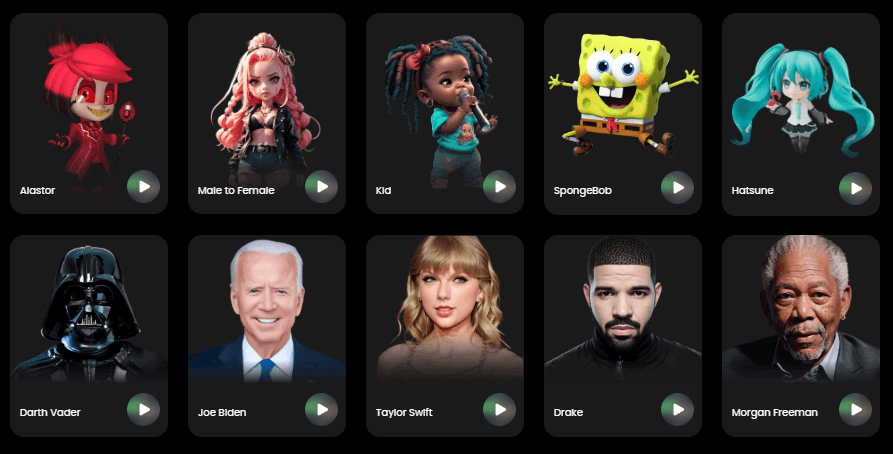
iMyFone MagicMic.Best Real Time AI Voice Changer.MagicMic is a professional real-time AI voice changer that changes your voice while communicating online. It’s easy to use, has extremely low latency, features high quality AI voices and is compatible with all systems. Discover 500+ AI voices and 100K+ meme soundboards with MagicMic today!
Check More Details | Download Now! | Check All Deals
MagicMic offers a sophisticated approach to audio customization that goes beyond simply learning how to disable soundboard discord. Instead of dealing with random sound effects from other users, you can take control of your own audio output with professional-grade voice modification.
The software integrates seamlessly with Discord and other communication platforms, allowing you to apply voice filters in real-time during conversations. Whether you want to sound like a character from your favorite game, add professional voice effects, or just have fun with friends, MagicMic provides the tools without the disruption of uncontrolled soundboard spam.
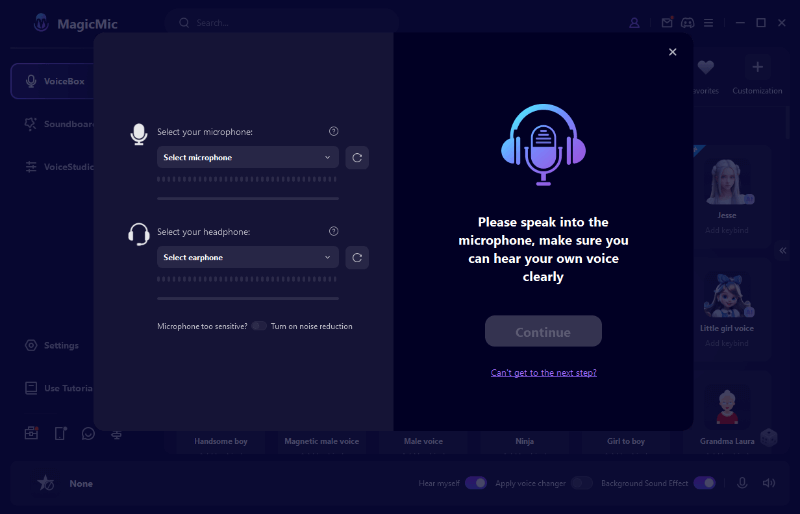
Setting up MagicMic is straightforward. After installation, you simply select your microphone as the input device and your headphones as the output device within the application. The software then processes your voice in real-time, applying your chosen effects before the audio reaches Discord or other applications.
One of the significant advantages of using a dedicated voice changer like MagicMic is that it gives you creative control without forcing your audio choices on other server members. While learning how to mute soundboard discord helps you avoid unwanted sounds, voice changers let you positively contribute to the audio environment in a controlled manner.
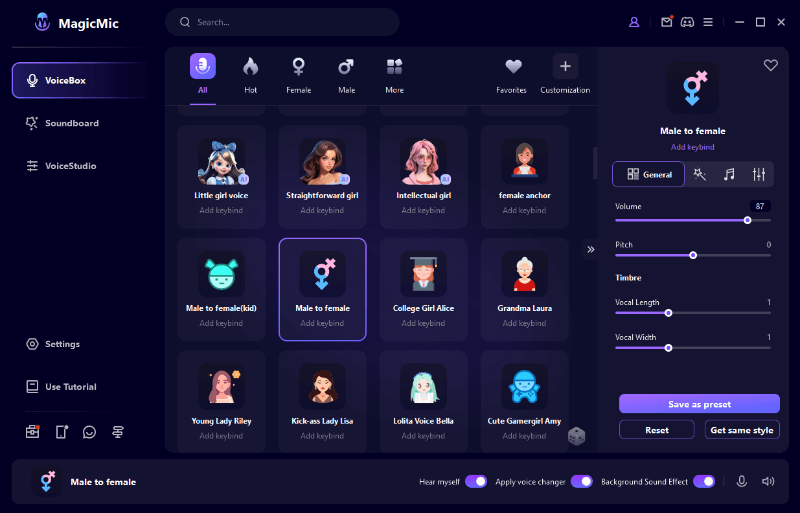
The application features an extensive library of voice filters and sound effects, organized into intuitive categories for easy navigation. From subtle voice enhancements to dramatic character transformations, the options are virtually limitless. Plus, with regular updates and new content additions, your creative possibilities continue to grow.
For users who still want occasional soundboard functionality but with more control, MagicMic offers a balanced approach. You can access sound effects when appropriate without subjecting entire voice channels to random audio interruptions, addressing the very reason many people seek to mute soundboard discord in the first place.
Troubleshooting Common Discord Sound Issues
Even after successfully learning how to mute discord soundboard, you might encounter other audio-related issues in Discord. Here are some common problems and their solutions to ensure optimal audio quality.
If you’re still hearing sounds after following the muting procedures, check your individual user volume settings. Sometimes, specific users might have their volume settings overridden, causing you to hear their audio despite server-wide muting. Right-click on the user’s name in the voice channel and ensure their volume is appropriately adjusted.
Another common issue involves keybinds conflict. Some users report that soundboard keybinds sometimes activate unexpectedly. If you’re experiencing this, try resetting your Discord keybinds or checking for conflicts with other applications running on your computer.
For persistent audio problems, consider resetting Discord’s voice settings to their defaults. This can resolve many unusual audio behaviors that might persist even after you’ve learned how to disable soundboard discord. Navigate to Voice & Video settings and look for the “Reset Voice Settings” option at the bottom of the menu.
If certain sounds still come through after you’ve muted everything, verify that you don’t have the “Use Legacy Audio Subsystem” enabled in advanced settings. This older audio system sometimes behaves differently with modern sound management features.
Mobile Discord: Managing Sounds on iOS and Android
The methods we’ve discussed primarily focus on the desktop version of Discord, but many users access the platform through mobile devices. Fortunately, you can also mute soundboard discord on mobile apps, though the process differs slightly.
On both iOS and Android, open the Discord app and navigate to the server where you want to manage sounds. Tap the server name at the top of the screen to access server options, then look for “Settings” or similar options depending on your device.
Mobile permissions work similarly to desktop, though the interface is optimized for touch screens. You can still adjust sound-related permissions, though the options might be labeled differently or located in alternative menu structures.
For personal sound management on mobile, access your User Settings by tapping your profile picture in the bottom-right corner. From there, navigate to “Notifications” and “Sounds” sections to customize which audio alerts you receive while using Discord on your mobile device.
Keep in mind that mobile sound management might have limitations compared to the desktop version. Some advanced audio features may not be available, and the process to mute discord soundboard might involve different steps or terminology.
Creating a Balanced Audio Environment for Different Scenarios
Learning how to disable soundboard discord is important, but creating the right audio environment for different situations is equally valuable. Different Discord activities call for different audio approaches.
For gaming sessions requiring concentration, consider implementing a “no soundboard” rule in your server or creating a dedicated voice channel where soundboards are prohibited. This allows users who want to focus to communicate without audio distractions while still providing options for casual conversation elsewhere.
During streaming or recording, comprehensive sound management becomes crucial. In addition to learning how to mute soundboard discord, explore Discord’s Streamer Mode, which automatically disables notifications and potentially disruptive elements when it detects you’re streaming.
For community servers with diverse member preferences, consider establishing clear soundboard usage guidelines. Designate specific channels or times when soundboards are permitted and others where they’re prohibited. This balanced approach accommodates different preferences without forcing everyone to either endure constant sound effects or completely mute discord soundboard functionality.
iMyFone MagicMic.Best Real Time AI Voice Changer.MagicMic is a professional real-time AI voice changer that changes your voice while communicating online. It’s easy to use, has extremely low latency, features high quality AI voices and is compatible with all systems. Discover 500+ AI voices and 100K+ meme soundboards with MagicMic today!
Check More Details | Download Now! | Check All Deals
Frequently Asked Questions About Discord Sound Management
How can I completely mute soundboard discord without affecting other audio?
The most effective way to mute soundboard discord specifically is through server permissions. By disabling the “Use Soundboard” permission in server settings, you prevent all soundboard usage while preserving other audio features like voice chat and notifications.
Is there a way to mute individual users’ soundboards instead of disabling them entirely?
Yes, you can adjust individual user volumes by right-clicking on their name in a voice channel and lowering their volume slider. This reduces the impact of their soundboard usage without completely muting their voice communications.
Why can I still hear some sounds after learning how to disable soundboard discord?
Some sounds might come from other sources like notification pings, incoming call sounds, or other users’ microphone inputs. For complete silence, you’ll need to disable all sounds in your User Settings or enable Streamer Mode.
Can I temporarily mute soundboard discord instead of permanently disabling it?
Absolutely. You can quickly toggle sounds on and off using the volume icon in Discord’s bottom-left corner. This provides a quick way to temporarily mute all Discord audio, including soundboards, when needed.
Does learning how to mute discord soundboard affect my ability to use other audio features?
When using server permissions to disable soundboards, your other audio capabilities remain unaffected. You can still use voice chat, hear notifications, and access all other Discord audio features. Only soundboard functionality is disabled.
Creating Your Ideal Discord Audio Experience
Mastering how to disable soundboard discord is just the beginning of creating your perfect audio environment on the platform. Whether you choose to completely mute all external sound sources or implement more nuanced audio management strategies, having control over your listening experience significantly enhances your time spent on Discord.
Remember that different situations call for different approaches. The method you use to mute soundboard discord during serious gaming sessions might differ from your preferred setup for casual chatting with friends. Don’t hesitate to experiment with different settings until you find what works best for your specific needs.
For users looking to go beyond simply muting unwanted sounds and instead enhance their audio presence, professional tools like MagicMic offer sophisticated voice modification capabilities that can make your Discord experience more enjoyable and creative. Rather than just learning how to mute discord soundboard, you can transform your audio output into something uniquely yours.
iMyFone MagicMic.Best Real Time AI Voice Changer.MagicMic is a professional real-time AI voice changer that changes your voice while communicating online. It’s easy to use, has extremely low latency, features high quality AI voices and is compatible with all systems. Discover 500+ AI voices and 100K+ meme soundboards with MagicMic today!
Check More Details | Download Now! | Check All Deals
Ultimately, whether you choose to completely mute soundboard discord or find a middle ground that allows for controlled audio expression, the most important factor is creating an environment where you can comfortably communicate and enjoy your time on Discord. With the methods and tools discussed in this guide, you’re now equipped to take full control of your Discord audio experience.
Some images courtesy of iMyFone